Tutorial 8hw: Using Third-Party HDL Primitive Cores
Overview
Note: This tutorial demonstrates the same steps as Tutorial 8: Using Third-Party HDL Primitive Cores, but it includes a hardware platform in the demonstration; in this case, the ADALM-PLUTO (plutosdr) HDL platform.
This tutorial describes how to create an HDL worker that uses HDL primitive cores imported from a third party; in this example, Vivado. It demonstrates how to design, build and test a complex mixer HDL worker (complex_mixer.hdl) for execution on a Xilinx XSIM simulator. The HDL worker is a “work-alike” to the complex mixer RCC worker discussed in Tutorial 4: Using Third-party Libraries in RCC Workers.
The tutorial shows you how to:
Set OCS and OWD properties (XML)
Convert the data port interface from interleaved to parallel (OWD)
Route data/messages through the worker “pass-through” (VHDL)
Wrap Vivado IP (third-party) cores (netlist, VHDL)
Run the OpenCPI unit test framework on multiple platforms (XML, Python)
A third-party core is an HDL primitive core that is not included in the OpenCPI framework. These cores allow you to implement functions that you couldn’t do otherwise and are optimized for the technology so that they make best use of the available resources. In this tutorial, Vivado is the third-party core that we are using.
What’s Provided for This Tutorial
In this tutorial, you will re-use the complex_mixer.test/ directory that you implemented in Tutorial 4: Using Third-party Libraries in RCC Workers. Remember that there is one <component>.test/ directory per component specification.
The OpenCPI built-in tutorial project ocpi.tutorial provides the following items for this tutorial:
The complex_mixer HDL worker VHDL source code annotated with information on how it is designed, located in projects/tutorial/components/complex_mixer.hdl/ complex_mixer.vhd
The following third-party core files (Vivado IP output files) located in /projects/tutorial/components/complex_mixer.hdl/:
complex_multiplier[_stub.vhd|.edf] and dds_compiler[_stub.vhd|.edf]
complex_multiplier_sim_net.vhd and dds_compiler_sim_net.vhd
The tutorial also provides the XML source for all of the assets used to build and run the example component, worker and tests described in this tutorial.
Instructions for copying these items from the ocpi.tutorial project into the “demo” tutorial project are provided in the relevant sections of this document. The source code for these items is also available as text in the relevant sections of this document that you can copy and paste into the relevant files following the instructions given in the section.
Note: when copying and pasting text from this document, be sure to remove any line breaks in code or command lines. The backslash character (\) is used in command lines (where feasible) to indicate a line break.
This tutorial uses Vivado IP cores. Information on how to generate these cores and their usage within OpenCPI can be found in sections 5-7 of the Vivado Usage Notes.
Prerequisites to Using This Tutorial
This tutorial (Tutorial 8hw) has the same system prerequisites as Tutorial 1: Component-based Development. See Prerequisites to Using This Tutorial for details. In addition to these requirements, this tutorial uses the plutosdr platform, and so the corresponding OSP should be downloaded and installed. See Installation Steps for Platforms in the OpenCPI Installation Guide.
Before you begin this tutorial, you should have successfully completed Tutorials 1 through 7.
We recommend reading the following briefings before getting started:
Documentation References
The documents listed in the following table provide detailed information about subjects discussed in this tutorial. The documents listed here are not required reading for this tutorial but will likely be of interest for more in-depth learning.
Create New Project
As we did in Tutorial 4: Using Third-party Libraries in RCC Workers, we’ll create a new, clean project for Tutorial 8; we’ll call it DemoProject8. This project has the same requirements as the project we created for Tutorials 3 and 4.
To create the DemoProject8 project with ocpidev, use the command:
ocpidev create project DemoProject8 --register -D ocpi.assets -D ocpi.tutorial
Open the Project.xml file with a text editor and add the following two lines after the ProjectDependencies attribute:
HdlLibraries='prims'
ComponentLibraries='util_comps'
Now save and close the file.
Create Component Library
We can use the top-level components/ directory as our library like we did in Tutorial 4: Using Third-party Libraries in RCC Workers.
To create the components library with ocpidev, run the following command in the DemoProject8/ directory:
ocpidev create library components
Create Component
Like we did in Tutorial 4: Using Third-party Libraries in RCC Workers, we need to create the OCS (OpenCPI Component Specification) for our complex mixer function that defines its properties and ports.
Create Component Spec
As we did in Tutorial 4: Using Third-party Libraries in RCC Workers, we’ll create the complex mixer component spec in the components library.
To create the component spec with ocpidev, run the following command from the DemoProject8/components/ directory:
ocpidev create component complex_mixer
The command creates the component spec complex_mixer-comp.xml in components/complex_mixer.comp/. We’ll add properties and ports to the component spec in the next step.
Add Properties and Ports
The complex_mixer component function needs to define two properties:
The phs_inc (“phase increment”) property, which stores the results of the computation (that is, setting the tune frequency for the input signal using the output of the internal NCO). This property is valid for both RCC and HDL component implementations.
The enable property, which controls whether a worker implementation performs the computation on the incoming data or simply passes the incoming data through without any processing (“bypass” mode). This property is valid for both RCC and HDL component implementations.
We want to set default values for the phs_inc and enable properties in the component spec and allow the worker implementation to override these values. We’ll use the default attribute in our property definitions to specify the default values and use the writeable attribute to indicate that the worker can override them. You can read more about how the framework interprets these attributes in the OpenCPI Component Development Guide.
The complex_mixer component has the same simple port configuration as the peak_detector component and uses the same OPS. It requires one input port and one output port for communication with other components in an application and both ports will use the iqstream protocol.
To add properties and ports from the command line, open the spec with a text editor and add the following XML code between the ComponentSpec elements:
<ComponentSpec>
   <Property Name="enable" Type="bool" Writable="true" Default="true"/>
   <Property Name="phs_inc" Type="short" Writable="true" Default="-8192"/>
   <Port Name="in" Protocol="iqstream_protocol"/>
   <Port Name="out" Protocol="iqstream_protocol" Producer="true"/>
</ComponentSpec>
Create Worker
To create the worker using the ocpidev, run the following command in the DemoProject8/components/ directory:
ocpidev create worker complex_mixer.hdl -S complex_mixer
Now examine the auto-generated directories and files:
components/complex_mixer.hdl/ - Worker directory with authoring model suffix (.hdl)
components/complex_mixer.hdl/complex_mixer-hdl.xml - OWD XML file
components/complex_mixer.hdl/complex_mixer.vhd - VHDL (architecture) skeleton file
components/complex_mixer.hdl/gen/ - OpenCPI worker build artifacts (complex_mixer-impl.vhd contains the entity)
Edit Worker OWD
Now we’ll add the worker properties to the skeleton worker OWD.
Add data_select Property
First, reference the “Worker Properties” table in the complex mixer component data sheet. The worker has the data_select property, which selects the data to output in bypass mode (input or NCO). The default value for this property is 0 (false).
Ensure that all attributes and default values are set for each property/parameter according to the component’s data sheet.
To add the properties from the command line, open complex_mixer-hdl.xml with a text editor.
Now add the properties and parameters according to the data sheet.
Next, add the data_select property:
<HdlWorker language='vhdl' spec='complex_mixer' Version="2">
  <Property Name="data_select" Type="bool" Default="false" Writable="true" Description="In Bypass Mode: selects data to output: 0=input data, 1=output of NCO"></Property>
</HdlWorker>
Convert Data Port Interface for Parallel Transmission
By default, the iqstream_protocol is interleaved 16-bit I/Q sample data. We need to convert the data port interface from interleaved to parallel.
Determine the port configuration settings by examining the “Worker Interfaces” table in the component using the data sheet.
From the command line, open complex_mixer-hdl.xml with a text editor.
Add the port configurations shown in the “Worker Interfaces” table in the data sheet.
Now you can add StreamInterfaces for each port as shown below.
<HdlWorker language='vhdl' spec='complex_mixer' Version="2">
   <Property Name="data_select" Type="bool" Default="false" Writable="true" Description="In Bypass Mode: selects data to output: 0=input data, 1=output of NCO"></Property>
   <StreamInterface Name="in" DataWidth="32"></StreamInterface>
   <StreamInterface Name="out" DataWidth="32" InsertEOM="1"></StreamInterface>
</HdlWorker>
Expanding the data interface to 32 bit allows 16-bit I and 16-bit Q data to be transmitted simultaneously; that is, in parallel.
Build Worker
Now we’ll build the worker with the changes to the OWD for the simulator and hardware platforms.
To build the worker for xsim using ocpidev, run the following command from the DemoProject8/components/complex_mixer.hdl/ directory:
ocpidev build --hdl-platform xsim
To build the worker for plutosdr using ocpidev, run the following command from the DemoProject8/components/complex_mixer.hdl/ directory:
ocpidev build --hdl-platform plutosdr
Copy Third-Party Cores to Worker
Now we’ll copy the third-party HDL primitive core TCL scripts provided in the tutorial project into the complex_mixer.hdl/ directory in DemoProject8:
cd $OCPI_ROOT_DIR/projects/DemoProject8/components/complex_mixer.hdl/
cp -r $OCPI_ROOT_DIR/projects/tutorial/components/complex_mixer.hdl/vivado-gen-complex-multiplier.tcl .
cp -r $OCPI_ROOT_DIR/projects/tutorial/components/complex_mixer.hdl/vivado-gen-dds-compiler.tcl .
Copy VHDL Source Code
The skeleton <worker-name>-skel.vhd file is an empty architecture. The entity is generated VHDL based on the OCS and OWD and is located in gen/<worker-name>-impl.vhd. To implement the worker source code, we’ll simply copy the reference worker source code (and the worker Makefile) from the complex_mixer.hdl/ directory in the tutorial project as follows:
Replace the skeleton .vhd file with the provided .vhd. It contains descriptions of how the VHDL source code is designed:
Copy the provided Makefile. This tutorial requires this makefile in order to be run correctly; it is not a simple component and thus has not currently been converted into a make-less implementation:
cd $OCPI_ROOT_DIR/projects/DemoProject8/components/complex_mixer.hdl
cp $OCPI_ROOT_DIR/projects/tutorial/components/complex_mixer.hdl/complex_mixer.vhd complex_mixer.vhd
cp $OCPI_ROOT_DIR/projects/tutorial/components/complex_mixer.hdl/Makefile .
Now look at the VHDL source code. Starting at the top, look at the source code following the commented instructions. These lines are focused on the ports and properties added in this tutorial. Read the comments so you have an idea of how and why these things were done.
Rebuild Worker
Now we’ll build our updated complex_mixer HDL worker for the target platforms.
To build the worker for xsim with ocpidev, run the following command from the DemoProject8/components/complex_mixer.hdl/ directory:
ocpidev build --hdl-platform xsim
To build the worker for plutosdr with ocpidev, run the following command from the DemoProject8/components/complex_mixer.hdl/ directory:
ocpidev build --hdl-platform plutosdr
Review Build Log and Artifacts
The end of build log should look like the following example, if free of errors:
COMMAND RAN: ocpidev build --hdl-platform xsim

***COMPLEX_MIXER.HDL--27503D3E-015A-4975-BA54-071D9FEEBD8D***
Building the complex_mixer worker for xsim (target-xsim/complex_mixer) 0:(complex_mixer_ocpi_max_opcode_out=0
complex_mixer_ocpi_endian=little complex_mixer_ocpi_version=2 complex_mixer_ocpi_max_bytes_in=8192 complex_mixer_ocpi_max_latency_out=256 complex_mixer_ocpi_max_bytes_out=8192 complex_mixer_ocpi_max_opcode_in=0 complex_mixer_ocpi_debug=false)
Tool "xsim" for target "xsim" succeeded. 0:05.24 at 11:40:16

COMMAND RAN: ocpidev build --hdl-platform plutosdr

***COMPLEX_MIXER.HDL--0F21414A-6884-4719-95E2-4AEC5D8DB402***
Generating the definition file: gen/complex_mixer-defs.vhd
Generating the implementation header file: gen/complex_mixer-impl.vhd from complex_mixer.xml
Generating the implementation skeleton file: gen/complex_mixer-skel.vhd
Generating the VHDL constants file for config 0: target-zynq/generics.vhd
Generating the opposite language definition file: gen/complex_mixer-defs.vh
Generating the Verilog constants file for config 0: target-zynq/generics.vh
Building worker core "complex_mixer" for target "zynq" 0:(complex_mixer_ocpi_endian=little complex_mixer_ocpi_max_opcode_out=0 complex_mixer_ocpi_version=2 complex_mixer_ocpi_max_bytes_in=8192 complex_mixer_ocpi_max_latency_out=256 complex_mixer_ocpi_max_bytes_out=8192 complex_mixer_ocpi_max_opcode_in=0 complex_mixer_ocpi_debug=false) target-zynq/complex_mixer.edf
Tool "vivado" for target "zynq" succeeded. 2:36.89 at 13:10:24
Creating link to export worker binary: ../lib/hdl/zynq/complex_mixer.edf -> target-zynq/complex_mixer.edf
Observe the new artifacts directory complex_mixer.hdl/: “target-xsim/”. This directory contains output files from their respective FPGA vendor tools (in this case, simply Xilinx Vivado) in addition to a framework auto-generated file named generics.vhd that contains parameter configuration settings of the HDL worker for the particular “target-“.
There also is a new directory “target-zynq”. This directory contains the generated files for the zynq target, in our case, the plutosdr platform.
Create Unit Test
For this tutorial, we will copy the reference component unit test suite (aka “unit test”) contents from the tutorial project under $OCPI_ROOT_DIR/projects/tutorial/components/complex_mixer.test/.
First, we’ll create our complex_mixer unit test.
To create the unit test with ocpidev, run the following command from the DemoProject8/components/ directory:
ocpidev create test complex_mixer
When “bypass” is enabled, “data_select” routes either the input data or NCO output to the output data port.
Next, run the following commands to copy the contents of the tutorial project’s unit test directory to our DemoProject8 unit test directory and then delete the redundant OTSD XML file complex_mixer-test.xml:
cd $OCPI_ROOT_DIR/<your-top-level-projects-dir>/DemoProject8/components/complex_mixer.test
cp $OCPI_ROOT_DIR/projects/tutorial/components/complex_mixer.test/* .
Finally, change the permissions of the copied files as shown below.
$ chmod 777 generate.py
$ chmod 777 verify.py
$ chmod 777 view.sh
Recall from previous tutorials that the create test step creates an OpenCPI Test Suite Description (OTSD) XML file complex_mixer-test.xml in the complex_mixer.test/ directory. We overwrote this with the copy, but we still need to change this XML file to add the OWD data_select property. Open the unit test description file complex_mixer-test.xml with a text editor and change it to include all of the content shown below:
<Tests UseHDLFileIo='true'>
   <Input Port='in' Script='generate.py 100 12.5 32767 16384'></Input>
   <Output Port='out' Script='verify.py 100 16384' View='view.sh'></Output>
   <Property Name='phs_inc' Values='8192'></Property>
   <Property Name='enable' Values='0,1'></Property>
   <Property Name='data_select' Values='0,1'></Property>
</Tests>
Build Unit Test
First, we’ll build the unit test for the target platforms.
To build the unit test with ocpidev, run the following command from the DemoProject8/components/complex_mixer.test/ directory:
ocpidev build --hdl-platform xsim --hdl-platform plutosdr
Review OCS and Build Artifacts
Next, we’ll review the artifacts generated by the unit test build process.
First, observe the new artifacts in complex_mixer.test/gen/:
cases.txt - “human-readable” file that lists various test configurations.
cases.xml - used by the framework to execute tests.
cases.xml.deps - list of dependent files.
applications/ - OpenCPI Application Specification (OAS) files and scripts used by the framework to execute applications.
assemblies/ - used by the framework to build bitstreams.
Now observe the new artifacts in complex_mixer.test/gen/assemblies/complex_mixer_0_frw_0/:
complex_mixer_0_frw_0.xml - generated OpenCPI HDL Assembly Description (OHAD).
gen/ - artifacts generated/used by the framework.
lib/ - artifacts generated/used by the framework.
target-xsim/ and target-zynq/ - artifacts generated/used by the framework and FPGA tools.
container-complex_mixer_0_frw_0_xsim_base/:
gen/ - artifacts generated/used by the framework target-xsim/:
Artifacts generated/used by the framework and output files from FPGA tools
Execution file for execution on the xsim platform
container-complex_mixer_0_frw_0_plutosdr_base/:
gen/ - artifacts generated/used by the framework target-zynq/:
Artifacts generated/used by the framework and output files from FPGA tools
Execution file for execution on the plutosdr platform
Run Unit Test (XSIM)
In this step, we’ll run the unit test for the target simulation platform, which is the xsim HDL platform for this tutorial.
First import the necessary prerequisites to the opencpi venv. (This only needs to be done once.)
$OCPI_ROOT_DIR/tools/.venv/bin/python -m pip install matplotlib
To run the unit test using the ocpidev command, execute the following command within the complex_mixer.test/ directory:
ocpidev run --phase prep,run,verify --only-platform xsim --keep-simulations --view
Examine I/O Test Plots
The following table shows the test case variables.
Test Case Variables
case00.00 |
0 |
0 |
input signal |
case00.01 |
0 |
1 |
NCO signal |
case00.02 |
1 |
0 |
input signal |
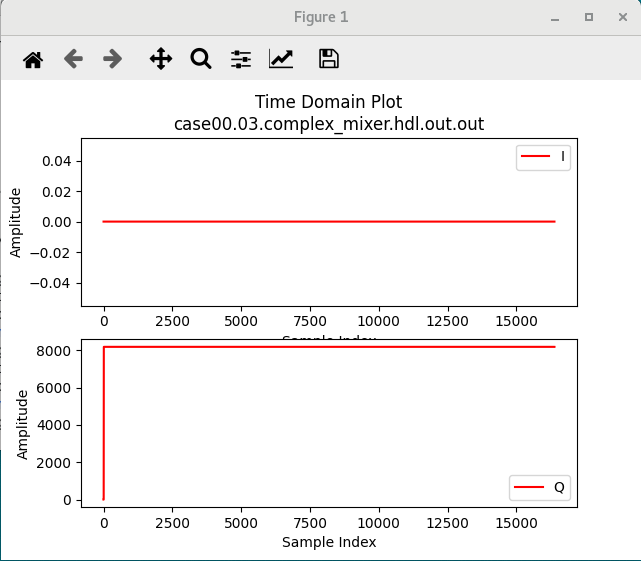
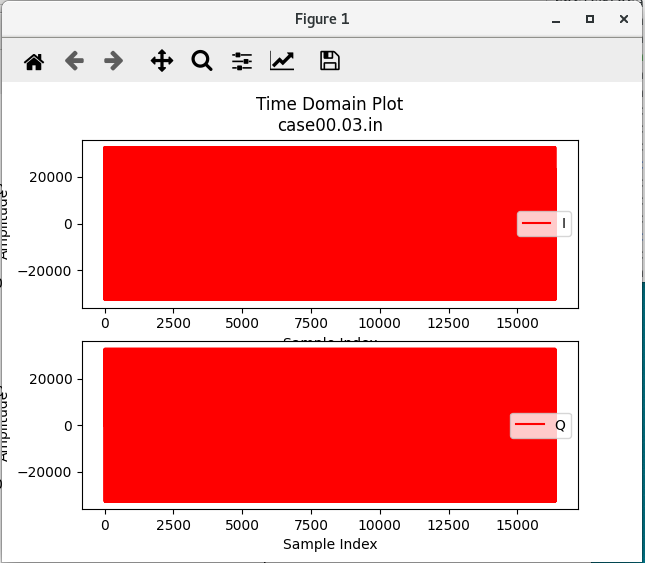
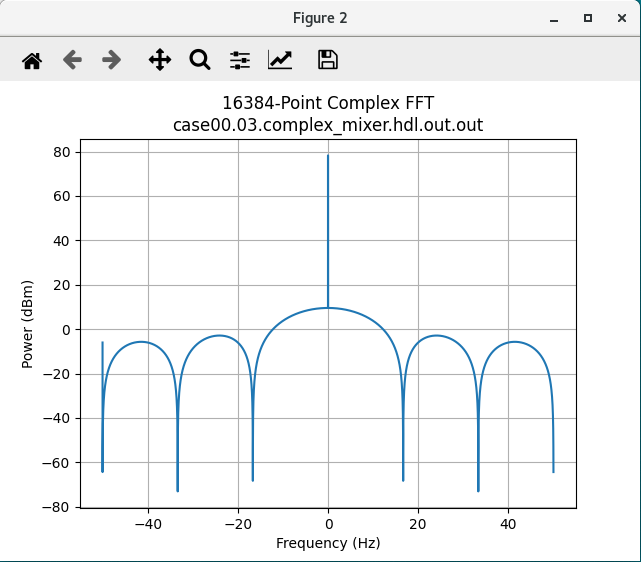
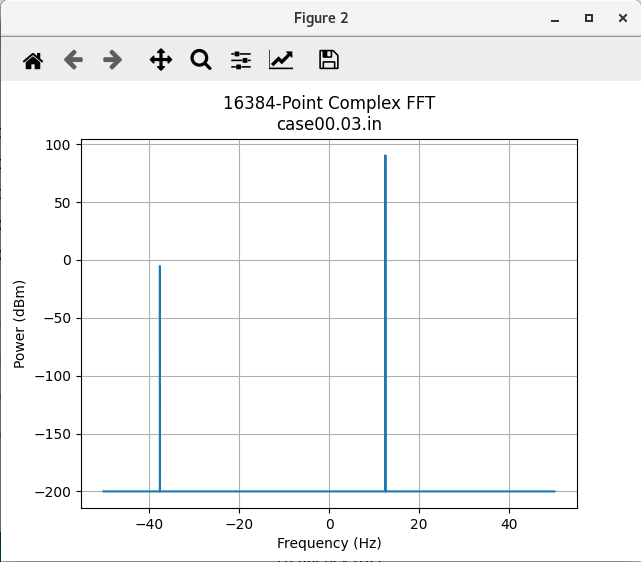
case00.03 |
1 |
1 |
input signal |
Here are the I/O test plots:
Case00.00 ( enable = 0, data_select = 0)
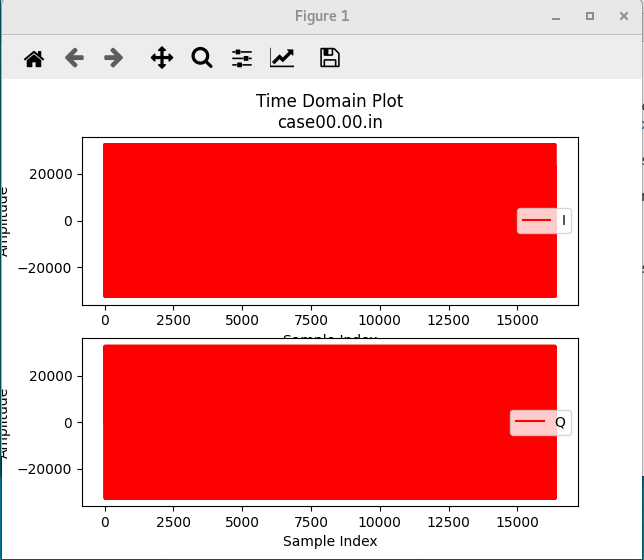
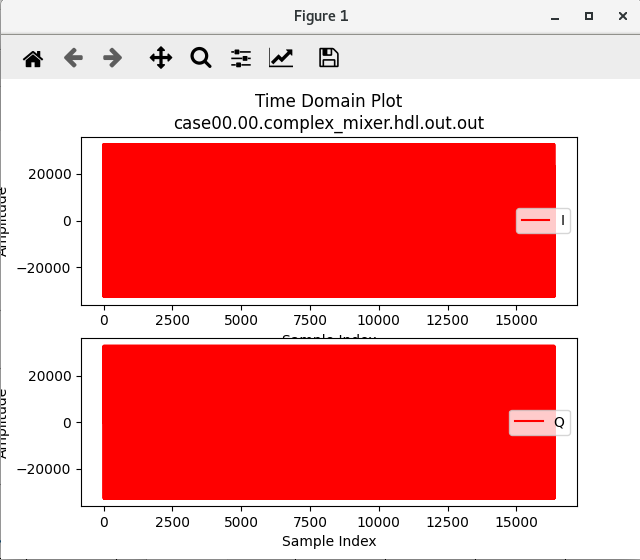
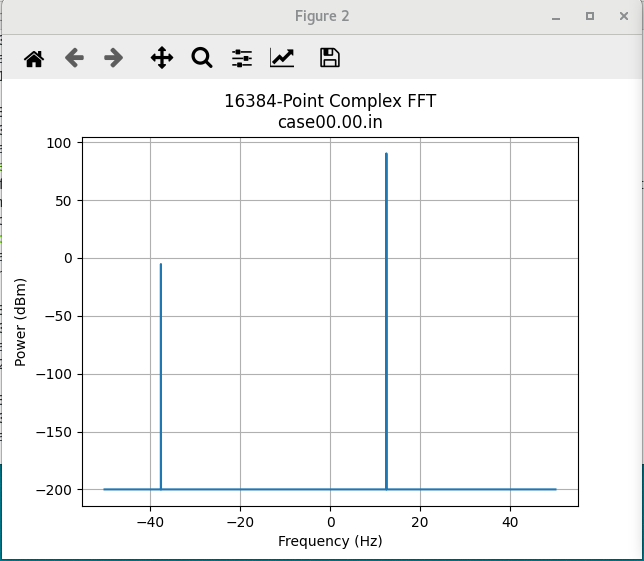
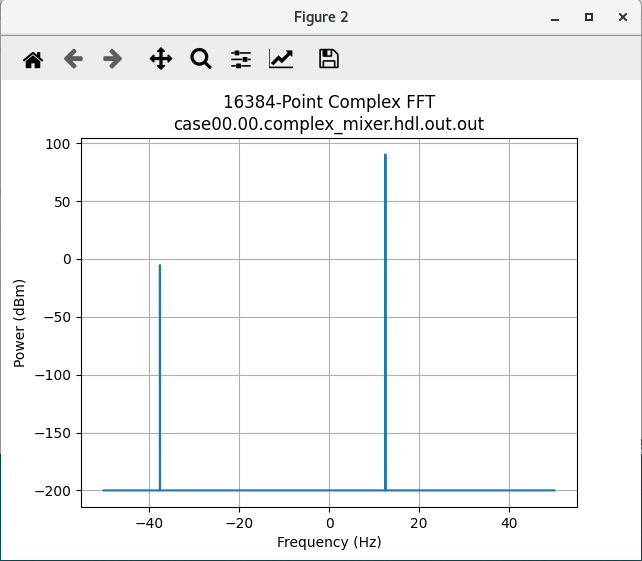
Input signal is passed through with no conversion.
Case00.01 (enable = 0, data_select = 1)
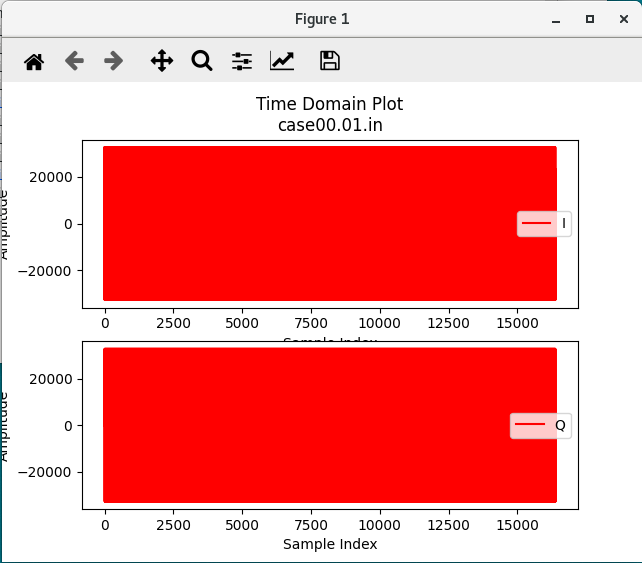
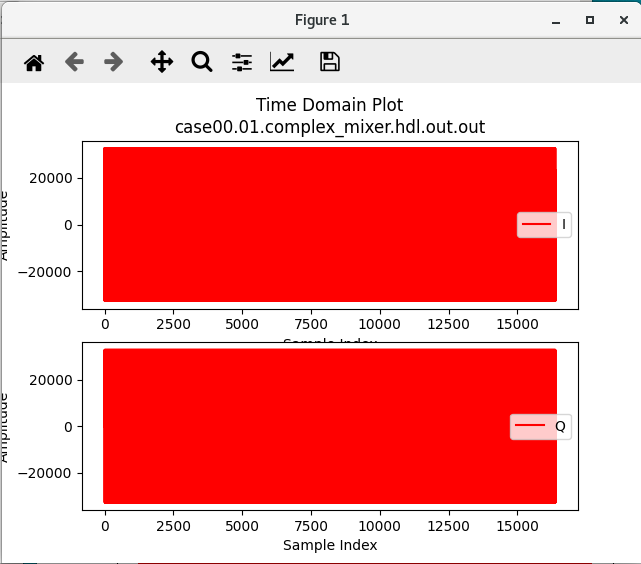
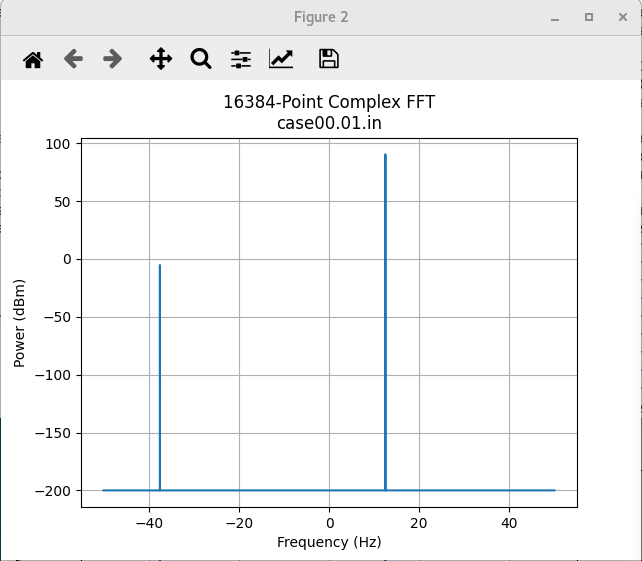
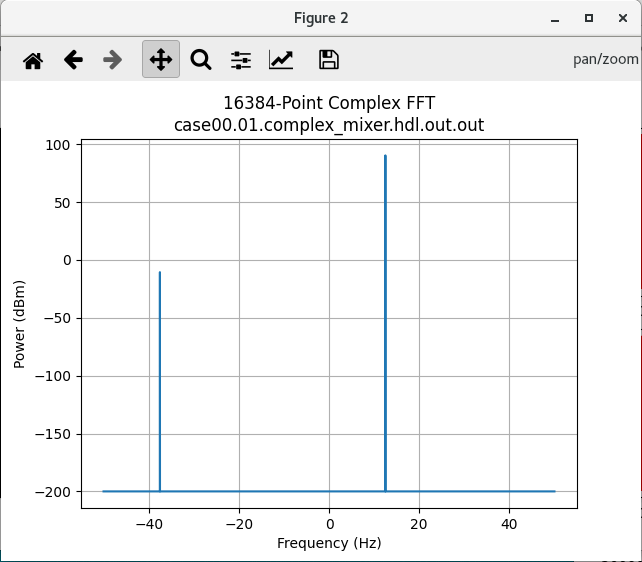
NCO signal is passed to output.
Case00.02 (enable = 1, data_select = 0)
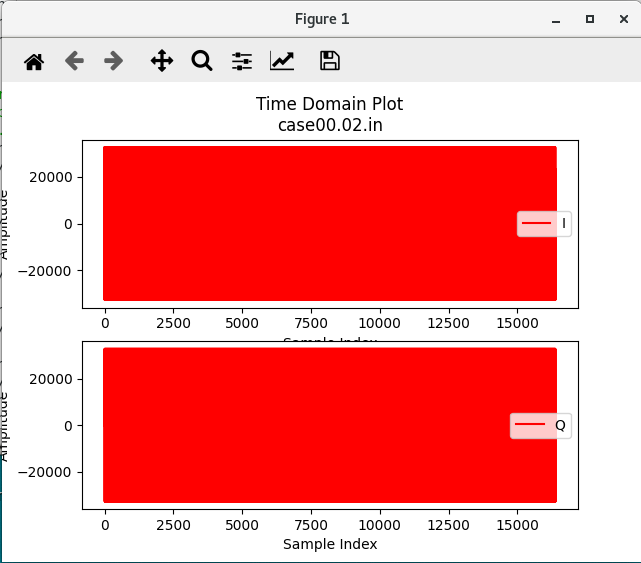
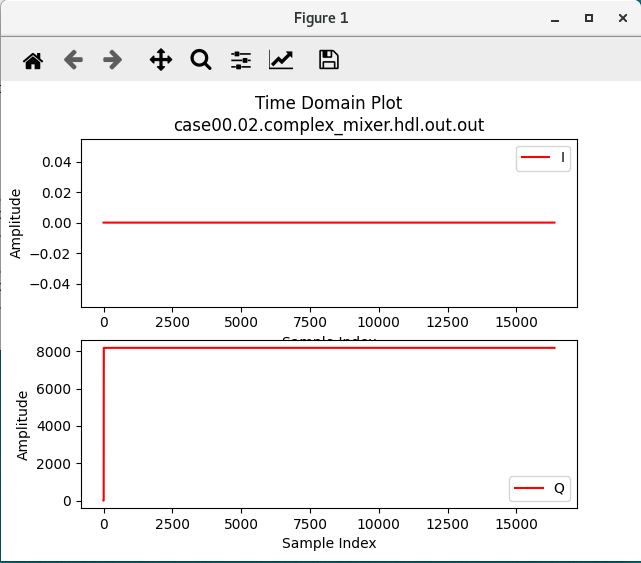
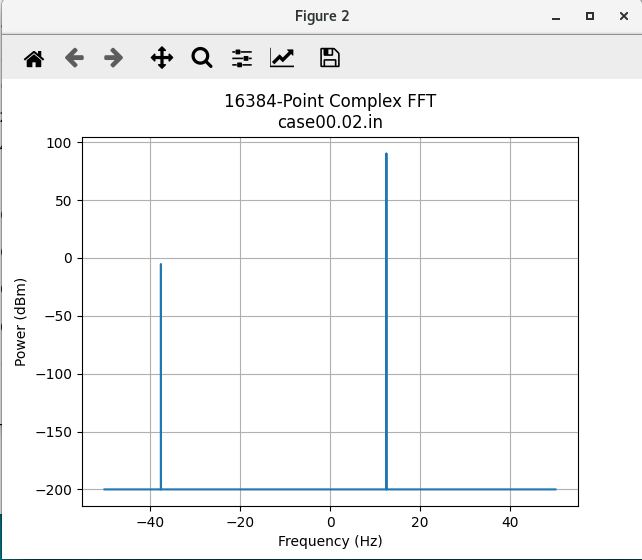
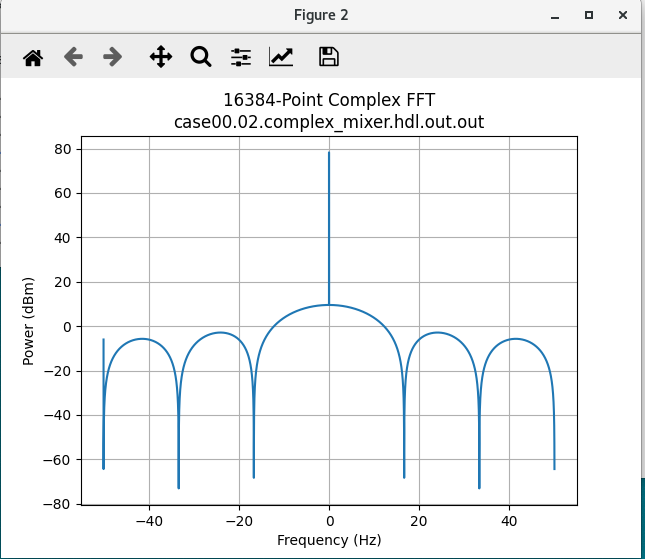
Case00.03 (enable = 1, data_select = 1)
View Simulation Waveforms
Note: In order to view simulation waveforms, you must have checked Keep Simulations in the OpenCPI GUI or have used the –keep-simulations option on the ocpidev command line when you ran the unit test.
To view the simulation waveforms:
In a terminal window, browse to the complex_mixer.test/ directory.
Execute the following ocpiview command:
ocpiview run/xsim/case00.00.complex_mixer.hdl.simulation/ &
You’ll want to expand complex_mixer_0_frw_0_xsim_base by using the arrow to the left then right-clicking pfconfig_i. Click on Add to Wave Window. For more information on using ocpiview, refer to the section Navigating the Simulator (optional guide).
You should see the following output:
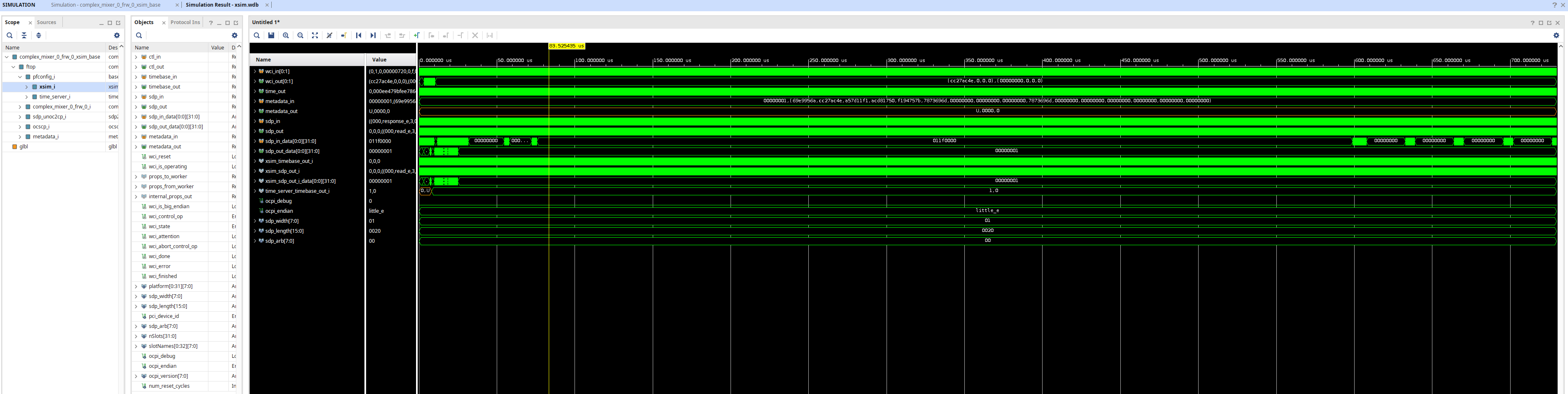
Note: Basic ocpiview “driving instructions” can be found in the section Navigating the Simulator (optional guide).
Run Unit Test (ADALM-PLUTO)
First we’ll check that the ADALM-PLUTO device is connected. Details of how to set up and configure the deployment platform can be found in OpenCPI Analog Devices PlutoSDR Getting Started Guide. We will use the pluto in Device Mode.
View the available connections to identify the interface that the plutosdr is connected on.
ocpihdl ethers

1) lo: MAC address none, up, connected, loopback, IP address: 127.0.0.1
2) ens33: MAC address 00:0c:29:b1:e8:a5, up, connected, IP address: 192.168.222.131
3) enx00e022b1c216: MAC address 00:e0:22:b1:c2:16, up, connected, IP address: 192.168.2.10
In the example above, the <Pluto-connected interface> is enx00e022b1c216.
To set up and get the status of the deployment platform:
export OCPI_SERVER_ADDRESSES=192.168.2.1:12345
export OCPI_SOCKET_INTERFACE=<Pluto-connected interface>
sudo ifconfig <Pluto-connected interface> 192.168.2.10
ocpiremote load adi_plutosdr0_39 plutosdr -p analog
ocpiremote start -b -p analog
ocpirun -C
Look for output similar to the following:
Containers offered to clients are:
   0: PL:0, model: hdl, os: , osVersion: , platform: plutosdr
   1: rcc0, model: rcc, os: linux, osVersion: adi_p0_39, platform: adi_plutosdr0_39
--- end of server startup log success above
Now we can run the unit test and view the results. From the command line in the DemoProject8/components/complex_mixer.test/ directory, run the following ocpidev commands to build and run the test:
ocpidev build --hdl-platform plutosdr
ocpidev run --phase prep,run,verify --only-platform plutosdr --view
You should see that the test runs much faster on hardware when compared to the simulator. The output should look the same as in the Run Unit Test (XSIM).
Tutorial Summary
In this tutorial, you created a complex_mixer component. Once you created this component, we showed you how to create a complex_mixer HDL application worker that uses the Vivado third-party cores. You were also able to build the worker and successfully create and run a unit test for the worker on both simulator and hardware platforms. Overall, you were able to see the power of using third-party cores for workers. Now you can move on to Tutorial 9: Debugging an HDL Worker on a Hardware Platform, which demonstrates how to debug an HDL application worker using OpenCPI tools.