Tutorial 1: Component-based Development
Overview
This tutorial introduces you to the process of component-based development with OpenCPI. It describes the steps to develop and run a simple OpenCPI application using OpenCPI tools and provided data and source code.
The application consists of both user-defined and OpenCPI-provided components with implementations for software (Resource-Constrained C/C++, or RCC) and FPGA (Hardware Definition Language, or HDL) processor types. The target application execution platforms are the Xilinx Vivado® Simulator for the FPGA implementation and the Rocky Linux 9 development host for the software implementation.
The application will use four processing components - source, ramp, square, and ander - that you will specify from scratch and one OpenCPI built-in utility component - file_write - to write output data to files on the development host. These components also consist of a component specification file (the terms component spec or simply spec may be used as well to refer to components), where we can set properties to configure and control the component. The following figure illustrates the application:
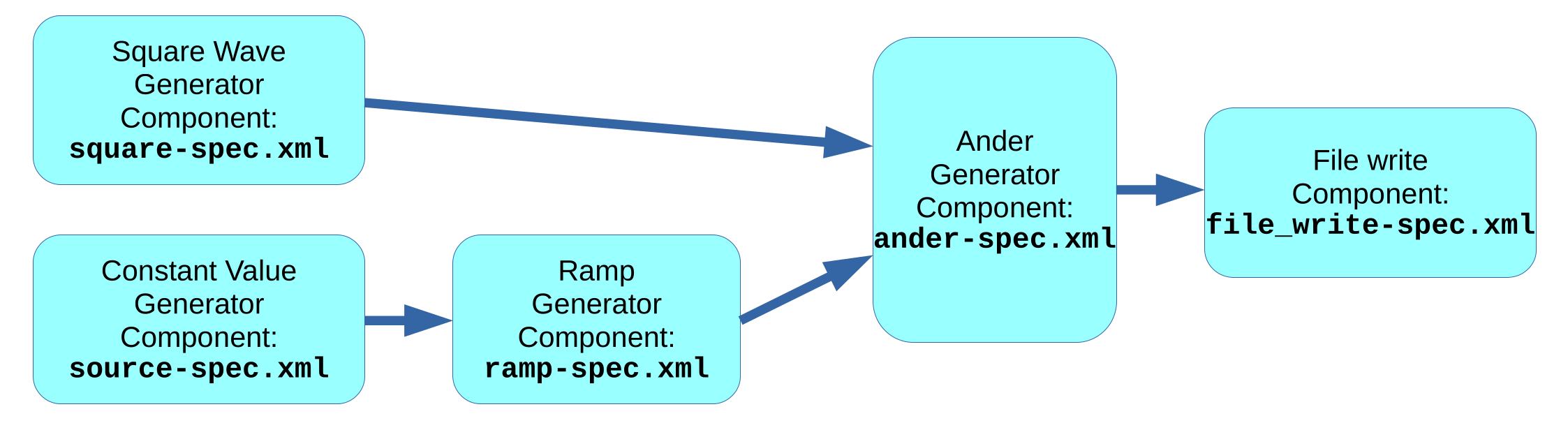
Figure 117: Simple Data Processing Application
Tutorial Objectives
The purpose of this tutorial is to step you through the basic OpenCPI application development process, showing you the tasks required and how to perform each task with the OpenCPI tools. The tutorial demonstrates how to:
Create an OpenCPI project in which to develop your OpenCPI assets
Create a library for components and their workers
Create component specs for the source, ramp, square and ander components and define their properties and ports
Create and build the workers and assemblies to be used to execute the components on the target platforms
Create the application
Run the application
View the generated output data
The tutorial demonstrates how to develop the application and run it on the Xilinx Vivado Simulator (in OpenCPI, this simulator is called the xsim platform) using HDL workers, with the RCC workers in the application running on the Rocky 9 development host.
After following this tutorial, you should be familiar with the general process of OpenCPI application and component development, the tasks required to develop and run an OpenCPI application that uses built-in and user-defined components with implementations for software and FPGA platforms and how to use the OpenCPI tools to perform these tasks.
What’s Provided for This Tutorial
The tutorial provides source code for the following tutorial items:
The source, ramp, square and ander workers. The provided source code is written according to the APIs for the HDL (VHDL source code) and RCC (C++ source code) authoring models.
A Python script that demultiplexes and plots the output data generated by the simple application.
This source code is available as text in the relevant sections of this document that you can copy and paste into the relevant files following the instructions given in the section.
The tutorial also provides the XML source for all of the assets used to build and run the example application, available as text in the relevant sections of the document.
Note: when copying and pasting text from this document, be sure to remove any line breaks in code or command lines.
Note that all of the OpenCPI built-in projects described in the OpenCPI User Guide are built for the Rocky 9 and Xilinx Vivado Simulator platforms as part of the OpenCPI installation process. You do not need to build or import these projects in order to use them in this tutorial.
Prerequisites to Using This Tutorial
This tutorial is designed to be run on a machine that has:
The default OpenCPI source code installation (the latest OpenCPI source installed and built on Rocky 9).
The default third-party FPGA simulator xsim installation (the Xilinx Vivado® Simulator installed with the free, unlicensed version of the Xilinx Vivado Design Suite).
The OpenCPI Installation Guide describes how to install these items. This tutorial assumes that you have, at a minimum, this OpenCPI environment set up on your development host.
To be able to use the OpenCPI command line tools, you need to run the OpenCPI environment setup script opencpi-setup.sh on your development host. If you have not already done so, follow the procedure in the OpenCPI User Guide to run this script.
Finally, we recommend reading the following briefings before getting started with the tutorial:
OpenCPI Introduction. This briefing introduces OpenCPI positioning, priorities and background as well as component and application terminology.
OpenCPI Development. This briefing discusses OpenCPI elements and concepts from an application development perspective and introduces OpenCPI tools and building blocks for application development.
Documentation References
The documents listed in the following table provide detailed information about subjects discussed in this tutorial. These documents are not required reading for running this tutorial but will likely be of interest for more in-depth learning.
Create Project
The first step in the component-based application development process is to create a work area, called a project, where you can develop your OpenCPI assets. A project is a standard directory structure that holds your assets in both source code form and built form, along with the XML metadata files that describe them, and how they are built. It provides a place for collecting the assets you create for a specific application or assets that may be related to each other.
For our project, we’ll use the name DemoProject.
Right now, we don’t plan to share DemoProject or the assets we create in it with any other projects, so we don’t need to provide any project identification information about it when we create it. However, we do need to register it in OpenCPI’s project registry so that we can use the command line tool ocpidev to display our project and its assets later on (the ocpidev show command currently displays only registered projects and their assets).
To create the DemoProject project using the ocpidev command line tool:
In a terminal/shell window, change directory to where you want to create the project.
Use the command:
ocpidev create project DemoProject --register
The command creates the new project as a subdirectory of the directory you’re in and registers it with the OpenCPI project registry. To demonstrate this, use the command:
ocpidev show projects
The output should look something like this:
-------------------------------------------------------------------------------------------
| Project Package-ID | Path to Project                                     | Valid/Exists |
| ------------------ | --------------------------------------------------- | ------------ |
| local.DemoProject  | ~/DemoProject                                       | True         |
| ocpi.core          | ~/opencpi/projects/core                             | True         |
| ocpi.tutorial      | ~/opencpi/projects/tutorial                         | True         |
| ocpi.platform      | ~/opencpi/projects/platform                         | True         |
| ocpi.assets        | ~/opencpi/projects/assets                           | True         |
-------------------------------------------------------------------------------------------
DemoProject is given the default package ID local. Notice the projects listed with the package ID ocpi. These are the OpenCPI projects that come with the default OpenCPI installation. This tutorial’s application uses the file_write component defined in the ocpi.core project.
Use the Linux tree command in the directory above DemoProject to observe the directory structure and the files created for DemoProject. Your output should look something like this:
$ tree DemoProject
DemoProject
├── exports
│    ├── imports -> ../imports
│    ├── project-dependencies
│    ├── project-package-id
│    └── project-package-id:local.DemoProject
├── imports -> ../../project-registry
├── Project.exports
├── Project.rst
└── Project.xml
The files of interest here are:
Project.exports. This file specifies the project’s assets and files that should be made visible, usable, and accessible from outside the project (usually by other projects).
Project.xml. All assets have an XML file that provides metadata about the asset that OpenCPI needs for various purposes, including building and executing assets. This file contains metadata that the ocpidev tool applies when building any assets in the project.
You won’t need to make changes to any of these files in this tutorial; to read more about them, see the OpenCPI Component Development Guide.
The Project.rst file is used as a “welcome page” for a project and as a table of contents to asset documentation contained within the project. You won’t need to make any changes to this file; to read more about it, see the Documentation Writer Guide.
Now change directory to DemoProject:
cd DemoProject
We’ll run all the subsequent ocpidev and ocpirun commands for this tutorial from the DemoProject/ directory.
Create Component Library
OpenCPI components are developed in libraries. OpenCPI component-based applications are defined as a composition of components, and the components are developed and built in component libraries.
In complex projects, a directory named components represents the top level of a hierarchy and individual component libraries are created underneath it.
In our case, we only need one component library, so we can use the top-level components/ directory as our library. We just need to create this directory.
To create the components library with ocpidev, run the following command in the DemoProject/ directory:
ocpidev create library components
Run the tree command on DemoProject again to observe the directory structure and files that have been created:
DemoProject
├── components
│    ├── components-library.rst
│    └── components.xml
├── exports
│    ├── imports -> ../imports
│    ├── project-dependencies
│    ├── project-package-id
│    └── project-package-id:local.DemoProject
├── imports -> ../../project-registry
├── Project.exports
├── Project.rst
└── Project.xml
Notice the components/ directory and the components.xml file underneath it. This file is analogous to the project’s *.xml file and doesn’t need to be changed in this tutorial.
Create Components
A component is a defined function that has properties and ports. Properties configure and control the component. Ports are where data messages are sent and received. Ports support protocols, which define the allowed/expected messages.
A component is specified in a small XML document called a component spec (acronym OCS). A component spec defines its properties and ports and may refer to protocol specs (acronym OPS) that are common to different components’ ports.
The component spec is the basis for all of a component’s implementations. Each component spec includes the details that are to be consistent across authoring models; meaning that if there are various implementations of a single component - for example, a software (RCC) implementation and an FPGA (HDL) implementation - both implementations will expect the same input and both should have the same output regardless of which architecture they run on.
Creating a component spec is the first step to having a component implementation built and ready for use in an application. In this section, we’ll generate the component specs for the source, ramp, square and ander components and then edit them to define each component’s properties and ports.
Create Component Specs
Our application requires four components, so we need to generate four component specs.
To create the four component specs with ocpidev, run the following commands in the DemoProject/components/ directory:
ocpidev create component source
ocpidev create component ramp
ocpidev create component square
ocpidev create component ander
Now use the tree command again to observe the directory structure and files created:
.
├── components
│    ├── ander.comp
│    │    └── ander-comp.xml
│    ├── components-library.rst
│    ├── components.xml
│    ├── ramp.comp
│    │    └── ramp-comp.xml
│    ├── source.comp
│    │    └── source-comp.xml
│    └── square.comp
│        └── square-comp.xml
├── exports
│    ├── imports -> ../imports
│    ├── project-dependencies
│    ├── project-package-id
│    └── project-package-id:local.DemoProject
├── imports -> ../../project-registry
├── Project.exports
├── Project.rst
└── Project.xml
You’ll see that the components/ directory now contains the ander.comp/ ramp.comp/ source.comp/ and square.comp/ subdirectories that contain the generated component specs (aka the OCS files). You can easily identify them by the -comp.xml suffix that appears after the component name.
Examine the contents of source-comp.xml. As you can see, there isn’t much there: just the <ComponentSpec> XML element and instructions for completing the spec. The same applies to the other component specs. We’ll edit these template files in the next step.
Define Component Properties and Ports
Now we need to edit each component spec to define its properties and ports.
Component properties configure and control the component. The source component’s worker implementation will drive the application at runtime, so it needs two properties defined for it: a property that specifies the size of each data sample to be passed to the ramp, square and ander components for processing and then on to file_write for output to a file, and a property that specifies the total number of data samples to be processed and output. We’ll use the initial attribute to provide flexibility as to when the property can be set. You can read more about this attribute in the OpenCPI Component Development Guide.
Our remaining components don’t require any runtime configuration or control values for their worker implementations, so we don’t need to define any properties for them. They do, however, need port definitions, because each component will communicate with the other components when they are used in our application. Each component port must define the direction - input or output, consumer or producer - and the format - the protocol - of the messages they will send or receive. For our components, we will use the rstream protocol for all component ports except for the ander component’s output port, which will use the iqstream protocol. The difference between the two is that rstream is a stream of 16-bit “real” numbers, while iqstream is a stream of complex numbers, each of which is represented by a 16-bit I (“in-phase”) value and a 16-bit Q (“quadrature”) value. All these numbers are signed.
To define the properties and ports from the command line, navigate to each component spec and open it with a text editor.
Now make the following updates:
For the source component (source-comp.xml in the source.comp/ subdirectory), insert the following XML snippet between the ComponentSpec XML tags in the template file:
<ComponentSpec>
   <Property name="value" initial="true" type="short"/>
   <Property name="nsamples" initial="true"/>
   <Port Name="out" Producer="true" Protocol="rstream_protocol"/>
</ComponentSpec>
Here, you’re defining the constant (the value property), defining the maximum values to be output (the nsamples property) and declaring an output port that uses the rstream protocol.
For the ramp component (ramp-comp.xml in the ramp.comp/ subdirectory), insert the following XML snippet between the ComponentSpec XML tags in the template file:
<ComponentSpec>
   <Port Name="in" Producer="false" Protocol="rstream_protocol"/>
   <Port Name="out" Producer="true" Protocol="rstream_protocol"/>
</ComponentSpec>
Here, you’re declaring an input port (consumer) that uses the rstream protocol (defined by the rstream_protocol.xml OPS, which is an asset in the OpenCPI core project) and an output port (producer) that also uses the rstream protocol.
For the square component (square-comp.xml in the square.comp/ subdirectory), insert the following XML snippet between the ComponentSpec XML tags in the template file:
<ComponentSpec>
   <Port Name="out" Producer="true" Protocol="rstream_protocol"/>
</ComponentSpec>
Here, you’re declaring an output port that uses the rstream protocol.
For the ander component (ander-comp.xml in the ander.comp/ subdirectory), insert the following XML snippet between the ComponentSpec XML tags in the template file:
<ComponentSpec>
   <Port Name="in1" Producer="false" Protocol="rstream_protocol"/>
   <Port Name="in2" Producer="false" Protocol="rstream_protocol"/>
   <Port Name="out" Producer="true" Protocol="iqstream_protocol"/>
</ComponentSpec>
Here, you’re declaring two input ports that use the rstream protocol and one output port that uses the iqstream protocol (defined by the iqstream_protocol.xml OPS, which is an asset in the OpenCPI core project).
Our component specs are now complete. The next step is to create worker implementations for the components.
Create Workers
Now that we’ve defined the component specs, we’re ready to create the workers that implement them. A worker is a specific implementation of a component. More than one worker can implement a component. Our example application uses only one implementation - one worker - per component.
When we create a worker, we need to specify an authoring model to tell the OpenCPI framework what type of worker we want to create. Right now, we’ll start with the RCC model for the source worker, and the HDL authoring model for the rest (We’ll create RCC versions of these same workers later on.) More details about HDL workers and how to develop them can be found in the OpenCPI HDL Development Guide. Details about RCC workers and how to develop them can be found in the OpenCPI RCC Development Guide.
Create Workers
In this step, we want to create an RCC worker for our source component because it’ll run outside the FPGA simulator platform and HDL workers for the remaining components so that we can run them on the xsim FPGA simulator platform.
To create the workers with ocpidev, run the following commands in the DemoProject/components/ directory:
ocpidev create worker source.rcc
ocpidev create worker ramp.hdl
ocpidev create worker square.hdl
ocpidev create worker ander.hdl
The suffix of the worker’s name, .rcc or .hdl, directs the tool to generate RCC or HDL workers, respectively.
Now run the command:
ocpidev show workers
The command displays all workers that reside in all libraries of all projects. The workers you just created should be listed at the top of the output.
To view the directories and files created, run the tree command. The project should now look similar to this output:
.
├── components
...
│    ├── ander.hdl
│    │    ├── ander.hdl-worker.rst
│    │    ├── ander.vhd
│    │    ├── ander.xml
│    │    └── gen
│    │        ├── ander-build.xml
│    │        ├── ander-defs.vhd
│    │        ├── ander-defs.vhd.deps
│    │        ├── ander-impl.vhd
│    │        ├── ander-impl.vhd.deps
│    │        ├── ander.mk
│    │        ├── ander-skel.vhd
│    │        └── ander-skel.vhd.deps
...
│    ├── ramp.hdl
│    │    ├── gen
│    │    │    ├── ramp-build.xml
│    │    │    ├── ramp-defs.vhd
│    │    │    ├── ramp-defs.vhd.deps
│    │    │    ├── ramp-impl.vhd
│    │    │    ├── ramp-impl.vhd.deps
│    │    │    ├── ramp.mk
│    │    │    ├── ramp-skel.vhd
│    │    │    └── ramp-skel.vhd.deps
│    │    ├── ramp.hdl-worker.rst
│    │    ├── ramp.vhd
│    │    └── ramp.xml
...
│    ├── source.rcc
│    │    ├── gen
│    │    │    ├── source-build.xml
│    │    │    ├── source_map.h
│    │    │    ├── source.mk
│    │    │    ├── source-skel.cc
│    │    │    ├── source-skel.cc.deps
│    │    │    ├── source-worker.hh
│    │    │    └── source-worker.hh.deps
│    │    ├── source.cc
│    │    ├── source.rcc-worker.rst
│    │    └── source.xml
...
│    └── square.hdl
│        ├── gen
│        │    ├── square-build.xml
│        │    ├── square-defs.vhd
│        │    ├── square-defs.vhd.deps
│        │    ├── square-impl.vhd
│        │    ├── square-impl.vhd.deps
│        │    ├── square.mk
│        │    ├── square-skel.vhd
│        │    └── square-skel.vhd.deps
│        ├── square.hdl-worker.rst
│        ├── square.vhd
│        └── square.xml
...
Notice that creating the source, ramp, square, and ander workers generated an .rcc or .hdl directory for each one. Each worker’s .rcc or .hdl directory contains two files of interest:
<worker_name>.xml. This is the worker’s OpenCPI Worker Description (OWD). The OWD is where that worker’s specific properties and port protocols are defined. The definitions in the OWD are specific to each individual worker and may override some of the definitions specified in the OCS. Later on, we’ll edit the OWD for each worker.
<worker_name>.vhd or <worker_name>.cc. This is the worker’s initial source code file, in the language associated with the authoring model specified when creating the worker; in our case, in the VHDL language for ramp, square, and ander because we specified an HDL worker, and the C++ language for source because we specified an RCC worker. This file is a “skeleton” that can be compiled but has empty logic; it allows the worker to be test-built before any changes are made. We’ll edit the skeleton file for each worker later on to add the VHDL or C++ logic that makes the worker perform its intended function.
The gen/ subdirectory in <worker>.hdl contains code that is generated from the OpenCPI framework. Do not edit this code. For more details about the gen/ directory, see the OpenCPI Component Development Guide.
Update HDL Worker Descriptions (OWDs)
Now we’ll update the HDL worker OWD files to provide any necessary implementation-specific information for the ports that the component spec defines abstractly. For our example workers, we need to add the following information to each OWD:
The physical width of data ports for each worker. The protocol specified in the component OCS for the component ports (in our case, rstream) defines a default data width; we want to override this OCS default in our worker ports. We’ll use the DataWidth attribute of the StreamInterface element to specify each port’s data width. Specifying it this way means that the DataWidth value applies only to that port.
Whether or not the end of message (EOM) signal in a worker’s output ports will be automatically asserted as necessary or asserted explicitly by the worker. We want to use the automatic assertion method for our worker output ports using the InsertEOM attribute of the StreamInterface element for each output port.
The generated OWD for the source.rcc worker is fine as it is and doesn’t need to be edited. The OWDs of RCC workers usually don’t need any editing.
To update the worker OWD files from the command line, navigate to each worker’s OWD XML file and open it with a text editor.
Make the following updates to these OWD files:
For the ramp worker, insert the following XML snippet between the HdlWorker XML tags in the template worker OWD components/ramp.hdl/ramp.xml:
<HdlWorker language="vhdl" spec="ramp-comp" version="2">
   <StreamInterface Name="in" DataWidth="16"/>
   <StreamInterface Name="out" DataWidth="16" InsertEOM="true"/>
</HdlWorker>
For the square worker, insert the following XML snippet between the HdlWorker XML tags in the template worker OWD components/square.hdl/square.xml:
<HdlWorker language="vhdl" spec="square-comp" version="2">
   <StreamInterface Name="out" DataWidth="16" InsertEOM="true"/>
</HdlWorker>
For the ander worker, insert the following XML snippet between the HdlWorker XML tags in the template worker OWD components/ander.hdl/ander.xml:
<HdlWorker language="vhdl" spec="ander-comp" version="2">
   <StreamInterface Name="in1" DataWidth="16"/>
   <StreamInterface Name="in2" DataWidth="16"/>
   <StreamInterface Name="out" DataWidth="32" InsertEOM="true"/>
</HdlWorker>
You have now completed the worker OWDs for the ramp, square and ander workers. The next step is to add the code that implements each worker function to the skeleton file created for each worker.
Edit RCC Worker Skeleton File
After creating the source.rcc worker, (and without having to edit its OWD file), the next step is to edit its C++ skeleton files to add the C++ code that implements that worker’s function.
Using a text editor, replace the C++ worker class definition section in the source.cc skeleton file in components/source.rcc/source.cc with the following C++ code:
class SourceWorker : public SourceWorkerBase {
      size_t samples;
   public:
      SourceWorker() : samples(0) {}
      RCCResult run(bool /*timedout*/) {
         size_t n = std::min(out.data().real().capacity(),
         properties().nsamples - samples);
      if (n) {
         out.data().real().resize(n);
         samples += n;
         for (int16_t *p = out.data().real().data(); n--; *p++ = properties().value);
         return RCC_ADVANCE;
      }
      out.setEOF();
      return RCC_ADVANCE_DONE;
   }
};
This code produces a specified number of constant values to its output, even when the output buffer/message size might be less than the number of values it needs to produce.
See the OpenCPI RCC Development Guide for the specifics of writing RCC workers.
Edit HDL Worker Skeleton Files
After creating the HDL workers and editing their OWDs, the next step is to edit each HDL worker’s VHDL skeleton file to add the VHDL code that implements that worker’s function.
Using a text editor, replace the VHDL architecture section in the ramp.vhd skeleton file in components/ramp.hdl/ramp.vhd with the following VHDL:
architecture rtl of worker is
   signal do_work : bool_t;
   signal out_data_i, buff_data : std_logic_vector(15 downto 0);
begin
   -- When we are allowed to process data:
   do_work <= out_in.ready and in_in.valid;
   -- Outputs:
   in_out.take <= do_work;
   out_out.valid <= do_work;
   out_data_i <= std_logic_vector(signed(in_in.data) + signed(buff_data));
   out_out.data <= out_data_i;
   -- Initialize or save off previous value when valid:
   ramp : process(ctl_in.clk)
   begin
      if rising_edge(ctl_in.clk) then
         if ctl_in.reset = '1' then
            buff_data <= (others => '0');
         elsif its(do_work) then
            buff_data <= out_data_i;
         end if;
      end if;
   end process ramp;
end rtl;
Replace the VHDL architecture section in the square.vhd skeleton file in components/square.hdl/square.vhd with the following VHDL:
architecture rtl of worker is
   signal do_work : bool_t;
   signal cnt : unsigned(7 downto 0);
begin
   -- When we are allowed to process data:
   do_work <= out_in.ready;
   -- Outputs:
   out_out.data <= (others => '1') when cnt < 32 else (others => '0');
   out_out.valid <= do_work;
   -- Generate the square pulse's counter
   square : process(ctl_in.clk)
   begin
      if rising_edge(ctl_in.clk) then
         if ctl_in.reset = '1' then
            cnt <= (others => '0');
         elsif its(do_work) then -- advance when we are pushing
            cnt <= cnt + 1;
            if cnt = 63 then
               cnt <= (others => '0');
            end if;
         end if;
      end if;
   end process square;
end rtl;
Replace the VHDL architecture section in the ander.vhd skeleton file in components/ander.hdl/ander.vhd with the following VHDL:
architecture rtl of worker is
   signal do_work : bool_t;
begin
   -- When we are allowed to process:
   do_work <= out_in.ready and in1_in.valid and in2_in.valid;
   -- Outputs:
   in1_out.take <= do_work;
   in2_out.take <= do_work;
   out_out.valid <= do_work;
   out_out.data(15 downto 0) <= in1_in.data and in2_in.data;
   out_out.data(31 downto 16) <= in1_in.data;
end rtl;
You’ve now completed the HDL worker VHDL files. The next step is to build the RCC and HDL worker source files you created.
Build Workers
Now we need to compile the workers for the platform on which we want to run them; in our case, this is the xsim FPGA simulator for the HDL workers. Workers are normally built as part of building an entire component library or as part of an entire project, although they can also be built separately. Since all of our workers reside in the components library, we’ll build this library and specify the xsim platform for our HDL workers; the platform for the source RCC worker is implicitly the development system (Rocky 9) on which we’re running.
To build the components library and the workers in it with the ocpidev command, from the DemoProject/ directory, run the command:
ocpidev build library components --hdl-platform xsim --rcc-platform $OCPI_TOOL_PLATFORM --workers
This command builds all the workers in the components library, and when the worker being built is an HDL worker, we’ve specified that the target platform to build them for is xsim.
Note that worker implementations (both RCC and HDL) for the OpenCPI file_write component already exist in the ocpi.core project and are already built for the xsim (and rocky9) platforms as part of the OpenCPI installation process.
Create HDL Assembly
Artifacts are binary executables compiled from one or more workers, built for a platform. OpenCPI applications require supporting artifacts in order to execute on platforms. We want our application to be able to execute on an FPGA (simulator) platform, so we need to transform the compiled/built HDL workers that implement the components that the application will use into artifacts that can be executed on an FPGA platform.
To do this, we’ll create an HDL assembly: a collection of connected HDL workers that are built into a complete FPGA configuration bitstream that acts as an artifact. The resulting bitstream is executed on an FPGA to implement a part or all of an application’s components. Although HDL assemblies are generally created with a particular application in mind, they can be designed for use by more than just one application. They can be used for any application where the workers in the assembly form a subset of the components in the assembly (and are connected together as specified in the application).
More details about HDL assemblies and how to develop them can be found in the OpenCPI HDL Development Guide.
Create HDL Assembly
First, we’ll create the HDL assembly asset in DemoProject. We’ll name the HDL assembly demo_assembly.
To create the HDL assembly with ocpidev, run the following command from the DemoProject/ directory:
ocpidev create hdl assembly demo_assembly
Run the tree command to view the directories and files created:
DemoProject/hdl/
└── assemblies
   └── demo_assembly
      └── demo_assembly.xml
Notice the hdl directory, an assemblies/ directory within it and a demo_assembly/ directory within the assemblies/ directory. Each HDL assembly is defined within its own directory. The demo_assembly/ directory contains one file of interest:
demo_assembly.xml. This is the assembly’s OpenCPI HDL Assembly Description (OHAD). The OHAD is where the assembly’s HDL worker instances, property/parameter settings, connections and external ports are defined. We’ll edit this initial XML file next to specify the HDL workers to be included and the connections between them.
Update HDL Assembly Description
Now we’ll update the initial HDL assembly description (OHAD) we just created to describe the worker instances and connections for our application’s use. Most HDL assemblies describe a subset of the components (and thus HDL workers) that an application uses. We want to be able to run the processing components ramp, square and ander (and thus HDL workers) on the FPGA simulation platform, so our HDL assembly needs to specify instances and connections for these workers, but not for source and file_write.
We’ll update our template demo_assembly to define instances for the ramp, square and ander workers. We’ll also update it to define connections to the ander component’s two input ports: one from the ramp component’s output port and one from the square component’s output port.
To update the assembly OHAD from the command line, navigate to the demo_assembly/ directory and open demo_assembly.xml with a text editor.
Now insert the following XML between the HdlAssembly tags:
<HdlAssembly>
   <Instance Worker="ramp" externals='true'/>
   <Instance Worker="square"/>
   <Instance Worker="ander" externals='true'/>
   <Connection>
      <Port Instance="ramp" Name="out"/>
      <Port Instance="ander" Name="in1"/>
   </Connection>
   <Connection>
      <Port Instance="square" Name="out"/>
      <Port Instance="ander" Name="in2"/>
   </Connection>
</HdlAssembly>
Notice the use of the externals attribute in the ramp and ander worker instances. It means that any unconnected ports for the instance are made external to the assembly to whatever the application specifies. The OpenCPI HDL Development Guide provides more information about this attribute.
The assembly OHAD is now complete. The next step is to generate an FPGA artifact for the xsim platform from the assembly OHAD.
Build HDL Assembly
In this step, we build the HDL assembly and create the FPGA artifact for the example application.
To build the HDL assembly with ocpidev, run the following command from the DemoProject/ directory:
ocpidev build hdl assembly demo_assembly --hdl-platform xsim
The build takes a couple of minutes to run. You can confirm that it succeeded by locating the *.bitz file in the artifacts/ subdirectory of DemoProject. This file is the artifact file that is ready for loading and execution and can be used at runtime when executing the application on the FPGA platform.
Create Application
An OpenCPI application consists of an OpenCPI Application Specification (OAS), which is an XML file that specifies the components that should be instantiated (using some artifacts), how the resulting workers should be connected, and how they should be configured via their properties.
One of the easiest ways to create an OAS is to use the OpenCPI tool option to create an empty OAS in an applications/ directory and then edit this initial XML file with our XML definitions. In our case, this option also creates the applications/ directory, since it doesn’t exist. The next sections describe these steps.
Create Template App XML (OAS)
We’ll use the name DemoApp for our application.
To generate the initial OAS with ocpidev, run the following command from the DemoProject/ directory:
ocpidev create application DemoApp -X
Now run the tree command to view the created directories and files.
DemoProject
├── applications
│    └── DemoApp.xml
   ...
Notice that this command has generated the applications/ directory as well as the initial OAS file DemoApp.xml. The -X option in the command ensures that the application is created as an XML file as opposed to a subdirectory. We’ll edit this empty file next to define our application.
Update Empty App XML (OAS)
Now we’ll edit DemoApp.xml with the necessary XML definitions. We need to supply the following values:
The names of the component instances (Instance Component=) and their connections (the full Port Instance = definition in the Connections element or the Connect= shorthand in the component instance element, similar to the HDL assembly definition).
For the file_write component instance, the value of the fileName property. The fileName property specifies where the file_write component will write the output data out of the application (in our case, output_file.bin).
For the source component instance, the runtime values for the value and nsamples properties. We’ll set these to 128 and 2000, respectively.
The package ID for our project. The package= attribute tells the OpenCPI framework where to find the component specifications for the component instances in the application. We’ll specify our project (local.DemoProject) in this attribute to identify where source, ramp, square and ander are located, but we’ll also explicitly give the package ID (ocpi.core) for the file_write component.
The component instance to be used to determine when the application is finished executing (finished=). When the indicated instance is “finished”, then the whole application is considered “finished”. We’ll declare the application to be finished executing when the file_write component is finished executing.
To update the initial OAS from the command line, in the DemoProject/ directory, open applications/DemoApp.xml with a text editor.
Now replace the OAS XML file contents with the following XML:
<Application package='local.DemoProject' finished='file_write'>
   <Instance Component="source" Connect='ramp'>
      <property name="value" value="128"/>
      <property name="nsamples" value="2000"/>
   </Instance>
   <Instance Component="ramp"/>
   <Instance Component="square"/>
   <Instance Component="ander" Connect="file_write"/>
   <Instance Component="ocpi.core.file_write">
      <Property Name="fileName" Value="output_file.bin"/>
   </Instance>
   <Connection>
      <Port Instance="ramp" Name="out"/>
      <Port Instance="ander" Name="in1"/>
   </Connection>
   <Connection>
      <Port Instance="square" Name="out"/>
      <Port Instance="ander" Name="in2"/>
   </Connection>
</Application>
Notice that the XML shows the two ways that connections between components can be specified. When a component has one output and the component to which it will be connected has one input, we just use the connect attribute.
We have now created the application. In the next section, we’ll run the application.
Run Application
Executing an application on a given platform requires the following items:
The application itself, defined in an XML file that describes a collection of components. We supplied this item when we created the DemoApp OAS.
Artifact libraries that consist of (binary/executable) artifacts compiled from workers that implement requested components. We supplied this item when we created the demo_assembly HDL assembly and when we built the source RCC worker.
Runtime environments called containers that can load and run the artifacts (and thus workers) needed by the application. This item is supplied with the OpenCPI installation, which provides an OpenCPI container for the xsim FPGA platform as well as one for the development host CPU running Rocky 9.
We’ve satisfied all these requirements, so we’re ready to run the application.
To run the application from the command line, execute the following command from the top level of your project (in this case, the DemoProject/ directory):
ocpidev run application DemoApp.xml
The application runs the assembly in an xsim simulation while running the source and file_write workers on the development host (in our case, Rocky 9), within the ocpidev run command’s process, with the file_write component writing the output to the file output_file.bin.
For more details on ocpidev run and running applications, see the OpenCPI Application Development Guide.
NOTE If you are getting an issue finding artifacts like below.
Exiting for exception: No acceptable implementations found in any libraries for "local.DemoProject.source". Use log level 8 for more detail.
Try setting OCPI_LIBRARY_PATH to include the artifacts directory of DemoProject by running the below command in the DemoProject directory:
export OCPI_LIBRARY_PATH=$PWD/artifacts
View Output Data
To observe the output generated by the application, we’ll use a Python script to demultiplex and plot the data. In the applications/ directory create a file plot_output.py and then insert the following Python code into the file:
import numpy as np
import matplotlib.pyplot as plt
import sys
# read data from input file
data=np.fromfile(sys.stdin,dtype=np.int16)
# plot the upper 16-bits
plt.figure(1)
plt.plot(data[1::2]) # odds to the upper 16-bits
plt.title("Output Data - Upper 16")
plt.grid()
# plot the lower 16-bits
plt.figure(2)
plt.plot(data[0::2]) # evens to the lower 16 bits
plt.title("Output Data - Lower 16")
plt.grid()
plt.show()
To plot the generated output, run the following command from the applications/ directory:
python3 plot_output.py <output_file.bin
The following figures show the upper and lower 16 bits of the ander output. The upper 16 bits are the output of ramp, passed through for display. The lower 16 bits are the result of “anding” this input with a square wave from square.
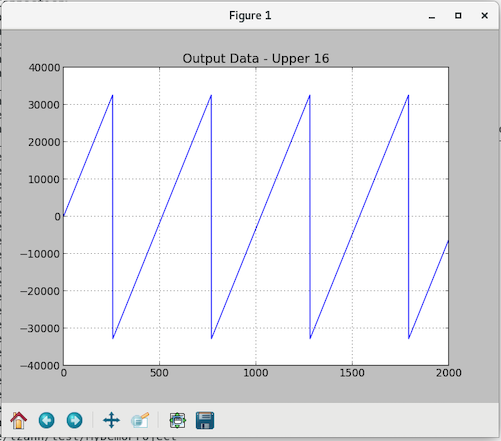
Figure 118: ramp Output (passed through by ander)
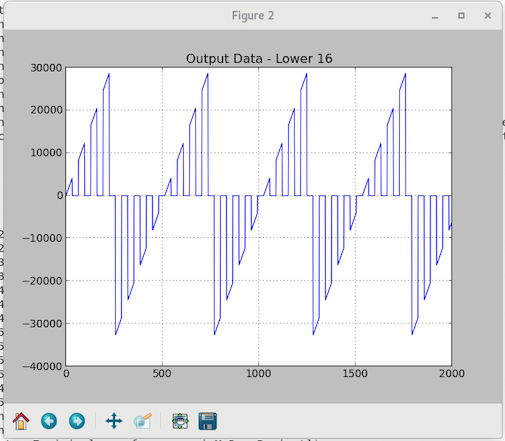
Figure 119: ander Output
Tutorial Summary
Now that you’ve completed this tutorial, you should be familiar with the general process of OpenCPI application and component development, the tasks required to build and run a simple OpenCPI application that uses both built-in and user-defined components with implementations for software (RCC) and FPGA (HDL) platforms, and how to use the OpenCPI tools to perform these tasks.
You can now move to the next tutorial in the series - Tutorial 2: Designing Applications and HDL Assemblies - where you will learn how to create, build and run different HDL assemblies for the same sample application.