Tutorial 9: Debugging an HDL Worker on a Hardware Platform
Overview
This tutorial demonstrates how to debug OpenCPI applications, including how to:
Observe property values with the ocpiview(1) and ocpihdl(1) tools
Enable and disable debugging with the ocpi_debug built-in framework parameter
Step through an application
Manage the states and properties of workers with ocpihdl
In this tutorial, we will use a single “counter” HDL application worker tcounter.hdl. The purpose of this worker is to increment a counter vector until reaching a max value. We will discover that something is wrong with the worker and use OpenCPI debugging tools and techniques to find the cause of the problem.
The flow of application debugging demonstrated in this tutorial is as follows:
Build the HDL worker for the target simulator.
Test the HDL worker on the target simulator and view the results.
Add debug functionality to the HDL worker.
Build the HDL assembly for the target hardware device.
Debug the HDL worker using ocpihdl.
The target platforms for this tutorial are the Vivado® Simulator (xsim HDL platform) and the ADALM-PLUTO hardware device (plutosdr HDL platform).
Unlike Tutorials 1 through 8, which ask you to create a new “demo” project in which to create your assets and run the tutorial, this tutorial has you work directly in the OpenCPI tutorial project ocpi.tutorial under the OpenCPI installation directory ($OCPI_ROOT_DIR/projects/tutorial/).
What’s Provided for This Tutorial
The following files and directories in the projects/tutorial/components/ directory under the OpenCPI root directory are used by this tutorial:
tcounter.hdl/ - includes the counter HDL worker, in plain and debug versions.
tcounter.test/ - includes the OpenCPI Test Suite Description XML for the “counter” component
tcounter.comp/tcounter-comp.xml - the component specification (OCS) for the “counter” component
Prerequisites to Using This Tutorial
This tutorial (Tutorial 9) has the system prerequisites described in Tutorial 1: Component-based Development. See Prerequisites to Using This Tutorial for details.
In addition to these requirements, this tutorial uses the plutosdr platform, and so the corresponding OSP should be downloaded and installed. See Installation Steps for Platforms in the OpenCPI Installation Guide.
Before you begin this tutorial, you should have successfully completed Tutorial 1: Component-based Development through Tutorial 8.
We recommend reading the following briefings before getting started with the tutorial:
For a guide on using the ocpiremote tool, see the video: OpenCPI - Framework Installation - Zedboard. It is timestamped and begins when ocpiremote is being set up and executed. Note: It will be necessary to disable the firewall for ocpiremote to function properly. For more information, see the section Using Remote Containers from Client/Development Systems in the The ocpirun Utility Program for Executing XML-based Applications.
Documentation References
The documents listed in the following table provide detailed information about subjects discussed in this tutorial. The documents listed here are not required reading for this tutorial but will likely be of interest for more in-depth learning.
Build “tcounter” HDL Worker (XSIM)
Note: this may already be done as a byproduct of installing the xsim platform.
To build the HDL worker using the ocpidev command:
cd $OCPI_ROOT_DIR/projects/tutorial/components/tcounter.hdl/
ocpidev build --hdl-platform xsim
Build “tcounter” Unit Test (XSIM)
To build the tcounter component unit test suite (aka “unit test”) using the ocpidev command:
cd $OCPI_ROOT_DIR/projects/tutorial/components/tcounter.test
ocpidev build --hdl-platform xsim
Run “tcounter” Unit Test
Then, run the unit test for the target simulation platform.
Using the ocpidev command:
cd $OCPI_ROOT_DIR/projects/tutorial/components/tcounter.test
ocpidev run --phase prep,run,verify --only-platform=xsim
Next, validate the output:
Open the log file (tcounter.test/run/xsim/case00.00.tcounter.hdl.log) and confirm the final property value:
tcounter.tcounter = "10"
The max property is currently set to “10” by tcounter-test.xml.
The tcounter property reached its maximum value of “10” as expected.
Change Count and Rebuild “tcounter” Unit Test
First, edit tcounter.test/tcounter-test.xml to test the value “9” for the max property.
Next, rebuild the unit test to regenerate the application XML.
Using the ocpidev command:
cd $OCPI_ROOT_DIR/projects/tutorial/components/tcounter.test/
ocpidev clean
ocpidev build --hdl-platform xsim
Finally, review tcounter.test/gen/applications/*.xml to ensure the max value has been updated to “9”.
Run “tcounter” Unit Test with New Count
Rerun the unit test with the new maximum value.
Using the ocpidev command:
cd $OCPI_ROOT_DIR/projects/tutorial/components/tcounter.test/
ocpidev run --phase prep,run,verify --only-platform=xsim --keep-simulations
Validate the output:
Open the log file (tcounter.test/run/xsim/case00.00.tcounter.hdl.log) and review the final property values:
tcounter.tcounter = "10"
tcounter.max = “9”
The counter (tcounter.tcounter) EXCEEDED the maximum value of “9”! HOW IS THIS POSSIBLE?
View Simulation Signals
To view the simulation results, in a terminal window run the following command in the component unit test’s directory ($OCPI_ROOT_DIR/projects/tutorial/components/tcounter.test):
ocpiview run/xsim/case00.00.tcounter.hdl.simulation &
Note: Basic ocpiview “driving instructions” may be found in the section Navigating the Simulator (optional guide).
Navigate to the s_tcounter object: right-click on it and select Add to Wave Window.
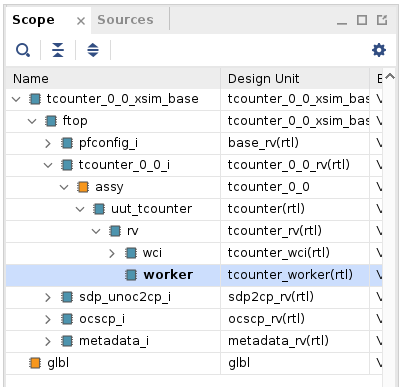
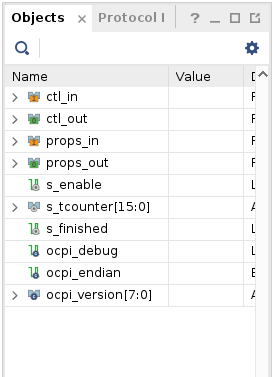
Note the change in the counter value:

Counting by two, not one.
Add Debug Functionality
In the tcounter.hdl/ directory:
cp tcounter-debug.vhd tcounter.vhd
cp tcounter-debug.xml tcounter.xml
Now observe what is done to add debugging/stepping functionality:
In tcounter.xml, there is a new step property and the max property is extended from the OCS so that we can read it using ocpihdl.
In tcounter.vhd, when the ocpi_debug parameter is true, “enable” depends on “step”.
These changes enable the counting operation based on the built-in ocpi_debug parameter. When the step property is written as true, perform a single counter increment (single step):
-- If we ARE debugging, do nothing until the step property is written as true.
-- Then, step (increment tcounter) and wait for another step_written pulse
debug_gen : if its(ocpi_debug) generate
  s_step_tcounter <= std_logic(props_in.step) and std_logic(props_in.step_written);
  s_enable       <= std_logic(ctl_in.is_operating) and s_step_tcounter;
end generate debug_gen;
Otherwise, proceed normally.
Note that tcounter.hdl supports two build configurations as defined in tcounter-build.xml:
<build>
   <configuration id='0'>
      <parameter name='ocpi_debug' value='false'/>
   </configuration>
   <configuration id='1'>
      <parameter name='ocpi_debug' value='true'/>
   </configuration>
</build>
The ocpi_debug parameter is a build-time “parameter” property provided by the framework that allows the worker to build separate implementations, both with and without debugging behavior. You can read more about the ocpi_debug parameter property and about build-time parameter properties in general in the OpenCPI Component Development Guide.
Set up Unit Test for Different Worker Configurations
In the tcounter.test/ directory, issue the command:
cp tcounter-test-debug.xml tcounter-test.xml
This action effectively sets ocpi_debug to “false” and “true”:
<Property Name='ocpi_debug' Values='false,true'></Property>
Build HDL Worker/Assembly for Target Hardware
Note: The intent is to make this tutorial as platform-agnostic as possible. The plutosdr platform is used as an example in the following steps.
First, build the tcounter HDL worker for the appropriate HDL target / HDL platform; in this case, zynq/plutosdr:
Using the ocpidev command with –hdl-platform plutosdr as an example:
cd $OCPI_ROOT_DIR/projects/tutorial/components/tcounter.hdl
ocpidev clean
ocpidev build --hdl-platform plutosdr
Next, build the tcounter component test suite for the target hardware platform. This build will take 5-10 minutes to complete.
Using the ocpidev command:
cd $OCPI_ROOT_DIR/projects/tutorial/components/tcounter.test/
ocpidev clean
ocpidev build --hdl-platform plutosdr
Debug HDL Worker with ocpihdl
This part of the tutorial consists of the following steps:
Execute on the target hardware platform
Confirm debug mode
Collect HDL worker/assembly information
Debug the HDL worker using ocpihdl, the command-line tool for performing HDL development tasks. For details on how this tool is used in HDL development, see the OpenCPI HDL Development Guide.
Run Unit Test (ADALM-PLUTO)
Ensure availability of the hardware platform (network-accessible and running ocpiserve) and run the tests.
Details of how to set up and configure the deployment platform can be found in OpenCPI Analog Devices PlutoSDR Getting Started Guide. We will use the pluto in Device Mode.
Confirm Availability of Hardware Platform (ADALM-PLUTO)
View the available connections to identify the interface that the plutosdr is connected on.
ocpihdl ethers

1) lo: MAC address none, up, connected, loopback, IP address: 127.0.0.1
2) ens33: MAC address 00:0c:29:b1:e8:a5, up, connected, IP address: 192.168.222.131
3) enx00e022b1c216: MAC address 00:e0:22:b1:c2:16, up, connected, IP address: 192.168.2.10
In the example above, the <Pluto-connected interface> is enx00e022b1c216.
To set up and get the status of the deployment platform:
export OCPI_SERVER_ADDRESSES=192.168.2.1:12345
export OCPI_SOCKET_INTERFACE=<Pluto-connected interface>
sudo ifconfig <Pluto-connected interface> 192.168.2.10
ocpiremote load adi_plutosdr0_39 plutosdr -p analog
ocpiremote start -b -p analog
ocpirun -C
Look for output similar to the following:
Containers offered to clients are:
   0: PL:0, model: hdl, os: , osVersion: , platform: plutosdr
   1: rcc0, model: rcc, os: linux, osVersion: adi_p0_39, platform: adi_plutosdr0_39
--- end of server startup log success above
Run Unit Test
To run the unit test on the remote platform using the ocpidev command:
cd $OCPI_ROOT_DIR/projects/tutorial/components/tcounter.test/
ocpidev run --phase prep,run,verify --only-platform=plutosdr
Confirm Debug Mode
The application is now running on the ADALM-PLUTO device. We have the application “hanging”. It is in debug mode and waiting for our input. Let’s see what the state of the worker is by going to the logs.
Examine the log file (run/plutosdr/case00.01.tcounter-1.hdl.log). Note that the running application will time out after 3600 seconds (1 hour).
OCPI_LIBRARY_PATH=../../../lib/rcc:../../../lib/ocl:../../gen/assemblies:$OCPI_CDK_DIR/$OCPI_TOOL_DIR/artifacts:$OCPI_CDK_DIR/$platform/artifacts $OCPI_CDK_DIR/$OCPI_TOOL_DIR/bin/ocpirun -d -v -H -mtcounter=hdl -wtcounter=tcounter-1 -s '?ocpi.core.file_read=model!="rcc"||platform==host_platform' -s '?ocpi.core.backpressure=model!="rcc"||platform=="plutosdr"' -s '?ocpi.core.metadata_stressor=model!="rcc"||platform=="plutosdr"' -s '?ocpi.core.file_write=model!="rcc"||platform==host_platform' -Ptcounter=plutosdr --sim-dir=case00.01.tcounter-1.hdl.simulation --timeout=3600 --dump-file=case00.01.tcounter-1.hdl.props ../../gen/applications/case00.01.xml
Warning: could not find a Xilinx license file, which is OK for a WebPack installation.
Simulation HDL device lsim:xsim for xsim (UUID 63cda57a-a64c-11f1-8ffd-afe44a788c77, dir case00.01.tcounter-1.hdl.simulation/xsim.xsim.314376.0, ticks 200000000)
Available containers are:  0: lsim:xsim [model: hdl os:  platform: xsim], 1: 192.168.2.1:12345/PL:0 [model: hdl os:  platform: plutosdr], 2: 192.168.2.1:12345/rcc0 [model: rcc os: linux platform: adi_plutosdr0_39], 3: rcc0 [model: rcc os: linux platform: ubuntu24_04]
Actual deployment is:
Instance  0 tcounter (spec ocpi.tutorial.tcounter) on hdl container 1: 192.168.2.1:12345/PL:0, using tcounter-1/a/uut_tcounter in ../../gen/assemblies/tcounter_1_0/container-tcounter_1_0_plutosdr_base/target-zynq/tcounter_1_0_plutosdr_base.bitz dated Tue Sep  1 16:28:56 2026
Application XML parsed and deployments (containers and artifacts) chosen [3 s 616 ms]
Application established: containers, workers, connections all created [0 s 207 ms]
Dump of all initial property values:
Property   0: tcounter.tcounter = "0"
Property   1: tcounter.max = "9"
Property   2: tcounter.ocpi_debug = "true" (parameter, hidden, worker)
Property   3: tcounter.ocpi_endian = "little" (parameter, hidden, worker)
Property   4: tcounter.ocpi_version = "0" (parameter, hidden, worker)
Property   5: tcounter.step = "false" (debug)
Application started/running [0 s 5 ms]
Waiting for up to 3600 seconds for application to finish before timeout
On the ADALM-PLUTO (use ssh root@<Pluto_IP> with password “analog”), we can now use ocpihdl to control the worker. For reference, here is output of ocpihdl:
Usage is: ocpihdl <command> [<options>...] [<command args>...]
Major commands/modes:
   search [-i <interface>]      # search for OpenCPI HDL devices, limit ethernet to <interface>
   emulate [-i <interface>]     # emulate an HDL device on ethernet, on first or specified interface
   ethers                       # list available ethernet interfaces
   probe <hdl-dev>              # see if a specific HDL device is available
   get [<instance> [<property]] # get info from bitstream
   set <instance> <property> <value>
                                 # set property value for worker instance
   control <instance> <operation>
                                 # perform reset, unreset, or control operation
   status <instance>            # show status of worker/instance
   testdma                      # test for DMA memory setup
   admin <hdl-dev>              # dump admin information (reading only) for <hdl-device>
   wadmin <hdl-dev> <offset> <value>
                                 # write admin word <value> for <hdl-device> at <offset>
   radmin <hdl-dev> <offset>    # read admin word for <hdl-device> at <offset>
   settime <hdl-dev>            # set the GPS time of the device to system time
   deltatime <hdl-dev>          # measure round trip and difference between host and device
   dump <hdl-dev>               # dump all state/status of <platform> including all workers
   reset <hdl-dev>              # reset platform
   flash <hdl-dev>              # flash load platform
   bram <infile> <outfile>      # create a BRAM file from input (XML) file
   unbram <infile> <outfile>    # recreate the original file from a BRAM file
   uuid -p <platform> -c <part> <outputfilename>
   wclear <hdl-dev> <worker>    # clear worker status errors
   wdump <hdl-dev> <worker>     # dump worker's control plane registers
   wop <hdl-dev> <worker> <op>  # perform control operation on worker
         ops are: initialize, start, stop, release, after, before
   wread <hdl-dev> <worker> <offset>[/size]
                                 # perform config space read of size bytes (default 4) at offset
   wreset <hdl-dev> <worker>    # assert reset for worker
   wunreset <hdl-dev> <worker>  # deassert (enable) worker
   wwctl <hdl-dev> <worker> <val>
                                 # write worker control register
   wwpage <hdl-dev> <worker> <val>
                                 # write worker window register
   wwrite <hdl-dev> <worker> <offset>[/size] <value>                                 # perform config space write of size bytes (default 4) at offset
                                 # generate UUID verilog file
   load  <hdl-dev> <file>       # load bitstream from file
   unload  <hdl-dev>            # revert device to unloaded state: no bitstream
   getxml <hdl-dev> <file>      # Extract the xml metadata from the device into the file
   simulate                     # run simulator inside created sim: device
Options: (values are either directly after the letter or in the next argument)
   -l <level>                   # set log levels
   -i <interface>               # set ethernet interface to use
   -d <hdl-device>              # identify a specific hdl device to use
   -p <hdl-platform>            # specify a particular hdl platform (e.g. ml605)
   -c <hdl-part>                # specify a particular part/chip (e.g. xc6vlx240t
   -s <spin-clocks>             # clocks to credit/run the sim between control messages
   -t <sleep-usecs>             # delay time letting sim run between credits
   -T <sim-time>                # total simulation time before terminating
   -D                           # turn off simulation dumping
   -e <sim-executable>          # simulator executable "bitstream" file
   -A                           # make the simulator publically available on the LAN
   -v                           # be verbose
   -P                           # produce parsable output from admin/worker read
   -x                           # print numeric values in hex rather than decimal
<worker> can be multiple workers such as 1,2,3,4,5.  No ranges.
<hdl-dev> examples: 3                            # PCI device 3 (i.e. 0000:03:00.0)
                     0000:04:00.0                 # PCI device 0000:04:00.0
                     PCI:0001:05:04.2             # fully specified PCI device
                     a0:00:b0:34:55:67            # ethernet MAC address on first up+connected interface
                     eth0/a0:00:b0:34:55:67       # ethernet address on a specific interface
                     Ether:eth1/a0:00:b0:34:55:67 # fully specified Ethernet-based device
Collect Worker Assembly Information
View the currently loaded workers and their indices:
cd sandbox
source ./setup.sh
cat system.xml # to get device name for ocpihdl
ocpihdl -d PL:0 -p plutosdr get
# ocpihdl -d PL:0 -p plutosdr get
HDL Device: 'PL:0' is platform 'plutosdr' part 'xc7z010' and UUID 'd5aa040a-a64b-11f1-ab54-731070fbeb23'
Platform configuration workers are:
   Instance p/plutosdr of io worker plutosdr (spec ocpi.core.platform) with index 0
   Instance p/time_server of io worker time_server (spec ocpi.core.devices.time_server) with index 1
Container workers are:
   Instance c/ocscp of io worker ocscp (spec ocpi.core.ocscp)
   Instance c/unoc_term0_0 of io worker sdp_term-1 (spec ocpi.core.devices.sdp_term)
   Instance c/unoc_term1_0 of io worker sdp_term-1 (spec ocpi.core.devices.sdp_term)
   Instance c/unoc_term2_0 of io worker sdp_term-1 (spec ocpi.core.devices.sdp_term)
   Instance c/unoc_term3_0 of io worker sdp_term-1 (spec ocpi.core.devices.sdp_term)
   Instance c/metadata of io worker metadata (spec ocpi.core.metadata)
Application workers are:
   Instance a/uut_tcounter of normal worker tcounter-1 (spec ocpi.tutorial.tcounter) with index 2
Note the last line in the above output: you can use index “2” or “tcounter-1” to identify the worker from now on.
Use ocpihdl to Debug HDL Worker
Execute:
ocpihdl -d PL:0 -p plutosdr get -v 2 #("-v" to list property values)
Note the property values:
tcounter: 0
max: 9
ocpi_debug: true
step=false
# ocpihdl -d PL:0 -p plutosdr get -v 2 #("-v" to list property values)
Instance a/uut_tcounter of normal worker tcounter-1 (spec ocpi.tutorial.tcounter) with index 2
0             tcounter: 0
1                  max: 9
2           ocpi_debug: true
3          ocpi_endian: little
4         ocpi_version: 0
5                 step: false
Also try:
ocpihdl -d PL:0 -p plutosdr get -v tcounter-1
Now execute:
ocpihdl -d PL:0 -p plutosdr set 2 step true
ocpihdl -d PL:0 -p plutosdr get -v 2
Notice “tcounter: 2” in the output:
# ocpihdl -d PL:0 -p plutosdr get -v 2
   Instance a/uut_tcounter of normal worker tcounter-1 (spec ocpi.tutorial.tcounter) with index 2
   0             tcounter: 2
   1                  max: 9
   2           ocpi_debug: true
   3          ocpi_endian: little
   4         ocpi_version: 0
   5                 step: true
Continue setting step to true and note how the value of tcounter changes. When tcounter reaches max, step one last time and the application will complete. You will see the following output back on the development host:
======== Preparing for execution on available platforms with available built workers and assemblies for tcounter:
Probing for available local platforms:
Warning: could not find a Xilinx license file, which is OK for a WebPack installation.
Local platforms are: hdl-0-plutosdr hdl-0-xsim rcc-0-adi_plutosdr0_39 rcc-0-ubuntu24_04
Generating execution scripts for each platform that can run.
Generating run script for platform: plutosdr
Generating run script for platform: xsim
Generating run script for platform: adi_plutosdr0_39
Generating run script for platform: ubuntu24_04
======== Running and verifying test outputs on available platforms for tcounter:
Performing test cases for ocpi.tutorial.tcounter on platform plutosdr.  Functions are: run verify
   Executing case case00.00 using worker tcounter.hdl on platform plutosdr...
      Execution succeeded, time was 00:00:04 (4 seconds).
   Verification was not run since there are no output ports.
   Executing case case00.01 using worker tcounter-1.hdl on platform plutosdr...
      Execution succeeded, time was 00:09:22 (562 seconds).
   Verification was not run since there are no output ports.
Examine the log file (run/plutosdr/case00.01.tcounter-1.hdl.log) and note the final property values:
Application started/running [0 s 5 ms]
Waiting for up to 3600 seconds for application to finish before timeout
Application finished [558 s 669 ms]
Dump of all final property values:
Property   0: tcounter.tcounter = "10"
Property   1: tcounter.max = "9"
Property   5: tcounter.step = "false" (debug)
Found the Bug
By now, you have discovered the bug using one or more of the following methods:
Viewing the log files and observing the output for different max values
Viewing the simulated counter signals using ocpiview
Using debug properties and ocpihdl to step through the application
The bug: We are incrementing the counter by 2 each step. You can fix the bug in tcounter.vhd, disable debugging, rebuild, and rerun.
Tutorial Summary
Now that you’ve completed this tutorial, you should be familiar with the basic concepts and procedure for debugging an OpenCPI application with ocpihdl, ocpi_debug, and the other debugging tools. This is a very simple example, but ocpihdl can be very helpful for debugging and controlling OpenCPI applications.