Tutorial 6hw: Creating a Simple HDL Worker
Overview
Note: This tutorial demonstrates the same steps as Tutorial 6: Creating a Simple HDL Worker, but it includes a hardware platform in the demonstration; in this case, the ADALM-PLUTO (plutosdr) HDL platform.
This tutorial introduces you to working with HDL workers and simulation. Our example is once again, the peak_detector component in the ocpi.tutorial project. We used this component, both its RCC and its HDL implementations, in our application and assemblies in Tutorial 2: Designing Applications and HDL Assemblies, and in Tutorial 3: Developing an RCC Worker, we went through creating the RCC implementation. In this tutorial, we’ll step through the procedure used to create this component and its HDL worker implementation. We’ll be able to reuse the component specification for the peak_detector component spec and its unit test that we created earlier, and then design, build and test a HDL worker that implements its function.
As stated previously, the peak detector function is to calculate and report the signed maximum and minimum peaks in the I/Q data arriving at its input port and then pass this input data through unchanged to its output port. Given an input of complex numbers, the peak detector component finds the biggest I or Q sample and the smallest I or Q sample. The process is as follows:
current_biggest = max(current_biggest, max(I,Q))
current_smallest = min(current_smallest, min(I,Q))
Pass input complex samples to the output port
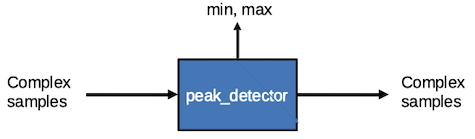
Figure 128: Peak Detector Component Function
Tutorial Objectives
The objective of this tutorial is to design, build and test an HDL application worker. The worker function is peak detection of a data stream (peak_detector.hdl).
This tutorial shows you how to:
Re-create (or copy from the project you created in Tutorial 3: Developing an RCC Worker) the peak detector component specification (properties and ports).
Build a worker for an HDL platform.
It demonstrates how to use the Xilinx Vivado® Simulator (in OpenCPI, the xsim HDL platform) to:
Run an OpenCPI component unit test suite (aka “unit test”) for the simulator.
Open and view saved simulations.
Perform basic navigation of the simulator (Vivado in this case).
It also demonstrates running a unit test on the Analog Devices ADALM-PLUTO (in OpenCPI, the plutosdr FPGA (HDL) platform).
Note: this part of the tutorial requires a machine with HDL platform support for the ADALM-PLUTO hardware device (HDL platform plutosdr). Details of how to set up and configure the platform are beyond the scope of this tutorial.
After running this tutorial, you should understand the basics of creating a HDL worker, how to use the OpenCPI unit test framework on an HDL worker, and how to view a saved simulation.
What’s Provided for This Tutorial
The built-in OpenCPI tutorial project ocpi.tutorial provides source code for the following items in this tutorial:
The peak_detector worker, written in HDL (VHDL source code)
The unit test files generate.py and verify.py, written in Python
The unit test bash shell script view.sh
The ocpi.tutorial project also provides the XML source for all of the assets used to build and run the example component, worker and tests.
You will also use the following script from the ocpi.tutorial project:
The Python script code for plotting and viewing the output data, in scripts/plotAndFft.py
Instructions for copying these items from the ocpi.tutorial project into the “demo” tutorial project are provided in the relevant sections of this document. The source code for these items is also available as text in the relevant sections of this document that you can copy and paste into the relevant files following the instructions given in the section.
Note: when copying and pasting text from this document, be sure to remove any line breaks in code or command lines.
Prerequisites to Using This Tutorial
This tutorial (Tutorial 6hw) has the system prerequisites described in Tutorial 1: Component-based Development. See Prerequisites to Using This Tutorial for details. In addition to these requirements, this tutorial uses the plutosdr platform, and so the corresponding OSP should be downloaded and installed. See Installation Steps for Platforms in the OpenCPI Installation Guide.
Before you begin this tutorial, you should have successfully completed Tutorial 1: Component-based Development through Tutorial 5.
We recommend reading HDL Application Workers before getting started with the tutorial.
For a guide on using the ocpiremote tool, see the video: OpenCPI - Framework Installation - Zedboard. It is timestamped and begins when ocpiremote is being set up and executed. Note: It may be necessary to disable the firewall for ocpiremote to function properly. For more information, see the section “Using Remote Containers from Client/Development Systems” in the The ocpirun Utility Program for Executing XML-based Applications.
Documentation References
The documents listed in the following table provide detailed information about subjects discussed in this tutorial. The documents listed here are not required reading for this tutorial but will likely be of interest for more in-depth learning.
Create New Project
We need to create a new, clean project for Tutorial 6; we’ll call it DemoProject6. This project has the same requirements as the project we created for Tutorial 3: Developing an RCC Worker.
To create the new project from the command line, use the following ocpidev command:
ocpidev create project DemoProject6 --register -D ocpi.assets
Create Component Library
Before we can create our component, we need to create a component library for it. We only need one component library, so we can use the top-level components/ directory as our library like we did in Tutorial 3: Developing an RCC Worker. We just need to create this directory.
To create the components library with ocpidev, run the following command in the DemoProject6 directory:
ocpidev create library components
Create Component
Now we need to create the OCS (OpenCPI Component Specification) for our peak detector function that defines its properties and ports.
Create Component Spec
We can now create a new peak_detector component spec in the library we just created.
To create the component spec with ocpidev, run the following command in the DemoProject6/components/ directory:
ocpidev create component peak_detector
The command creates the component spec peak_detector-comp.xml in components/peak_detector.comp/. We’ll add properties and ports to the component spec in the next step.
Create Component Properties and Ports
The peak_detector component function requires two properties: a max_peak property that returns the most positive I or Q value and a min_peak property that returns the most negative I or Q value. The worker implementation of the component uses these properties to keep track of maximum and minimum peak amplitudes and will change their values during execution, so they should be declared as volatile properties.
The peak_detector component also requires one input port and one output port for communication with other components in an application; both ports will use the iqstream protocol. This component spec is the same as the one used in Tutorial 3: Developing an RCC Worker and can be copied over to this project and reused.
To create the properties and ports from the command line, open peak_detector-comp.xml with a text editor and add the following XML between the ComponentSpec elements:
<ComponentSpec>
   <Property Name="min_peak" Type="Short" Volatile="true"/>
   <Property Name="max_peak" Type="Short" Volatile="true"/>
   <Port Name="in" Protocol="iqstream_protocol"/>
   <Port Name="out" Protocol="iqstream_protocol" Producer="true"/>
</ComponentSpec>
Create Worker
We’ve defined the peak_detector component spec. Now we need to create the workers that implement them. In this case, we only need to create one implementation - an HDL implementation.
Recall from the OpenCPI HDL Development Guide that an HDL worker only runs in response to control operations that tell the worker when to begin and stop. The OWD can be edited to expand on the spec file we created previously.
In Tutorial 3: Developing an RCC Worker, we created an RCC worker, which generated an rcc/ subdirectory with the worker’s OWD XML file and a “skeleton” source code file in the C++ language that we updated to include the C++ code for the worker. This time, we will be producing an hdl/ subdirectory that also contains an OWD XML file and a “skeleton” source code, this time in VHDL. The creation process is mostly the same, except that we will be specifying the creation of an HDL worker, and not an RCC one.
Create HDL Worker OWD and Skeleton File
To create the worker with ocpidev, run the following command in the DemoProject6/components/ directory:
ocpidev create worker peak_detector.hdl
Recall from Tutorial 1: Component-based Development that the suffix of the worker’s name - .hdl in this case - directs the tool to generate an HDL worker. Run the tree command and you’ll see that the components/ directory now has a subdirectory peak_detector.hdl with the files peak_detector-hdl.xml (the OWD) and peak_detector.vhd (the skeleton file).
In this tutorial, you will have to edit the XML for the worker to run properly. The peak_detector.vhd skeleton file is the basis for writing the worker’s execution code. We will need to add the VHDL code to this file for the worker to function properly; we’ll create this code in the next step.
In peak_detector.hdl/gen/, you’ll see an assortment of files that do not need to be edited. They are automatically generated when the worker has been created, and if they are removed will be recreated when the ocpidev build command is invoked.
Edit Worker XML
Unlike the RCC version, this worker requires us to edit the worker XML. The XML should come with the Version attribute set to 2, the language selected properly, and the spec selected. We are adding those StreamInterface elements, which as a reminder are FIFO-like, to define the widths of the ports and an InsertEOM attribute to ensure there is an EOM asserted automatically and the worker does not have to worry about it. The completed worker XML should look like this:
<HdlWorker language='vhdl' spec='peak_detector' Version="2">
   <StreamInterface Name="in" DataWidth="32"></StreamInterface>
   <StreamInterface Name="out" DataWidth="32" InsertEOM="1"></StreamInterface>
</HdlWorker>
Write HDL Worker VHDL Code
The skeleton .vhd file is an empty architecture. The entity is generated VHDL based on the OCS and the OWD, and located in the gen/<worker-name>-impl.vhd file. We want to replace the skeleton .vhd file with the .vhd provided in the ocpi.tutorial project. From the DemoProject6/components/peak_detector.hdl/ directory, run the following command:
cp -f $OCPI_ROOT_DIR/projects/tutorial/components/peak_detector.hdl/peak_detector.vhd .
Taking a deeper look at the code, we can see a few things. The first chunk of code initializes signals to be used internally by the worker. These are used as carriers for data and other external signals.
signal s_valid : std_logic;
signal s_i : signed(c_data_width-1 downto 0);
signal s_q : signed(c_data_width-1 downto 0);
signal s_min_peak_rst : std_logic;
signal s_max_peak_rst : std_logic;
signal s_min_peak : signed(c_data_width-1 downto 0);
signal s_max_peak : signed(c_data_width-1 downto 0);
The main logic for the worker is set up as follows (only the minimum logic will be shown from here on):
if s_min_peak_rst = '1' then
   s_min_peak <= (c_data_width-1 => '0', others => '1');
When the reset is set to high, the min peak is set to the largest possible value. When the signals are valid, we check if either the input I data or input Q data is a new minimum. s_min_peak_iq is then updated as appropriate:
elsif s_valid = '1' then
   if (s_i < s_q and s_i < s_min_peak) then
      s_min_peak <= s_i;
   elsif (s_q < s_i and s_q < s_min_peak) then
      s_min_peak <= s_q;
end if;
The s_min_peak signal is set to drive our volatile property that can be read by the control interface:
props_out.min_peak <= s_min_peak;
This is repeated for max peak, except the reset drives the signal to the smallest value, and the larger number is the one that drives our property instead of the smaller one.
Build HDL Worker
Now we need to compile the peak_detector worker for the platforms on which we want to run it; for this tutorial, it’s the xsim and plutosdr HDL platforms. Although workers are normally built as part of building an entire component library or as part of an entire project, we’ll build our peak_detector worker separately.
To build the worker for xsim with ocpidev, run the following command from the DemoProject6/components/peak_detector.hdl directory:
ocpidev build --hdl-platform xsim
To build the worker for plutosdr with ocpidev, run the following command from the DemoProject6/components/peak_detector.hdl directory:
ocpidev build --hdl-platform plutosdr
Navigate to components/peak_detector.hdl/. There should be two new subdirectories target-<platform> - one for xsim (target-xsim) and one for plutosdr (target-zynq) that contain the artifacts needed to run the worker on these platforms.
ls -l target-xsim
generics.vh peak_detector-defs.vh xvhdl.log
generics.vhd peak_detector-defs.vhd xvhdl.pb
generics.vhd.deps peak_detector-impl.vhd xelab.log
generics.vh.deps peak_detector.prj xelab.pb
peak_detector peak_detector-xsim.out xsim.dir

ls target-zynq/
generics.vh peak_detector.hw
generics.vhd peak_detector-impl.vhd
generics.vhd.deps peak_detector-imports.tcl
generics.vh.deps peak_detector.ip_user_files
peak_detector.cache peak_detector.sources
peak_detector-defs.vh peak_detector-vivado.out
peak_detector-defs.vhd peak_detector.xpr
peak_detector.edf vivado.jou
Next, we’ll create the unit test for peak_detector and then run it.
Create Unit Test
Recall from Tutorial 3: Developing an RCC Worker that we created the peak_detector.test/ component unit test suite (aka “unit test”) for the peak_detector RCC worker. We even set it up to support a peak_detector HDL worker by setting up the OpenCPI Test Suite Description (OTSD) to use HDL file I/O.
We can re-use this same unit test for our peak_detector HDL worker by copying Tutorial 3: Developing an RCC Worker’s DemoProject3/components/peak_detector.test/ subdirectory to our DemoProject6/components/ directory. To do this, in DemoProject6, navigate to the components/ directory and then run the command:
cp -r <your-projects-directory>/DemoProject3/components/peak_detector.test .
Note: before copying the unit test you used in Tutorial 3: Developing an RCC Worker, it’s a good idea to run the ocpidev clean command in the peak_detector.test/ subdirectory to remove the generated files you created when you ran Tutorial 3: Developing an RCC Worker.
You can also copy the peak_detector.test unit test directly from the ocpi.tutorial project into your DemoProject6/components/ directory and use it as is, since it’s the reference unit test for the peak_detector worker. To do this, in DemoProject6, navigate to the components/ directory and then run the command:
cp -r $OCPI_ROOT_DIR/projects/tutorial/components/peak_detector.test .
Note: Make sure your unit test scripts have read and execute permissions before using them to build and run the peak_detector unit test. For example:
chmod 755 generate.py
chmod 755 verify.py
chmod 755 view.sh
Build Unit Test
Now we’ll build the unit test for the xsim and plutosdr target platforms.
To generate and build the unit test with ocpidev, run the following command from DemoProject6/components/peak_detector.test:
ocpidev build --hdl-platform xsim --hdl-platform plutosdr
Navigate to peak_detector.test/gen/ and observe the artifacts created. The following files and directories are of interest:
cases.txt. This file is user-readable and lists various test configurations.
cases.xml. This file is used by the OpenCPI framework to execute tests.
cases.xml.deps. This file contains a list of dependent files.
applications/. This directory contains OAS files and scripts used by the OpenCPI framework to execute applications.
Run Unit Test (XSIM)
Now we’ll run the unit test and view the results.
First import the necessary prerequisites to the opencpi venv. (This only needs to be done once.)
$OCPI_ROOT_DIR/tools/.venv/bin/python -m pip install matplotlib
To run the test and view the output from the command line, run the following ocpidev command from DemoProject6/components/peak_detector.test:
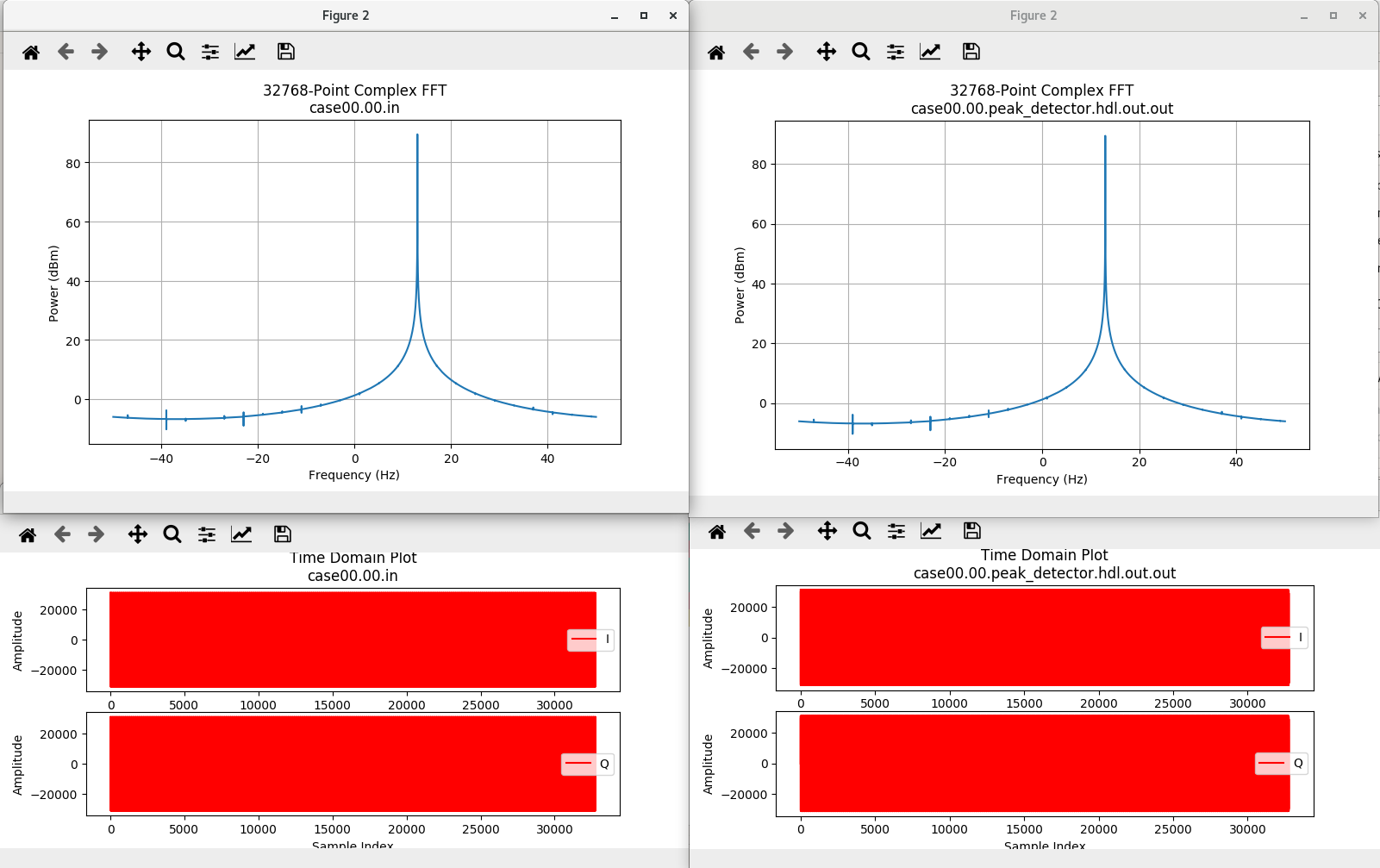
ocpidev run --phase prep,run,verify --only-platform xsim --view --keep-simulations
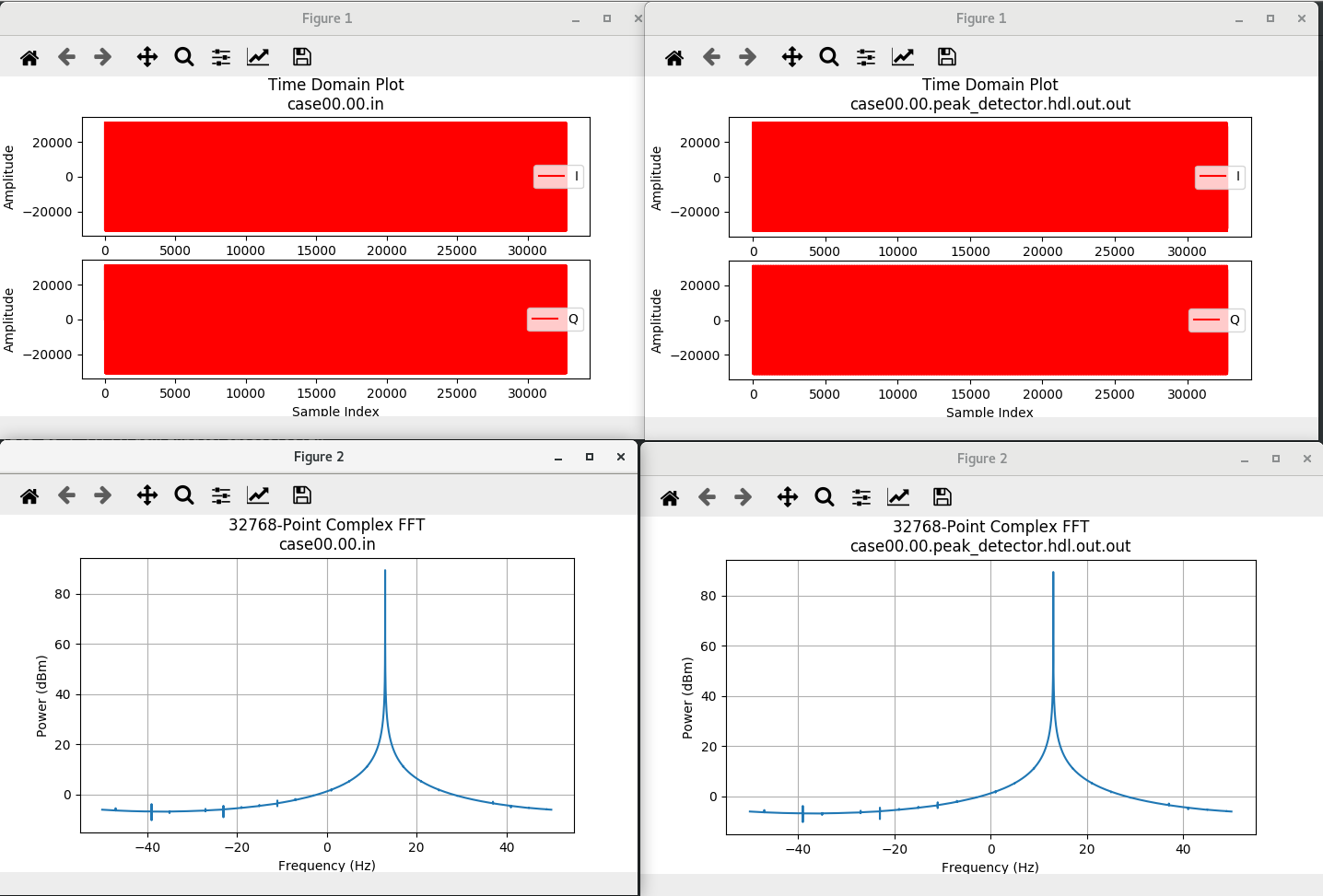
You should see this output (note that the input and output are the same):
View Simulation Waveforms (XSIM)
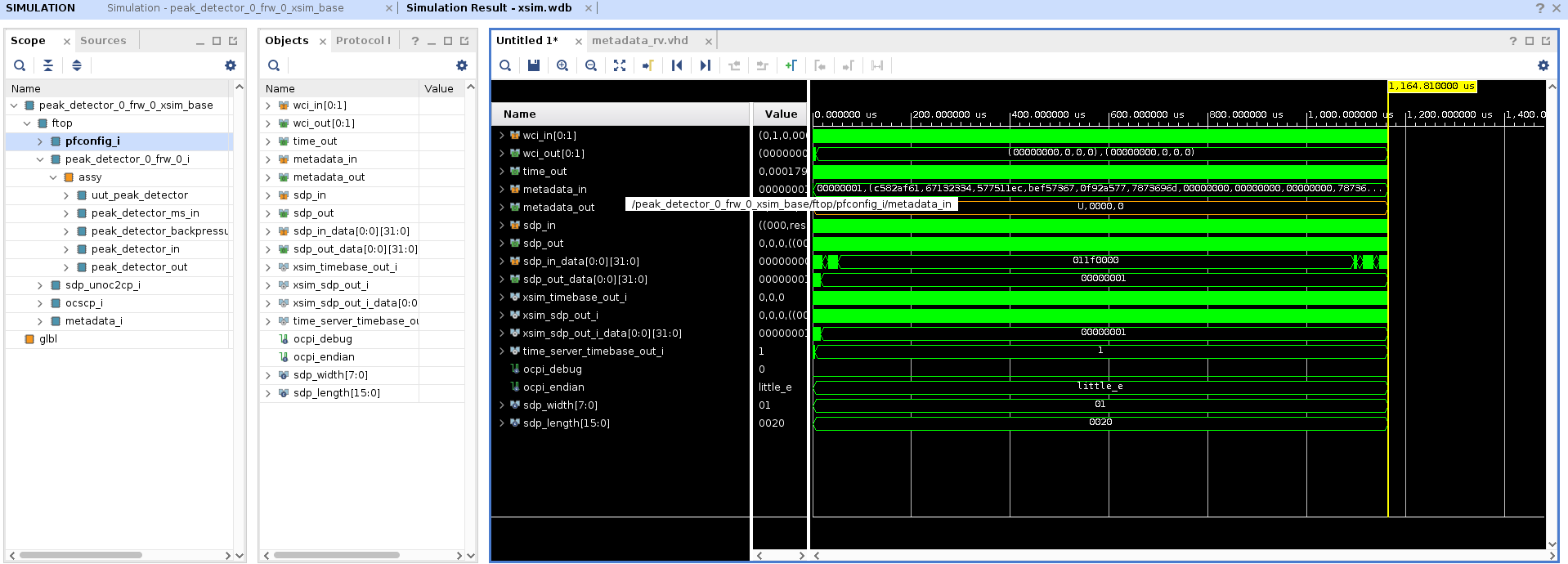
Now, since we decided to use the keep-simulations option, we can use ocpiview to view waveforms that the simulator saved.
To invoke the simulator, run the following command in the peak_detector.test/ directory.
ocpiview run/xsim/case00.00.peak_detector.hdl.simulation &
Navigating the Simulator (optional guide)
This part of the tutorial is optional and is intended for those unfamiliar with navigating the Vivado GUI. To add signals to a wave window, right click in the scope section and click Add to Wave Window. Doing so on ftop in this case gets you the View Simulation Waveforms (XSIM) shown in the previous section.
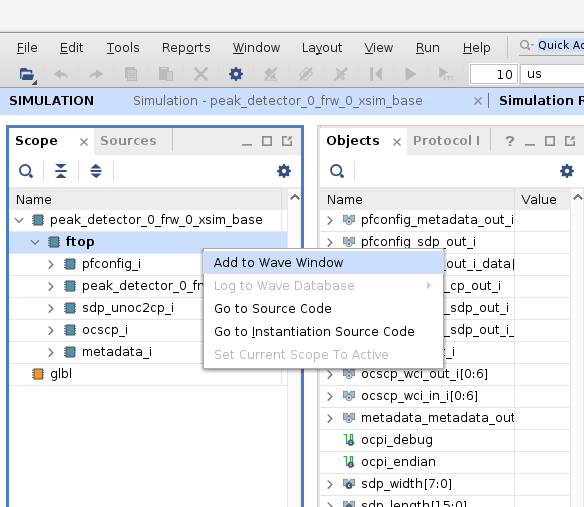
You can open up the scopes by double-clicking on the ones with > next to them. You can use this to get access to lower-level signals. You can also add individual signals by using those listed in the Objects window.
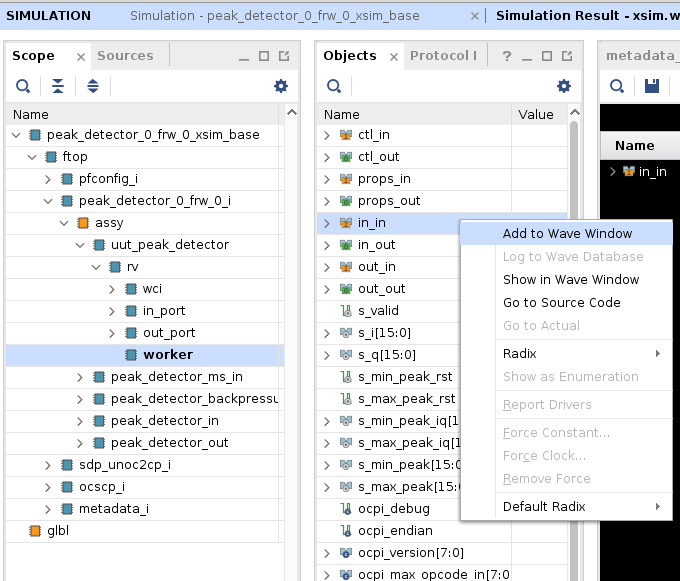
There are a few ways to zoom in on the waveforms being viewed in the wave window. One way is to left-click and drag across the section you wish to zoom in on. Another way is to click the magnifier button above the window, and finally you can use ctrl and the + key on the keypad.
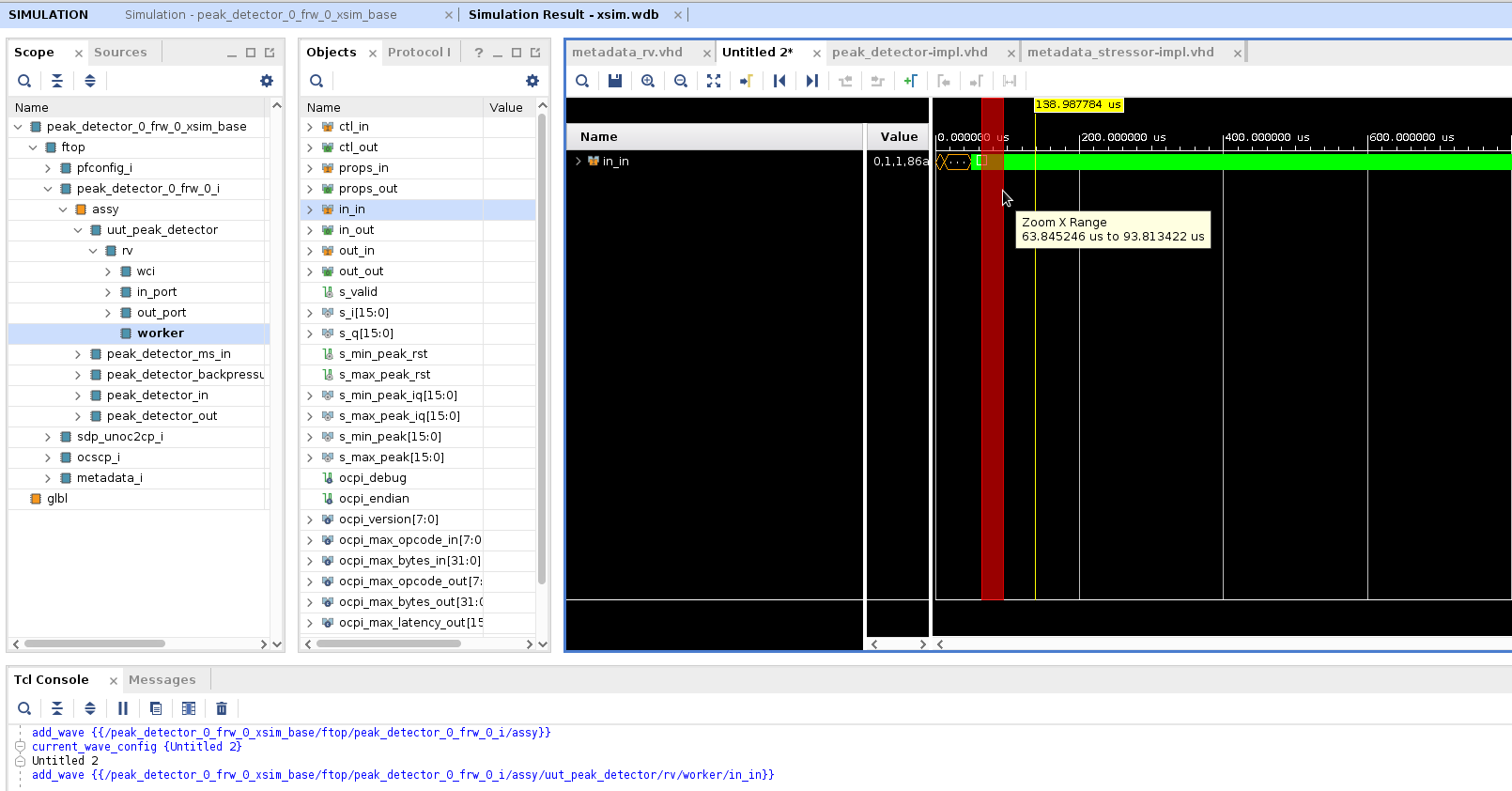
Finally, when you have a signal selected, you can use the left and right arrow keys to move to the next (right arrow) or previous(left arrow) that the signal changed. This is the same function as clicking the Next Transition button.
The measured minimum and maximum peak values can be viewed by observing the s_min_peak[15:0] and s_max_peak[15:0] signals in the wave window as shown below.

The minimum and maximum peak property values may also be shown by viewing the output file:
peak_detector.test/run/xsim/case00.00.peak_detector.hdl.props
Run Unit Test (ADALM-PLUTO)
First we’ll check that the ADALM-PLUTO device is connected. Details of how to set up and configure the deployment platform can be found in OpenCPI Analog Devices PlutoSDR Getting Started Guide. We will use the pluto in Device Mode.
View the available connections to identify the interface that the plutosdr is connected on.
ocpihdl ethers

   1) lo: MAC address none, up, connected, loopback, IP address: 127.0.0.1
   2) ens33: MAC address 00:0c:29:b1:e8:a5, up, connected, IP address: 192.168.222.131
   3) enx00e022b1c216: MAC address 00:e0:22:b1:c2:16, up, connected, IP address: 192.168.2.10
In the example above, the <Pluto-connected interface> is enx00e022b1c216.
export OCPI_SERVER_ADDRESSES= 192.168.2.1:12345
export OCPI_SOCKET_INTERFACE=<Pluto-connected interface>
sudo ifconfig <Pluto-connected interface> 192.168.2.10
ocpiremote load adi_plutosdr0_39 plutosdr -p analog
ocpiremote start -b -p analog
There should be output that reads something similar to:
Executing remote configuration command: status
Server is running with port: 12345 and pid: 26224
Now we can run the unit test and view the results. From the command line in the DemoProject6/components/peak_detector.test directory, run the following ocpidev command:
ocpidev run --phase prep,run,verify --only-platform plutosdr --view
You should see that the test runs much faster on hardware when compared to the simulator. The output should look like this (note that the input and output are the same):
Tutorial Summary
Now that you’ve completed this tutorial, you should be familiar with the basic concepts of developing an HDL worker and the OpenCPI component unit test suite and how to use OpenCPI tools to perform unit testing on an HDL worker. If you are creating a work alike, you should be able to save some time by reusing the component spec and component unit test suite for the worker you created previously. You can now move on to Tutorial 7: Using HDL Primitive Libraries (or to Tutorial 7hw: Using HDL Primitive Libraries), which introduces you to OpenCPI HDL primitives and primitive libraries.