Tutorial 7: Using HDL Primitive Libraries
Overview
This tutorial introduces you to HDL primitives and primitive libraries. HDL primitives are HDL assets that are lower level than workers. They can be used as building blocks for workers and are useful for HDL workers when there is lower-level code that is reused or shared in different workers. Using HDL primitives is also useful when there are non-OpenCPI code modules that are imported and need to be left untouched so that they remain useful outside of OpenCPI.
HDL primitives are the preferred way in OpenCPI to store and present reusable HDL for use in multiple workers. Using HDL primitives is not required, but it is recommended practice.
HDL primitives can be libraries or cores. An HDL primitive library is a collection of modules compiled from source code that can be referenced in HDL worker code, while an HDL primitive core is a single module. This tutorial demonstrates how to create an HDL primitive library and use it in HDL worker code. Our example is the Automatic Gain Control (AGC) Complex component (agc_complex) in the ocpi.tutorial project. This component inputs complex signed samples, drives the amplitude of both I and Q input rails to a reference level, and outputs complex signed samples.
The response time and output level of the circuit are programmable, as is the ability to update/hold the gain differential used in the feedback loop. The size of the averaging window used for peak detection is build-time programmable using the avg_window parameter, which is recommended to be a power-of-two to enable hardware division implementation with shift registers.
The ref property controls the desired output amplitude, while the mu property controls the AGC time constant, thus determining the response time of the circuit.
This implementation uses three multipliers per I/Q rail to process input data at the clock rate; that is, this worker can handle a new input value every clock cycle. This circuit produces output one clock cycle after each valid input, but the input-to-output latency is actually three valid clock cycles.
The AGC Complex worker uses the OpenCPI iqstream_protocol for both input and output ports (see $OCPI_ROOT_DIR/projects/core/specs/iqstream_protocol.xml). This protocol defines an interface of 16-bit complex signed samples. The data_width “parameter” property for the HDL worker can be used to reduce the worker’s internal data width to less than 16 bits.
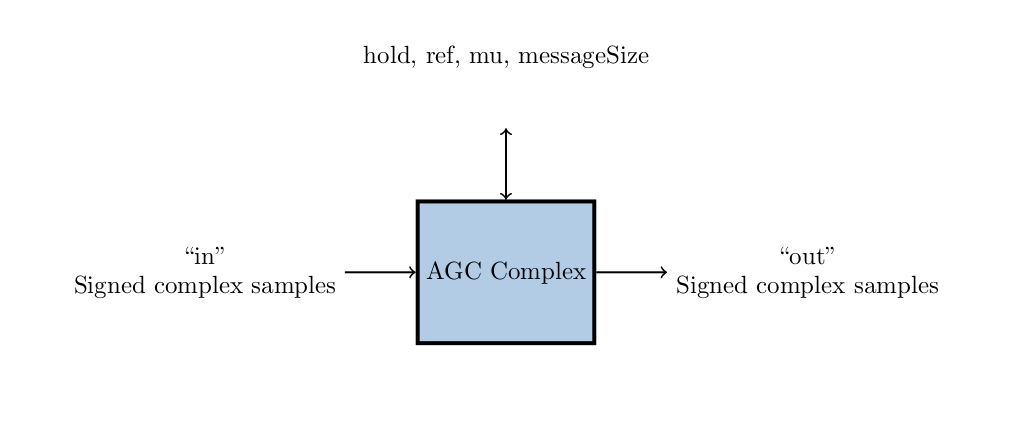
Figure 129: AGC Complex Component Function
Tutorial Objectives
The purpose of this tutorial is to demonstrate how to create an HDL primitive library and use it in an HDL application worker. It shows you how to:
Create the HDL primitive library to be used by the AGC complex worker.
Create the AGC Complex component, HDL worker, and component unit test suite (aka “unit test”) and build the HDL worker and unit test for the xsim platform.
Run the component unit test suite on the xsim platform and view the generated output.
The provided source files show:
A primitive library package declaration file that enables VHDL code to instantiate all entities and modules in the primitive library.
A primitive library VHDL source file that implements a simple automatic gain control (AGC) with two independent channels for I and Q, respectively. This file in particular stores the record signal names.
What’s Provided for This Tutorial
The built-in OpenCPI tutorial project ocpi.tutorial provides source code for the following items in this tutorial:
The HDL primitive source and package declaration VHDL files, in hdl/prims/agc.vhd and hdl/prims/prims_pkg.vhd
The VHDL source code for the agc_complex worker, in components/agc_complex.hdl/agc_complex.vhd
The unit test scripts generate.py and verify.py, written in Python
The unit test bash shell script view.sh
The ocpi.tutorial project also provides the XML source for all of the assets used to build and run the example component, worker and tests.
Instructions for copying these items from the ocpi.tutorial project into the “demo” tutorial project are provided in the relevant sections of this document. The source code for these items is also available as text in the relevant sections of this document that you can copy and paste into the relevant files following the instructions given in the section.
Note: when copying and pasting text from this document, be sure to remove any line breaks in code or command lines. The backslash character (\) is used in command lines (where feasible) to indicate a line break.
Prerequisites to Using This Tutorial
This tutorial (Tutorial 7) has the same system prerequisites as Tutorial 1: Component-based Development. See Prerequisites to Using This Tutorial for details.
Before you begin this tutorial, you should have successfully completed Tutorials 1-6.
We recommend reading the following briefings and guides before getting started with this tutorial:
HDL Assemblies. This briefing introduces HDL assembly concepts and terminology.
HDL Primitives. This briefing introduces HDL primitives concepts and terminology.
Documentation References
The documents listed in the following table provide detailed information about subjects discussed in this tutorial. The documents listed here are not required reading for this tutorial but will likely be of interest for more in-depth learning.
Create New Project
We’ll create a new, clean project for Tutorial 7; we’ll call it DemoProject7.
To create the new project from the command line, use the following ocpidev command:
ocpidev create project DemoProject7 --register -D ocpi.assets -D ocpi.tutorial
Create HDL Primitive Library
You must now create and build the HDL primitive library.
To create the primitive library from the command line , use the following ocpidev command from the DemoProject7/ directory:
ocpidev create hdl primitive library prims
Copy HDL Primitive Library Files
Next, we need to copy the provided primitive source file agc.vhd and primitive package prims_pkg.vhd from the ocpi.tutorial project directly into the primitive library. Navigate to the hdl/primitives/prims/ subdirectory in DemoProject7 and then use the commands:
cp $OCPI_ROOT_DIR/projects/tutorial/hdl/primitives/prims/agc.vhd .
cp $OCPI_ROOT_DIR/projects/tutorial/hdl/primitives/prims/prims_pkg.vhd .
Now that you’ve copied the files, you can open and examine the contents. You’ll see that agc.vhd implements the AGC component logic and that prims.pkg.vhd enables the primitive source code to be callable by HDL workers.
Build HDL Primitive Library
Now we’ll build the HDL primitive library we just copied from the tutorial project.
To build the primitive library using the command line, run the following ocpidev command from the DemoProject7/hdl/primitives/ subdirectory:
ocpidev build hdl primitives --hdl-platform xsim
Create Component Library
Before we can create our component, we need to create a component library for it.
To create the components library with ocpidev, run the following command in the DemoProject7 directory:
ocpidev create library components
You should now see a lib/ directory and a components.xml file. We need to edit the components.xml file. Using a text editor, open and edit components/components.xml so that it has the following content:
<library HdlLibraries='prims'/>
Create Component
Now we need to create the OCS (OpenCPI Component Specification) for agc_complex that defines its properties and ports.
Create Component Spec
We’ll create our agc_complex component spec in the components library we just created.
To create the component spec with ocpidev, run the following command in the DemoProject7/components/ directory:
ocpidev create component agc_complex
Add Component Properties and Ports
The previous command created the component spec agc_complex-comp.xml in components/agc_complex.comp/. We must now add properties and ports to the component spec.
To do so, we’ll simply copy the reference spec agc_complex-spec.xml directly from ocpi.tutorial into our DemoProject7/components/agc_complex.comp/ directory:
cp $OCPI_ROOT_DIR/projects/tutorial/components/agc_complex.comp/agc_complex-comp.xml .
Create Worker
We will now create the HDL worker.
To create the worker using ocpidev, run the following command in the DemoProject7/components/ directory:
ocpidev create worker agc_complex.hdl
Update HDL Worker Skeleton Files
We will now populate the skeleton files in the previously-generated agc_complex.hdl/ directory with reference files from the tutorial project.
Use the following commands to copy the files for agc_complex.vhd and agc_complex.xml from the ocpi.tutorial project:
cp $OCPI_ROOT_DIR/projects/tutorial/components/agc_complex.hdl/agc_complex.vhd .
cp $OCPI_ROOT_DIR/projects/tutorial/components/agc_complex.hdl/agc_complex-hdl.xml agc_complex.xml
You can examine these files for more context. The agc_complex.vhd file in particular holds good information to look into as it has an explanation of the agc circuit. This file allows the worker to function properly.
In agc_complex.hdl/gen/, you’ll see an assortment of files that do not need to be edited. They are automatically generated when the worker has been created, and if they are removed will be recreated when the ocpidev build command is invoked.
Build Worker
If all goes well, we can now build the worker from the components/agc_complex.hdl/ directory.
To build the worker from the command line, run the following ocpidev command in the components/agc_complex.hdl/ directory in DemoProject7:
ocpidev build --hdl-platform xsim
Navigate to components/agc_complex.hdl/. There should be a new subdirectory target-xsim/ that contains the artifacts needed to run the worker on this platform.
Create Unit Test
Now we’ll generate an OpenCPI component unit test suite (aka “unit test”) for our agc_complex worker.
To create the unit test from the command line, run the following ocpidev command from the DemoProject7/components/ directory:
ocpidev create test agc_complex
Now run the tree command to observe the files created:
agc_complex.test
├── generate.py
├── agc_complex-test.xml
├── verify.py
└── view.sh
The files of interest here are:
agc_complex-test.xml. This is the OpenCPI Test Suite Description (OTSD) file. It specifies the test cases and the defaults that apply to all test cases.
generate.py. This is a stub file for an optional script that you can create to generate input test data for ports or property value files. There is one script for each input port.
verify.py. This is a stub file for an optional script that you can create to verify output test data produced by output ports. There is one script for each output port.
view.sh. This is a stub file for an optional script that you can create to view the results of a test execution; for example, a plot. This script may not be necessary or appropriate for many workers. It can work as a helpful aid in the development process, but it is not meant for long-term testing and re-testing.
We want to use the generate, verify and view scripts in this tutorial, so we’ll need to edit the OTSD (aka the “unit test description file”) to specify them and create the code for each script. The next sections describe these steps.
Copy OpenCPI Test Suite Description File
We now have a skeleton agc_complex-test.xml file that we need to fill out. To do this, we’ll simply copy the reference OpenCPI Test Suite Description XML file from the tutorial project with the command:
cp $OCPI_ROOT_DIR/projects/tutorial/components/agc_complex.test/agc_complex-test.xml .
Copy Unit Test Scripts
Now we need to create code for the empty generate.py, verify.py and view.sh scripts we created when we created the unit test. To do this, we’ll simply copy the unit test scripts provided in the tutorial project into our DemoProject7 unit test directory.
Copy generate.py and verify.py Files
We will simply use the reference files for these items from ocpi.tutorial. The commands to copy the files into our existing project are shown below:
cp $OCPI_ROOT_DIR/projects/tutorial/components/agc_complex.test/generate.py .
cp $OCPI_ROOT_DIR/projects/tutorial/components/agc_complex.test/verify.py .
Edit view.sh Script
Now open the view.sh script with a text editor and then copy and paste the following lines at the end of the file:
#!/bin/bash --noprofile
# Use this script to view your input and output data.
# Args: <list-of-user-defined-args> <output-file> <input-files>
$OCPI_ROOT_DIR/projects/tutorial/scripts/plotAndFft.py $2 complex 32768 100&
$OCPI_ROOT_DIR/projects/tutorial/scripts/plotAndFft.py $1 complex 32768 100&
Note: Make sure your unit test scripts have read and execute permissions before using them to build and run the agc_complex unit test. For example, in the agc_complex.test/ directory:
chmod 755 generate.py
chmod 755 verify.py
chmod 755 view.sh
Build Unit Test
Now we’ll build the unit test for the simulator target platform.
To generate and build the unit test from the command line, run following the ocpidev command from the components/agc_complex.test/ directory:
ocpidev build --hdl-platform xsim
Run Unit Test
We will now run the unit test in components/agc_complex.test/.
First import the necessary prerequisites to the opencpi venv. (This only needs to be done once.)
$OCPI_ROOT_DIR/tools/.venv/bin/python -m pip install matplotlib
To run the test from the command line, use the following ocpidev command from the components/agc_complex.test/ directory:
ocpidev run --phase prep,run,verify --only-platform xsim --keep-simulations --view
View Unit I/O Test Plots
The following figures show the output:
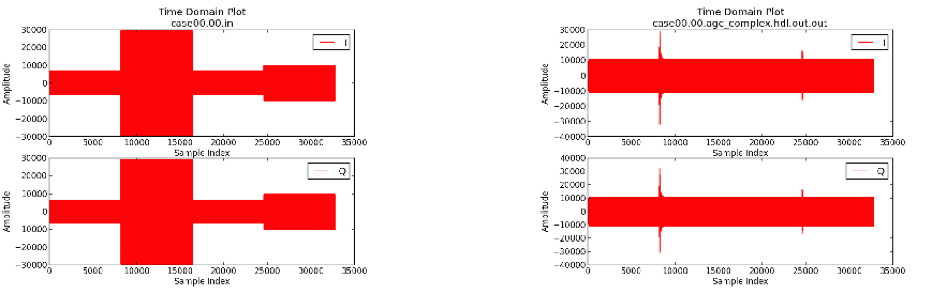
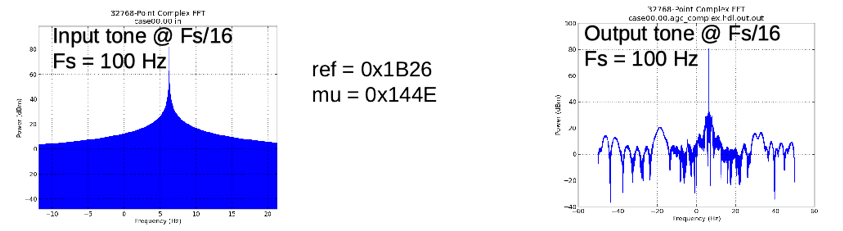
View Simulation Waveforms
Note: In order to view simulation waveforms, you must have checked “keep simulations” in the OpenCPI GUI or have used the –keep-simulations option on the ocpidev command line.
In a terminal window, browse to agc_complex.test/ and execute the following command:
ocpiview run/xsim/case00.00.agc_complex.hdl.simulation/ &
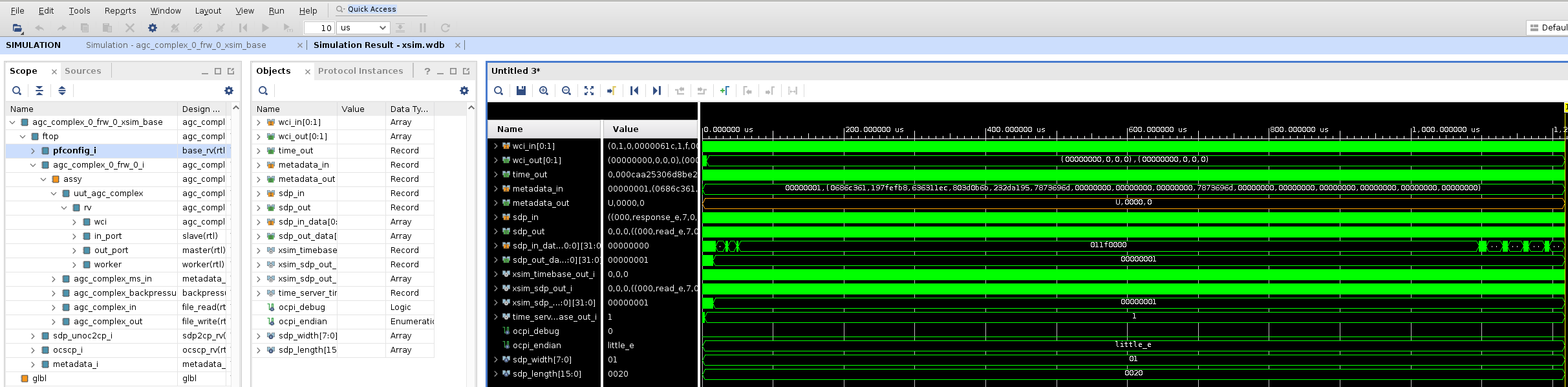
You’ll want to expand agc_complex_0_frw_0_xsim_base by using the arrow to the left then right-clicking pfconfig_i. Click on Add to Wave Window. For more information on using ocpiview, refer to the section Navigating the Simulator (optional guide).
You should see the following output:
Tutorial Summary
Now that you’ve completed this tutorial, you should be familiar with the basic concepts of HDL primitives and how they are used to store and present reusable HDL. In other existing OpenCPI projects, you should also be able to see how the primitive library is used for multiple workers instead of just the one shown in this tutorial. You can now move on to Tutorial 8: Using Third-Party HDL Primitive Cores (or Tutorial 7hw: Using HDL Primitive Libraries), which demonstrates how to use third-party primitive cores in HDL application workers.