Tutorial 4: Using Third-party Libraries in RCC Workers
Overview
This tutorial continues to demonstrate the RCC worker design process that we introduced in Tutorial 3: Developing an RCC Worker. In this tutorial, we’ll re-create the complex_mixer component from the ocpi.tutorial project that we used in Tutorial 2: Designing Applications and HDL Assemblies. As we did in Tutorial 3, we’ll step through the procedure used to create the component and its RCC worker implementation, including creating the component specification and designing, building and testing an RCC worker that implements its function. The example RCC platform used in this tutorial is rocky9, but different development hosts can be used. If you are using a development host other than Rocky Linux 9, replace rocky9 with the relevant name (example, ubuntu20_04).
The complex mixer component consists of a Numerically Controlled Oscillator (NCO) and a complex multiplier. It receives I/Q data on its input port and then multiplies this signal by a tone generated by the NCO, shifting the input signal in the frequency domain by the frequency of the NCO. The component properties control the NCO frequency.
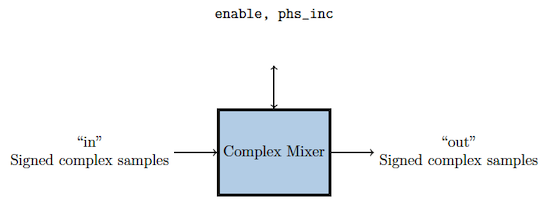
Figure 125: Complex Mixer Component Function
This tutorial shows you how to use a third-party library to implement the internal NCO tone generator for the RCC implementation of the component. To implement the NCO, we’ll use the nco module from liquid-dsp, which is a free and open-source signal processing library for software-defined radios written in C and is included in the OpenCPI installation. For details on liquid-dsp and the nco module, see the URL https://liquidsdr.org/doc/nco.
Tutorial Objectives
The purpose of this tutorial is to demonstrate how to integrate a third-party library into an RCC worker.
This tutorial shows you how to:
Create the complex mixer component specification (properties and ports).
Create the complex mixer worker C++ code using the liquid-dsp API and build the worker for the target platform.
Create, build and run the unit test for the RCC worker on the target platform.
It demonstrates how to use the RCC authoring model to:
Integrate the liquid-dsp library into the RCC worker
Create worker methods for initializing and releasing C++ resources
Access worker data ports
Use worker method result values to communicate worker states to the OpenCPI framework
After running this tutorial, you should understand how to use the RCC authoring model to integrate a third-party library into an RCC worker and how to use the OpenCPI unit test suite on an RCC worker implementation of a simple OpenCPI component.
What’s Provided for This Tutorial
The OpenCPI built-in project ocpi.tutorial provides source code for the following items in this tutorial:
The complex_mixer.rcc worker, written according to the API for the RCC (C++ source code) authoring model. This source code uses the liquid-dsp library that is included with OpenCPI and installed as part of the OpenCPI installation process.
The unit test files generate.py and verify.py, written in Python
The unit test bash shell script view.sh
The tutorial also provides the XML source for all of the assets used to build and run the example component, worker and tests described in this tutorial.
You will also use the following script from the ocpi.tutorial project:
The Python script code for plotting and viewing the output data, in scripts/plotAndFft.py
Instructions for copying these items from the ocpi.tutorial project into the “demo” tutorial project are provided in the relevant sections of this document. The source code for these items is also available as text in the relevant sections of this document that you can copy and paste into the relevant files following the instructions given in the section.
Note: when copying and pasting text from this document, be sure to remove any line breaks in code or command lines.
Prerequisites to Using This Tutorial
This tutorial (Tutorial 4) has the same system prerequisites as Tutorial 1: Component-based Development. See Prerequisites to Using This Tutorial for details.
Before you begin this tutorial, you should have successfully completed Tutorials 1 through 3.
We recommend reading OpenCPI Unit Test Framework Details before getting started with this tutorial.
Documentation References
The documents listed in the following table provide detailed information about subjects discussed in this tutorial. The documents listed here are not required reading for this tutorial but will likely be of interest for more in-depth learning.
Create New Project
As we did in Tutorial 3: Developing an RCC Worker, we’ll create a new, clean project for Tutorial 4; we’ll call it DemoProject4. This project has the same requirements as the project we created for Tutorial 3.
To create the new project on the command line, use the following ocpidev command:
ocpidev create project DemoProject4 --register -D ocpi.assets
Create Components Library
We can use the top-level components/ directory as our library like we did in Tutorial 3: Developing an RCC Worker.
To create the components library with ocpidev, run the following command in the DemoProject4 directory:
ocpidev create library components
Create Component
Like we did in Tutorial 3: Developing an RCC Worker, we need to create the OCS (OpenCPI Component Specification) for our complex mixer function that defines its properties and ports.
Create Component Spec
As we did for the new peak_detector component in Tutorial 3: Developing an RCC Worker, we’ll create the complex mixer component spec in the components/ library.
To create the component spec with ocpidev, run the following command from the DemoProject4/components/ directory:
ocpidev create component complex_mixer
The command creates the component spec complex_mixer-comp.xml in components/complex_mixer.comp/. We’ll add properties and ports to the component spec in the next step.
Add Properties and Ports
The complex_mixer component function needs to define two properties:
The phs_inc (“phase increment”) property, which stores the results of the computation (that is, setting the tune frequency for the input signal using the output of the internal NCO). This property is valid for both RCC and HDL component implementations.
The enable property, which controls whether a worker implementation performs the computation on the incoming data or simply passes the incoming data through without any processing (“bypass” mode). This property is valid for both RCC and HDL component implementations.
We want to set default values for the phs_inc and enable properties in the component spec and allow the worker implementation to override these values. We’ll use the default attribute in our property definitions to specify the default values and use the writeable attribute to indicate that the worker can override them. You can read more about how the framework interprets these attributes in the OpenCPI Component Development Guide.
The complex_mixer component has the same simple port configuration as the peak_detector component and uses the same OPS. It requires one input port and one output port for communication with other components in an application and both ports will use the iqstream protocol.
To add properties and ports from the command line, open the spec with a text editor.
Now add the following XML code:
<ComponentSpec> <Property Name="enable" Type="bool" Writable="true" Default="true"/>
   <Property Name="phs_inc" Type="Short" Writable="true" Default="8192"/>
   <DataInterfaceSpec Name="in" Producer="false" Protocol="iqstream_protocol.xml"/>
   <DataInterfaceSpec Name="out" Producer="true" Protocol="iqstream_protocol.xml"/>
</ComponentSpec>
Create Worker
Recall from Tutorial 3: Developing an RCC Worker that we implemented a run method for the peak_detector worker. This is the only required method in the RCC authoring model. We also implemented a start method for the worker; this method, along with the initialize, release and stop methods, are optional. We need to use the initialize and release methods in our complex mixer worker to prevent segmentation fault errors from being generated.
Because we’re using a third-party library in our complex mixer worker, the procedure to design it has a few more steps than the procedure we used for the peak detector worker in Tutorial 3: Developing an RCC Worker.
For the complex mixer, the steps are as follows:
Create the worker OWD and skeleton file
Edit the worker OWD to add information about the liquid-dsp library and the optional RCC authoring model methods to be used
Write the C++ code that uses the liquid-dsp API and implements the authoring model
Edit the worker skeleton file to add the C++ code
Build the worker for target platform
Create Worker OWD and Skeleton File
To create the complex_mixer worker with ocpidev, run the following command in the DemoProject4/components/ directory:
ocpidev create worker complex_mixer.rcc
Edit Worker OWD
Recall from Tutorial 1: Component-based Development that RCC worker OWDs generated by ocpidev don’t generally need to be updated. In this case, however, we need to add two attributes:
A ControlOperations attribute that indicates our worker will have initialize and release methods; because the run method is mandatory, its presence is assumed. You can read more about this attribute in the OpenCPI Component Development Guide.
A StaticPreReqLibs attribute that indicates our worker will use the liquid-dsp library. You can read more about this attribute in the OpenCPI RCC Development Guide.
To add these attributes to the OWD from the command line, in DemoProject4, open /components/complex_mixer.rcc/complex_mixer.xml with a text editor.
Now add the following XML code:
<RccWorker spec='complex_mixer' Language='c++' Version='2' controlOperations="initialize,release" StaticPreReqLibs="liquid"/>
Write C++ Code
We’ll use the nco module from liquid-dsp, which is a free and open-source signal processing library for software-defined radios written in C and is supplied with the OpenCPI installation. For details on liquid-dsp and the nco module, see the URL https://liquidsdr.org/doc/nco.
Our worker code will use the following routines from the liquid-dsp nco module:
nco_crcf_create(type) - creates an nco object of type LIQUID_NCO or LIQUID_VCO. We’ll use this routine in our initialize method to create an NCO object of type LIQUID_NCO.
nco_crcf_destroy(q) - destroys an nco object, freeing all internally-allocated memory. We’ll use this routine in our release method to remove the LIQUID_NCO object we created.
nco_crcf_set_frequency(q,f) - sets the frequency f (equal to the phase step size Δθ). We’ll use this routine in our run method.
nco_crcf_set_phase(q,theta) - sets the internal nco phase to θ. We’ll use this routine in our initialize method to set the internal NCO object’s phase to 0.
nco_crcf_step(q) - increments the internal nco phase by its internal frequency, θ←θ+Δθ. We’ll use this routine in our run method.
nco_crcf_mix_down(q,x,*y) - rotates an input sample x by e−jθ, storing the result in the output sample y. We’ll use this routine in our run method.
All of the I/O data samples are of type liquid_float_complex:
liquid_float_complex sample;
sample.I = 0;
sample.Q = 0;
Update RCC Worker Skeleton File
Now we’ll add the C++ source code to the complex_mixer.cc skeleton file. To do this, you can either:
Copy the tutorial project’s complex_mixer.cc reference file directly into your DemoProject4/components/complex_mixer.rcc/ subdirectory, overwriting the skeleton file.
Open the skeleton file for editing and copy/paste the code provided below to it.
You can choose to do one or the other. Doing both is redundant.
Copy Tutorial Project Reference File
To copy the file directly from the tutorial project, navigate to the complex_mixer.rcc/ subdirectory in DemoProject4 and then use the command:
cp $OCPI_ROOT_DIR/projects/tutorial/components/complex_mixer.rcc/complex_mixer.cc complex_mixer.cc
Once you’ve copied the file into your project, you can move to the next section to learn more about what the C++ code does.
Edit Worker Skeleton File
To edit the worker skeleton file from the command line, navigate to the components/complex_mixer.rcc/complex_mixer.cc file and open it with a text editor.
Now replace the contents of the skeleton file with the following code:
#include "complex_mixer-worker.hh"
#include <liquid/liquid.h>
#include <cmath>
#include <iostream>
#include <climits>

using namespace OCPI::RCC; // for easy access to RCC data types and constants
using namespace Complex_mixerWorkerTypes;
using namespace std;

#define Uscale(x)  (float)((float)(x) / (pow(2,15) -1))
#define Scale(x)   (int16_t)((float)(x) * (pow(2,15) -1))

class Complex_mixerWorker : public Complex_mixerWorkerBase
{
nco_crcf q;

RCCResult initialize()
{
   q = nco_crcf_create(LIQUID_NCO);
   nco_crcf_set_phase(q, 0.0f);

   return RCC_OK;
}

RCCResult release()
{
   nco_crcf_destroy(q);

   return RCC_OK;
}

RCCResult run(bool /*timedout*/)
{
   const IqstreamIqData* inData = in.iq().data().data();
   IqstreamIqData* outData = out.iq().data().data();
   const size_t num_of_elements = in.iq().data().size(); // size in IqstreamIqData units
   out.iq().data().resize(num_of_elements);

   // set each time so that if the container changes it gets updated
   // might be better to put this into a write sync function but this is for training
   float phase_inc = properties().phs_inc * ((2*M_PI)/(SHRT_MAX * 2));
   nco_crcf_set_frequency(q,phase_inc);

   liquid_float_complex out_sample;
   liquid_float_complex in_sample;

   for (unsigned int j = 0; j < num_of_elements; j++)
   {
      if (properties().enable)
      {
      in_sample.real = Uscale(inData->I);
      in_sample.imag = Uscale(inData->Q);
      nco_crcf_step(q);
      nco_crcf_mix_down(q, in_sample, &out_sample);
      outData->I = Scale(out_sample.real);
      outData->Q = Scale(out_sample.imag);

      inData++;
      outData++;
      }
      else
      {
      outData->I = inData->I;
      outData->Q = inData->Q;
      inData++;
      outData++;
      }
   }

   return num_of_elements ? RCC_ADVANCE : RCC_ADVANCE_DONE;
}
};

COMPLEX_MIXER_START_INFO
// Insert any static info assignments here (memSize, memSizes, portInfo)
// e.g.: info.memSize = sizeof(MyMemoryStruct);
COMPLEX_MIXER_END_INFO
Build Worker
Now we need to compile the complex_mixer worker for the platform on which we want to run it; for this tutorial, it’s our development host (rocky9).
To build the worker with ocpidev, run the following command from the DemoProject4 directory:
ocpidev build worker complex_mixer.rcc
Create Unit Test
Like we did in Tutorial 3: Developing an RCC Worker, we’ll generate an OpenCPI component unit test suite (aka “unit test”) for our complex mixer worker.
To create the unit test with ocpidev, run the following command from the DemoProject4/components directory:
ocpidev create test complex_mixer
Edit Test Suite Description
Like we did in Tutorial 3: Developing an RCC Worker, we need to add the generate and verify scripts with the necessary parameter values for the scripts to the OpenCPI Test Suite Description (OTSD) for the complex mixer worker.
To edit the test suite description from the command line, open the components/complex_mixer.test/complex_mixer-test.xml file with a text editor.
Now replace the contents of the file with the following XML:
<!-- This is the test xml for testing component "complex_mixer" -->
<Tests UseHDLFileIo='true'>
   <!-- Here are typical examples of generating for an input port
   and verifying results at an output port -->
   <Input Port='in' Script='generate.py 100 12.5 32767 16384'/>
   <Output Port='out' Script='verify.py 100 16384' View='view.sh'/>

   <!-- Set properties here. To create a test exclusive property, Use Test='true' -->
   <Property Name='phs_inc' Values='8192'/>
   <Property Name='enable' Values='0,1'/>
</Tests>
Update Unit Test Scripts
We’re going to use the input and view unit test scripts again like we did for the peak detector worker in Tutorial 3: Developing an RCC Worker, so we need to update the generate.py, verify.py, and view.sh scripts with our input data and our test parameters. As in Tutorial 3, make sure these files have read and execute permissions before proceeding to build and run the complex_mixer unit test.
Copy generate.py Script from Tutorial Project
The ocpi.tutorial project provides a reference generate.py script that you can simply copy into your DemoProject4 instead of editing the empty file you just created. To do this, in DemoProject4, navigate to the components/complex_mixer.test/ subdirectory and use the command:
cp $OCPI_ROOT_DIR/projects/tutorial/components/complex_mixer.test/generate.py .
Copy verify.py Script from Tutorial Project
The ocpi.tutorial project provides a reference verify.py script that you can simply copy into your DemoProject4 instead of editing the empty file you just created. To do this, in DemoProject4, navigate to the components/complex_mixer.test/ subdirectory and use the command:
cp $OCPI_ROOT_DIR/projects/tutorial/components/complex_mixer.test/verify.py .
Copy view.sh Script from Tutorial Project
The ocpi.tutorial project provides a reference view.sh script that you can simply copy into your DemoProject4 instead of editing the empty file you just created. To do this, in DemoProject4, navigate to the components/complex_mixer.test/ subdirectory and use the command:
cp $OCPI_ROOT_DIR/projects/tutorial/components/complex_mixer.test/view.sh .
Note: Make sure your test scripts have read and execute permissions before using them to build and run the unit test. For example:
chmod 755 generate.py
chmod 755 verify.py
chmod 755 view.sh
Build Unit Test
Now we’ll build the unit test for the target platform, which is our development host.
To build the unit test with ocpidev, run the following command from the components/complex_mixer.test/ directory in DemoProject4:
ocpidev build test
Run Unit Test
Now we’ll run the unit test for the complex mixer worker.
To run the test and view the output from the command line, run the following ocpidev command from DemoProject4/components/:
ocpidev run --phase prep,run,verify --view
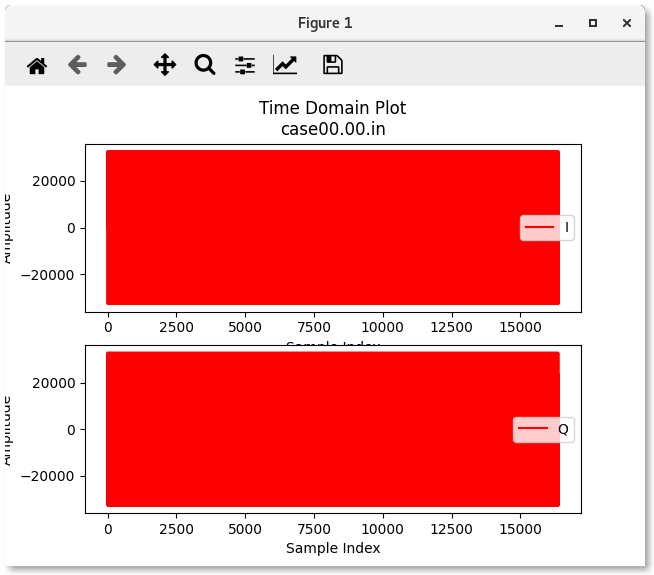
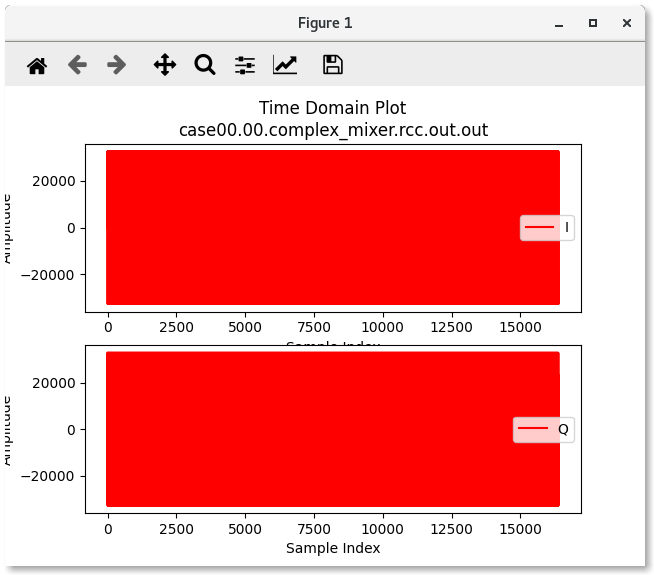
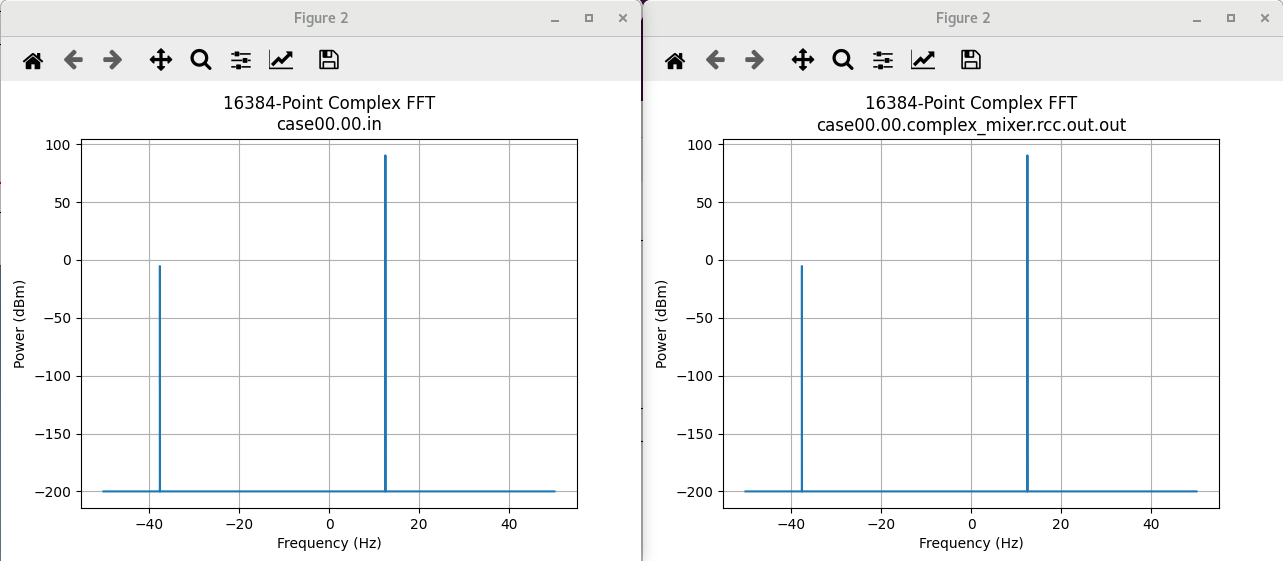
You should see this output:
Case00.00: enable = 0
Case00.01: enable = 1
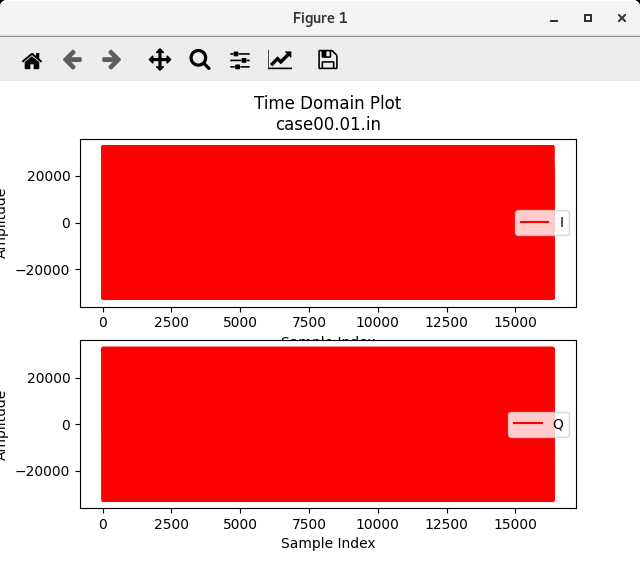
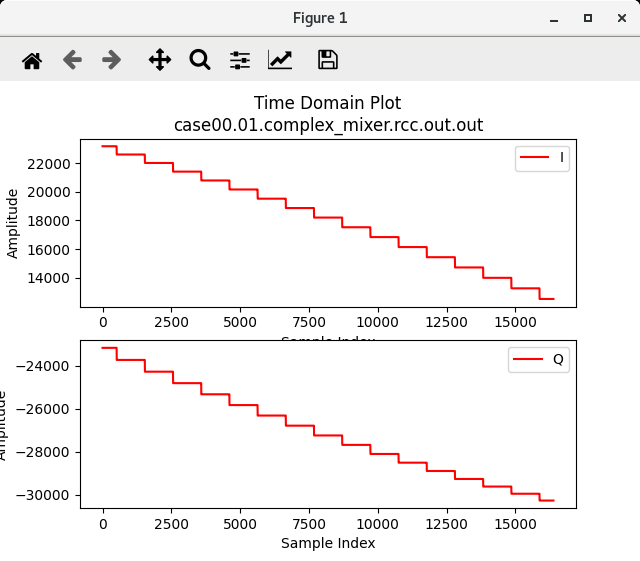
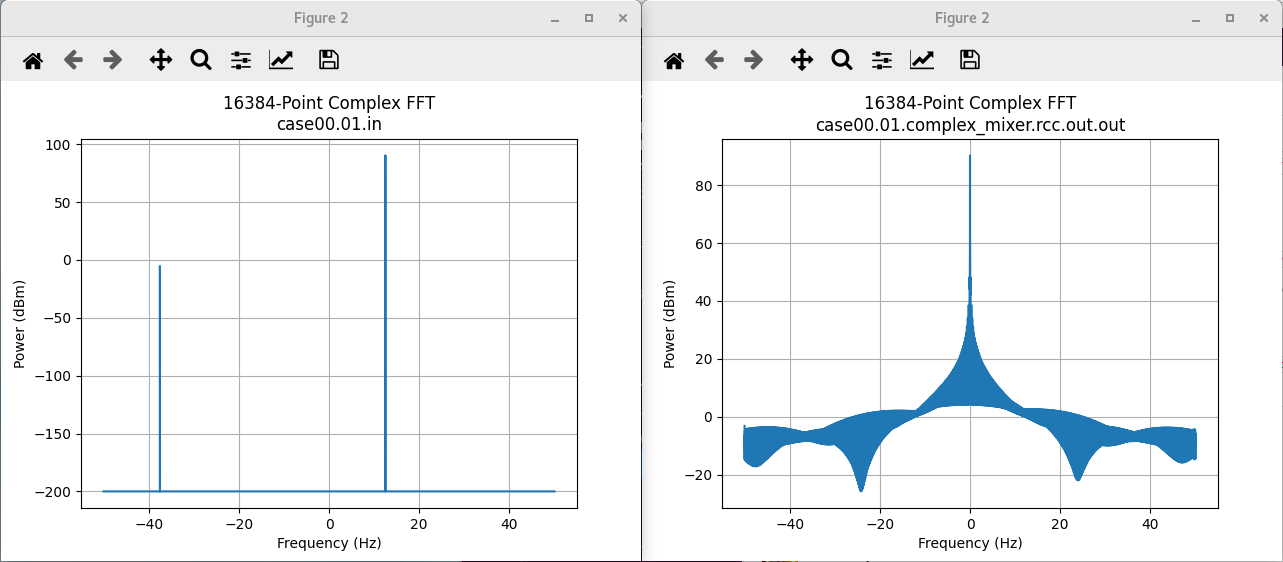
Tutorial Summary
Now that you’ve completed this tutorial, you should be familiar with the basic concepts of developing an RCC worker that integrates a third-party library and running OpenCPI component unit tests on RCC workers. You can now proceed to Tutorial 5: Using Multiple Opcodes in RCC Workers, which demonstrates how to use multiple opcodes in RCC workers.