Tutorial 2: Designing Applications and HDL Assemblies
Overview
This tutorial explains how to create an application from components that exist in other libraries in other projects and how to create different HDL assemblies for the application that use different combinations of software (RCC) and FPGA (HDL) workers to execute the application on the target platforms.
The application consists of OpenCPI-provided components with implementations for RCC and HDL platforms. The target application execution platforms are the Xilinx Vivado® Simulator (HDL) (called the xsim platform in OpenCPI) and the Rocky9 development host (RCC) (called the rocky9 platform in OpenCPI).
The application is an I/Q (in-phase/quadrature, complex) signal modulator/demodulator that:
Reads I/Q sample data from a file
Performs peak detection, complex mixing, automatic gain control, and timestamping on the I/Q sample data
Writes the resulting I/Q sample data and timestamps to two different files
The application will use the following components:
Four I/Q data processing components developed for this tutorial and provided in the OpenCPI built-in tutorial project - peak_detector, complex_mixer, agc_complex and time_demux
The timestamper component provided in the OpenCPI built-in assets project
Two OpenCPI utility components provided in the OpenCPI built-in core project: one to read data into the application from a file (file_read) and one to write output data to files on the development host (file_write)
The following figure illustrates the application data flow and the components used by the application:
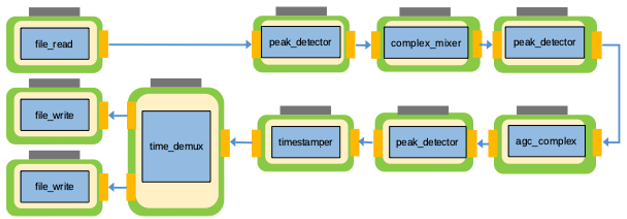
Figure 120: Complex I/Q Data Processing Application
The components used in the data processing flow perform the following tasks:
The peak detector component peak_detector receives I/Q data on its input port, calculates and records the maximum and minimum peaks, and then passes the I/Q data unchanged to its output port. The peak detectors are used in this example to show the level changes as the signal progresses through the processing path.
The complex mixer component complex_mixer consists of a numerically controlled oscillator (NCO) and a complex multiplier. It receives I/Q data on its input port, multiplies the input data with the output of the NCO and then sends the frequency-shifted version of the input data to its output port.
The automatic gain control (AGC) complex component agc_complex receives I/Q data on its input port, drives the amplitude of both the I and Q input rails to the specified output amplitude and then sends the gain-controlled I/Q data to its output port.
The timestamper component timestamper receives I/Q data on its input port, prepends it with a timestamp and sends the timestamped I/Q data to its output port.
The time demux component time_demux receives the I/Q data with the interleaved timestamps on its input port, decouples the original I/Q data from the timestamp data and then sends two separate streams, one with the data and one with the timestamps, to its output ports.
An OpenCPI application can be run using different combinations of workers running on software or HDL platforms. Depending on the resources of the intended deployment platform, more HDL workers than RCC workers could be desirable in some cases, and more RCC workers than HDL workers could be desirable in other cases. The first step is to look at the application as a whole and decide which workers should run where. Once you have made this decision, you create one or more HDL assemblies to specify the subset(s) of the application’s workers that should run on the HDL platform.
This tutorial defines two different HDL assemblies for the example application: one that runs a majority of the application workers in software and one that runs a majority of the application’s workers on the HDL platform. The application is the same, but the HDL workers that run on the HDL platform differ depending on which assembly is used at runtime. The following figure illustrates this concept:
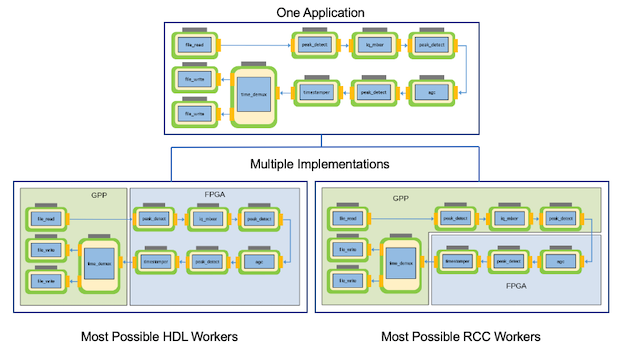
Figure 121: I/Q Data Processing Application and HDL Assemblies
Tutorial Objectives
The purpose of this tutorial is to demonstrate the process of creating an OpenCPI application from existing OpenCPI component assets and the procedure for creating different assemblies that run the same application using different combinations of RCC and HDL workers.
The tutorial demonstrates how to:
Create an application using components that exist in OpenCPI built-in projects.
Select the components in the application that can be deployed on the FPGA.
Create and build two different HDL assemblies, both of which the application can use. One assembly runs the application with most of its workers running on the RCC platform; in this case, the development host. The other runs the application with most of its workers running on the HDL platform; in this case, the xsim FPGA simulator.
Deploy the application with ocpidev run using both of the HDL assemblies you created.
This tutorial shows you how to develop the application and each HDL assembly and how to run the application using each HDL assembly.
After running this tutorial, you should understand the general process of developing an application from existing components and how to create different HDL assemblies for executing an application on HDL platforms.
What’s Provided for This Tutorial
This tutorial directs you to use OpenCPI assets and scripts provided in the built-in OpenCPI projects ocpi.tutorial and ocpi.assets.
In the course of running the tutorial, you will use the following assets from ocpi.tutorial:
The OCS XML files (component specs) for the peak_detector, complex_mixer, agc_complex and time_demux workers, in components/specs/<component-name>.xml
The OWD XML files for the peak_detector (RCC and HDL), complex_mixer (RCC and HDL), agc_complex (HDL) and time_demux (RCC) workers, in components/<worker-name>.hdl/<worker-name>.xml and components/<worker-name>.rcc/<worker-name>.xml
The VHDL and/or C/C++ source code for the peak_detector (.cc and .vhd), complex_mixer (.cc and .vhd), agc_complex (.vhd) and time_demux workers (.rcc), in components/<worker-name>.hdl/ and components/<worker-name>.rcc
The binary input data to the file_read component, in applications/IQapp_input_file.bin
You will also use the following scripts from ocpi.tutorial:
The Python script code for plotting and viewing the output complex data, in scripts/PlotAndFft.py
The Python script code for viewing the output time data, in scripts/print_timestamps.py
The tutorial also provides the source code and XML source for all of the assets and scripts you create during tutorial execution as text in the relevant sections of the document that you can copy and paste into the relevant files following the instructions given in the section.
Note: when copying and pasting text, be sure to remove any line breaks in copied code and commands.
Note that all of the OpenCPI built-in projects described in the OpenCPI User Guide including the projects referenced here are built for the Rocky9 (rocky9) and Xilinx Vivado Simulator (xsim) platforms as part of the OpenCPI installation process. You do not need to build, register or import these projects in order to use them in this tutorial.
Prerequisites to This Tutorial
This tutorial (Tutorial 2) has the same system prerequisites as Tutorial 1: Component-based Development. See Prerequisites to Using This Tutorial for details.
Before you begin this tutorial, you should have successfully completed Tutorial 1: Component-based Development.
We recommend reading the following briefings before getting started with this tutorial:
OpenCPI Introduction. This briefing introduces OpenCPI positioning, priorities and background as well as component and application terminology.
OpenCPI Development. This briefing discusses OpenCPI elements and concepts from an application development perspective and introduces OpenCPI tools and building blocks for application development.
Documentation References
The documents listed in the following table provide detailed information about subjects discussed in this tutorial. The documents listed here are not required reading for this tutorial but will likely be of interest for more in-depth learning.
Create New Project
We need to create a new, clean project for Tutorial 2; we’ll call it DemoProject2. This project has the following requirements:
It needs to declare that it depends on assets in the ocpi.tutorial and ocpi.assets projects because we’ll be using assets from these projects in the application and assemblies we’ll create. We’ll specify these project dependencies when we create the project.
It needs to tell the OpenCPI tools to look for workers in the util_comps/ subdirectory of the components/ directory in the ocpi.assets project because we’ll be using a component and workers from this library when we build our application and assemblies. We’ll use the project attribute ComponentLibraries to specify this library.
It needs to tell the OpenCPI tools to look for HDL primitive libraries in the prims HDL primitives library in this project and in the projects on which this project depends because some of the HDL workers we’ll use in our assemblies use this library. We’ll use the project attribute HdlLibraries to specify this primitives library.
To create the project from the command line, in a terminal/shell window, change directory to where you want to create the project, and then use the command:
ocpidev create project DemoProject2 -D ocpi.assets -D ocpi.tutorial --register
As we saw in Tutorial 1: Component-based Development, the command creates the new project as a subdirectory of the directory you’re in and registers it with the OpenCPI project registry.
Recall from Tutorial 1 that the ocpidev tool uses a project’s XML file when building the project’s assets. A project’s Project.xml file defines metadata that are used project-wide, for all assets at all directory levels. Navigate to the DemoProject2 directory and open the file Project.xml with a text editor. You should see this text:
ProjectDependencies='ocpi.assets ocpi.tutorial'
Notice that the ProjectDependencies XML attribute specifies DemoProject2’s dependencies on the ocpi.assets and ocpi.tutorial projects. The ocpidev tool automatically set this attribute to the right dependencies from the information we supplied when we created the project. Now we need to add the following XML attributes by hand to the Project.xml file:
The ComponentLibraries attribute, where we want to specify that ocpidev should look in the util_comps library in ocpi.core for components.
The HdlLibraries attribute, where we want to specify that ocpidev should look in the prims libraries in DemoProject2, ocpi.core, ocpi.assets and ocpi.tutorial when building HDL assemblies.
In the Project.xml file, add the following two lines to the ProjectDependencies attribute:
HdlLibraries='prims' ComponentLibraries='util_comps'
Save and close the file. For more information about project XML attributes, see the OpenCPI Component Development Guide.
Now we’ll move on to creating the application.
Create Application
Recall from Tutorial 1 that the OAS for an application specifies the components to be instantiated, how the workers are to be connected, and how they should be configured via their properties. We’ll use the same technique we used in Tutorial 1 to create our application OAS: we’ll create an empty OAS in the applications/ directory and then edit the file to add our definitions.
Create Initial Application OAS
We’ll name our application IQapp.
To create the initial OAS with ocpidev, run the following command from the DemoProject2/ directory:
ocpidev create application IQapp -X
The -X option to ocpidev directs the tool to create the empty OAS in the applications/ directory.
Update Empty App XML (OAS)
Now we’ll edit IQapp.xml with the necessary XML definitions. We need to add the following component instances:
One instance of file_read. The component spec file file_read_spec.xml resides in the ocpi.core project in the specs/ directory of the components library.
Three instances of the peak_detector component. The component spec file peak_detector-spec.xml resides in the ocpi.tutorial project in the specs/ directory of the components library. Each instance must have a unique name to distinguish it from the other instances of the same component. We’ll name the instances peak_detector_file_out, peak_detector_agc_in and peak_detector_agc_out.
One instance of the complex_mixer component. The component spec file complex_mixer-spec.xml resides in the ocpi.tutorial project in the specs/ directory of the components library.
One instance of the agc_complex component. The component spec file agc_complex-spec.xml resides in the ocpi.tutorial project in the specs/ directory of the components library.
One instance of the timestamper component. The component spec timestamper-spec.xml resides in the ocpi.assets project in the specs/ directory of the components/util_comps library.
One instance of the time_demux component. The component spec time_demux-spec.xml resides in the ocpi.tutorial project in the specs/ directory of the components library.
Two instances of the file_write component, one to receive the output data from peak_detector_agc_out, which we’ll name file_write_data, and one to receive the timestamp data from time_demux, which we’ll name file_write_time. The component spec file_write_spec.xml resides in the ocpi.core project in the specs/ directory of the components library.
Next, we need to set property values for four of these component instances:
For the file_read instance, we need to set values for two properties: the fileName property, which we’ll set to our input file IQapp_input_file.bin and the messageSize property, which we’ll set to the value 2048 (the number of samples that will constitute a message).
For the agc_complex instance, we need to set the values of two properties: the property mu that we’ll set to the value 0x144E (the amplitude to maintain the signal, in hexadecimal format) and the property ref that we’ll set to the value 0x1B26. The mu property controls the AGC time constant, which determines the circuit’s response time, while the ref property controls the desired output amplitude.
For the file_write_time instance, we need to set the value of the fileName property to the time output file IQapp_time_output_file.bin.
For the file_write_data instance, we need to set the fileName property to the data output file IQapp_data_output_file.bin.
We also need to specify 9 connections. We’ll use the shorthand Connect= in the instance element for the all of the connections except for the ports we need to rename. For these, we’ll use the full Port Instance= definition in the Connection element.
Finally, as we did for Tutorial 1, we’ll specify:
The package ID for our project (package= attribute). The package attribute is the default package prefix for all instances in the application and helps to reduce typing for whatever project most of the instances come from when writing XML.
The component instance that signifies that the application has finished executing (finished= attribute). In this case, it’s file_write_data.
To update the empty OAS from the command line, in the DemoProject2/ directory, open applications/IQapp.xml with a text editor.
Now replace the contents with the following XML:
<Application Name="IQapp" package="local.DemoProject2"
   finished="file_write_data">
   <Instance component="ocpi.core.file_read"
      name="file_read" Connect="peak_detector_file_out">
      <Property Name="fileName" value="IQapp_input_file.bin"/>
      <Property Name="messageSize" Value="2048"/>
   </Instance>
   <Instance component="ocpi.tutorial.peak_detector"
      name="peak_detector_file_out" Connect="complex_mixer"/>
   <Instance component="ocpi.tutorial.complex_mixer"
      name="complex_mixer" Connect="peak_detector_agc_in"/>
   <Instance component="ocpi.tutorial.peak_detector"
      name="peak_detector_agc_in" Connect="agc_complex"/>
   <Instance component="ocpi.tutorial.agc_complex"
      name="agc_complex" Connect="peak_detector_agc_out">
      <Property Name="mu" Value="0x144E"/>
      <Property Name="ref" Value="0x1B26"/>
   </Instance>
   <Instance component="ocpi.tutorial.peak_detector"
      name="peak_detector_agc_out" Connect="timestamper"/>
   <Instance component="ocpi.assets.util_comps.timestamper"
      name="timestamper"/>
   <Connection>
      <Port instance="timestamper" name="out"/>
      <Port instance="time_demux" name="Mux_In"/>
   </Connection>
   <Instance component="ocpi.tutorial.time_demux"
      name="time_demux"/>
   <Connection>
      <Port instance="time_demux" name="Time_Out"/>
      <Port instance="file_write_time" name="in"/>
   </Connection>
   <Connection>
      <Port instance="time_demux" name="Data_Out"/>
      <Port instance="file_write_data" name="in"/>
   </Connection>
   <Instance component="ocpi.core.file_write"
      name="file_write_time">
      <Property Name="fileName" value="IQapp_time_output_file.bin"/>
   </Instance>
   <Instance component="ocpi.core.file_write"
      name="file_write_data">
      <Property Name="fileName" value="IQapp_data_output_file.bin"/>
   </Instance>
</Application>
Note: For reference, the ocpi.tutorial project provides essentially the same OAS at applications/IQapp.xml.
Copy I/Q Data Input File from Tutorial Project to DemoProject2
We’ve created the application and identified the components it will use. Now we need to provide the I/Q data input file that will drive the application’s data processing. The ocpi.tutorial project provides an example input file that we can use. You’ll find it in:
$OCPI_ROOT_DIR/projects/tutorial/applications/IQapp_input_file.bin
Navigate to DemoProject2/applications/ and then copy this file to IQapp_input_file.bin:
cp $OCPI_ROOT_DIR/projects/tutorial/applications/IQapp_input_file.bin IQapp_input_file.bin
Now we’ve set up the application. The next task is to identify the workers that will be used and on which platform they will run.
Create, Build and Run Assembly 1
Recall from Tutorial 1 that an HDL assembly is a subset of an application’s workers that can be run on HDL platforms. Applications can be executed to leverage various HDL assemblies. First, you determine one or more configurations of which workers run - an RCC platform or an HDL platform - and then you create an HDL assembly of the workers that are to run on HDL platforms for each configuration.
For this assembly, we’ll choose to run all of the application’s workers that have both an RCC and an HDL implementation as RCC workers on the RCC platform. Consequently, the HDL assembly for this configuration will consist of the HDL-only workers - agc_complex and timestamper - and the peak_detector HDL worker because it manages the data to and from agc_complex. These workers will run in the HDL assembly on an HDL platform.
Create Assembly 1 Description
We’ll name this assembly iqapp_min_hdl since it uses the minimum number of HDL workers. Note the use of all lowercase characters in the assembly name. Assembly names must not use uppercase characters because some FPGA tools cannot handle them.
To create the assembly with ocpidev, run the following command from the DemoProject2/ directory:
ocpidev create hdl assembly iqapp_min_hdl
Update Assembly 1 Description
Now we need to update the HDL assembly description to define the HDL workers to be used, the connections between them, and the connections to the rest of the application.
To update the HDL assembly OHAD from the command line, navigate to the iqapp_min_hdl directory and then open iqapp_min_hdl.xml with a text editor.
Now insert the following XML between the HdlAssembly tags:
<HdlAssembly>
   <Instance worker="agc_complex" name="agc_complex"
      external="in" connect="peak_detector"/>
   <Instance worker="timestamper" name="timestamper"
      external="out"/>
   <Instance worker="peak_detector"
      name="peak_detector" connect="timestamper"/>
</HdlAssembly>
Note: For reference, essentially the same assembly XML exists in the ocpi.tutorial project at hdl/assemblies/iqapp_min_hdl/iqapp_min_hdl.xml
Build Assembly 1
Now we need to build the HDL assembly for the RCC and HDL platforms to create the FPGA artifact for the application.
To build the HDL assembly with ocpidev, run the following command from the DemoProject2/ directory:
ocpidev build hdl assembly iqapp_min_hdl --hdl-platform xsim
The build takes a couple of minutes to run. You can confirm that it succeeded by locating the *.bitz file in the artifacts/ subdirectory of DemoProject2. This file is the artifact file to be used when the application runs on the HDL platform.
Run Application with Assembly 1
Now we’re ready to run the application with the “minimum number of HDL workers” assembly.
To run the application with this assembly from the command line, run the following command from the DemoProject2/ directory:
ocpidev run application IQapp.xml --after=' -d -v -mcomplex_mixer=rcc'
The application runs the HDL assembly on the HDL platform while running the other workers on the RCC platform. The file_write_data and file_write_time workers write the output from the application to the files IQapp_data_output_file.bin and IQapp_time_output_file.bin respectively. We’ll compare the data input to the application to the data output by it in the next step.
The -v option directs the application properties to be displayed in the terminal/shell window during runtime and include each of the peak_detector min and max values:
Property 16: peak_detector_file_out.max_peak = "14746"
Property 17: peak_detector_file_out.min_peak = "-14746"
Property 36: peak_detector_agc_in.max_peak = "14745"
Property 37: peak_detector_agc_in.min_peak = "-14745"
Property 64: peak_detector_agc_out.max_peak = "-32768"
Property 65: peak_detector_agc_out.min_peak = "32767"
View Results of Assembly 1 Application Run
Now we’ll use a Python script from the ocpi.tutorial project to render the IQ data generated by the application to displayable format.
From the DemoProject2/applications/ directory, run the plotAndFft.py script on the input file as follows:
$OCPI_ROOT_DIR/projects/tutorial/scripts/plotAndFft.py IQapp_input_file.bin complex 32768 100
You should see the following results for the input file data displayed as pop-up figures:
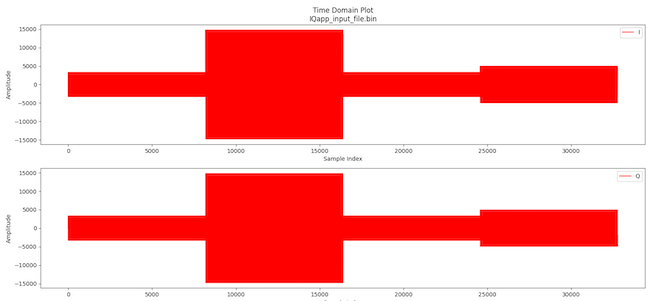
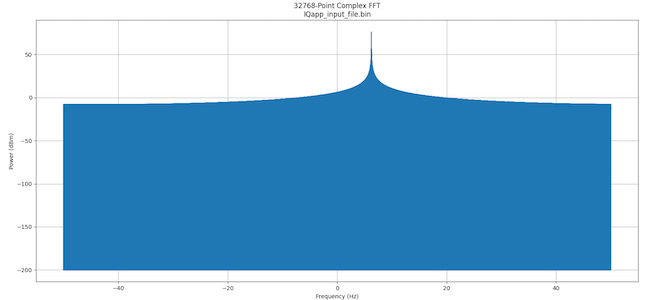
Now run the plotAndFft.py script on the output file from the DemoProject2/applications/ directory:
$OCPI_ROOT_DIR/projects/tutorial/scripts/plotAndFft.py IQapp_data_output_file.bin complex 32768 100
Now you should see the following results for the output file data displayed as pop-up figures:
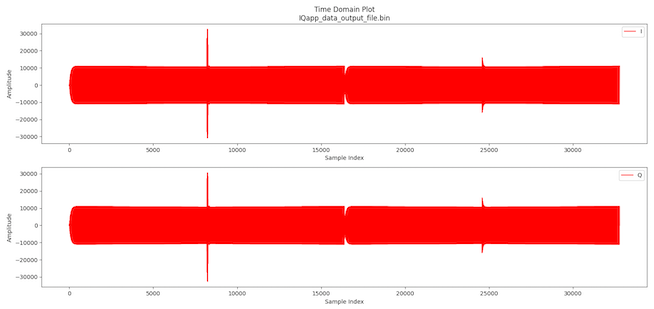
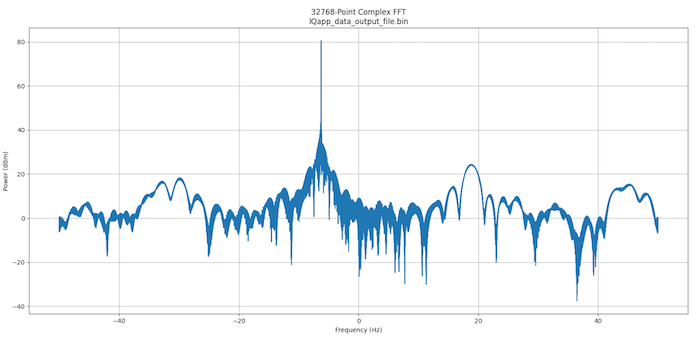
Next, we’ll run a Python script from the ocpi.tutorial project to view the time data.
From the DemoProject2/applications/ directory, run the print_timestamps.py script as follows:
$OCPI_ROOT_DIR/projects/tutorial/scripts/print_timestamps.py IQapp_time_output_file.bin
You should see results similar to the following:
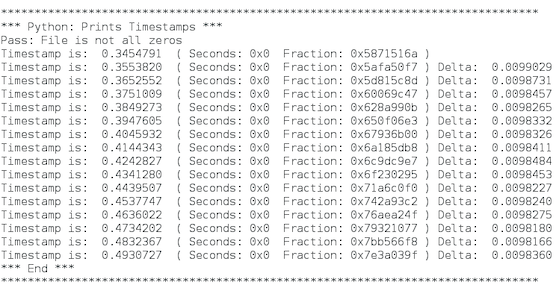
Timestamps are incrementing and roughly uniformly spaced (but affected by software bottlenecks because they are stamped at the end of processing).
Now that we’ve run the application with the HDL assembly with the fewest HDL workers, we’ll create and build the HDL assembly with the most HDL workers and then run the application with it.
Create, Build and Run Assembly 2
For this assembly, we’ll choose to run all of the application’s workers that have an HDL implementation on the HDL platform. Consequently, the HDL assembly for this configuration will consist of the HDL-only workers agc_complex and timestamper plus the three instances of the peak_detector worker and the complex_mixer worker since these workers have HDL implementations.
Create Assembly 2 Description
As we did for Assembly 1, we’ll first create the HDL assembly description. We’ll name this assembly iqapp_max_hdl. Remember: don’t use uppercase characters in assembly filenames.
To create the HDL assembly description with ocpidev, run the following command from the DemoProject2/ directory:
ocpidev create hdl assembly iqapp_max_hdl
Update Assembly 2 Description
Next, we’ll update the HDL assembly XML we just created following the steps we took for the RCC version.
To update the HDL assembly OHAD from the command line, navigate to the iqapp_max_hdl/ directory and open iqapp_max_hdl.xml with a text editor.
Now insert the following XML between the HdlAssembly tags:
<HdlAssembly>
   <Instance worker="peak_detector"
      name="peak_detector_file_out"
      external="in" connect="complex_mixer"/>
   <Instance worker="complex_mixer"
      name="complex_mixer"
      connect="peak_detector_agc_in"/>
   <Instance worker="peak_detector"
      name="peak_detector_agc_in" connect="agc_complex"/>
   <Instance worker="agc_complex"
      name="agc_complex" connect="peak_detector_agc_out"/>
   <Instance worker="peak_detector"
      name="peak_detector_agc_out" connect="timestamper"/>
   <Instance worker="timestamper"
      name="timestamper" external="out"/>
</HdlAssembly>
Note: For reference, essentially the same assembly XML exists in the tutorial project at hdl/assemblies/iqapp_max_hdl/iqapp_max_hdl.xml.
Build Assembly 2
Now we need to build the HDL assembly for the HDL and RCC platforms to create the FPGA artifact for the application.
To build the HDL assembly with ocpidev, run the following command from the DemoProject2 directory:
ocpidev build hdl assembly iqapp_max_hdl --hdl-platform xsim
The build takes a couple of minutes to run. You can confirm that it succeeded by locating the *.bitz file in the artifacts/ subdirectory of DemoProject2. This file is the artifact file to be used to run the application on the HDL platform.
Run Application with Assembly 2
Each run of the IQapp application overwrites the generated output files with new data. Consequently, you may want to save the output files generated by your run of Assembly 1 so that you can compare them later on with Assembly 2’s output. For example, navigate to DemoProject2/applications/ and then issue the commands:
cp IQapp_data_output_file.bin IQapp_min_data_output_file.bin
cp IQapp_time_output_file.bin IQapp_min_time_output_file.bin
To run the application with Assembly 2 from the command line, run the following ocpidev command from the DemoProject2/applications/ directory:
ocpidev run application IQapp.xml --after=' -d -v -mcomplex_mixer=hdl'
View Results of Assembly 2 Application Run
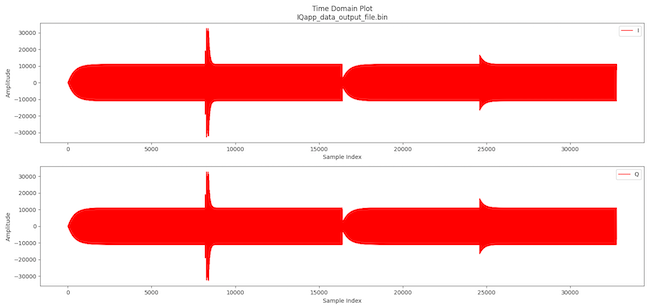
Run the tutorial project’s plotAndFft.py script again from the DemoProject2/applications/ directory to plot the output file:
$OCPI_ROOT_DIR/projects/tutorial/scripts/plotAndFft.py IQapp_data_output_file.bin complex 32768 100
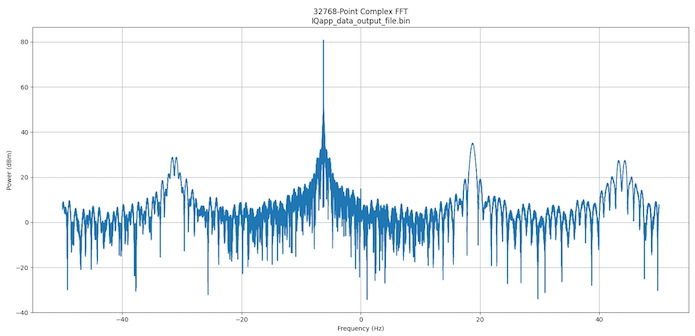
You should get the following results displayed as pop-up figures:
Expected Result Delta Explained
The differences you can see in the plots of the output data between the mostly RCC vs mostly HDL application are primarily a result of the precision of the math computations performed by the different authoring model implementations of the complex mixer. Specifically, the RCC worker uses the third-party LiquidDSP library, which performs floating-point computations (truncated to int16) while the HDL worker performs all fixed-point (16-bit) computations. While the difference is enough to be observed in the plots below, the system designer must determine whether the performance is sufficient for a given target application.
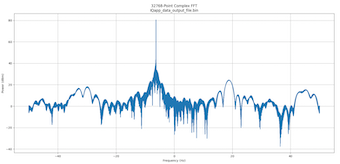
Figure 122: Fewest HDL Workers
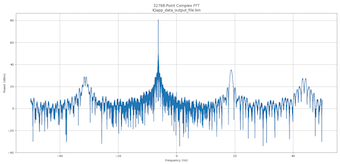
Figure 123: Most HDL Workers
Tutorial Summary
Now that you’ve completed this tutorial, you should be familiar with the general process of developing an application from existing components and developing different HDL assemblies to use when running the application on an HDL platform and how to use the OpenCPI tools to perform these tasks. You can now move on to Tutorial 3: Developing an RCC Worker, which demonstrates how to create one of the components we used from the ocpi.tutorial project.