Tutorial 3: Developing an RCC Worker
Overview
This tutorial introduces you to the RCC worker authoring model and the OpenCPI unit test capability for workers. Our example is the peak_detector component in the ocpi.tutorial project. We used this component, both its RCC and its HDL implementations, in our application and assemblies in Tutorial 2. In this tutorial, we’ll step through the procedure used to create the component and its RCC worker implementation. We’ll create a component specification for the peak_detector component and then design, build and test an RCC worker that implements its function. The example RCC platform used in this tutorial is rocky9, but different development hosts can be used. If you are using a development host other than Rocky 9, replace rocky9 with the relevant name (example, ubuntu20_04).
The peak detector function is to calculate and report the signed maximum and minimum peaks in the I/Q data arriving at its input port and then pass this input data through unchanged to its output port. Given an input of complex numbers, the peak detector component finds the biggest I or Q sample and the smallest I or Q sample. The process is as follows:
current_biggest = max(current_biggest, max(I,Q))
current_smallest = min(current_smallest, min(I,Q))
Pass input complex samples to the output port
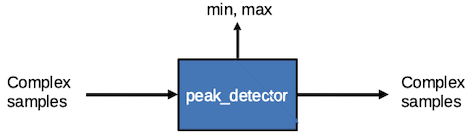
Figure 124: Peak Detector Component Function
Tutorial Objectives
The purpose of this tutorial is to demonstrate the design process for an RCC worker implementation, including how to use the OpenCPI unit test capability.
This tutorial shows you how to:
Create the peak detector component specification (properties and ports).
Create the peak detector worker C++ code and build the RCC worker for the target platform.
Create, build and run the unit test for the RCC worker on the target platform.
It demonstrates how to use the RCC authoring model to:
Use component spec (OCS) properties as worker-local variables
Access worker data ports
Create worker methods for initializing local variables and running worker code
Use worker method result values to communicate worker states to the OpenCPI framework
After running this tutorial, you should understand the basics of the RCC authoring model and how to use the OpenCPI unit test suite on an RCC worker implementation of a simple OpenCPI component.
What’s Provided for This Tutorial
The OpenCPI built-in tutorial project ocpi.tutorial provides source code for the following items in this tutorial:
The peak_detector.rcc worker, written according to the API for the RCC (C++ source code) authoring model.
The unit test files generate.py and verify.py, written in Python
The unit test bash shell script view.sh
The ocpi.tutorial project also provides the XML source for all of the assets used to build and run the example component, worker and tests described in this tutorial.
You will also use the following script from the ocpi.tutorial project:
The Python script code for plotting and viewing the output data, in scripts/plotAndFft.py
Instructions for copying these items from the ocpi.tutorial project into the “demo” tutorial project are provided in the relevant sections of this document. The source code for these items is also available as text in the relevant sections of this document that you can copy and paste into the relevant files following the instructions given in the section.
Note: when copying and pasting text from this document, be sure to remove any line breaks in code or command lines.
Prerequisites to Using This Tutorial
This tutorial (Tutorial 3) has the same system prerequisites as Tutorial 1: Component-based Development. See Prerequisites to Using This Tutorial for details.
Before you begin this tutorial, you should have successfully completed Tutorial 1: Component-based Development and Tutorial 2: Designing Applications and HDL Assemblies.
We recommend reading the following briefings before getting started with the tutorial:
Documentation References
The documents listed in the following table provide detailed information about subjects discussed in this tutorial. The documents listed here are not required reading for this tutorial but will likely be of interest for more in-depth learning.
Create New Project
We need to create a new, clean project for Tutorial 3; we’ll call it DemoProject3. This project has the same requirements as the project we created for Tutorial 2: Designing Applications and HDL Assemblies.
To create the new project on the command line, use the following ocpidev command:
ocpidev create project DemoProject3 --register -D ocpi.assets
Create Component Library
Before we can create our component, we need to create a component library for it. We only need one component library, so we can use the top-level components/ directory as our library like we did in Tutorial 1: Component-based Development. We just need to create this directory.
To create the components library with ocpidev, run the following command in the DemoProject3/ directory:
ocpidev create library components
Create Component
Now we need to create the OCS (OpenCPI Component Specification) for our peak detector function that defines its properties and ports.
Create Component Spec
We’ll create our new peak_detector component spec in the components library we just created.
To create the component spec with ocpidev, run the following command in the DemoProject3/components/ directory:
ocpidev create component peak_detector
The command creates the component spec peak_detector-comp.xml in components/peak_detector.comp/. We’ll add properties and ports to the component spec in the next step.
Add Properties and Ports
The peak_detector component function requires two properties: a max_peak property that returns the most positive I or Q value and a min_peak property that returns the most negative I or Q value. The worker implementation of the component uses these properties to keep track of maximum and minimum peak amplitudes and will change their values during execution, so they should be declared as volatile properties.
The peak_detector component also requires one input port and one output port for communication with other components in an application; both ports will use the iqstream protocol.
To create the properties and ports from the command line, open peak_detector-comp.xml with a text editor.
Now add the following XML between the ComponentSpec elements:
<ComponentSpec>
   <Property Name="min_peak" Type="Short" Volatile="true"/>
   <Property Name="max_peak" Type="Short" Volatile="true"/>
   <Port Name="in" Protocol="iqstream_protocol"/>
   <Port Name="out" Protocol="iqstream_protocol" Producer="true"/>
</ComponentSpec>
Create Worker
We’ve defined the peak_detector component spec. Now we need to create the workers that implement them. In our case, we only need to create one implementation - an RCC implementation - which uses the RCC authoring model.
Recall from the OpenCPI User Guide and the introductory briefings that workers run on containers, which provide the runtime environment for executing workers and manage their execution on a processor. An RCC worker implements worker methods called by the container and can also call container methods.
RCC workers use symbols, data types and ordinals defined in a header file that is generated for the worker when it is created. These elements are based on the component spec (OCS), protocol spec (OPS) and worker description (OWD) and include the implementation name, the control operations implemented, the properties that require notification, the static memory allocation requirements of the implementation code and the minimum number of buffers required at each port. The information in the OCS, OPS and OWD is used to drive the code generation and build process for the worker. An RCC worker can call a small subset of Posix and ISO-C runtime libraries that provide the minimal environment required of embedded systems. You can read more about these local services and about RCC worker OWD elements, the RCC worker interface and RCC worker code generation in the OpenCPI RCC Development Guide.
In Tutorial 1: Component-based Development, we created an RCC worker, which generated an rcc subdirectory with the worker’s OWD XML file and a “skeleton” source code file in the C++ language that we updated to include the C++ code for the worker. We’ll do the same thing here for our peak_detector worker.
Create Worker OWD and Skeleton File
To create the RCC worker with ocpidev, run the following command in the DemoProject3/components/ directory:
ocpidev create worker peak_detector.rcc
Recall from Tutorial 1: Component-based Development that the suffix of the worker’s name - .rcc in this case - directs the tool to generate an RCC worker.
Run the tree command and you’ll see that the components/ directory now has a subdirectory peak_detector.rcc/ with the files peak_detector.xml (the OWD) and peak_detector.cc (the skeleton file).
The peak_detector.cc skeleton file is the basis for writing the worker’s execution code. We need to add the C++ code that implements our peak detector function to this file; we’ll create this code in the following steps. We also need to edit the RCC worker OWD for this tutorial, because it needs to specify the start control operation that is used in our worker code. The next section shows how to do this.
In peak_detector.rcc/gen/, you’ll see the generated header file peak_detector-worker.hh. Do not edit this file. It contains the type definitions and declarations customized for this worker. You’ll also see a peak_detector-skel.cc file in the gen/ subdirectory. This file exists as a backup copy of the skeleton file and should not be touched.
Edit Worker OWD
The OWDs for RCC workers normally do not need any editing. However, for this tutorial, we need to edit the peak_detector RCC worker’s OWD to specify the start control operation used in our peak_detector C++ code. Open peak_detector.xml with a text editor and replace the contents with the following XML:
<RccWorker language='c++' spec='peak_detector-comp.xml' controlOperations="start" version="2">
</RccWorker>
Update RCC Worker Skeleton File
Now we’ll add the C++ source code to the peak_detector.cc skeleton file. To do this, you can either:
Copy the tutorial project’s peak_detector.cc reference file directly into your DemoProject3/components/peak_detector.rcc/ subdirectory, overwriting the skeleton file.
Open the skeleton file for editing and copy/paste the code provided below to it.
You can choose to do one or the other. Doing both is redundant.
Copy Tutorial Project Reference File
To copy the file directly from the tutorial project, navigate to the peak_detector.rcc/ subdirectory in DemoProject3 and then use the command:
cp $OCPI_ROOT_DIR/projects/tutorial/components/peak_detector.rcc/peak_detector.cc .
Once you’ve copied the file into your project, you can move to the Examine RCC Worker C++ Code to learn more about what the C++ code does.
Edit Worker Skeleton File
To edit the worker skeleton file from the command line, in DemoProject3, navigate to components/peak_detector.rcc/peak_detector.cc and then open it with a text editor.
Now replace the code in the peak_detector.cc skeleton file in with the following C++ code:
#include <algorithm>
#include "peak_detector-worker.hh"
using namespace OCPI::RCC; // for easy access to RCC data types and constants
using namespace Peak_detectorWorkerTypes;

class Peak_detectorWorker : public Peak_detectorWorkerBase {

int16_t max_buff, min_buff;

RCCResult start(){
   max_buff = -32768;
   min_buff = 32767;
   return RCC_OK;
}

RCCResult run(bool /*timedout*/) {

   // 1. Make sure there is room on the output port
   const size_t num_of_elements = in.iq().data().size();
   out.iq().data().resize(num_of_elements);
   out.setOpCode(in.opCode());

   // 2. Do work
   const IqstreamIqData *idata = in.iq().data().data();
   IqstreamIqData *odata = out.iq().data().data();
   for (unsigned n = num_of_elements; n; --n) {
      max_buff = std::max(std::max(idata->I,idata->Q),max_buff);
      min_buff = std::min(std::min(idata->I,idata->Q),min_buff);
      *odata++ = *idata++; // copy this message to output buffer
   }
   properties().max_peak = max_buff;
   properties().min_peak = min_buff;

   // 3. Advance ports
   return RCC_ADVANCE;
}
};

PEAK_DETECTOR_START_INFO
// Insert any static info assignments here (memSize, memSizes, portInfo)
// e.g.: info.memSize = sizeof(MyMemoryStruct);
PEAK_DETECTOR_END_INFO
Now we’ll examine this code in more detail.
Examine RCC Worker C++ Code
The peak_detector worker uses two local variables to keep track of the maximum and minimum peak amplitudes. To ensure that the peaks are detected correctly, the worker needs to initialize the variable that keeps track of the maximum peak to the most negative value represented in a signed 16-bit number (-32768) and initialize the variable that keeps track of the minimum peak to the most positive value represented in a signed 16-bit number (32767).
On completion, the peak_detector worker returns the most positive I or Q sample value with the max_peak property and the most negative with the min_peak property. This is not the value of the vector represented by I and Q, but simply the max/min value of the I and Q samples taken independently. The worker uses the OpenCPI iqstream protocol for both input and output ports (specified by the OPS iqstream_protocol.xml in the ocpi.core project). The iqstream protocol defines an interface of 16-bit complex signed samples. You can find the OPS for the iqstream protocol in $OCPI_ROOT_DIR/projects/core/specs/iqstream-protocol.xml.
To implement these functions, our peak_detector worker code needs to:
Declare the persistent local variables min_buff and max_buff for the min_peak and max_peak properties.
Provide a start method that initializes these local variables.
Provide a run method that checks for end of input data, makes sure there is room on the output port for the output data, performs the necessary function for the component and advances the ports.
The next sections describe how this code is implemented for the peak_detector worker. For details on RCC worker methods and on developing RCC workers, see the OpenCPI RCC Development Guide.
Initialization Code
We need to put the persistent local variables min_buff and max_buff into the body of the Peak_detectorWorker class, which exists in the generated skeleton file. These internal buffers should match the short type defined for the min_peak and max_peak properties in the OCS. We then initialize them in the start RCC worker method: max_buff to most negative (-32768) and min_buff to most positive (32767) values. We use the start method because we’re initializing property values and so that initialization occurs both when the worker is first started and when it is resumed after being suspended. The following code shows the start method initializing these variables.
class Peak_detectorWorker : public Peak_detectorWorkerBase {
   int16_t max_buff, min_buff;

   RCCResult start(){
      max_buff = -32768; // initialize max to most neg
      min_buff = 32767; // initialize min to most pos
      return RCC_OK;
}
Note the RCCResult return type declared in the start method. All worker methods use the RCCResult type as a return value to indicate to the container on which they’re executing what to do when the worker method returns. Here, the RCCResult value RCC_OK indicates to the container that the worker has succeeded without error and that normal execution can continue.
Output Buffer Checking and Sizing Code
Our run RCC worker method also needs to make sure there is room on the output port for the outgoing I/Q data. Since it is passing data from input to output, it simply needs to make the output message the same size as the input message.
Also, to make this code not care about opcodes, it simply copies the opcode from input message to output.
The iq() accessor of the input and output ports comes from the definition of the IQ messages found in the iqstream_protocol.xml in the ocpi.core built-in project (in $OCPI_ROOT_DIR/projects/core/specs/iqstream_protocol.xml), where $OCPI_ROOT_DIR is the OpenCPI installation directory.
The RCC authoring model provides buffer management data members and methods. Here, the opCode method retrieves the opcode of the input buffer and the setOpCode method sets it in the output port. For details, see the OpenCPI RCC Development Guide.
The following code in the run method is used to make sure there is room in the output buffer:
const size_t num_of_elements = in.iq().data().size();
out.iq().data().resize(num_of_elements);
out.setOpCode(in.opCode());
“Run” Function Code
The run RCC worker method declares pointers for reading input data and writing output data. The syntax used here is:
const <ProtocolNameOpNameArgName> *idata = <PortInName>.<OpName>().<ArgName>().data();
<ProtocolNameOpNameArgName>  *odata = <PortOutName>.<OpName>().<ArgName>().data();
This syntax is implemented in the run method as shown below.
const IqstreamIqData *idata = in.iq().data().data();
IqstreamIqData *odata = out.iq().data().data();
Is the input a sequence or an array? If it is one of these structures, the run method for the RCC worker needs to iterate through the elements. Recall that max_peak is the greatest value of either I or Q and min_peak is the smallest value of either I or Q. The following code within the peak_detector.cc run method is used to implement the functionality of the worker to detect the minimum and maximum peak values of the input signal and pass the input signal to output port unchanged. Once all signal elements have been processed, the maximum and minimum values are assigned the respective property value.
for (unsigned n = num_of_elements; n; --n) {
   max_buff = std::max(std::max(idata->I,idata->Q),max_buff);
   min_buff = std::min(std::min(idata->I,idata->Q),min_buff);
   *odata++ = *idata++; // copy this message to output buffer
}
properties().max_peak = max_buff;
properties().min_peak = min_buff;
Note that peak_detector.rcc includes the algorithm standard template library to use the max and min functions for sequences (highlighted in red in the code example above.) It is included at the start of the C++ code like this:
#include <algorithm>
“Advance Port” Code
The following code in the peak_detector.cc run method is used to signal the container to advance the ports:
return RCC_ADVANCE;
The RCCResult value RCC_ADVANCE tells the container to advance the ports that were ready when the run method was called, essentially consuming input and producing output.
Build RCC Worker
Now we need to compile the peak_detector worker for the platform on which we want to run it; for this tutorial, it’s our development host (rocky9). Although workers are normally built as part of building an entire component library or as part of an entire project, we’ll build our peak_detector worker separately.
To build the worker with ocpidev, run the following command from the DemoProject3/ directory:
ocpidev build worker peak_detector.rcc
Navigate to components/peak_detector.rcc/. There should be a new subdirectory target-<platform> that contains the artifacts needed to run the worker on this platform. Make sure the file peak_detector.so exists in this subdirectory:
ls -l target-rocky9
   peak_detector_assy-art.xml
   peak_detector_assy-art.xml.deps
   peak_detector_assy.xml
   peak_detector_dispatch.c
   peak_detector_dispatch.o
   peak_detector_dispatch.o.deps
   peak_detector.o
   peak_detector.o.deps
   peak_detector.so
Next, we’ll create the unit test for peak_detector and then run it.
Create Unit Test
An OpenCPI component unit test suite (aka “unit test”) is a collection of test cases that allow functional testing of all workers that implement a component specification across all available platforms for which the workers have been built. A component’s unit test suite is contained in a subdirectory named <component>.test in a component library. The test suite can be applied to all of the workers in the library that implement that component’s OCS, regardless of authoring model and/or language.
For more information on the OpenCPI component unit test suite feature and how to use it, see the OpenCPI Component Development Guide.
We’ll use the OpenCPI component unit test suite capability to generate:
Multiple application XMLs (OAS) that the OpenCPI framework can use to test the workers on different platforms
Input test files
Unit testing consists of the following phases:
The generate phase, which creates the gen subdirectory and generates the input data, OASs, OHADs and case configuration(s).
The build phase, which builds the HDL assemblies for the target platforms. This phase is only relevant for HDL workers and platforms.
The prepare phase, which creates the run subdirectory, examines the available built workers and available runtime platforms and creates the execution scripts
The run phase, which executes the tests.
The verify phase, which verifies the results.
We’ll use combinations of these phases as we create, build and run our peak_detector unit test.
To create the unit test with ocpidev, run the following command in the DemoProject3/components/ directory:
ocpidev create test peak_detector
Now run the tree command to observe the files created:
peak_detector.test
├── generate.py
├── peak_detector-test.xml
├── verify.py
└── view.sh
The files of interest here are:
peak_detector-test.xml. This is the OpenCPI Test Suite Description (OTSD) file. It specifies the test cases and the defaults that apply to all test cases.
generate.py. This is a stub file for an optional script that you can create to generate input test data for ports or property value files. There is one script for each input port.
verify.py. This is a stub file for an optional script that you can create to verify output test data produced by output ports. There is one script for each output port..
view.sh. This is a stub file for an optional script that you can create to view the results of a test execution; for example, a plot. This script may not be necessary or appropriate for many workers. It can work as a helpful aid in the development process, but it is not meant for long-term testing and re-testing.
We want to use the generate, verify and view scripts in this tutorial, so we’ll need to edit the OTSD file to specify them and create the code for each script. The next sections describe these steps.
Edit OpenCPI Test Suite Description File
In this step, we’ll edit the OpenCPI test suite description (OTSD) XML file peak_detector-test.xml. We need to add the generate and verify scripts with the sample size 32768 as parameters to the scripts. We’ll also set up the test to use HDL file I/O. It’s not applicable for testing our RCC worker, but we’ll need it in a later tutorial, where we’ll use this same test on an HDL implementation of the peak detector worker.
To edit the OTSD from the command line, open the peak_detector-test.xml file with a text editor.
Now make the following changes:
Uncomment the Input and Output elements
Edit the Input element to add the value 32768 as the sample size parameter to the generate.py script:
Script='generate.py 32768'
Edit the Output element to add the value 32768 as the sample size parameter to the verify.py script:
Script='verify.py 32768'
Your peak_detector-test.xml file should now look like this:
<Tests UseHDLFileIo='true'>
   <Input Port='in' Script='generate.py 32768'/>
   <Output Port='out' Script='verify.py 32768' View='view.sh'/>
</Tests>
Update Unit Test Scripts
Now we need to create code for the empty generate.py, verify.py and view.sh scripts we created when we created the unit test. We’ll use the code provided in the next sections for this purpose.
Update generate.py Script
The tutorial project ocpi.tutorial provides a reference generate.py script that you can simply copy into your DemoProject3 instead of editing the empty file you just generated. To do this, in DemoProject3, navigate to the components/peak_detector.test/ subdirectory and use the command:
cp $OCPI_ROOT_DIR/projects/tutorial/components/peak_detector.test/generate.py .
Alternatively, to edit the empty generate.py script, open it with a text editor and then copy and paste the following text into the file:
#!/usr/bin/env python3
# This file is protected by Copyright. Please refer to the COPYRIGHT file
# distributed with this source distribution.
#
# This file is part of OpenCPI <http://www.opencpi.org>
#
# OpenCPI is free software: you can redistribute it and/or modify it under the
# terms of the GNU Lesser General Public License as published by the Free
# Software Foundation, either version 3 of the License, or (at your option) any
# later version.
#
# OpenCPI is distributed in the hope that it will be useful, but WITHOUT ANY
# WARRANTY; without even the implied warranty of MERCHANTABILITY or FITNESS FOR
# A PARTICULAR PURPOSE. See the GNU Lesser General Public License for more
# details.
#
# You should have received a copy of the GNU Lesser General Public License along
# with this program. If not, see <http://www.gnu.org/licenses/>.

"""Generate idata for Peak Detector (binary data file).

Generate args:
   amount to generate (number of complex signed 16-bit samples),
   target file

To test the Peak Detector, a binary data file is generated containing complex
signed 16-bit samples with a tone at 13 Hz. The input data is passed through
the worker, so the output file should be identical to the input file. The
worker measures the minimum and maximum amplitudes found within the complex
data stream. These values, reported as properties, are compared with min/max
calculations performed within the script.

"""
import struct
import shutil
import numpy as np
import sys
import os.path

def generate(argv):

   if len(argv) < 2:
      print("Exit: Enter number of input samples (int:1 to ?)")
      return
   elif len(argv) < 3:
      print("Exit: Enter an input filename")
      return

   filename = argv[2]
   num_samples = int(argv[1])

   #Create an input file with a single tone at 13 Hz; Fs=100 Hz
   Tone13 = 13
   Fs = 100
   Ts = 1.0/float(Fs)
   t = np.arange(0,num_samples*Ts,Ts,dtype=np.float64)
   real = np.cos(Tone13*2*np.pi*t)
   imag = np.sin(Tone13*2*np.pi*t)
   out_data = np.array(np.zeros(num_samples), dtype=np.dtype((np.uint32, {'real_idx':(np.int16,0), 'imag_idx':(np.int16,2)})))

   #pick a gain at 95% max value - i.e. back off a little to avoid file
   #generation overflow. This results in complex amplitudes that swing between
   #+31k and -31k within an int16. We must use the same gain on both rails to
   #avoid I/Q spectral image
   gain = 32768*0.95 / max(abs(real))
   out_data['real_idx'] = np.int16(real * gain)
   out_data['imag_idx'] = np.int16(imag * gain)

   #Save data file
   f = open(filename, 'wb')
   for i in range(0,num_samples):
      f.write(out_data[i])
   f.close()

   print ("\tOutput filename: ", filename)
   print ("\tNumber of samples: ", num_samples)

def main():
   generate(sys.argv)

if __name__ == '__main__':
   main()
Update verify.py Script
The tutorial project provides a reference verify.py script that you can simply copy into your DemoProject3 instead of editing the empty file you just generated. To do this, in DemoProject3, navigate to the components/peak_detector.test/ subdirectory and use the command:
cp $OCPI_ROOT_DIR/projects/tutorial/components/peak_detector.test/verify.py .
Alternatively, to edit the empty verify.py script, open it with a text editor and then copy and paste the following text into the file:
#!/usr/bin/env python3

"""Validate odata for Peak Detector (binary data file).

Validate args:
   amount to validate (number of complex signed 16-bit samples),
   target file

To test the Peak Detector, a binary data file is generated
containing complex signed 16-bit samples with a tone at 13 Hz.
The input data is passed through the worker, so the output file
should be identical to the input file. The worker measures
the minimum and maximum amplitudes found within the complex
data stream. These values, reported as properties, are compared
with min/max calculations performed within the script.

"""
import numpy as np, sys, os.path, re
import sys

class color:
   PURPLE = '\033[95m'
   CYAN = '\033[96m'
   DARKCYAN = '\033[36m'
   BLUE = '\033[94m'
   GREEN = '\033[92m'
   YELLOW = '\033[93m'
   RED = '\033[91m'
   BOLD = '\033[1m'
   UNDERLINE = '\033[4m'
   END = '\033[0m'

def validation(argv):

   print ("*** Validate output against expected data ***")
   if len(argv) < 2:
      print ("Exit: Need to know how many samples")
      return
   elif len(argv) < 3:
      print("Exit: Enter an output filename")
      return

   num_samples = int(argv[1])

   # strip off output extension and replace with 'log'
   # ('.out.out'=>'.log')
   logname = os.path.splitext(argv[2])[0]
   logname = os.path.splitext(logname)[0] + ".log"
   if not os.path.isfile(logname):
      logname = os.path.splitext(logname)[0] + ".remote_log"

   # Parse the logfile for the final values of max/min peaks
   # Normally, we would access these via environment variables:
   #   OCPI_TEST_max_peak, OCPI_TEST_min_peak
   # Due to an inconsistency in the unit test framework,
   # the final values of these properties are captured
   # correctly in the environment variables
   #   for RCC workers, but not HDL.

   min_peak=max_peak=None

   max_peak_re = re.compile("Property +\d+: peak_detector\.max_peak = \"(-?\d+)\".*")
   min_peak_re = re.compile("Property +\d+: peak_detector\.min_peak = \"(-?\d+)\".*")
   with open(logname, 'r') as log:
      for line in log:
            max_obj = max_peak_re.search(line)
            if max_obj: #max_obj[1]:
               max_peak = int(max_obj.group(1))
            min_obj = min_peak_re.search(line)
            if min_obj: #[1]:
               min_peak = int(min_obj.group(1))

   #Read all of input data file as complex int16
   print ('File to validate: ', argv[2])

   ofile = open(argv[2], 'rb')
   dout = np.fromfile(ofile, dtype=np.dtype((np.uint32,
   {'real_idx':(np.int16,2), 'imag_idx':(np.int16,0)})), count=-1)
   ofile.close()

   #Ensure dout is not all zeros
   if all(dout == 0):
      print (color.RED + color.BOLD + 'FAILED, values are all zero' + color.END)
      sys.exit(1)

   #Ensure that dout is the expected amount of data
   if len(dout) != num_samples:
      print (color.RED + color.BOLD + 'FAILED, input file length is unexpected' + color.END)
      print (color.RED + color.BOLD + 'Length dout = ', len(dout),
               'while expected length is = ' + color.END, num_samples)
      sys.exit(1)

   # Calculate the maximum in python for verification
   pymin = min(min(dout['real_idx']), min(dout['imag_idx']))
   pymax = max(max(dout['real_idx']), max(dout['imag_idx']))
   print ('uut_min_peak = ', min_peak)
   print ('uut_max_peak = ', max_peak)
   print ('file_min_peak = ', pymin)
   print ('file_max_peak = ', pymax)

   if (min_peak != pymin) or (max_peak != pymax):
      print (color.RED + color.BOLD + 'FAILED, min/max values do not match' + color.END)
      sys.exit(1)
   print ('Data matched expected results.')
   print (color.GREEN + color.BOLD + 'PASSED' + color.END)
   print ('*** End validation ***\n')

def main():
   print ("\n"+"*"*80)
   print ("*** Python: Peak Detector ***")
   validation(sys.argv)

if __name__ == '__main__':
      main()
Update view.sh Script
The tutorial project provides a reference view.sh script that you can simply copy into your DemoProject3 instead of editing the file you just generated. To do this, in DemoProject3, navigate to the components/peak_detector.test/ subdirectory and use the command:
cp $OCPI_ROOT_DIR/projects/tutorial/components/peak_detector.test/view.sh .
Alternatively, to edit the view.sh script, open it with a text editor and then copy and paste the following lines at the end of the file:
#!/bin/bash --noprofile
# Use this script to view your input and output data.
# Args: <list-of-user-defined-args> <input-file> <output-file>
$OCPI_ROOT_DIR/projects/tutorial/scripts/plotAndFft.py $2 complex 32768 100&
$OCPI_ROOT_DIR/projects/tutorial/scripts/plotAndFft.py $1 complex 32768 100&
Now we can move on to building our component unit test suite (aka our “unit test”).
Note: Make sure your unit test scripts have read and execute permissions before using them to build and run the peak_detector unit test. For example:
chmod 755 generate.py
chmod 755 verify.py
chmod 755 view.sh
Build Unit Test
Now we’ll build the unit test for the target platform, which is our development host.
To build the unit test with ocpidev, run the following command from the components/peak_detector.test/ directory in DemoProject3:
ocpidev build test
Navigate to peak_detector.test/gen/ and observe the artifacts created. The following files and directories are of interest:
cases.txt. This file is user-readable and lists various test configurations.
cases.xml. This file is used by the OpenCPI framework to execute tests.
cases.xml.deps. This file contains a list of dependent files.
applications/. This directory contains OAS files and scripts used by the OpenCPI framework to execute applications.
Run Unit Test
Now we’ll run the unit test for the peak detector worker.
To run the test and view the output from the command line, run the following ocpidev command from the DemoProject3/ directory (you can also run it from the components/ directory or the peak_detector.test/ directory):
ocpidev run --phase prep,run,verify --view
You should see this output:
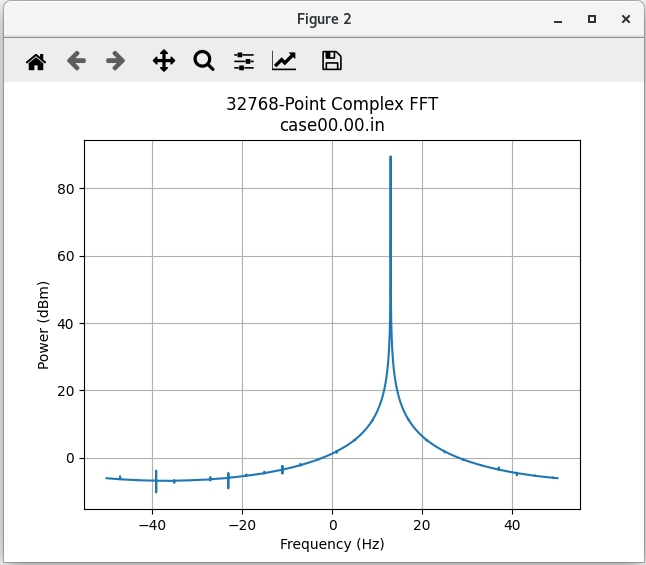
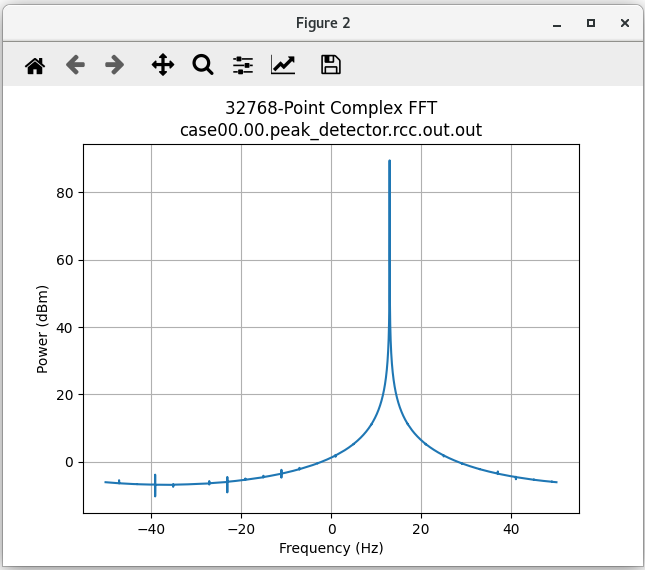
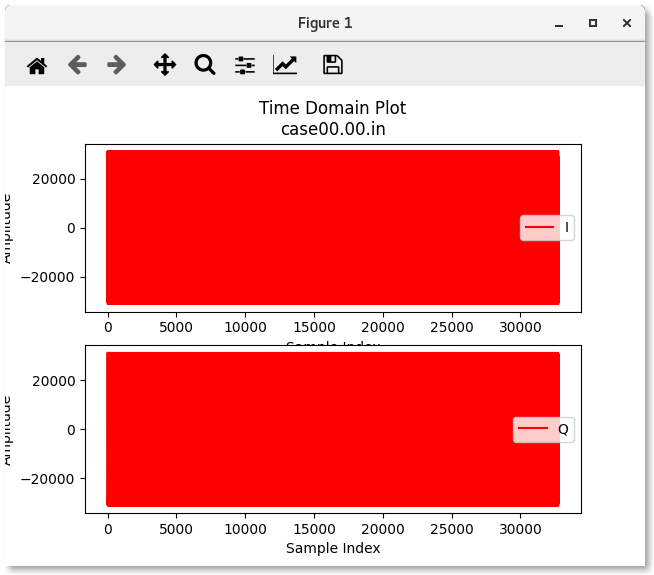
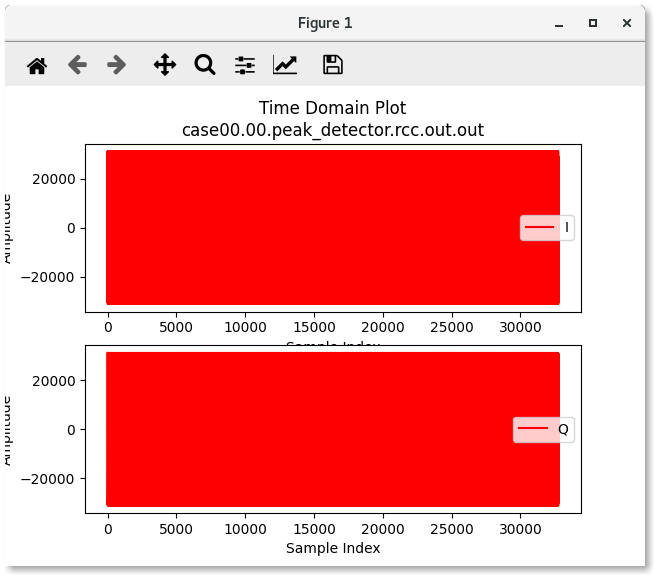
In this tutorial example, the output does not change because it is passed through. To view the measured minimum and maximum peak, view the run log:
peak_detector.test/run/rocky9/case00.00.peak_detector.rcc.log
Property 32: peak_detector.min_peak = "-31129"
Property 33: peak_detector.max_peak = "31129"
Tutorial Summary
Now that you’ve completed this tutorial, you should be familiar with the basic concepts of the RCC authoring model and how to use it to develop an RCC worker and the OpenCPI unit test suite and how to use OpenCPI tools to perform unit testing on an RCC worker. You can now move on to Tutorial 4: Using Third-party Libraries in RCC Workers, which continues to demonstrate the design process introduced here by showing how to integrate a third-party library into an RCC worker.