Documentation Writer Guide
Working with OpenCPI Documents
OpenCPI supports the following document types:
Guides
Tutorials
Briefings
Datasheets (and other OpenCPI asset documents)
Getting started guides
All these document types are available on the OpenCPI website opencpi.gitlab.io. The figure below illustrates the different audiences and reading paths for these document types. The chapters that follow describe how to create and maintain each of these document types.
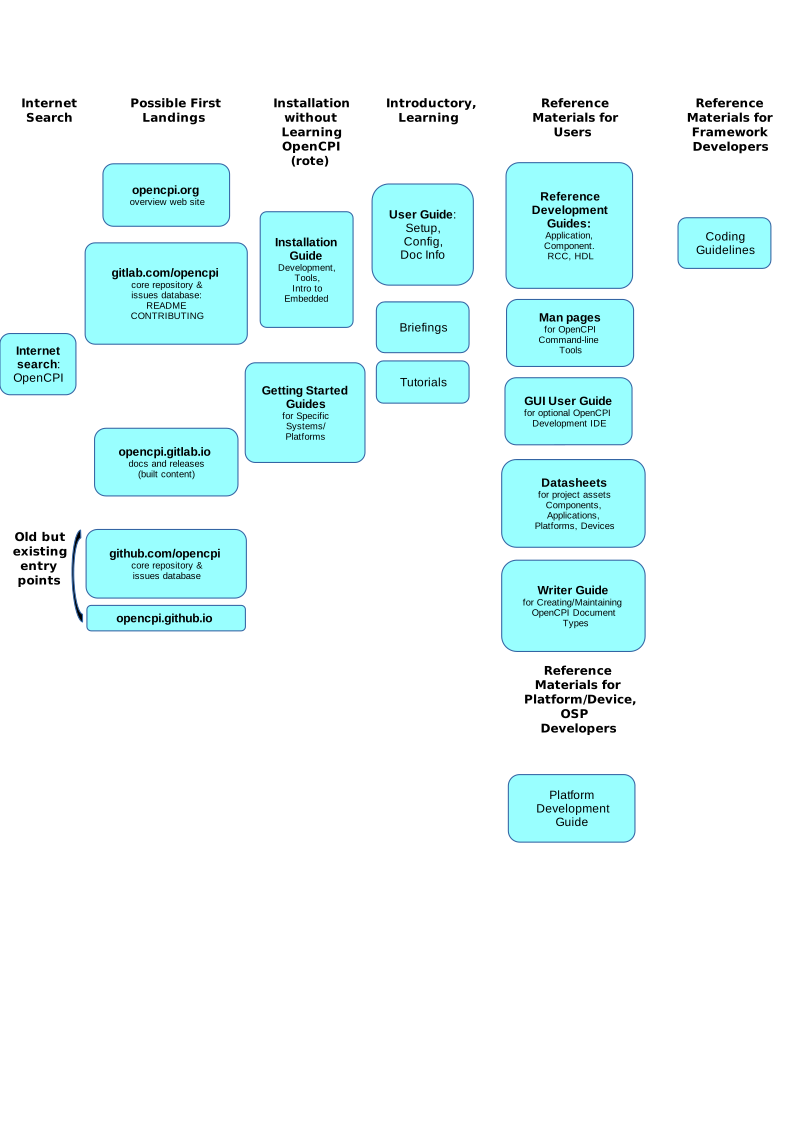
Figure 67: Documentation for OpenCPI
Writing Best Practices That Apply to All OpenCPI Documents
Spell out acronyms the first time you use them. For example, analog-to-digital converter (ADC), software-defined radio (SDR). The spelled-out versions don’t have to be initial capitalized but sometimes it makes sense to do it.
Blank sections followed by subsections are not allowed. Every section heading must have at least a sentence stating what the subsection contains.
Use :ref: links, for cross references between sections and between documents. Create the link to the text, and Sphinx’s :ref: will display the title of the section it references automatically. For example:
This is shown in the :ref:`writing-best-practices` section.
The document or section target requires a label that matches the content of the :ref: link. This label should be close to the section name, and cannot match any other label in the documentation.
.. _writing-best-practices:

Writing Best Practices That Apply to All OpenCPI Documents
----------------------------------------------------------
Use double quotation marks to highlight a term, not single quotes. Better practice is to use italics.
In general, it’s best to avoid using Latin abbreviations like i.e, e.g., etc. Instead of i.e., use “that is”, instead of e.g., use “for example”, instead of etc., use “and so on” or “and others”. The abbreviations I.e and e.g. should be followed by a comma (e.g., “i.e., “). However, Latin abbreviations are frequently used in the OpenCPI reference documents.
Don’t use “this” by itself. Always identify what “this” is. For example, don’t say “this causes”, say “this problem causes…”
Use “use”, not “utilize”. They mean the same thing but “use” is one syllable and thus simpler to read through. Using “utilize” makes things unnecessarily complex.
When creating a new document, follow the naming conventions used for the other files in the same directory, or directories of similar types of documents.
Use the .rst format for all files unless the document format requires another document type.
Working with OpenCPI Briefings
The documents in the $OCPI_ROOT_DIR/doc/briefings directory in the OpenCPI repository on GitLab are LibreOffice Impress presentation flat ODP (FODP) files. Each briefing is associated with an OpenCPI template (Briefing_template.otp).
To work on the briefings, you use the same LibreOffice application to open a briefing.
The briefings use the Tahoma font.
There are five master slides available, but not all of them are used. To edit a master slide, for example, to change the date on a briefing footer:
Click Master Slides in the toolbar on the right.
Right-click on a master slide and select Edit Master…
Click in the footer and edit the date.
Click View > Normal to exit the master slide. The new date should appear in the footer.
To see which master slides are applied to which presentation slides, click on a slide with the Master Slide window open. The master slide that the selected slide is using is highlighted in the Master Slide window.
See this page for LibreOffice Impress documentation.
To be supplied: a checklist for confirming that the document conforms to all documentation conventions and all relevant procedures have been followed.
Building and Viewing a Local Copy of the OpenCPI Website
The next compatibility test is to use the document publisher to build a local copy of the opencpi.gitlab.io website and then view the results to make sure the PDF generated for the document displays correctly. To do this:
On a Rocky8 system (for example, a virtual Rocky8 machine) that you have set up so that the files in your local work branch are visible to it, change directory to the OpenCPI root (top level) of your local work branch and run the command:
scripts/install-opencpi-docs.sh --no-build
Now build the website with the command:
doc/build-pages.py
The documents for the website are generated in a .public/ directory in the OpenCPI root directory. To view them, navigate into the .public directory and then open the file “index.html” with FireFox or another available browser. This action brings up the “website” document tree, as if you were looking at opencpi.gitlab.io.
Click on your document in the website documentation tree to open the PDF. Examine it for formatting problems, especially missing or incorrectly formatted images.
Documenting OpenCPI Assets
The ocpidev development tool supports a Sphinx-based asset documentation system that allows OpenCPI developers to document their assets as part of the OpenCPI development process. This system is an integral part of the ocpidev-based asset development workflow described in the OpenCPI Additional Guides reference guides and demonstrated in the OpenCPI Tutorials, such that:
Creating an OpenCPI asset creates both the skeleton files and the template documentation files relating to the asset. The documentation files are created in the same* directory as the asset files and are named the same as the asset XML files but with the suffix ***.rst** rather than .xml.
Building an OpenCPI asset builds both the asset files and the documentation files unless you use an option to specify that only asset files or only documentation files should be built. The build process creates readable documents locally to where the build command is issued, and different levels do not conflict (project, library, component, worker). For example, building the documentation in a component library creates a separate document that includes the library’s worker documents without affecting any worker documents built in an individual worker’s directory.
Cleaning an OpenCPI asset removes the asset’s generated files and the built/generated documentation files.
Deleting an OpenCPI asset deletes both the related asset files and the built/generated documentation files.
See also
The ocpidev reference for complete details on commands, arguments, and options.
General Information
This section provides information that applies to documenting all OpenCPI asset types.
Documentation Development Workflow
The general procedure is:
Create the asset with the ocpidev create command. This step automatically creates a template document in the same directory as the created asset. For example, when you create an HDL worker, ocpidev creates a template for documenting this worker with the suffix ***.rst** in the same directory where it creates the HDL worker’s OpenCPI Worker Description (OWD) and source files.
Fill out the template document with a text editor, following the skeleton instructions provided in the template document and the hints provided in this chapter. The template documents created by ocpidev are formatted in reStructuredText (reST) markup language (referred to as “RST” in OpenCPI documentation) and use a combination of standard Sphinx directives and OpenCPI-specific directives. Use this markup and these directives as necessary when filling out your document.
Build the asset with the ocpidev build command. In addition to generating runtime files that relate to the asset, this step generates HTML-formatted output from the documentation source files and places it in the subdirectory gen/doc/*.html in the location where the build command is issued (after using the –directory option, if specified). To build just the documentation, use the –doc-only option.
Open the file gen/doc/index.html with a browser to view the generated HTML documentation. Note: if the documentation build fails, the gen/doc/ subdirectory is not created. In this case, examine the Sphinx-related error messages generated by the ocpidev build command to identify and fix the problem in the document source file(s).
Fix any errors in the document source file(s) that are causing problems in the HTML output and then build and check the HTML output again. Do this step until the HTML output is error-free.
For any directory-based asset, you can build the documentation locally to that asset and then view the results in gen/doc/*.html. At higher levels of the projects (the project, libraries, or library level), the build is recursive, with all the results placed in the gen/doc/ directory for that asset. For example, building the documentation for a project produces the full HTML tree of documentation (project, library, component, worker, …) under the project’s gen/doc/ directory, but does not affect (rebuild or otherwise touch) the local documentation built in the lower-level directories.
Standard Sphinx Directives used in OpenCPI Asset Documentation
The following table lists the Sphinx directives most frequently used in the asset documentation templates provided by the OpenCPI asset documentation system.
|
Code examples |
|
Creating diagrams in any asset document |
|
Code examples |
|
Creating equations in any asset document |
|
Text of any asset document |
|
Project asset documents, document structure files for component libraries, primitive libraries, … |
|
Text of any asset document |
See the Directives section of the Sphinx documentation for descriptions of these directives.
OpenCPI-specific Directives
The OpenCPI asset documentation system provides a set of OpenCPI-specific directives used in the asset documentation templates that automate some of the asset documentation tasks.
|
|
|
Using Include Files and Substitution Strings to Share Common Information |
|
|
|
|
|
|
|
See the referenced asset document sections for descriptions of these directives.
Hints That Apply to Documenting all OpenCPI Asset Types
Here are some general hints for working with the asset documentation system:
OpenCPI assets are file based or directory based. When directory-based, the name of the asset’s XML file (in that directory) is the directory name, with periods replaced by dashes and the .xml suffix added. Projects, which are also directory-based, are a special case where the XML file describing the project is always named Project.xml, regardless of the name of the project’s directory.
Make sure the properties and ports defined in your component specifications (OCSes) and worker definitions (OWDs) include <Description> XML elements. The asset documentation system automatically generates the properties and ports documentation from these elements. If they’re not there, the system won’t generate any documentation for them, and you’ll have to add the descriptions by hand.
Make sure that any subsidiary files that are included into an asset document, whether or not they are local, are named with the suffix .inc , not .rst. Using the ***.inc** suffix for subsidiary included files is currently necessary to prevent them from being mistakenly generated by the asset documentation system during a documentation build operation.
The preferred graphics format for figures and illustrations is SVG. Use an external tool to create your images that can save files in SVG. For example, LibreOffice Draw is a free drawing tool that supports SVG format and is included with the LibreOffice package.
Heading titles generally use the “gerund” naming convention (adding “ing” to the verb), like “Creating…”, “Editing”, “Installing”. When a section has subheadings that correspond to installation and setup steps, these subheadings can use the “imperative” convention, like “Create”, “Edit”, “Install”. See the Tutorials for examples.
Documenting OpenCPI Asset Types
This section describes how to document the assets that can be created with the ocpidev create command.
Documenting an OpenCPI Application
The name of the documentation file that describes an OpenCPI application is the application’s XML file name with the .rst suffix instead of .xml. The ocpidev create application command creates this file in the applications/ subdirectory of an OpenCPI project in either the same directory as the application it describes or directly in the applications/ directory if the application XML does not have its own directory.
Use the <application-name>.rst file to document your application, filling in the sections in the suggested outline in the template with the information about your application, adding new sections as necessary and/or deleting any section headings you aren’t going to use.
An application document should provide:
One or two introductory paragraphs that describe the application’s purpose and what it does
Known limitations as to which OpenCPI platforms it can use, either inclusively or exclusively
Things that must be in place before the application can be run, like hardware and build prerequisites
How to build and run the application or whether it can simply be built and run with ocpidev
How to verify its success or failure
Troubleshooting information and/or a description of any known issues
Documenting an OpenCPI Component
The name of the documentation file that describes an OpenCPI component is the component’s XML file name with the .rst suffix instead of .xml. The ocpidev command creates this file within a component library in the same directory as the component specification. This file is the main template for documenting the component.
The ocpidev create component command also creates a template OpenCPI Application Specification (OAS) file named example_app.xml in the same directory as the component specification and the main component document. This example application file is automatically included verbatim into the skeleton file for the main component document. You can either customize it to your component’s features or remove the reference to it from the main document and delete the file from the component’s directory.
The general workflow for documenting an OpenCPI component is to:
Add the details about your component to the main template.
(optional) Customize the example application template to illustrate how your component is to be used.
Create worker documents for all the HDL and/or RCC workers that use the component specification. The component document will contain links to these worker documents via the implementation OpenCPI directive.
Write the Main Component Document
This section provides some hints for filling out the main documentation template file <component-name>-comp.rst in addition to what’s given in the template.
Add a Top-Level Description
The template provides a placeholder for adding a one-line description that summarizes the component’s purpose. It should be an incomplete sentence, like a “man” page description. Here’s the one-sentence description given in the backpressure component RST document in the component library of the OpenCPI built-in project ocpi.core:
Emulates the back pressure that is present in a system.
The descriptions used in the other ocpi.core component RST documents provide additional examples.
Create a Component Block Diagram Figure
Use the “Function” section in the template to describe the component’s purpose and operation. It is recommended to provide a block diagram of the component’s data flow, ports, and properties as part of the component’s description in the “Function” section. Use different colors for text and/or arrows to distinguish between the property interface and the data interface. The block diagram for the component should only show the component properties and ports, not the worker-specific ones. Here is an example block diagram for the backpressure component:
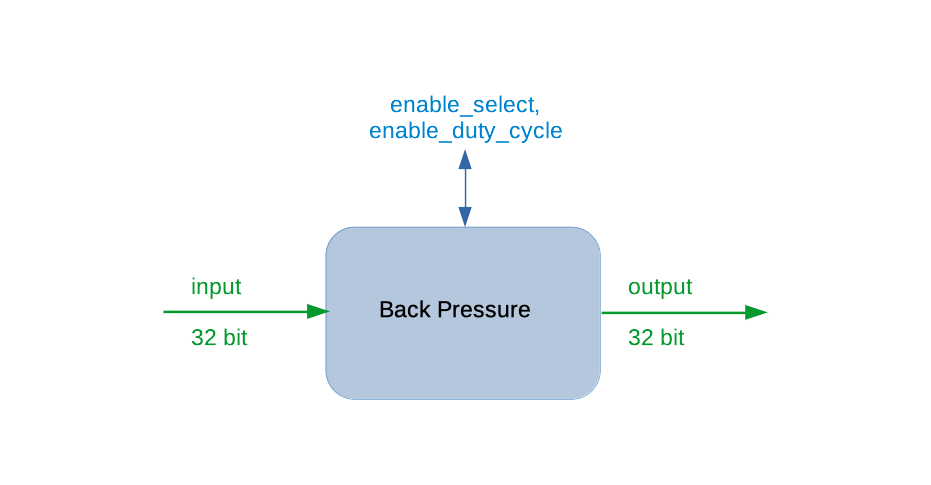
In this example:
The component properties text and arrow are blue
I/O data text and arrows are green
The proper name for the component is used (i.e., “Back Pressure” instead of “backpressure”)
To create the block diagram and any other figures you want to include that describe the component, use an external tool that supports saving to SVG format, like LibreOffice Draw. Save your figure source and SVG output in the <component-name>.comp directory.
The template provides a sample block diagram RST markup with the name of your component inserted. To this template, add:
The path to your block diagram SVG file.
The title for your caption, in title case. For example:
MyComponent Block Diagram
(optional) An alternate caption title. For example:
:alt: Block Diagram of MyComponent Properties and Ports
Follow the same conventions for any other figures you include.
Describe Any Component Equations
A component’s description may benefit from documenting the equations that define the component’s required functionality. You use the standard Sphinx “math” directive to create equations. The template provides a sample equation markup that includes a bulleted list for describing its arguments, with the name of your component inserted. To this template:
Add the markup for your equation
(optional) Edit the bulleted list with the markup for your arguments and a description of what they are, or delete the list if you don’t need it.
See the RST documents for the DSP components in the Software Defined Radio (SDR) Component Library OSP (ocpi.comp.sdr) for examples of equation and argument description markup; for example, the Carrier/Mixer DSP component document.
Add Subsections to “Function” As Necessary
A component’s description may benefit from having topics organized into subsections within the “Function” section. See the File Write component document in the component library for the OpenCPI built-in “core” project (ocpi.core) for an example of how to organize a “Function” section into different subsections in RST markup.
Describe the Component’s Properties
The “Properties” section of the template contains the OpenCPI-specific ocpi_documentation_properties directive that automatically populates it with bulleted lists of property information. Its usage is:
.. ocpi_documentation_properties::
No arguments are needed. The options that can be used are:
component_spec - allows overriding the automatically-determined component specification path. When used, the file path of the component specification relative to the current documentation file must be provided. Unless this option is used, the directive searches the library that contains the component for a component specification based on the current directory’s name. A component’s spec is normally found in a component’s directory (and thus in the same directory as the component asset document) with a file name based on the directory’s name, with periods replaced by dashes and a .xml suffix added. For backward compatibility, the directive also searches the specs directory of the encompassing component library for the component’s spec file. See the Hints That Apply to Documenting all OpenCPI Asset Types section for more information.
Additional text to describe each property, added in the “body” of the directive, which consists of a blank line underneath the directive followed by one or more text lines indented three spaces to line up with the first character of the directive (see the example below). This text must be the name of the property followed by a colon symbol (:), with each property text on a new line. (Additional property text is not passed as an option of the directive, as directive option names must be known at the time of writing the directive, which for property names is not possible.)
If the property definitions in the component spec contain descriptions (using the <Description> element), there is nothing you need to do here. The directive uses the description supplied in the element (see Description Attribute/Element of Property (and Member) Elements for details). If not, you’ll need to add descriptions of your component’s properties by hand. The template provides placeholders below the “properties” directive for adding additional text to property descriptions. Use these placeholders to add your property descriptions. Be sure to keep each description on a single line (no line breaks).
You can also use the placeholder to provide property information that’s additional to what’s provided in the component spec. Change the property_name or string in the placeholder to the name of your property and then provide the additional information as the text value.
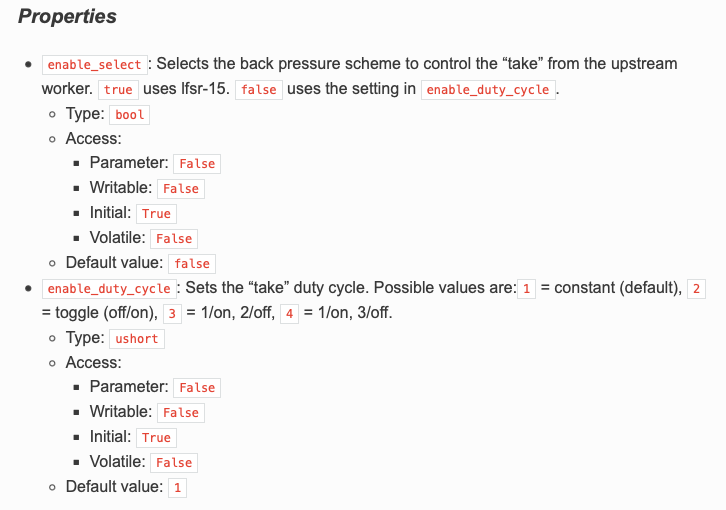
Here is an example from the core project’s backpressure component’s document, where two property descriptions under the directive are added by hand:
.. ocpi_documentation_properties::

   enable_select: Selects the back pressure scheme to control the "take" from the upstream worker. ``true`` uses lfsr-15. ``false`` uses the setting in ``enable_duty_cycle``.

   enable_duty_cycle: Sets the "take" duty cycle. Possible values are:``1`` = constant (default), ``2`` = toggle (off/on), ``3`` = 1/on, 2/off, ``4`` = 1/on, 3/off.
The HTML output looks like this:
Describe the Component’s Ports
The template’s “Ports” section contains the OpenCPI-specific ocpi_documentation_ports directive that automatically populates the section with bulleted lists of port information taken from the component spec under the headings “Input” and “Output” when the RST file is built. Its usage is:
.. ocpi_documentation_ports::
No arguments are needed. The options that can be used with the directive are:
component_spec - allows overriding the automatically-determined component specification path. When used, the file path of the component specification relative to the current documentation file must be provided. Unless this option is used, the directive searches the library that contains the component for a component specification based on the current directory’s name. A component’s spec is normally found in a component’s directory (and thus in the same directory as the component asset document) with a file name based on the directory’s name, with periods replaced by dashes and an xml suffix added. For backward compatibility, the directive also searches the specs directory of the encompassing component library for the component’s spec file. See the Hints That Apply to Documenting all OpenCPI Asset Types section for more information.
Additional text to describe each port, added in the “body” of the directive, which consists of a blank line underneath the directive followed by one or more text lines indented three spaces to line up with the first character of the directive (see the example below). This text must be the name of the port followed by a colon symbol (:), with each port text on a new line. (Additional port text is not passed as an option of the directive, as directive option names must be known at the time of writing the directive, which for port names is not possible.)
If the port definitions in your component spec do not contain description attributes or elements, you’ll need to add them by hand. The template provides placeholder lines for one input port named input and one output port named output:
.. ocpi_documentation_ports::

   input: Primary input samples port.
   output: Primary output
Edit these lines with the name your component specification uses for the input and output ports and a brief description. Make sure you keep these lines aligned with the directive.
If you have additional descriptive information that’s not in your description attributes and elements, you can add it below the “ports” directive, separated by a space and not indented.
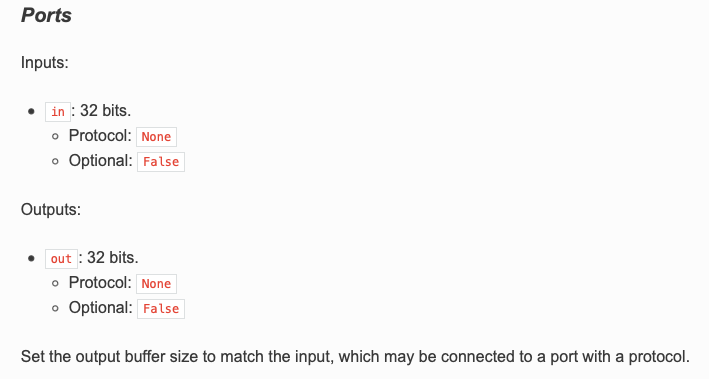
Here is an example from the core project’s backpressure component’s document, where the port descriptions and additional text are added by hand:
.. ocpi_documentation_ports::

   in: 32 bits.
   out: 32 bits.
- Set the output buffer size to match the input, which may be
connected to a port with a protocol.
The HTML output looks like this:
Describe the Component Test Suite (Optional)
In this section, you can manually add a description of your component test suite’s purpose, function, test cases and expected results. The component asset document template currently supplies the OpenCPI-specific directive ocpi_documentation_test_platforms to list the platforms on which the tests in the component test suite have been run. Its usage is:
.. ocpi_documentation_test_platforms::
By default, no arguments are needed. The directive generates a list of platforms on which tests have been run or the output “Tested platforms: None” if no tests have been run. The directive is optional and can be deleted if not used.
Note
In a future release, an RST template for documenting a component test suite asset with OpenCPI-specific directives for automating the generation of test suite details will be created when the component test suite is created with ocpidev and co-located with the test suite assets in the component library. A directive that links the main component document to these component test suite documents will be provided, similar to how the “implementation” directive works to link to worker asset documents.
Customize the Example Application Template (Optional)
The purpose of the “Example Application” section is to provide a meaningful example of how your component is used. The example_app.xml template is a simple OpenCPI Application Specification (OAS) for illustrating how your component can be used. The template application uses the built-in OpenCPI core components file_read and file_write with your component connected between the two. To this template, you add the properties and ports defined for your component and any additional XML that’s required to demonstrate how it works. If the application template is too simple for your component, you can provide your own example OAS.
Reference the Worker Documentation
OpenCPI workers are generally developed after an OpenCPI component spec (and thus its asset document) exists. The results of worker authoring include the worker’s directory and the worker asset’s documentation. The “Implementation” section in the main component document template contains the OpenCPI-specific directive ocpi_documentation_implementation for referencing the documentation for the workers that implement the component.
After worker authoring is complete and the worker documentation exists, the “implementation” directive in the main component doc should be updated to reference the HDL and/or RCC directories that contain the relevant worker documents. The directive’s syntax is:
.. ocpi_documentation_implementation:: <worker-path> [<worker-path> ...]
Each <worker-path> argument specifies the path to the worker directory that contains the worker to be listed, up to a maximum of 10 worker paths.
Here is an example from the core project’s backpressure component:
.. ocpi_documentation_implementations:: ../backpressure.hdl ../backpressure.rcc
The HTML output looks like this:
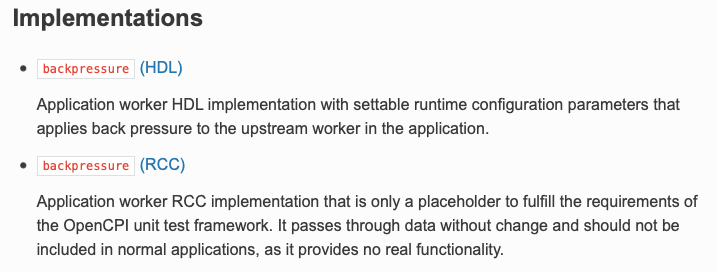
The Documenting an OpenCPI Worker section describes how to create a worker’s asset documents.
Documenting an OpenCPI Component Library
The name of the documentation file that describes an OpenCPI component library is the component library’s XML file name with the .rst suffix instead of .xml. The ocpidev create library command creates this file in the components/ subdirectory of an OpenCPI project in the same directory as the component library it describes.
A component library asset document describes the general purpose of the components contained in the library and contains a toctree directive that points to the documentation for the components contained in the library. Replace the “Skeleton outline:” line in the <library-name>.rst template file with a description of your component library and its scope. The template sets up everything else for you.
Here is an example of an OpenCPI component library asset document:
.. dsp_comps library index page

   DSP components library
   ======================
   The DSP component library (``dsp_comps``) provides components for digital signal processing (DSP).

.. toctree::
   :maxdepth: 1
   :glob:
   :caption: DSP components

   *.comp/*-comp
Documenting an OpenCPI Component Test Suite
The documentation for a component’s test suite is currently part of the Documenting an OpenCPI Component section.
Note
In a future release, a component test suite asset’s documentation will be a separate document that is co-located with the component test suite asset and referenced from the main component document with an OpenCPI-specific Sphinx directive.
Documenting an HDL Assembly
The name of the documentation file that describes an OpenCPI HDL assembly is the assembly’s XML file name with the .rst suffix instead of .xml. It is located in the hdl/assemblies/ directory of an OpenCPI project in the same <assembly-name> directory as the HDL assembly it describes.
An HDL assembly document should provide information about:
Why the assembly was created
Any specific applications it is intended to support
Which containers are specified for the HDL assembly, and for each one, how it maps the inputs and outputs of the assembly to other devices or CPUs in the system.
The following points about the function of HDL assemblies and containers may be helpful in the HDL assembly documentation development process:
The XML for an HDL assembly basically specifies: which workers, how they are (statically) parameterized, how they are connected, and what the “external ports” of the assembly are as a whole.
A container specifies, for each external port of the assembly, which devices they are connected to or whether they are “connected to the system’s interconnect”, which usually means they are connectable to software workers.
The “default container” specifies to connect all external ports to the system interconnect so they are connectable to software workers somewhere else.
The asset documentation system does not currently provide a template for documenting an OpenCPI HDL assembly, so ocpidev create hdl assembly does not create a skeleton RST file when it creates an HDL assembly. Use the file system to create a file named <assembly-name>.rst in the same directory as the HDL assembly XML, and then use standard reStructuredText markup and Sphinx directives to create headings and content within <assembly-name>.rst.
Documenting an HDL Card
The name of the documentation file that describes an OpenCPI HDL card is the card’s XML file name with the .rst suffix instead of .xml. It is located with the card’s XML file in the hdl/cards/specs/ directory of an OpenCPI project.
General information on what an HDL card document should contain to be supplied.
The asset documentation system does not currently provide a template for documenting an OpenCPI HDL card, so ocpidev create hdl card does not create a skeleton RST file when it creates an HDL card. To document an HDL card, use the file system to create a file named <card-name>.rst in the same directory as the HDL card XML, and then use standard reStructuredText markup and Sphinx directives to create headings and content within <card-name>.rst.
Documenting an HDL Device Worker
The name of the documentation file that describes an OpenCPI HDL device worker is the HDL device worker’s XML file name with the .rst suffix instead of .xml. It is located in the hdl/devices/ directory of an OpenCPI project in the same <device-worker-name>.hdl directory as the HDL device worker it describes.
General information on what an HDL device worker document should contain to be supplied.
The asset documentation system does not currently provide a template for documenting an OpenCPI HDL device worker, so ocpidev create hdl device does not create a skeleton RST file when it creates an HDL device worker. Use the file system to copy the generic worker template (located in $OCPI_ROOT_DIR/tools/ocpidoc/opencpi_documentation/rst_templates/worker.rst) into the directory that contains the HDL device worker XML (hdl/devices/<device-worker-name>.hdl) and then rename it to <device-worker-name>.rst. Fill in the copied generic worker template with details about the HDL device worker.
Examples of OpenCPI HDL device worker asset documents to be supplied.
Documenting an HDL Platform Worker
The name of the documentation file that describes an OpenCPI HDL platform worker is the HDL platform worker’s XML file name with the .rst suffix instead of .xml. It is located in the hdl/platforms/<platform-name>/ directory of an OpenCPI project in the same <platform-worker-name>.hdl directory as the HDL platform worker it describes.
(General information on what an HDL platform worker document should contain to be supplied.)
The asset documentation system does not currently provide a template for documenting an OpenCPI HDL platform worker, so ocpidev create hdl worker does not create a skeleton RST file when it creates an HDL platform worker. To document an HDL platform worker, follow the Documenting an HDL Device Worker instructions: copy the generic worker template to the directory that contains the HDL platform worker asset, rename it to <platform-worker-name>.rst, and fill in the copied worker template with details about the HDL platform worker.
Examples of OpenCPI HDL platform worker asset documents to be supplied.
Documenting an HDL Primitive Core
The name of the documentation file that describes an OpenCPI HDL primitive core is the primitive core’s XML file name with the .rst suffix instead of .xml. The ocpidev create hdl primitive core command creates this file in the project’s hdl/primitives/<primitive-name> directory along with the HDL primitive core’s XML.
Replace the “Skeleton outline:” line underneath the document title with a description of the HDL primitive core and its scope. Create subsections below the title as necessary. Everything you add to the template must be entered manually. There are currently no directives for automatically generating the information.
The HDL primitives assets provided with OpenCPI are not currently documented in asset documentation RST files. However, you can look at the README files in the projects/core/hdl/primitives/ subdirectories for examples of the information that should be supplied for this asset type. You can also look at the HDL primitives documents provided in the OpenCPI SDR components library.
Documenting an HDL Primitive Library
The name of the documentation file that describes an OpenCPI HDL primitive library is the primitive library’s XML file name with the .rst suffix instead of .xml. The ocpidev create hdl primitive library command creates this file in the hdl/primitives/<hdl-primitive-library-name>/ subdirectory of an OpenCPI project in the same directory as the HDL primitive library it describes.
An HDL primitive library asset document describes the general purpose of the primitive modules contained in the library and contains a toctree directive that points to their documentation. Replace the “Skeleton outline:” line in the <hdl-primitive-library-name>.rst file with a description of your HDL primitive library and its scope. The template sets up everything else for you.
Here is an example of an OpenCPI HDL primitive library asset document:
Communication Primitive Library
===============================

Primitive library for dealing with communication protocols.

.. toctree::
   :maxdepth: 1
   :glob:
   :caption: Primitives

   */*
Documenting an HDL Slot
The name of the documentation file that describes an OpenCPI HDL slot is the slot’s XML file name with the .rst suffix instead of .xml. As with all OpenCPI assets, the documentation file is co-located with the HDL slot’s XML file, which is the hdl/cards/specs/ directory of an OpenCPI project for platform-independent HDL slots and the hdl/platforms/<platform>/devices/specs/directory of an OpenCPI project for platform-specific HDL slots.
(General information on what an HDL slot type definition document should contain to be supplied.)
The asset documentation system does not currently provide a template for documenting an OpenCPI HDL slot, so “ocpidev” does not create a skeleton RST file when it creates an HDL slot definition. Use the file system to create a file named <slot-name>.rst in the same directory as the HDL slot definition, and then use standard reStructuredText markup and Sphinx directives to create headings and content within <slot-name>.rst.
Examples of OpenCPI HDL slot definition documents to be supplied.
Documenting an OpenCPI Project
The name of the documentation file that describes an OpenCPI project is the project’s XML file name with the .rst suffix instead of .xml. The ocpidev create project command creates this file in the project’s top-level directory along with the other project-related assets.
A project document serves as the “welcome” page for the project and as a directory to the assets documented in the project. A project document contains:
A brief description of the purpose of the project and the general types of items that can be found there, similar to a README file. Avoid listing or describing project contents as it is redundant and creates a maintenance burden.
A description of the criteria or rules in place for adding assets to the project or for excluding them from the project.
A toctree directive that specifies the paths to project subdirectories/libraries that contain asset documentation for different asset types in the project. Each subdirectory path in the toctree directive points to a “directory index” file that provides the paths (aka “table of contents”) to the asset documents in that subdirectory. For example, the notation /components/components tells the asset documentation system to look in the project’s components library for a directory index file named components.rst that provides the paths to the asset documents for components that are contained in the components library. The template’s toctree directive provides paths to the components library and index file (components/components), the HDL primitives library and index file (hdl/primitives/primitives), and the project-level specs directory and index file (specs/specs). For information on how a project’s assets are structured, see Developing OpenCPI Assets in Projects.
Note
In a future release, an OpenCPI-specific directive that automatically locates the documentation assets in a project will be provided.
To document an OpenCPI project, modify the Project.rst file as follows:
Replace the “Description of project” line with a brief description of your project and a description of the criteria for placing content into the project.
Add any subdirectory paths to the toctree directive that are not already there by default. For example, if your project has a library of applications under the applications subdirectory, you would add the line applications/applications to the toctree directive. This line directs the system to look for a directory index file named applications.rst that provides the paths (usually as a wildcard expression) to the application asset documents contained in subdirectories below the applications subdirectory. Note that currently you must create the directory index files applications.rst and specs.rst yourself; they are not automatically created by ocpidev create. See the section Creating the OpenCPI Asset Documentation Structure for details.
Documenting an OpenCPI Protocol
The name of the documentation file that describes an OpenCPI protocol is the protocol’s XML file name with the .rst suffix instead of .xml. The ocpidev create protocol command creates this file in the same directory as the protocol’s specification (OPS).
The template file for describing a protocol has only one section: “Protocol”, which includes the protocol specification (OPS) XML file. To this template, add:
A one-sentence description (incomplete sentence) of the protocol’s purpose underneath the title. For example:
Protocol for streamed complex short data samples, with time and metadata opcodes which are used to provide additional information about the sample data while maintaining alignment with samples in the streamed data.
An introductory sentence and a “literalinclude” link to the metadata XML file that the OPS references. For example, if the OPS references the metadata file timed_samples_metadata.xml, add the following lines:
The included ``timed_samples_metadata.xml`` protocol structure is:

   .. literalinclude:: timed_samples_metadata.xml
      :language: xml
Documenting an OpenCPI Worker
The name of the documentation file that describes an OpenCPI worker is the worker’s XML file name with the .rst suffix instead of .xml. The ocpidev create worker command creates this file, along with the worker source code and worker description (OWD) skeleton files, in the <worker-name>.rcc or <worker-name>.hdl directory, depending on the authoring model specified to the ocpidev create worker command.
To document an OpenCPI worker, edit the <worker-name>.rst file to describe your worker, following the skeleton outline in the template and the instructions given below.
Add a Worker Summary (optional)
You can optionally create a short description of the worker that summarizes its function and purpose and place it under the worker title in the worker document. The asset documentation system will then automatically include this summary in the HTML output (in the “Implementations” section) of any component document that references the worker with the “implementation” directive.
Include a Block Diagram of the Worker Implementation
If there’s a need to illustrate your worker with a block diagram, follow the instructions given in the Create a Component Block Diagram Figure, with the following differences:
Describe the worker-specific properties and ports, not the component-specific ones.
You can’t use the figure numbering reference markup in a worker document. Remove the figure template markup and instead introduce the figure with “the following figure”. Here is an example markup:
The following figure shows a block diagram representation of the HDL implementation:

.. figure:: ../<component-name>.comp/figures/myworker_diagram.svg
   :alt: HDL Implementation for MyWorker
   :align: center

   MyWorker Block Diagram
Keep worker block diagrams and other worker-specific illustrations with the worker asset documents.
Describe the Worker Properties and Ports
The “Details” section of the template contains the OpenCPI-specific directive ocpi_documentation_worker that automatically creates “Worker Properties” and “Worker Ports” subsections underneath any information about the worker that you add manually and fills them with bulleted lists of worker-specific property and port information taken from the OWD. Its usage is:
.. ocpi_documentation_worker::
By default, no arguments are needed. The option that can be used with the directive is:
Additional text to describe any worker properties (including parameters) or ports, added in the “body” of the directive, which consists of a blank line underneath the directive followed by one or more text lines indented three spaces to line up with the first character of the directive (see the example below). This text must be the name of the property or port followed by a colon symbol (:), with each property or port text on a new line. (Additional property or port text is not passed as an option of the directive, as directive option names must be known at the time of writing the directive, which for property names, parameter names and port names is not possible.)
Here is an example of using this directive from the core component’s backpressure HDL worker, where descriptions for the worker ports are added by hand:
.. ocpi_documentation_worker::

in: Size defined by ``IDATA_WIDTH_p``.
out: Sample size defined by ``ODATA_WIDTH_p``.
Look at the :ref:` HTML output <backpressure>` for the backpressure HDL worker to view the results.
Note that the “Properties” section only describes worker-specific properties; the component properties that can be used in the worker are described in the component document’s “Properties” section. For an example, look at the HTML output for the metadata_stressor hdl worker document and compare the properties shown in the “Worker Properties” subsection with the properties shown in the “Properties” section of the HTML output for the metadata_stressor component document.
Add Subsections to “Details” As Necessary
Some workers have additional information that needs to be described, like finite state machines or control timing and signals information. An RCC worker that is a device proxy worker may also require additional information. Create new subsections under “Details” as necessary to cover these topics. See the Metadata Stressor HDL worker RST document (projects/core/components/metadata_stressor.hdl/metadata_stressor-hdl.rst) for an example of how to format this information.
Creating the OpenCPI Asset Documentation Structure
OpenCPI asset documentation structure is a nested series of RST document files that follows the OpenCPI project directory layout described in Developing OpenCPI Assets in Projects. The project document is the top-level document. It gives the paths to RST directory index files in the next level of subdirectories (specs/, components/, hdl/, applications/). These files either list the asset documents in the subdirectory or give the paths to directory index files in the next level of subdirectories. For example, the index file in the specs/ directory usually lists (as a wildcard expression) the protocol documents contained in the subdirectory. The index file in the components/ directory usually gives the paths to component library index files, because this directory often contains multiple component libraries, each with their own index file that points to the components in their library.
Most, but not all, of these directory index files are created automatically when the relevant asset is created with ocpidev. Directory index files that are not created automatically can be created by hand if necessary by copying their RST templates to the desired location, renaming them, and optionally editing their contents. The RST templates are located at: $OCPI_ROOT_DIR/tools/ocpidoc/ocpi_documentation/rst_templates/
The next sections provide details.
Note that subsidiary files that are included into an asset document, whether or not they are local, should be named with the suffix .inc , not .rst. Using the .inc suffix for included subsidiary files is currently necessary to prevent them from being mistakenly generated by the asset documentation system during a documentation build operation.
Note
In a future release, parts or all of this structure will be automatically constructed as part of OpenCPI asset building with ocpidev and will not persist in the file system.
Documenting a Library of OpenCPI Applications
If you’re creating asset documentation for multiple applications in the applications/ directory, you’ll need to create a directory index RST file named applications.rst in that directory to point to these documents. To create this directory index file, copy the RST template applications-directory.rst to the top-level applications/ directory in the project and rename it applications.rst. No template file editing is necessary. Note, however, that you do currently need to modify the project’s RST file to include the path to this directory index file; see Documenting an OpenCPI Project for details.
Documenting a Directory of Protocol Specifications
If you’re creating asset documentation for multiple protocol specs in the specs/ directory, you’ll need to create a directory index RST file named specs.rst in this directory to point to these documents. To create this directory index file:
Copy the RST template specs-directory.rst to the top-level specs/ directory in the project and rename it specs.rst.
Remove the %NAME_PROPER% notation in the heading of the copied template file and optionally replace it with something more descriptive (the template expects that the specs/ directory contains protocols, as shown in the default heading “Protocols”).
Replace the “skeleton outline” in the copied template file with a short, generic description of the directory contents and purpose.
Documenting Hardware Getting Started Guides
Hardware getting started guides are “secondary” asset documents and are not created with the asset by ocpidev. A getting started guide is only necessary for a hardware asset when it has installation issues beyond the generic installation for its type described in the OpenCPI Installation Guide. When this is the case, the Getting Started Guide for the hardware asset describes these installation-specific details.
Creating a Hardware Getting Started Guide
OpenCPI provides getting started guide RST templates for system, platform, and HDL card asset types located at:
$OCPI_ROOT_DIR/tools/ocpidoc/ocpi_documentation/rst_templates/
Each RST template provides a skeleton outline and instructions for adding content. To create a getting started guide for a hardware asset, copy the appropriate template to the directory in which the asset is located and rename it to <asset-name>-gsg.rst. Next, follow the rest of the steps described in the section Documentation Development Workflow.
Documenting a Directory of Getting Started Guides
Some OpenCPI System support Projects (OSPs) provide a set of hardware assets, where each asset requires its own getting started guide. In this scenario, there needs to be a directory index file in the directory above the individual asset subdirectories that specifies the path to the getting started guides located in those subdirectories. To create this file, copy one of the *-directory.rst RST templates (for example, applications-directory.rst or primitives-directory.rst) to the directory above the asset subdirectories and rename it to gsg.rst. Change the pathname given in the copied file to specify the path to the individual asset directories.
Here is the directory index file for the suite of platform getting started guides in the Avnet Microzed/PicoZed OSP (ocpi.osp.avnet), located at hdl/platforms/:
.. Getting started guide directory index page

Getting Started Guides
======================

Available MicroZed and PicoZed getting started guides.

.. toctree::
   :maxdepth: 2
   :glob:

   */*-gsg
Note
In a future release, this structure will be automatically constructed as part of OpenCPI asset building with ocpidev and will not persist in the file system.