FSK Application Guide
Overview
The intent of OpenCPI FSK suite of example applications is to facilitate a new user’s understanding of the OpenCPI framework structure, show ease of usage, and convey value of portability. An OpenCPI application typically defines a specified signal processing functionality implemented using OpenCPI project components. This application specifically transmits a data file (e.g., idata/opencpi.jpg) using a standard frequency shift keying (FSK) modulation scheme between the transmit and receiver ports of an OpenCPI SDR platform. Applications represent end-to-end data processing flow from data source to data sink. The FSK application suite consists of three applications that support a transmit and receive loopback mode, transmit only mode, and receive only mode. These applications are located in the OpenCPI ‘examples’ project directory, as shown below.
~/opencpi/projects/examples/applications/fsk_app/apps/fsk_app_txrx.xml
~/opencpi/projects/examples/applications/fsk_app/apps/fsk_app_tx.xml
~/opencpi/projects/examples/applications/fsk_app/apps/fsk_app_rx.xml
A user may execute each application using the ‘ocpirun’ utility or using the accompanying OpenCPI Application Control Interface (ACI) program. Instructions to execute either approach will be provided in this guide. With these applications, a user specified data file may be transmitted between the transmit (TX) port and receive (RX) port of a single OpenCPI platform or between the TX port of one OpenCPI platform to the RX port of a different OpenCPI platform, as shown in Figure 80:. The loopback mode is beneficial for those that may only have access to a single platform
Note
The guide does not provide specific detail regarding the algorithm to implement Frequency Shift Key (FSK) modulation. Please review each application file identified above for embedded comments pertaining to each component of the application and its function in algorithm implementation. You may also view the examples project FSK Application (fsk_app) documentation.
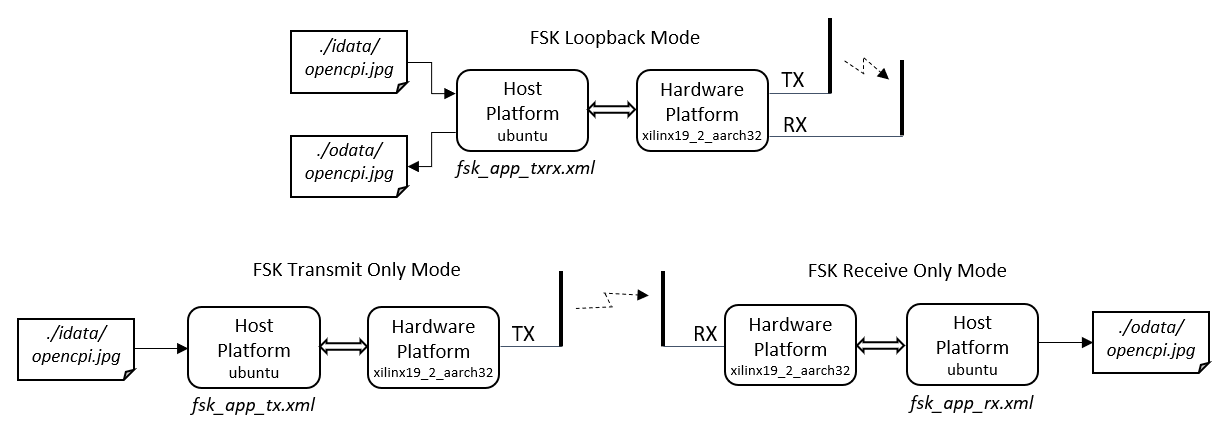
Figure 80: FSK Application Modes
The OpenCPI community standardized the component interface protocol to the timed_sample_metadata-prot.xml specification that defines common operations (opcodes) embedded in the component data stream.
~/opencpi/projects/core/specs/timed_sample_metadata-prot.xml
The preferred sample data type is complex short, although other data types are still supported. The timed samples with metadata protocol combined with the complex short samples will be abbreviated as complex short timed samples (CSTS) in this guide. The CSTS protocol specification is found in the following directory:
~/opencpi/projects/core/specs/complex_short_timed_sample-prot.xml
The timed_sample_metadata-prot.xml specifications is reference in the CSTS protocol file as:
<include href="timed_sample_metadata-prot.xml"/>
Most components are found in the OpenCPI Component Library Projects GitLab group repository. The ‘file_read’ and ‘file_write’ components are found in the Core Project Library and the remaining components are found in the Examples Project Library. These libraries are included when OpenCPI is installed. The OpenCPI Component Project sub-module must be initialized following OpenCPI installation. Instruction to do this will be provided in this guide. A description of each component and protocol is found in the OpenCPI documentation library:
This guide will provide instructions for four commonly used OpenCPI hardware platforms.
OpenCPI Analog Devices PlutoSDR Getting Started Guide
OpenCPI ZedBoard Getting Started Guide
OpenCPI Ettus E31X Getting Started Guide
OpenCPI Xilinx ZCU104 Getting Started Guide
Note
It is presumed the user has reviewed the getting started guide for each platform of interest links above and has a basic understanding of the platform’s setup procedures and execution.
For the purpose of this guide, the example instruction commands are illustrated based on the Ubuntu 22.04 host operating system (OS); however, these commands should be compatible with any OpenCPI supported OS run on remote or embedded hosts.
The example applications in this guide will be run using the OpenCPI server mode. In server mode, applications are executed on a remote host platform running a host OS. In server mode, the hardware platform hosting the FPGA resource runs an SSH service used to communicate between the Host platform and hardware platform, as shown in Figure 81:. Other execution modes including standalone and network modes are described in the OpenCPI Installation Guide. Instructions will be provided in this guide on how to initiate the server mode for each of the four hardware platforms. Dependent on hardware platform, the interface between the host and hardware platform could be Ethernet or USB.
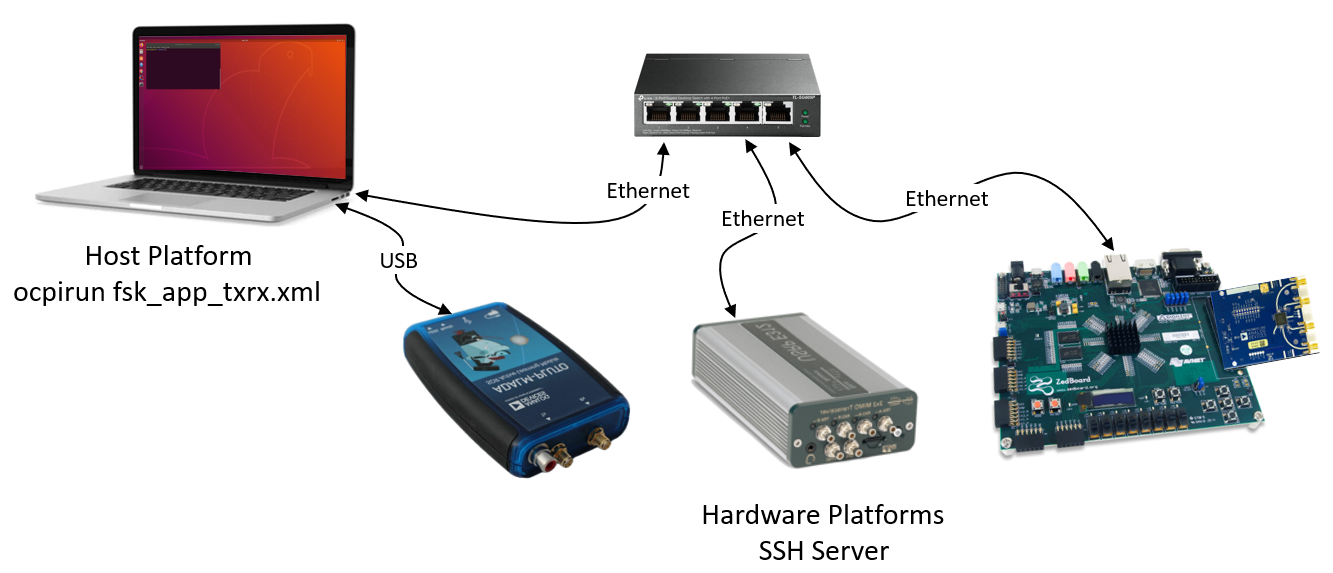
Figure 81: OpenCPI remote server execution mode
Note
BEFORE STARTING THIS GUIDE, it is presumed that the user has followed the instructions for installing the OpenCPI framework using the OpenCPI Installation Guide.
Guide Objectives
The purpose of this guide is to provide an understanding of the steps to create and execute an OpenCPI application and provide understanding of the structures that support the execution of the applications. The guide demonstrates:
Application framework structure
FSK application description
HDL assembly description
HDL container description
Platform installation instruction
Application build instruction
Application execution instruction
The intended outcome of this guide is for the user to run the application on real OpenCPI compliant hardware platforms to transmit and receive data over-the-air, or coax, using a frequency shift key modulation of an RF carrier. The instructions used in this guide support the following platforms:
Ettus E310 Embedded Software Defined Radio
Digilent Zedboard FPGA Development Board
Analog Devices ADALM-Pluto Software Defined Radio
AMD Zynq UltraScale+ MPSoC ZCU104
To execute these applications according to this guide, the user must have at least one of these devices. A user may still acquire valuable understanding by just reading the descriptions and steps provided by this guide.
What’s Provided for This Guide
All source code required to perform each instructional step in this guide is provided in the OpenCPI examples project. The user is not required to develop or write any code. Code supporting this guide is found in the examples project and specified platform projects.
Note
It is expected that the user, as they progress through this guide, will view the all files in a suitable editor or viewer in conjunction with the file when it is presented in this guide. The guide will provide the name and location of the file.
Prerequisites to Using This Guide
The instructions in this guide are designed to be run on a machine that has:
The default OpenCPI source code installation (the latest OpenCPI source installed and built on Ubuntu 22.04).
The default third-party FPGA IDE Xilinx Vivado Design Suite (Version 24.1).
Required Linux applications such as git, net-tools, and eog installed.
This guide provides instructions for performing each step with the command-line tools.
The OpenCPI Installation Guide describes how to install these items. This guide assumes that you have, at a minimum, the OpenCPI environment set up on your development host.
To be able to use the OpenCPI command line tools, you need to run the OpenCPI environment setup script opencpi-setup.sh on your development host. If you have not already done so, follow the procedure in the OpenCPI User Guide to run this script.
Finally, we recommend reading the following briefings before getting started with the guide:
Briefing 1, OpenCPI Introduction. This briefing introduces OpenCPI positioning, priorities and background, as well as component and application terminology.
Briefing 2, OpenCPI Development. This briefing discusses OpenCPI elements and concepts from an application development perspective and introduces OpenCPI tools and building blocks for application development.
Documentation References
The documents listed in the following table provide detailed information about subjects discussed in this guide. These documents are not required reading for running this guide but will likely be of interest for more in-depth learning.
Table . OpenCPI Reference Documentation.
Title |
Published By |
Public URL |
OpenCPI User Guide |
||
OpenCPI Application Development Guide |
||
OpenCPI Component Development Guide |
||
OpenCPI HDL Development Guide |
||
OpenCPI RCC Development Guide |
OpenCPI Application
OpenCPI applications represent end-to-end data processing flow from data source to data sink. They are comprised of a list of components that perform desired functions and component interconnections that define the dataflow between components. Each component is instantiated in the application file with defined properties and parameters. A component property is a dynamic value that may be changed once the application is executed. A parameter is a component property that is static and set when the application starts and cannot be subsequently changed.
Applications are agnostic to any particular host or hardware platform and thus support the portability of signal processing functionality between platforms whether software or hardware based. When an application is executed, the OpenCPI framework searches for available assembly of workers that match the application component’s properties, parameters, and connectivity. A worker is a specific implementation of a component such as a FIR filter, mixer, etc. The implemented component can be in the form of an HDL or RCC worker or both. Hardware Description Language(HDL) workers are implemented with a hardware description language such as VHDL or Verilog. In OpenCPI, a Resource Constrained C++ (RCC) worker is implemented as a C++ program. Each component worker can share the same properties such as filter depth and coefficients. In OpenCPI, when a component is instantiated, the specified worker model and or desired platform may be specified. If not, the framework selects a worker based on platform configuration and its defined properties. When the application is executed, the framework searches for workers in each project’s artifact directory if the directory is listed in the OCPI_LIBRARY_PATH environment variable. If the desired component’s worker is not defined in the OCPI_LIBRARY_PATH, the worker will not be found and the application will fail to execute. An RCC worker will be identified in a project’s artifacts directory as a shared library with extension ‘.so’. An HDL worker must be associated with an HDL bitstream file with extension ‘.bitz’ that includes a bitstream file for programming the FPGA.
The bitstream not only consists of the application HDL workers but those device workers that implement core hardware functions such as interfacing to the RF frontend transceiver elements such as the Analog Devices AD9361 that performs digitization, mixing, and tuning. All three platforms presented in this guide share a similar architecture based on the Xilinx Zynq System on Chip (SoC) and AD9361 RFIC, as shown in Figure 82:. Control and interfacing to the AD9361 on each platform are accomplished through interconnectivity with the programmable logic of the FPGA on each platform.
Application portability to a specific hardware platform (or software defined radio) is predicated on the development of an OpenCPI Support Package (OSP) for that platform. The OSP consists of device workers customized to provide all interfacing and control with hardware platform elements and must be contained within the HDL assembly used for Application execution.
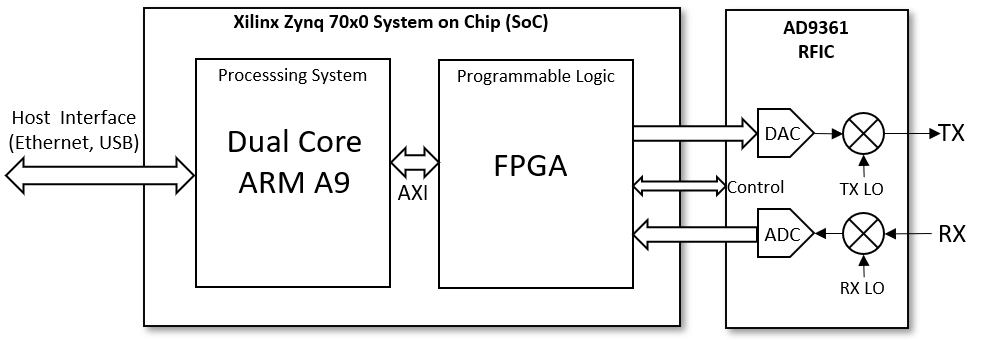
Figure 82: Hardware Platform architecture
Note
Since the FSK application requires an element of hardware (ADC, DAC, tuning mixers, etc.) to exercise the function of transmitting and receiving an RF signal, it cannot rely solely on the use of RCC workers to execute.
If all components of the application are comprised of RCC workers, an HDL assembly must still exist to support the minimum hardware implementation. These minimum hardware device workers may be dynamically controlled during execution by the Digital Radio Controller (DRC). The DRC is an RCC worker known as a proxy because it is a C++ based component designed to directly interface to an HDL component worker. The DRC function provides application control of the RF front-end to configure tuning frequencies, sampling rates, interpolation, decimation, gain, filter selection, etc.
In this guide, we will demonstrate that the same FSK application may be executed on all three platforms using the same application RCC workers and HDL assemblies. The only modification required is the declaration of the container files, which define the interface connectivity to the unique platform configuration. The unique platform configuration is part of the construct of the platform OSP.
Figure 83: shows the relationship of relevant files required to support application execution. It is not all-inclusive but intended to give a new user a general understanding of the primary interaction of framework elements required to execute an OpenCPI application. It should be noted that it is the HDL container that provides HDL assembly portability by defining the assembly and platform interface connectivity. Each will be discussed in more detail in this guide but highlighted below:
Application - XML file that defines “components” and component connectivity to perform desired signal processing function. When executed, framework will search for and execute artifacts that meet the defined application content to include RCC workers, HDL assemblies, and specified interfaces.
RCC Worker - Individual component implemented as “C++ worker” to be run on host OS. When built for OS platform, will have ‘*.so’ extension file saved in its project’s artifacts folder.
HDL Assembly - XML file that defines component “workers”, worker connectivity, and platform interfaces to be implemented in FPGA programmable logic. When built, will produce FPGA bitstream file with ‘*.bitz’ extension and saved in its project artifacts folder. Specifies associated platform HDL container.
HDL Container - XML file that specifies “interfaces” of HDL assembly to include connectivity to host and platform hardware. Defines platform configuration file to be used for assembly implementation.
Platform Configuration - XML file that defines platform devices (e.g. dac, adc, ad9361 configuration, etc.) to be implemented for specified assembly. File also specifies platform’s FPGA constraint file(e.g.*.xdc) associated with configuration.
Digital Radio Controller - RCC worker instantiated in the application file to control specified hardware components and devices defined as ‘slaves’ in XML file. Accompanying C++ file provides programmatic control over components and devices such as resampling, carrier frequencies, filter and bandwidth selection, and gain.
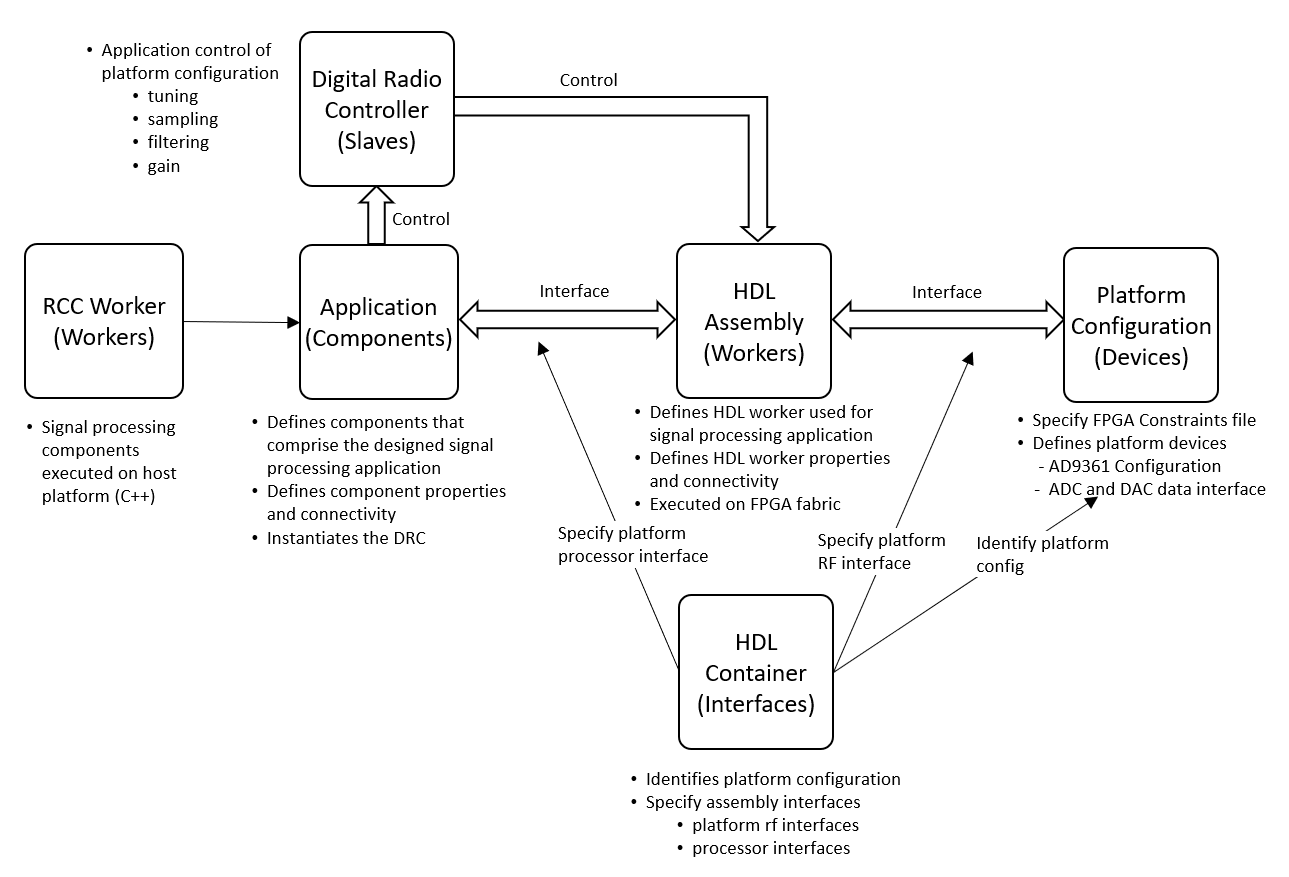
Figure 83: OpenCPI Application Execution Dependencies
FSK Application
Those who have some experience in digital communications are familiar with the basic concept of the frequency shift keying (FSK) scheme of modulation making it a practical use case as an example to become familiar with the OpenCPI framework. The basic principle is that a binary digit (‘0’ or ‘1’) may be transmitted as an RF signal by shifting the carrier frequency. For example, a +1000 Hz offset may be interpreted as the digit ‘1’ and a -1000 Hz offset as the digit ‘0’. The intent of this guide in not to go into specific detail regarding the application’s algorithm or the functionality of each of the application’s components. It is to provide an example using the OpenCPI framework to facilitate a new user’s general understanding regarding how the framework is applied to accomplish execution of a signal processing application.
The FSK application can be used to transmit a file from one platform to another, but the application does not follow a conventional approach normally used for low probability of error and high throughput reception. It does not apply any error correction or standard layer 2 frame formatting. It does have a packet-builder component that applies a header and a tail sequence to allow the receiver to detect when the data starts and ends. It also has a component that uses a pattern detection component to detect the header and tail, which is used by the receiver processing path to pass the raw data payload to be written to a file.
If a user has access to only one platform, they can follow the procedures in this guide to execute the loopback mode. The FSK application for loopback mode implements both the transmit and receive processing paths. The loopback mode is also referred to as the TXRX mode. The components and connectivity that comprise the FSK TXRX mode application are shown in Figure 84:. This application file can be found in the OpenCPI ‘examples’ projects at:
~/opencpi/projects/examples/applications/fsk_app/apps/fsk_app_txrx.xml
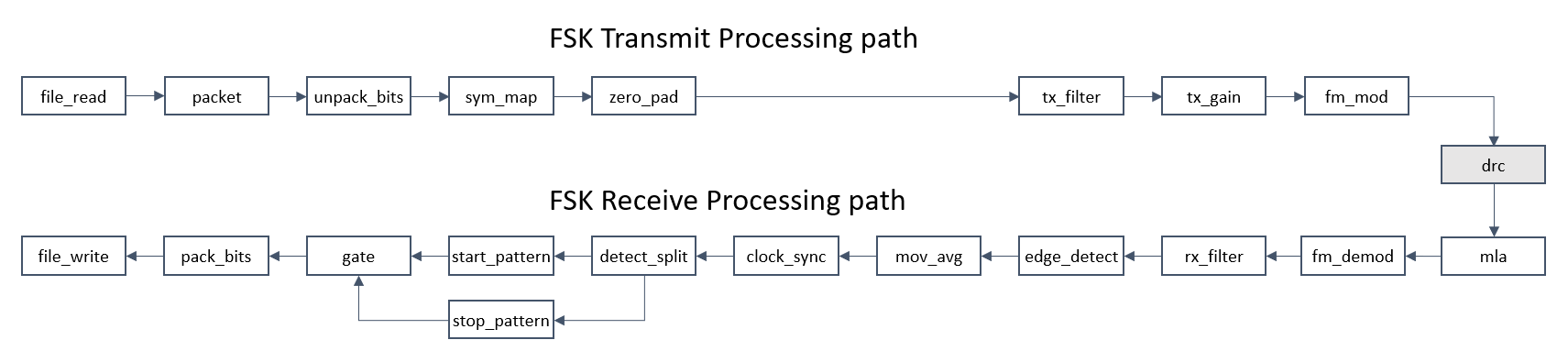
Figure 84: FSK Application TXRX mode components
The graph above refers to the abbreviated names assigned to each component within the application. It is recommended that the user review this file for more detailed explanation of each component and algorithm functionality. Figure 85: and Figure 86: show each component and associated project with abbreviated name as defined by the application.
In this guide, we will examine different worker implementations of the application’s components. In one case, components will be implemented with mostly all RCC workers. The second case we will executed with most components implemented as HDL workers that run of the hardware platform’s FPGA programmable logic (PL). In the mostly RCC component case, an HDL assembly is still required to interface with the hardware platform and implement DRC workers.
The TX-only and RX-only applications use the same components, as found in the TXRX application; but only the respective processing paths are defined. Each application still requires a DRC component.
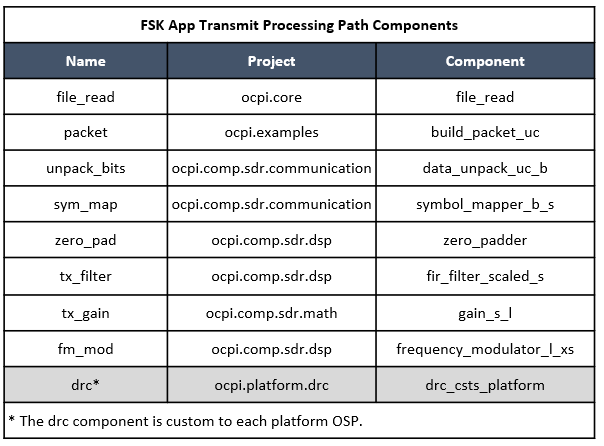
Figure 85: FSK App Transmit Components
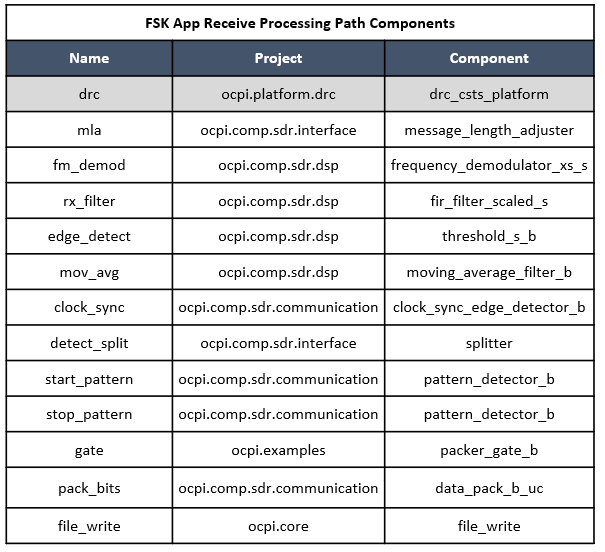
Figure 86: FSK App Receive Components
HDL Assembly
The HDL assembly defines the components of the application that are implemented as HDL workers. Those components of an application not defined within an HDL assembly will be implemented as RCC workers. To demonstrate the flexibility of the OpenCPI framework, the FSK example application can be demonstrated with two different HDL assemblies referred to as “mostly RCC” and “mostly HDL”. In the “mostly RCC” case, all FSK algorithm processing components are implemented as RCC workers, however, an HDL assembly is still required to implement the core communication components of the Digital Radio Controller (DRC) that reside on the hardware platform and controlled using device workers and component workers. The platform supported DRC components are found in the following directories:
~/opencpi/projects/examples/hdl/devices/drc_e31x.rcc
~/opencpi/projects/examples/hdl/devices/drc_fmcomms.rcc
~/opencpi/projects/examples/hdl/devices/drc_plutosdr.rcc
~/opencpi/projects/examples/hdl/devices/drc_zcu104.rcc
DRC workers are known as slave workers because there is a corresponding RCC proxy component that is used by the OpenCPI application to configure and control the HDL worker or device. As shown in Figure 87:, these are the minimal device workers that comprise the DRC and must be included in the HDL assembly. In the “mostly RCC” case, no additional workers are required.
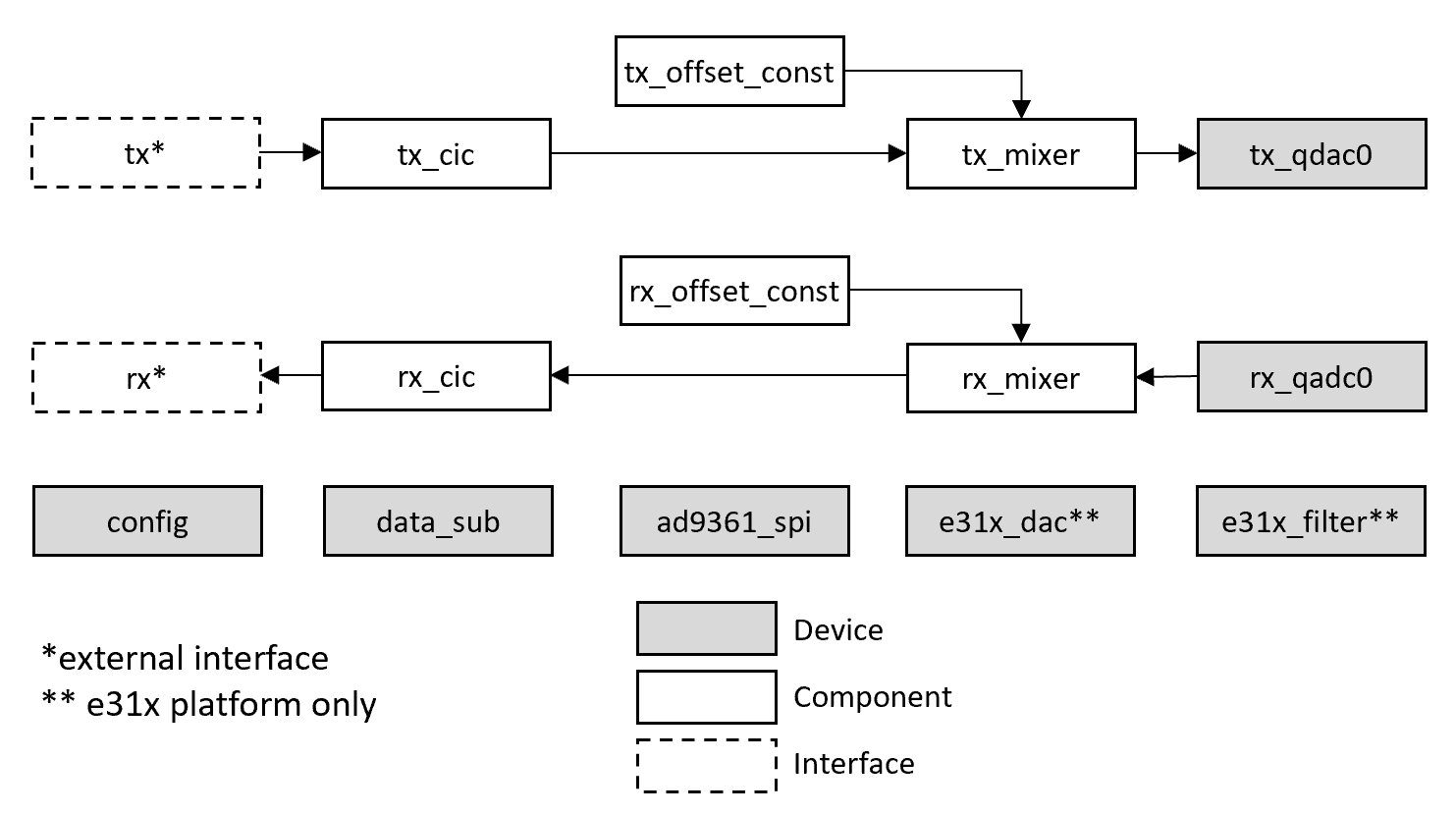
Figure 87: Digital Radio Controller (DRC) Slave Devices and Component Workers
The DRC contains the component workers to perform sample rate change and mixing to shift center frequency. As seen in Figure 87:, the DRC implements the OpenCPI interpolator and complex mixer worker in the transmit path and the complex mixer and decimator on the receiver path. These workers are found in the OpenCPI projects, as shown in Figure 88:. The complex mixer on the receiver path will allow the RX path to tune to a different frequency if the FSK application is not used in a loopback mode but in a full duplex mode, which is not included in this guide.
In addition to the signal processing workers, the DRC includes the device workers that provide direct configuration and control of other hardware elements such as the AD9361 presented in Figure 82:, SPI interface and digitizers (DAC and ADC).
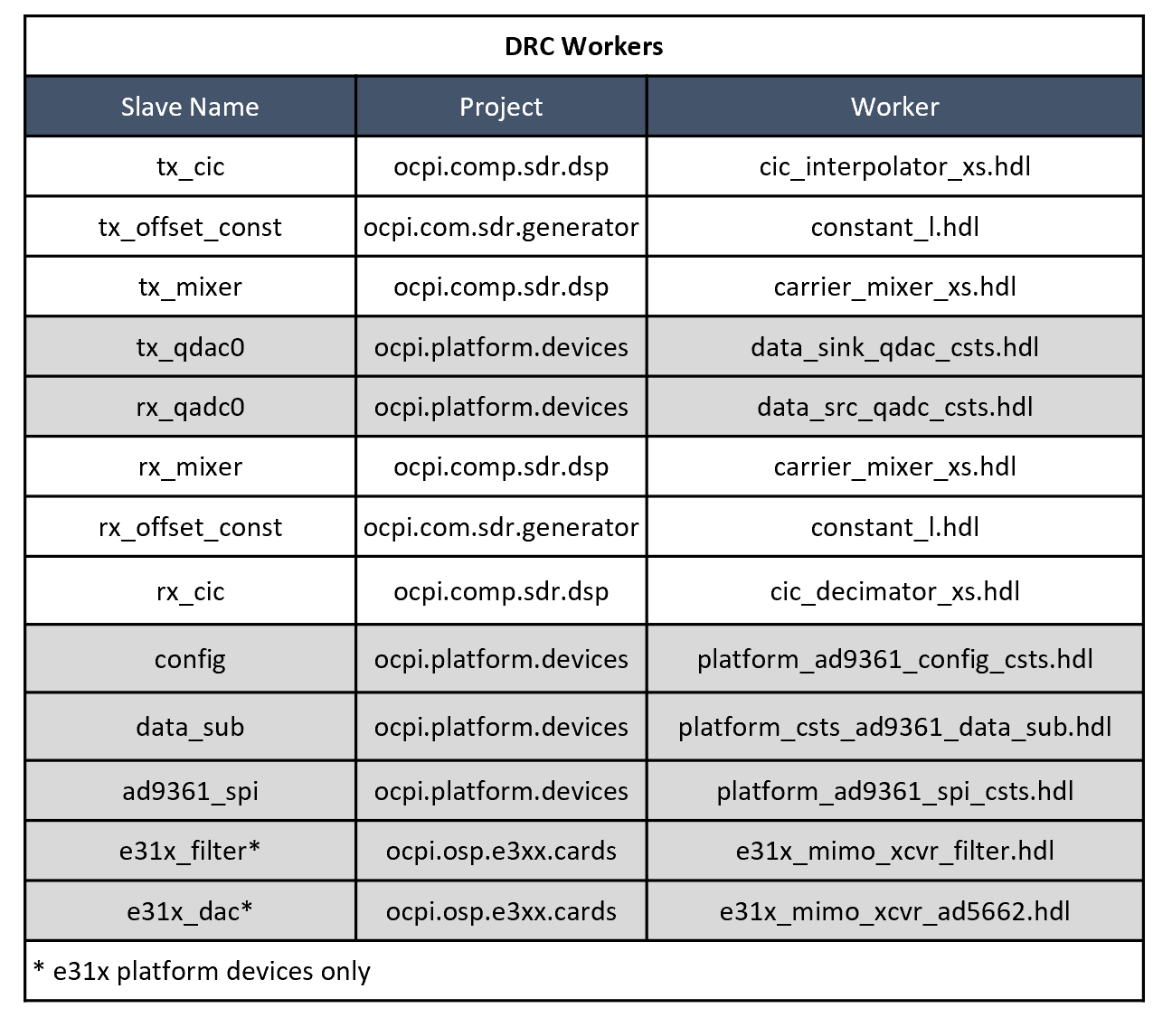
Figure 88: Digital Radio Controller (DRC) Device and Component Workers
Sometime hardware platforms may have unique features requiring a custom device such as the E310 as shown in Figure 88:. The E310 supports filter selection and an additional DAC not present in either the PlutoSDR or FMCOMMS board used by ZedBoard and ZCU104.
There are six HDL assembly configurations used in this guide that support the three different modes (TXRX, TX, and RX) of operation for both the mostly RCC and HDL configuration. These assemblies are used for each of the platforms to demonstrate portability of the OpenCPI application.
The “mostly RCC” HDL assemblies are defined by the following files:
~/opencpi/projects/examples/hdl/assemblies/fsk_app_txrx_rcc_assy/ fsk_app_txrx_rcc_assy.xml
~/opencpi/projects/examples/hdl/assemblies/fsk_app_tx_rcc_assy/fsk_app_tx_rcc_assy.xml
~/opencpi/projects/examples/hdl/assemblies/fsk_app_rx_rcc_assy/fsk_app_rx_rcc_assy.xml
Since the “mostly RCC” cases use all RCC workers to perform the FSK signal processing, the HDL assembly instantiates only the DRC workers, as seen in Figure 89: and the message length adapter worker. For the TX mode, only the transmit path is implemented and only the RX path implemented for the RX mode. The elements surrounded by dashed lines are not workers but annotated to show the defined interface names of the assembly. These interface names will be referenced by the HDL container file to be described next after the HDL assembly descriptions.
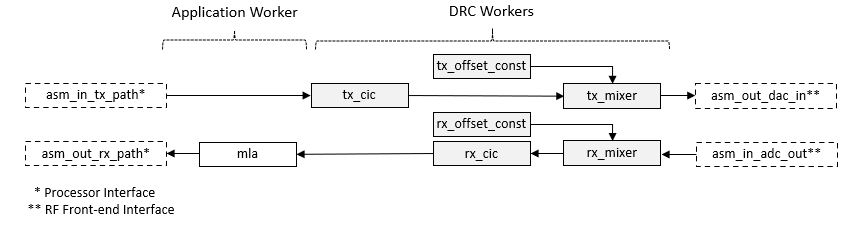
Figure 89: “Mostly RCC” TXRX Mode HDL Assembly
The “mostly HDL” HDL assemblies are defined by the following files:
~/opencpi/projects/examples/hdl/assemblies/fsk_app_txrx_hdl_assy/ fsk_app_txrx_hdl_assy.xml
~/opencpi/projects/examples/hdl/assemblies/fsk_app_tx_hdl_assy/fsk_app_tx_hdl_assy.xml
~/opencpi/projects/examples/hdl/assemblies/fsk_app_rx_hdl_assy/ fsk_app_rx_hdl_assy.xml
The HDL assembly for the “mostly HDL” case instantiates the DRC workers and all other workers that process the signal in the FPGA. In Figure 90:, the gray boxes show the HDL implemented DRC workers and the non-greyed boxes show those components in the FSK application that will be implemented as HDL workers. Some components of the FSK application may only be instantiated as RCC workers because HDL workers have not been developed for those components.

Figure 90: “Mostly HDL” TXRX Mode HDL Assembly
Note
The intent of demonstrating both “mostly RCC” and “mostly HDL” assemblies is to show the flexibility of OpenCPI. OpenCPI provides the user with an ability to select where workers are run based on available resources and required performance parameters.
The following three figures (Figure 91:, Figure 92:, and Figure 93:) show the end-to-end implementation of the FSK TXRX application components to the worker specific model for the mostly RCC and mostly HDL assemblies. In both cases, the DRC implementation is the same.
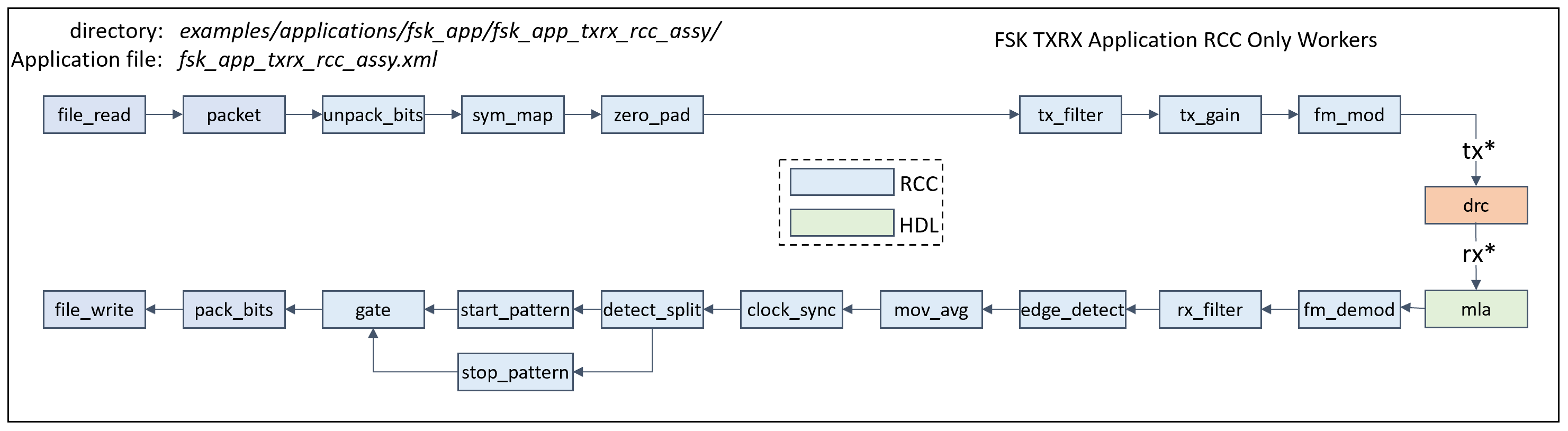
Figure 91: FSK TXRX Application “mostly” RCC workers
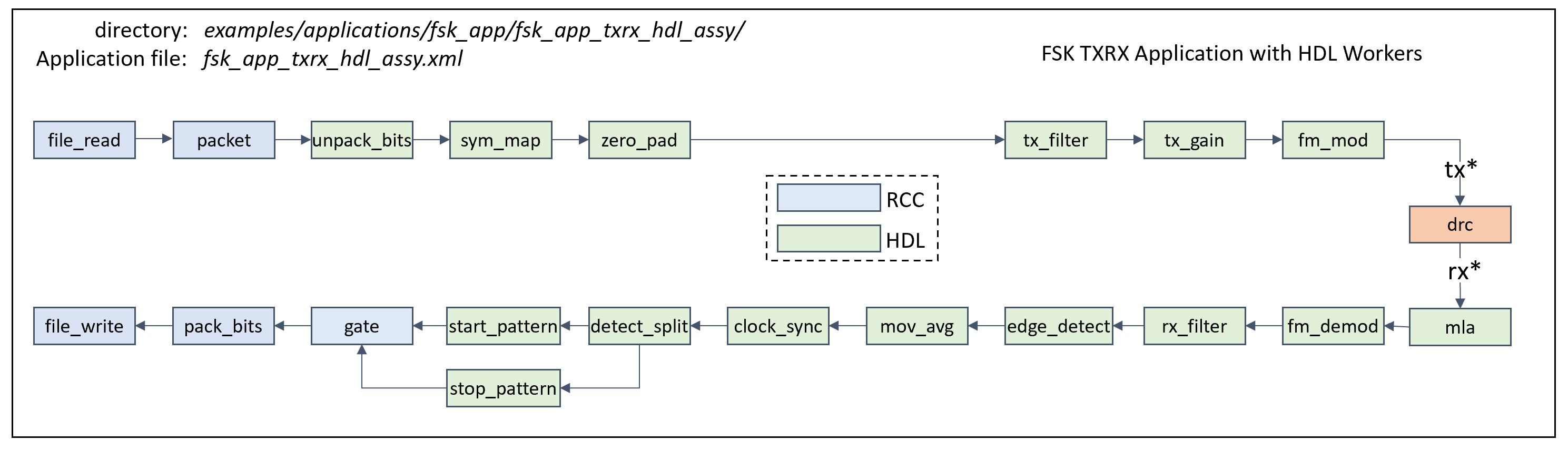
Figure 92: FSK TXRX Application “mostly” HDL workers
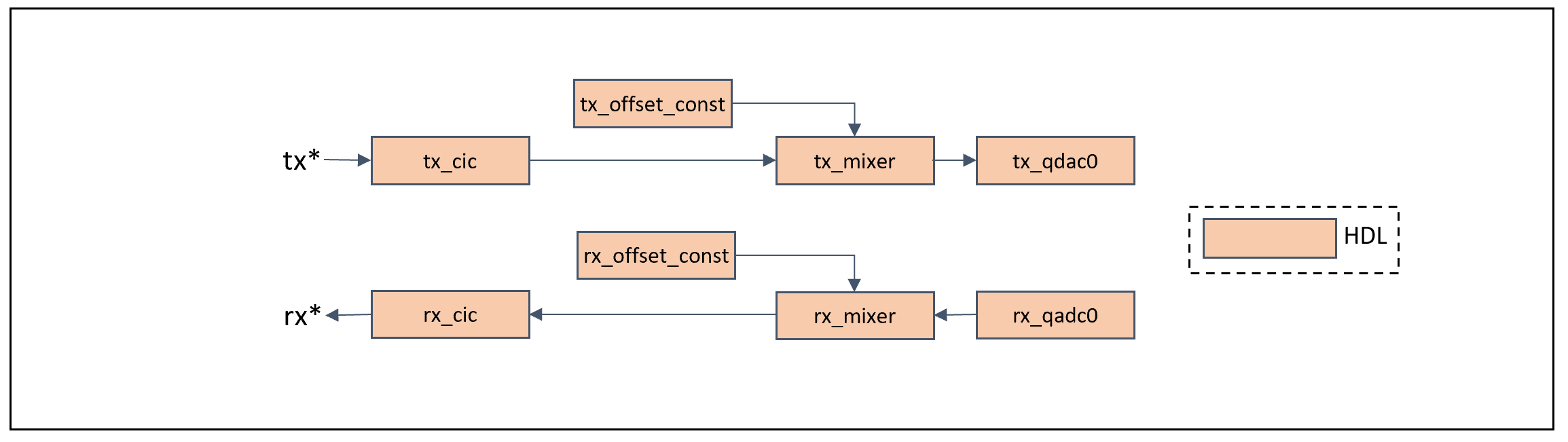
Figure 93: Digital Radio Controller (DRC) HDL workers
HDL Container
Regardless of an application implementing all RCC components, to execute with a hardware platform, an HDL container is required to interface and control elements of the hardware platform. The HDL container may be considered the glue that ties the platform configuration, HDL assembly, and application together. When compiled, the HDL container results in the generation of a bitstream file used to configure the FPGA logic, routing and initial values for both registers and memory (e.g. LUT). The HDL container defines the external interfaces between the FPGA with the Zynq processor system and hardware elements such as the ADC and DAC. In addition, the HDL container specifies the platform configuration. The platform configuration file defines the device workers that comprise the basic platform implementation and identifies the platform’s constraint file. The constraint file defines the platforms FPGA logical signals with package pins and their properties. The constraint file also defines clocks used by the platform.
Each HDL container file is unique to the specified hardware platform. The HDL container specifies the respective platform configuration file and defines the external interfaces to be used by the HDL assembly. The external interfaces include connectivity to the processor system and to the interfacing configuration device, typically the RF front-end elements, such as the ADC and DAC, as shown in Figure 94: for the TXRX mode “mostly RCC” and in Figure 95: for “mostly HDL”. The HDL containers for each platform are located in the same directory as the HDL assembly file.
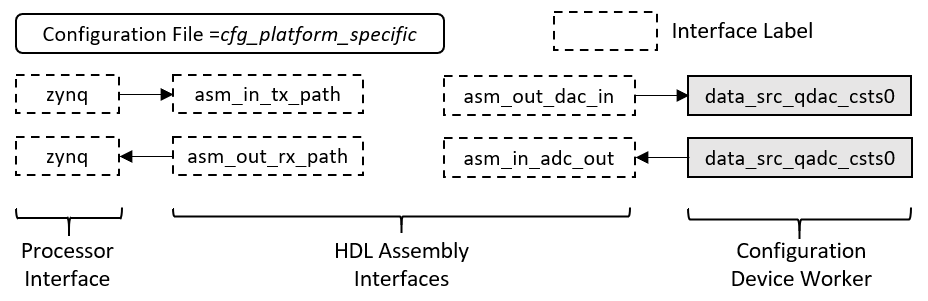
Figure 94: TXRX HDL Container (Mostly RCC)
The dashed boxes in the container figures show the defined interface labels used to interconnect the assembly file between the embedded processor and platform hardware.
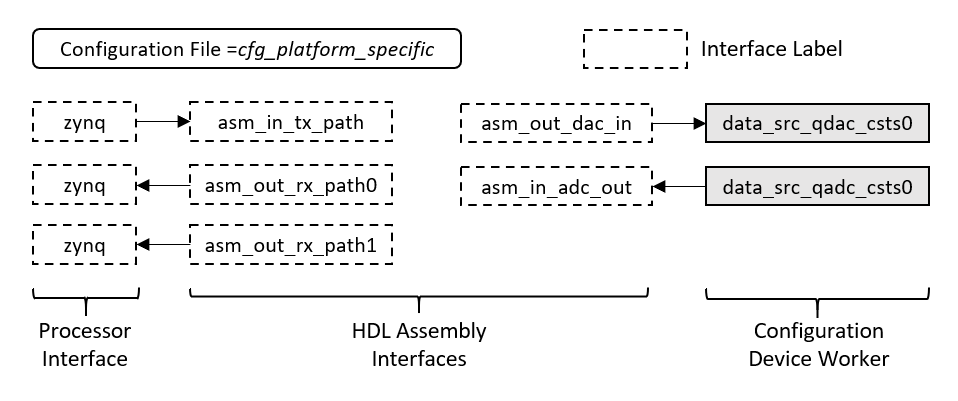
Figure 95: TXRX HDL Container (Mostly HDL)
Each platform container file is placed in the HDL assembly file along with the HDL assembly file. Each file name uses the prefix ‘cnt_’ followed by the platform type, the mode (e.g. txrx, tx, or rx), and then the .xml file extension as shown below:
fsk_app_*_assy/ cnt_e31x_*.xml
fsk_app_*_assy/ cnt_plutosdr_*.xml
fsk_app_*_assy/ cnt_fmcomms_*.xml
The processor interfaces named ‘zynq’ in both and define each platform’s Scalable Data Plane (SDP) interface. SDP is the OpenCPI’s framework interface connecting the hardware platform’s FPGA programmable logic (PL) to the FPGA’s processing subsystem (PS) using interconnects such as AXI,PCI Express and Ethernet. For the zcu104 platform, the processor interface name is ‘zynq_ultra’. Since all four platforms used in this guide are based on the Xilinx Zynq FPGA, the AXI interconnect is used. The SDP interface is declared for each platform in each of their HDL Platform definition file listed below:
~/opencpi/projects/platform/hdl/platform/zed/zed.xml
~/opencpi/projects/platform/hdl/platform/zcu104/zcu104.xml
~/opencpi/projects/osps/ocpi.osp.plutosdr/hdl/platforms/plutosdr/plutosdr.xml
~/opencpi/projects/osps/ocpi.osp.e3xx/hdl/platforms/e31x/e31x.xml
Note
The Zedboard and ZCU104 share a common configuration and container since they both use the FMCOMMS daughterboard.
Platform Configuration
The platform configuration instantiates those OSP devices required for implementing the HDL assembly required for the application execution. In addition, it includes the defined FPGA resource constraints file that specifies the properties of the platforms FPGA to include package pin assignment and clocks.
The configuration and constraint files are located in the specific platform worker directories:
~/opencpi/projects/platform/hdl/platform/zed/
~/opencpi/projects/platform/hdl/platform/zcu104/
~/opencpi/projects/osps/ocpi.osp.e3xx/hdl/platforms/e31x/
~/opencpi/projects/osps/ocpi.osp.plutosdr/hdl/platforms/plutosdr/
Zedboard
~/opencpi/projects/platform/hdl/platform/zed/cfg_1rx_1tx.xml
~/opencpi/projects/platform/hdl/platform/zed/cfg_0rx_1tx.xml
~/opencpi/projects/platform/hdl/platform/zed/cfg_1rx_0tx.xml
ZCU104
~/opencpi/projects/platform/hdl/platform/zcu104/cfg_1rx_1tx.xml
~/opencpi/projects/platform/hdl/platform/zcu104/cfg_0rx_1tx.xml
~/opencpi/projects/platform/hdl/platform/zcu104/cfg_1rx_0tx.xml
E310
~/opencpi/projects/osps/ocpi.osp.e3xx/hdl/platforms/e31x/cfg_1rx_1tx_mode_2_cmos_csts.xml
~/opencpi/projects/osps/ocpi.osp.e3xx/hdl/platforms/e31x/cfg_0rx_1tx_mode_2_cmos_csts.xml
~/opencpi/projects/osps/ocpi.osp.e3xx/hdl/platforms/e31x/cfg_1rx_0tx_mode_2_cmos_csts.xml
PlutoSDR
~/opencpi/projects/osps/ocpi.osp.plutosdr/hdl/platforms/plutosdr/cfg_1rx_1tx.xml
~/opencpi/projects/osps/ocpi.osp.plutosdr/hdl/platforms/plutosdr/cfg_0rx_1tx.xml
~/opencpi/projects/osps/ocpi.osp.plutosdr/hdl/platforms/plutosdrcfg_1rx_0tx.xml
Platform Installation
The intent of the first sections of the guide was to give a user a general introductory overview and intuitive understanding of the configuration and files required to execute an OpenCPI application. Much more detail may be found in the OpenCPI guides, briefings, and tutorials found on the OpenCPI Documentation site.
This section will provide step-by-step command line instruction to clone and install the supporting projects and platforms. This guide will provide instruction for the Digilent Zedboard, AMD ZCU104, Ettus E310, and Analog Devices ADALM Pluto hardware platforms. A user is only required to install those platforms of interest to be used to perform the exercises in this guide. Instruction will be provided for each platform, which may be ignored if not used.
If a user only has a single platform in possession, then the TXRX mode may be run to perform an end-to-end loopback transmission of a data file using the FSK application.
When referring to a platform specific instruction, the set of instructions will be preceded by the capitalization of the platform name enclosed in square brackets then the command line instruction. For example:
[PLATFORM]
~<current_directory>$ command
If the instruction is a “common” instruction regardless of platform, then the word [COMMON] will be placed in square brackets.
The folder directory in which the command is to be executed will be before the ~$ as shown above,
Let’s get started…
Note
All prerequisite tools must be installed on the development host prior to starting. They include git and Vivado 24.1 if using the ZCU104 platform.
Install Platforms
[ZEDBOARD]
~$ cd opencpi/
~/opencpi$ ocpiadmin install platform zed
~/opencpi$ ocpiadmin install platform xilinx24_1_aarch32
[ZCU104]
~$ cd opencpi/
~/opencpi$ ocpiadmin install platform zcu104
~/opencpi$ ocpiadmin install platform xilinx24_1_aarch64
[PLUTOSDR]
~$ cd opencpi/projects/osps
~/opencpi/projects/osps$ git submodule update --init --remote ocpi.osp.plutosdr
~/opencpi/projects/osps$ cd ocpi.osp.plutosdr
~/opencpi/projects/osps/ocpi.osp.plutosdr$ ocpidev register project
~/opencpi/projects/osps/ocpi.osp.plutosdr$ ocpiadmin install platform plutosdr
~/opencpi/projects/osps/ocpi.osp.plutosdr$ ocpiadmin install platform adi_plutosdr0_39
[E310]
~$ cd opencpi/projects/osps/
~/opencpi/projects/osps$ git submodule update --init --remote ocpi.osp.e3xx
~/opencpi/projects/osps$ cd ocpi.osp.e3xx
~/opencpi/projects/osps/ocpi.osp.e3xx$ ocpidev register project
~/opencpi/projects/osps/ocpi.osp.e3xx$ ocpiadmin install platform e31x
Note
Next command only needs to be run if not done so previously if or when Zed was installed.
~/opencpi/projects/osps/ocpi.osp.e31x$ ocpiadmin install platform xilinx24_1_aarch32
Add ocpi.osp.e3xx project dependency to examples project:
~$ cd opencpi/projects/examples
Use an available editor such as ‘vi’, ‘vim’, ‘nano’, etc. to modify file:
~/opencpi/projects/examples/Project.xml
Add ‘ocpi.osp.e3xx’ dependency to ‘projectdependencies’ value as bolded below:
<project packagename='examples' packageprefix='ocpi'
   projectdependencies="ocpi.core ocpi.platform ocpi.comp.sdr ocpi.assets ocpi.osp.e3xx"
   componentlibraries="coding communication dsp generator interface logic math util misc_comps dsp_comps comms_comps util_comps devices cards"
/>
OpenCPI SDR Components
Build SDR Components
[COMMON]
~$ cd opencpi/projects/comps
~/opencpi/projects/comps$ git submodule update --init --remote ocpi.comp.sdr
~/opencpi/projects/comps$ cd ocpi.comp.sdr
~/opencpi/projects/comps/ocpi.comp.sdr$ ocpidev register project
Note
Build the primitives directory for any desired platform since all four target the zynq SoC. It only needs to be built once.
~/opencpi/projects/comps/ocpi.comp.sdr$ ocpidev build -d hdl/primitives --hdl-platform zed
or
~/opencpi/projects/comps/ocpi.comp.sdr$ ocpidev build -d hdl/primitives --hdl-platform zcu104
or
~/opencpi/projects/comps/ocpi.comp.sdr$ ocpidev build -d hdl/primitives --hdl-platform plutosdr
or
~/opencpi/projects/comps/ocpi.comp.sdr$ ocpidev build -d hdl/primitives --hdl-platform e31x
or/and
~/opencpi/projects/comps/ocpi.comp.sdr$ ocpidev build -d hdl/primitives --hdl-platform zcu104

NOTE: If using the zcu104, it must be explicitly built for 'zcu104'. If using a combination of platform types with zcu104, then both must be built.
Build components:
~/opencpi/projects/comps/ocpi.comp.sdr/$ ocpidev build -d components.
This command will build the library for the local host (e.g. ubuntu22_04, etc.).
Build Example Components
[COMMON]
~$ cd opencpi/projects/examples/hdl/primitives/
Builds primitives for the platform that will be used (zynq or zynq_ultra)
~/opencpi/projects/examples/hdl/primitives$ ocpidev build --hdl-platform {zed, e31x, or plutosdr}
If using the ZCU104, must build for ‘zynq_ultra’
~/opencpi/projects/examples/hdl/primitives$ ocpidev build --hdl-platform zcu104
~$ cd opencpi/projects/examples
~/opencpi/projects/examples$ ocpidev register project
~/opencpi/projects/examples$ ocpidev build -d components
Build Assemblies
Build the assemblies for the desired platform and model (mostly RCC or mostly HDL). The term ‘platform_name’ in italic font implies selection of zed, zcu104, e31x, or plutosdr platform when executing the command.
Note
The user only has to build assemblies for their available platforms to be used for executing the FSK application. Furthermore, if executing on only a single platform using TXRX mode, then only the assemblies designated as ‘txrx’ need to be built.
~$ cd opencpi/projects/examples/hdl/assemblies/fsk_app/
[ZED, ZCU104, E31X, and PLUTOSDR]
Assembly directories:
~/opencpi/projects/examples/hdl/assemblies/fsk_app/fsk_app_txrx_rcc_assy/
~/opencpi/projects/examples/hdl/assemblies/fsk_app/fsk_app_tx_rcc_assy/
~/opencpi/projects/examples/hdl/assemblies/fsk_app/fsk_app_rx_rcc_assy/
Move to each of the specified assembly directories above and execute the following for each platform:
ocpidev build --hdl-platform *platform_name*
[ZED, ZCU104, and E31X]
Assembly directories:
~/opencpi/projects/examples/hdl/assemblies/fsk_app/fsk_app_txrx_hdl_assy/
~/opencpi/projects/examples/hdl/assemblies/fsk_app/fsk_app_tx_hdl_assy/
~/opencpi/projects/examples/hdl/assemblies/fsk_app/fsk_app_rx_hdl_assy/
Move to each of the specified assembly directories and execute the following for each platform:
ocpidev build --hdl-platform *platform_name*
Note
The plutosdr platform only supports the “mostly RCC” cases since the Xilinx Zynq7010 FPGA. does not support enough resources to support the “mostly HDL” bit file configuration.
Build Digital Radio Controller
Only execute build for those platforms that have been installed.
[COMMON]
~$ cd opencpi/projects/examples
[E31X]
~/opencpi/projects/examples/$ ocpidev build -d hdl/devices/drc_e31x.rcc
[ZED]
~/opencpi/projects/examples$ ocpidev build -d hdl/devices/drc_fmcomms.rcc
[PLUTOSDR]
~/opencpi/projects/examples$ ocpidev build -d hdl/devices/drc_plutosdr.rcc
[ZCU104]
~/opencpi/projects/examples$ ocpidev build -d hdl/devices/drc_zcu104.rcc
Platform Preparations
It is presumed that the user of this guide is familiar with the getting started guides listed below for each of the platforms they will use for this guide.
OpenCPI ZedBoard Getting Started Guide
OpenCPI Analog Devices PlutoSDR Getting Started Guide
OpenCPI Ettus E31X Getting Started Guide
OpenCPI Xilinx ZCU104 Getting Started Guide
Both the Zedboard and E310 require a bootable SDCARD to initialize the platform. The Zedboard, ZCU104, and E310 all support connectivity via an RJ45 interface for Ethernet and USB interfaces for serial connectivity to access embedded processor. The PlutoSDR uses a USB interface for serial interface, mass storage, and Ethernet access. This is the one portion of the guide where the user is directed to follow other instructions. Going forward, the platform to be used should be bootable and provide a serial interface for command line access.
This guide will use the OpenCPI server mode for executing the FSK application, which establishes an SSH service running on the hardware platform. For this guide, each platform will be configured with a unique IP address based on the 192.168.0.x and 192.168.2.x subnets. For guide purposes, it is assumed that all three platforms are networked, as shown in Figure 96:, but the user may choose any addressing they want. When the guide instructs the use of or configuration of a particular IP, it is up to the user to ensure it is correctly applied. The user may opt to use any number or variety of the supported platforms.
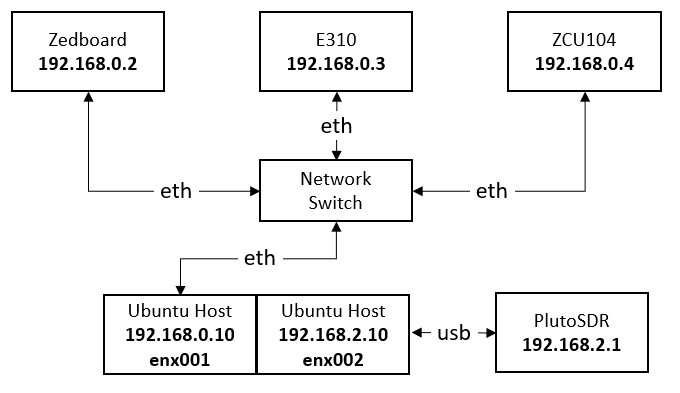
Figure 96: Platform Network Scheme
[COMMON]
To set the host IP address, it is dependent on the user to determine the applicable Ethernet socket interface. The host supports two interfaces. One to the PlutoSDR and one to the Network switch. Additional sockets may be present if using a virtual environment or other connectivity such as WiFi.
Set local host addresses:
~$ sudo ifconfig enx001 192.168.0.10
~$ sudo ifconfig enx002 192.168.2.10
Or use any other available network tool. It is important to match each socket interface to correct IP address.
Note
Since each platform requires unique environment variable values, it is recommended that the user open a “separate terminal window” for each platform for preparation and application execution.
Prepare Zedboard
The Zedboard is paired with either an FMCOMMS2 or FMCOMMS3 AD9361 evaluation board plugged into the Zedboard FMC connector. To execute the FSK application in this guide, either one of these boards must be present and connected to the Zedboard. The Zedboard requires an OpenCPI framework configured boot SDCARD. If not, follow the OpenCPI Zedboard getting started guide to prepare SDCARD.
We will now set the Zedboard IP address and load the remote server.
Insert SDCARD into slot on Zedboard. Connect microUSB cable to Zedboard UART port and development host. Connect Ethernet cable to Zedboard RJ45 port and switch or directly to development host.
Change IP on Zedboard via serial interface:
~$ sudo screen /dev/ttyACM0 115200
avnet-digilent-zedboard-2019_2 login: root
Password: root
root@avnet-digilent-zedboard-2019_2:~# ifconfig eth0 192.168.0.2
root@avnet-digilent-zedboard-2019_2:~# Ctrl-a Ctrl-d
Set OCPI environment variables for remote server: User must know the socket name. (e.g. ‘enx001’) which we use only as an example and may not match actual name.
~/opencpi$ export OCPI_SOCKET_INTERFACE=enx001
~/opencpi$ export OCPI_SERVER_ADDRESSES=192.168.0.2:12345
Load and start remote server:
~/opencpi$ ocpiremote load xilinx24_1_aarch32 zed -p root
~/opencpi$ ocpiremote start -b
Verify load and start:
~/opencpi$ ocpirun -C
Available containers:
# Model Platform OS OS-Version Arch Name
0 hdl zed 192.168.0.2:12345/PL:0
1 rcc xilinx24_1_aarch32 linux 24_1 aarch32 192.168.0.2:12345/rcc0
2 rcc ubuntu22_04 linux u22_04 x86_64 rcc0
If the above containers are shown, then the Zedboard is ready to start executing OpenCPI applications. The USB interface will no longer be required. Once remote server is started, interaction will be through Ethernet using SSH.
Prepare ZCU104
The ZCU104 is paired with either an FMCOMMS2 or FMCOMMS3 AD9361 evaluation board plugged into the ZCU104 FMC connector. To execute the FSK application in this guide, either one of these boards must be present and connected to the ZCU104. The ZCU104 requires an OpenCPI framework configured boot SDCARD. If not, follow the OpenCPI Zedboard getting started guide to prepare SDCARD.
We will now set the ZCU104 IP address and load the remote server.
Insert SDCARD into slot on ZCU104. Connect microUSB cable to ZCU104 UART port and development host. Connect Ethernet cable to ZCU104 RJ45 port and switch or directly to development host. For serial interface, the ZCU104 does not require login credentials, However, for SSH, the user and password are “root” and “root”.
Change IP on ZCU104 via serial interface:
~$ sudo screen /dev/ttyUSB1 115200
root@plxzcu104minimal:~# ifconfig eth0 192.168.0.4
root@plxzcu104minimal:~# Ctrl-a Ctrl-d
Set OCPI environment variables for remote server: User must know the socket name. (e.g. ‘enx001’) which we use only as an example and may not match actual name.
~/opencpi$ export OCPI_SOCKET_INTERFACE=enx001
~/opencpi$ export OCPI_SERVER_ADDRESSES=192.168.0.4:12345
Load and start remote server:
~/opencpi$ ocpiremote load xilinx24_1_aarch64 zcu104 -p root
~/opencpi$ ocpiremote start -b
Verify load and start:
~/opencpi$ ocpirun -C
Available containers:
# Model Platform OS OS-Version Arch Name
0 hdl zcu104 192.168.0.4:12345/PL:0
1 rcc xilinx24_1_aarch64 linux 24_1 aarch64 192.168.0.4:12345/rcc0
2 rcc ubuntu22_04 linux u22_04 x86_64 rcc0
If the above containers are shown, then the ZCU104 is ready to start executing OpenCPI applications. The USB interface will no longer be required. Once remote server is started, interaction will be through Ethernet using SSH.
Prepare Pluto SDR
The PlutoSDR will be run in its Pluto-as-Device Mode. A micro-USB port is used to interface the platform to the host development platform. This interface provides three modes of connectivity to include appearing as an Ethernet link (ethx) to host, mass storage device (/PlutoSDR), and a serial interface (/dev/ttyACM0). The PlutoSDR must also be updated with the correct Analog Devices firmware to operate with the OpenCPI runtime environment, specifically v.039. To verify, SSH to the PlutoSDR. The banner after login will show the version.
“Open a separate terminal window from that used for ZedBoard.”
Check firmware version:
~$ ssh root@192.168.2.1
root@192.168.2.1's password: analog
Welcome to:
______ _       _        _________________
| ___ \ |     | |      /  ___|  _  \ ___ \
| |_/ / |_   _| |_ ___ \ `--.| | | | |_/ /
|  __/| | | | | __/ _ \ `--. \ | | |    /
| |   | | |_| | || (_) /\__/ / |/ /| |\ \
\_|   |_|\__,_|\__\___/\____/|___/ \_| \_|
v0.39
View the version identifier on the line after “PlutoSDR” banner. If it is not v.039, follow procedures in the OpenCPI Analog Devices PlutoSDR Getting Started Guide to download and install.
# exit
By default, it has an IP address of 192.168.2.1. If a different address is required, especially if there are multiple PlutoSDR devices, then access the device as a mass storage and modify the config.txt within it.
Environment variable should include all interfaced platforms. In this guide we are demonstrating three platforms.
~/opencpi$ export OCPI_SOCKET_INTERFACE=enx002
~/opencpi$ export OCPI_SERVER_ADDRESSES=192.168.2.1:12345
Load and start remote server:
~/opencpi$ ocpiremote load adi_plutosdr0_39 plutosdr -p analog
~/opencpi$ ocpiremote start -b -p analog
Verify load and start:
~/opencpi$ ocpirun -C
Available containers:
# Model Platform OS OS-Version Arch Name
0 hdl plutosdr 192.168.2.1:12345/PL:0
1 rcc adi_plutosdr0_39 linux adi_p0_39 aarch32 192.168.2.1:12345/rcc0
2 rcc ubuntu22_04 linux u22_04 x86_64 rcc0
Prepare E310 SDR
Preparation of the Ettus E310 platform is similar to the Zedboard. It requires a bootable SDCARD to deploy and embed the Xilinx24_2_aarch32 petalinux OS. Follow E310 getting started guide if required.
We will now set the E310’s IP address and load the remote server.
Insert SDCARD into slot into the E310 platform. Connect microUSB cable to E310 UART port and development host. Connect Ethernet cable to E310 RJ45 port and switch or directly to development host.
“Open a separate terminal window from that used for ZedBoard and PlutoSDR.”
Change IP on E310 via serial interface:
~$ sudo screen /dev/ttyUSB0 115200
root@HWIL-e310-02:~# ifconfig eth0 192.168.0.3
root@avnet-digilent-zedboard-2019_2:~# Ctrl-a Ctrl-d
Set OCPI environment variables for remote server:
~/opencpi$ export OCPI_SOCKET_INTERFACE=enx001
~/opencpi$ export OCPI_SERVER_ADDRESSES=192.168.0.3:12345
Load and start remote server:
~/opencpi$ ocpiremote load xilinx24_1_aarch32 e31x
~/opencpi$ ocpiremote start -b
Verify load and start:
~/opencpi$ ocpirun -C
Available containers:
# Model Platform OS OS-Version Arch Name
0 hdl e31x 192.168.0.3:12345/PL:0
1 rcc xilinx24_1_aarch32 linux 24_1 aarch32 192.168.0.3:12345/rcc0
2 rcc ubuntu22_04 linux u22_04 x86_64 rcc0
We have now completed the platform preparation and begin the process for executing the FSK application.
ACI Application Build
The FSK application is a C++ file along with C++ include header files. The application must be built to execute. The ‘ocpidev’ utility provides the function to do this by following the instructions below.
~$ cd opencpi/projects/examples/
~/opencpi/projects/examples$ ocpidev build -d applications/fsk_app
~/opencpi/projects/examples$ mkdir applications/fsk_app/odata
Application Execution
OpenCPI allows for the direct execution of applications at the command level using the ‘ocpirun’ utility. The application may also be programmatically controlled using the OpenCPI Application Control Interface(ACI) API. Instruction for both approaches will be provided in this guide.
Details of the ‘ocpirun’ utility are found in the OpenCPI man pages at the link below. This page provides description for all options and provides usage examples. Options are used to specify execution properties and to modify default properties or parameters of components, which will be demonstrated in this guide.
OpenCPI also provides the ACI, which allows a user to programmatically control application execution. Detail on how to develop and integrate ACI functions into a C++ application can be found in the OpenCPI Application Development Guide. The FSK exemplar application provides the following options () to allow the user to programmatically change worker properties and parameters at time of execution.
Table .FSK Application ACI Options.
Option |
Description |
Default |
–help |
Display selected options |
NA |
–display |
Show final configuration properties |
NA |
–verbose |
Show ocpirun debug |
NA |
–mode |
Values = {txrx, tx, rx} |
txrx |
–rcc-platform |
Defines which RCC platform to run RCC components. |
rcc0 |
–model |
Select authoring model {rcc, hdl} |
rcc |
–tx-freq |
Transmit carrier frequency (MHz) |
2450.0 |
–rx-freq |
Receive carrier frequency (MHz) |
2450.0 |
–tx-offset |
Transmit frequency offset (MHz) |
0.0 |
–rx-offset |
Receive frequency offset (MHz) |
0.0 |
–tx-filename |
Name of file to send |
idata/ opencpi.jpg |
–rx-filename |
Name of file to save received data |
odata/ opencpi.jpg |
–tx-rate |
Transmit sample rate (Msps) |
0.25 |
–rx-rate |
Receive sample rate (Msps) |
0.25 |
–tx-bandwidth |
Transmit 3dB bandwidth (MHz) |
0.25 |
–rx-bandwidth |
Receive 3dB bandwidth (MHz) |
0.25 |
–tx-gain |
Transmit gain = gain_dB (dB) |
0.0 |
–rx-gain |
Receive gain = {‘auto, ‘gain_dB’} (dB) |
auto |
–timeout |
Duration to run application (seconds), (-1 = no timeout) |
-1 |
FSK Application (TXRX)
The TXRX application provides the ability to both transmit and receive from a single platform. The RF signal is transmitted out the TX port and received on the RX port of the platform, essentially looping the signal. We will execute the ‘fsk_app_txrx.xml’ application for each platform using the following four different approaches.
Using ‘ocpirun’ utility for mostly RCC case
Using ‘ocpirun’ utility for mostly HDL case
Using the ACI application for mostly RCC case
Using the ACI application for mostly HDL case
The instructions assume execution using default properties and parameters. Worker default properties may be changed using the available options when executing the ACI application or changed directly using the options available for the ‘ocpirun’ utility.
Using the ocpirun command:
Using the ocpirun utility for FSK application execution explicitly requires certain options to be applied. An explanation is provided here so as not to be repeated for each example.
To avoid error, certain application worker properties must be set in conjunction with using the ‘ocpirun’ utility. For example, the container to run the ‘file_read’ worker must be set to the local host container ‘rcc0’ or it will default to run on the remote platform.
To select between the mostly RCC or mostly HDL assemblies, the unpack_bits worker model must be specified to be either ‘rcc’ or ‘hdl’. This worker is implemented as an RCC worker in the mostly RCC assembly and as an HDL worker bin in the mostly HDL assembly. By specifying this model, the correct artifact will be selected.
There are some workers that have properties that exist when implemented as an HDL worker and not when implemented as RCC. As such, these values cannot be directly specified in the application, in order to maintain a single usable application. One such component is the fir_filtered_scale_s component. It maintains a parameter called ‘number_of_multipliers’ that is only implemented in the HDL worker and not RCC. If specified for implementing the RCC model, an error would be generated, thus it is required to be independently specified for the HDL model.
Lastly, there are occasions when a component implemented as an RCC or HDL worker has a property that has mistakenly been named differently although they specify the same designation. This is the case for the moving_average_filter_b component. For HDL implementation, the moving average value is specified as ‘maximum_moving_average_size’ and for RCC implementation, the same property is called ‘moving_average_size’. This naming discrepancy requires the parameter to be specified directly at time of execution.
Note
The instructions for running the FSK application are the same for each of the platforms used for this guide. The primary difference pertains to setting the environment variables. In addition, for each ‘ocpirun’ utility case, the respective drc worker must be chosen.
Note
In order to not produce redundant instructions, we will first identify the platform specific configurations. When referencing the execution of the FSK application using ‘ocpirun’, we will identify where a specific value must be applied for the platform drc worker. When the user sees {drc_fmcomms, drc_e31x, drc_zcu104, or drc_plutosdr}, the user is required to apply one of these as the argument for the ‘-w drc=’ option without the brackets (e.g. -w drc=drc_fmcomms).
[ZED]
Open a new terminal window and follow instructions in “Prepare Zed” section to set environment variables for the Zedboard and verify Zedboard containers are available.
Set OpenCPI Library Path to project artifacts folder:
~$ export OCPI_LIBRARY_PATH=~/opencpi/projects/core/artifacts/:~/opencpi/projects/comps/ocpi.comp.sdr/artifacts/:~/opencpi/projects/examples/artifacts/:~/opencpi/projects/assets/artifacts/
[ZCU104]
Open a new terminal window and follow instructions in “Prepare ZCU104” section to set environment variables for the ZCU104 and verify ZCU104 containers are available.
Set OpenCPI Library Path to project artifacts folder:
~$ export OCPI_LIBRARY_PATH=~/opencpi/projects/core/artifacts/:~/opencpi/projects/comps/ocpi.comp.sdr/artifacts/:~/opencpi/projects/examples/artifacts/:~/opencpi/projects/assets/artifacts/
[PLUTOSDR]
Open a new terminal window and follow instructions in “Prepare PlutoSDR” section to set environment variables for the PlutoSDR and verify PlutoSDR containers are available.
Set OpenCPI Library Path to project artifacts folder:
~$ export OCPI_LIBRARY_PATH=~/opencpi/projects/core/artifacts/:~/opencpi/projects/comps/ocpi.comp.sdr/artifacts/:~/opencpi/projects/examples/artifacts/:~/opencpi/projects/osps/ocpi.osp.e3xx/artifacts/
[E310]
Open a new terminal window and follow instructions in “Prepare E310” section to set environment variables for the E310 and verify E310 containers are available.
Set OpenCPI Library Path to project artifacts folder:
~$ export OCPI_LIBRARY_PATH=~/opencpi/projects/core/artifacts/:~/opencpi/projects/comps/ocpi.comp.sdr/artifacts/:~/opencpi/projects/examples/artifacts/:~/opencpi/projects/osps/ocpi.osp.e3xx/artifacts/
Execute using ‘ocpirun’ utility for mostly RCC case This case selects the fsk_app_txrx_rcc_assy based container artifact for execution.
~$ cd opencpi/projects/examples/applications/fsk_app
~/opencpi/projects/examples/applications/fsk_app$ ocpirun -c file_read=rcc0 -m unpack_bits=rcc -p mov_avg=moving_average_size=10 -w drc={ drc_zed, drc_zcu104, drc_e31x, or drc_plutosdr } apps/fsk_app_txrx.xml
Terminal output:
drc : {fmcomms, zcu104, e31x, or plutosdr}
ad9361_init : AD936x Rev 2 successfully initialized
gate_b : OPENED
build_packet_uc : EOF received
gate_b : CLOSED
When executed, the output shown above should be seen in the terminal window. The drc should reflect the Zedboard to verify correct platform. The packet_gate_b component shows that the packet header was detected when OPENED and shows that the packet tail was detected when CLOSED. The build_packet_uc component displays EOF received when the last byte of the file to be transmitted is read.
A successful transfer of the default file ‘idata/opencpi.jpg’ can be verified by viewing the ‘odata/opencpi.jpg’ file. This can be done running the ‘eog’ command as shown below:
~/opencpi/projects/examples/applications/fsk_app$ eog odata/opencpi.jpg
If the image file was transferred successfully, then the image shown in Figure 97: will be displayed.
Figure 97: Viewing the received image file
The default parameters set the carrier frequency for transmit and receive to be 2450 GHz and the sampling rate at 500 kbps. Using a spectrum analyzer to view the transmitted FSK modulated signal shown in Figure 98:.
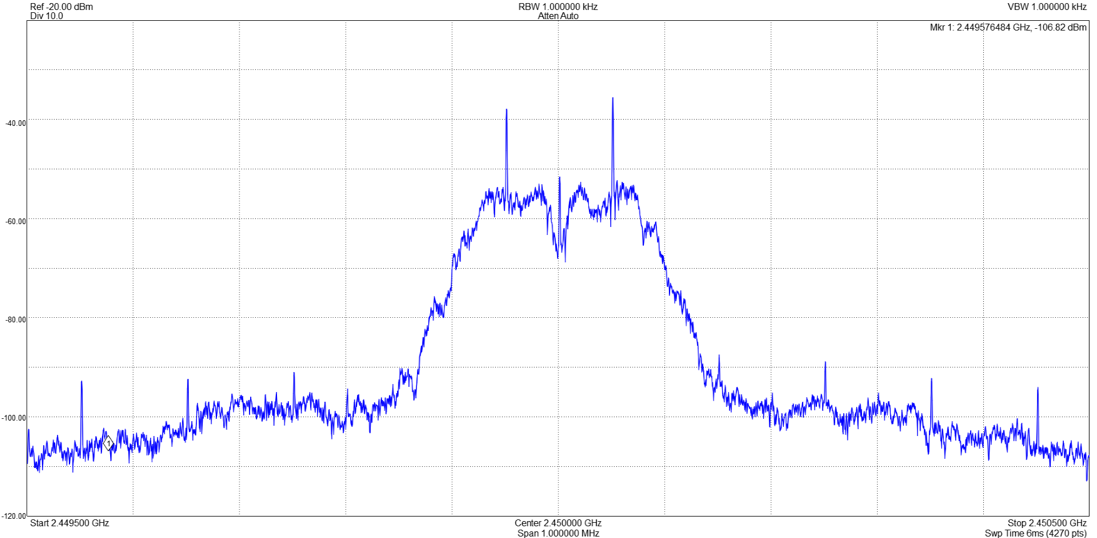
Figure 98: FSK Application Modulated Carrier
Execute using ‘ocpirun’ utility for mostly HDL case This case selects the fsk_app_txrx_hdl_assy based container artifact for execution.
~/opencpi/projects/examples/applications/fsk_app$ ocpirun -c file_read=rcc0 -m unpack_bits=hdl -p mov_avg=maximum_moving_average_size=10 -p tx_filter=number_of_multipliers=8 -p rx_filter=number_of_multipliers=8 -w drc={ drc_fmcomms, drc_zcu104, drc_e31x, or drc_plutosdr } apps/fsk_app_txrx.xml
Terminal output:
drc : {fmcomms, zcu104, e31x, or plutosdr}
ad9361_init : AD936x Rev 2 successfully initialized
gate_b : OPENED
build_packet_uc : EOF received
gate_b : CLOSED
Verify by viewing received opencpi.jpg image.
~/opencpi/projects/examples/applications/fsk_app$ eog odata/opencpi.jpg
Execute using ACI application for mostly RCC case The FSK ACI application implements logic to select worker parameters based on the specified model (rcc or hdl). The application defaults to the RCC model. To execute the FSK ACI application using default parameter, the user is required to only run the executable without additional options as instructed below.
~/opencpi/projects/examples/applications/fsk_app$./target-ubuntu22_04/fsk_app
Terminal output:
drc : {fmcomms, zcu104, e31x, or plutosdr}
ad9361_init : AD936x Rev 2 successfully initialized
gate_b : OPENED
build_packet_uc : EOF received
gate_b : CLOSED
As with the ‘ocpirun’ execution method, the successfully transfer of the image file may be viewed using the ‘eog’ application.
~/opencpi/projects/examples/applications/fsk_app$ eog odata/opencpi.jpg
To view selected parameter values used for execution, the user may add the ‘–display’ option.
~/opencpi/projects/examples/applications/fsk_app$./target-ubuntu22_04/fsk_app --display
Terminal output:
Defined options:
mode = txrx
model = rcc
rcc platform = rcc0
timeout = none
tx_frequency = 2450.000 (MHz)
tx_offset = 0.000 (MHz)
tx_sample_rate = 0.250 (Msps)
tx_bandwidth = 0.250 (MHz)
tx_gain = 0.0 (dB)
tx_filename = idata/opencpi.jpg
rx_frequency = 2450.000 (MHz)
rx_offset = 0.000 (MHz)
rx_sample_rate = 0.250 (Msps)
rx_bandwidth = 0.250 (MHz)
rx_gain = auto
rx_filename = odata/opencpi.jpg
drc : {fmcomms, e31x, or plutosdr}
ad9361_init : AD936x Rev 2 successfully initialized
gate_b : OPENED
build_packet_uc : EOF received
gate_b : CLOSED
The FSK application does not implement any form of error correction. The only error correction is provided by the JPEG image file. The fsk_app examples project does provide an alternative BMP image file that does not implement error correction and provides a grey scale pixel by pixel data stream. When viewing the file, the user may see the degree of errors, which may be incurred during transmit and receive. Since BMP does not provide compression, the file is much larger that the JPEG image and will transmit more binary symbols requiring a longer duration to complete. The alternate file may be selected using the ‘–tx-filename’ and ‘–rx-filename’ options.
To transmit BMP file, execute the following:
~/opencpi/projects/examples/applications/fsk_app$./target-ubuntu22_04/fsk_app --tx-filename idata/opencpi.bmp --rx-filename odata/opencpi.bmp
As with the JPEG image, the BMP image may be viewed using the following command:
~/opencpi/projects/examples/applications/fsk_app$ eog odata/opencpi.bmp
The viewed image will be a much smaller and black and white, as shown in Figure 99:.
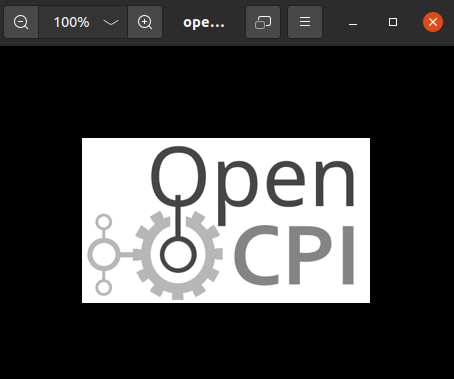
Figure 99: Received BMP image (odata/opencpi.bmp)
When errors are produced, as would be the case when there is insufficient gain, the image may appear distorted, as shown in Figure 100:.
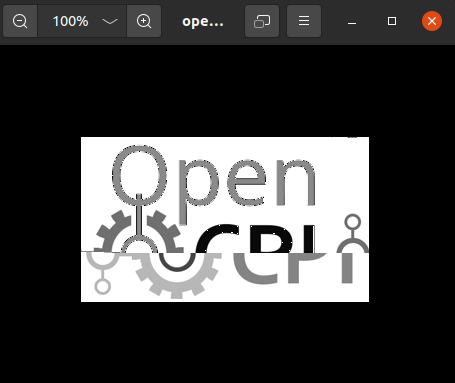
Figure 100: Image with received errors (odata/opencpi.bmp)
Execute using ACI application for mostly HDL case To use the most HDL assembly, the FSK ACI application provides the option ‘–model’ to select between the RCC or HDL assemblies. RCC is the default value so the user must apply this option with the ‘hdl’ value.
To implement default parameters with the mostly HDL assembly, execute the following command:
~/opencpi/projects/examples/applications/fsk_app$./target-ubuntu22_04/fsk_app --model hdl
Terminal output:
drc : {fmcomms, zcu104, e31x, or plutosdr}
ad9361_init : AD936x Rev 2 successfully initialized
gate_b : OPENED
build_packet_uc : EOF received
gate_b : CLOSED
Note
One of the benefits of implementing the mostly HDL assembly is that a higher sampling rate may be achieved due to the efficiency of the processing accomplished within the FPGA physical logic fabric. This shows one of the values of OpenCPI over other General Purpose Processor (GPP) locked frameworks, where signal processing is performed primarily in software on the host. The transfer rate between the hardware platform and host is reduced. In the RCC model, raw samples must be sent to host where in the HDL model, the data transfer is reduced to processed binary data bits.
It is recommended that the user explore the other options available. Try changing transmit and receive frequencies. If your Zedboard is paired with the Analog Devices FMCOMM2 digitizer board, you cannot deviate from the 2450 GHz carrier.
Also, try increasing the TX and RX rates and compare successful throughput between the mostly RCC and mostly HDL assemblies. Keep in mind that the defined bandwidth must also be changed to match rate.
Another useful option is the offset feature. The ‘–tx-offset’ and ‘–rx-offset’ shifts the modulated signal away from the platform’s local oscillator carrier. When the carrier is not fully suppressed, it could possibly contribute to signal interference resulting to an increased error rate.
FSK Application (TX and RX)
If the user has access to at least two of the platforms, the FSK application can demonstrate the transfer of a binary file between them. This is accomplished by one of the platforms executing the fsk_app_tx.xml OpenCPI application and the other executing the fsk_app_rx.xml.
For demonstration purposes of this guide, instruction will show transit from the ADALM Pluto platform to the E310 platform using the ACI ‘fsk_app’ executable. The instructions provided can be applied to any combination of platform TX or RX.
Note
This demonstration is made complex due to the instability of the PlutoSDR local oscillator. The FSK application does not provide carrier recovery so compensation for carrier offset must be determined manually and then applied using the ‘–tx-freq’ option.
The Zedboard has also demonstrated to have poor clock stability, so it would require calibration if applying the following procedures with the ZedBoard. The E310 has shown to be significantly more stable during testing and appears not to require compensation. This does not preclude the possibility of requiring calibration as well.
Let’s start with calibrating the transmit carrier of the PlutoSDR.
There are a couple ways to align the PlutoSDR transmit carrier with the E310 receive carrier. One uses a spectrum analyzer to view the carrier and the second method is a trial-and-error approach. The trial-and-error approach requires the two platforms to be setup to send and receive the binary file. The user would continue to incrementally increase or decrease the transmit carrier until the file is successfully received.
ADALM Pluto SDR Carrier Calibration If you do not have access to a spectrum analyzer, bypass these instructions and implement the second method described above for carrier calibration.
Open up a new terminal window and follow the platform preparation procedures defined in Section “Prepare PlutoSDR” to set environment variables and verify availability of pluto_sdr containers. Then set the OpenCPI library path as instructed below.
~$ export OCPI_LIBRARY_PATH=~/opencpi/projects/core/artifacts/:~/opencpi/projects/comps/ocpi.comp.sdr/artifacts/:~/opencpi/projects/examples/artifacts/:~/opencpi/projects/osps/ocpi.osp.plutosdr/artifacts/
Execute FSK application transmit mode without timeout. The default for ‘’–timeout’ option is -1 which is “no timeout”. When file has been sent using the FSK modulation scheme and data is no longer available, the carrier tone will persist and is viewable on spectrum analyzer.
~$ cd opencpi/projects/examples/application/fsk_app
Execute FSK ACI application in TX mode.
~/ opencpi/projects/examples/application/fsk_app$./target-ubuntu22_04/fsk_app --mode tx
Tune spectrum analyzer to 2450 GHz with 100 Khz span.
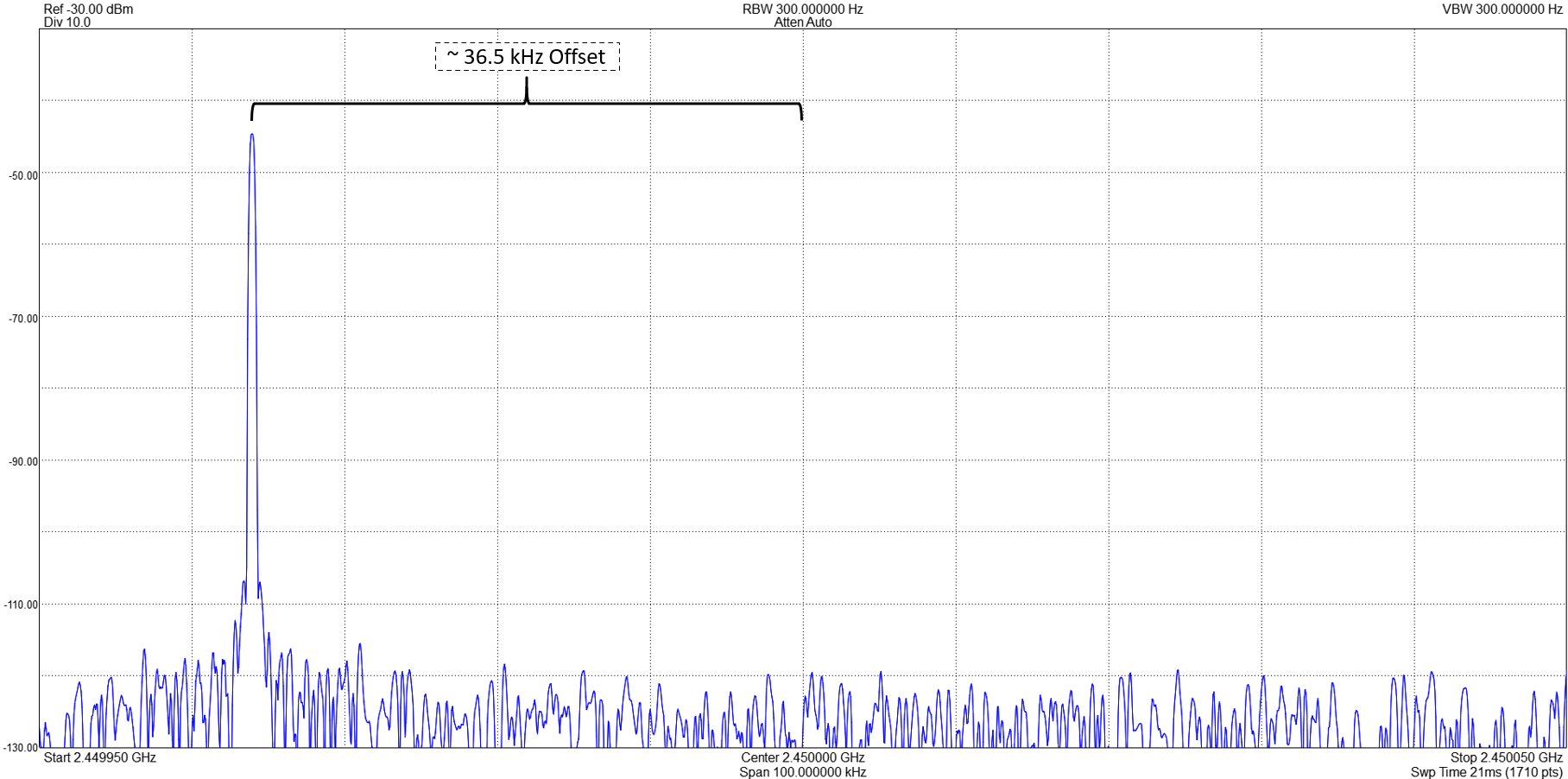
Figure 101: ADALM Pluto Carrier Offset
As shown in Figure 101:, there is an approximately 36.5 kHz offset deviation from the specified default carrier of 2450 MHz.
To terminate the TX mode execution, on the keyboard, type Ctrl-C.
The carrier may be adjusted by increasing the value of the default ‘–tx-freq’ value. This may take several iterations before the spectrum analyzer shows the TX carrier to be centered at the desired default 2450 MHz.
~/ opencpi/projects/examples/application/fsk_app$./target-ubuntu22_04/fsk_app --mode tx --tx-freq 2450.0387
In this case, applying an additional 38.7 kHz to the 2450 MHz value produces aligns the carrier closer to the desired center frequency, as shown in Figure 102:.
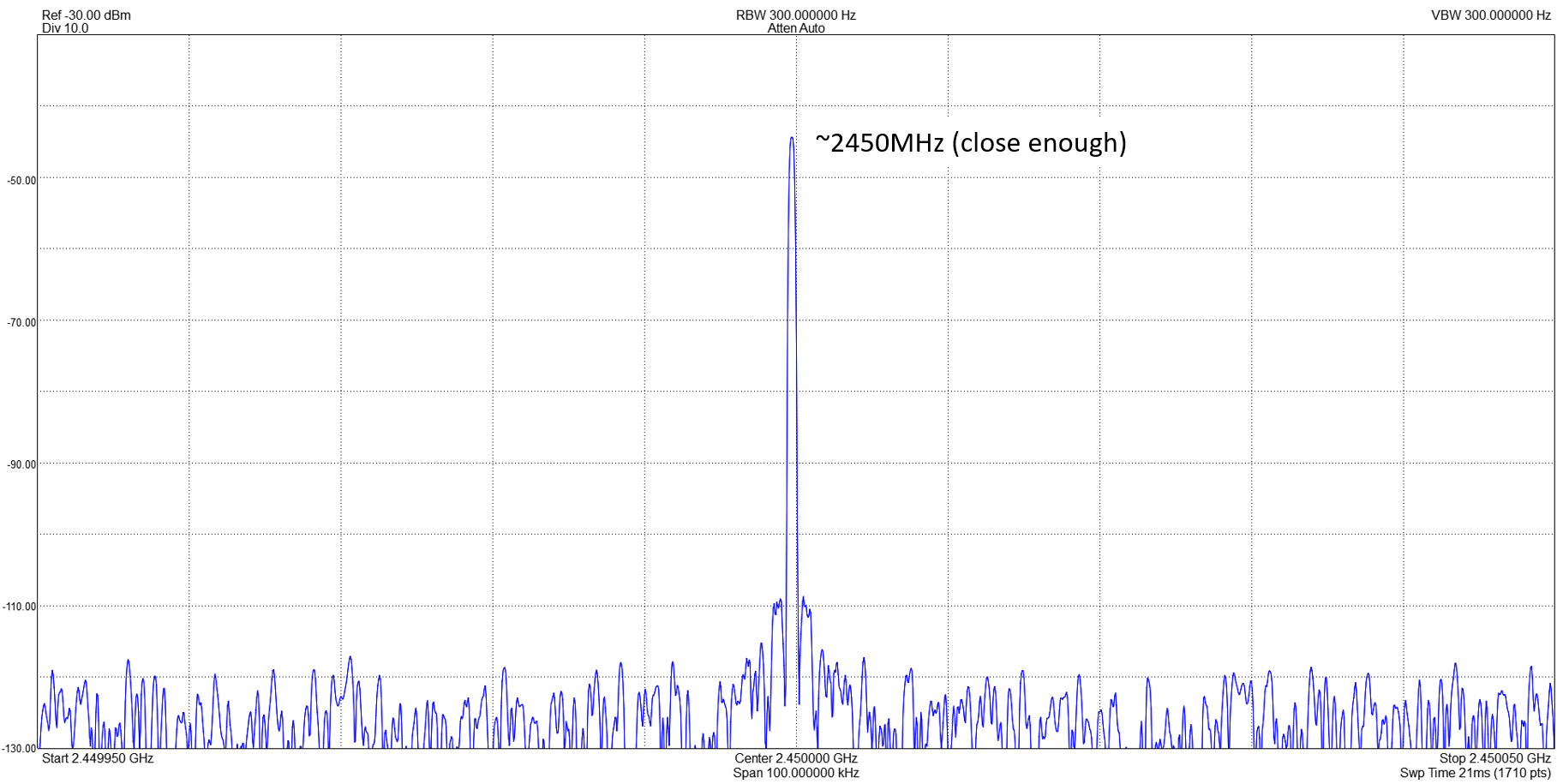
Figure 102: Corrected Carrier Frequency
Note
The offset will vary between different Pluto SDR platforms and may vary over time and temperature. The two platforms should match carriers as close as possible to optimize receiver error rate.
Execute E310 FSK ACI Application RX mode Open another terminal window. Since the environment variables are defined uniquely for each platform, each FSK application must run in its own terminal.
Open a new terminal window and follow the platform preparation procedures defined in Section “Prepare E310” to set environment variables and verify availability of e31x containers. Then set the OpenCPI library path, as instructed below.
~$ export OCPI_LIBRARY_PATH=~/opencpi/projects/core/artifacts/:~/opencpi/projects/comps/ocpi.comp.sdr/artifacts/:~/opencpi/projects/examples/artifacts/:~/opencpi/projects/osps/ocpi.osp.e31x/artifacts/
~$ cd opencpi/projects/examples/applications/fsk_app
Start ‘fsk_app’ in rx mode.
~ opencpi/projects/examples/applications/fsk_app$./target-ubuntu22_04/fsk_app --mode rx
Terminal output:
drc : e31x
ad9361_init : AD936x Rev 2 successfully initialized
Once the application has been started, it will wait until it receives and detects the transmitted packet header. Once the header is received, it will save the subsequent demodulated binary data to the default file (e.g. odata/opencpi.jpg) and stop sending the data to the receive file, once the tail has been received and detected.
Terminal output (When header detected):
gate_b : OPENED
Terminal output (When tail detected):
gate_b : CLOSED
Execute PLUTO FSK ACI Application TX mode Open a new terminal window and follow the platform preparation procedures defined in “Prepare PlutoSDR” to set environment variables and verify availability of plutosdr containers. Then set the OpenCPI library path as instructed below.
~$ export OCPI_LIBRARY_PATH=~/opencpi/projects/core/artifacts/:~/opencpi/projects/comps/ocpi.comp.sdr/artifacts/:~/opencpi/projects/examples/artifacts/:~/opencpi/projects/osps/ocpi.osp.plutosdr/artifacts/
~$ cd opencpi/projects/examples/applications/fsk_app
Start ‘fsk_app’ in tx mode. Must include definition of transmit carrier frequency with calibrated offset.
Note
There are no flags to indicate that the last bit of the file. If a graceful termination of the application is wanted, then the ‘–timeout’ option must be applied to the command. The timeout should provide sufficient time to modulate and transmit all binary data. Bigger files will require more time. Timeout maybe reduced if rate is increased.
~opencpi/projects/examples/applications/fsk_app$./target-ubuntu22_04/fsk_app --mode tx --tx-freq 2450.0387 --timeout 10
Terminal output:
drc : plutosdr
ad9361_init : AD936x Rev 2 successfully initialized
build_packet_uc : EOF received
When the EOF received message is displayed, it indicates that the last byte of the source file has been received by the build_packet_uc worker.
The application will terminate automatically once the timeout counter has been reached. The specified timeout defines seconds. In the command above, the timeout is defined to be 10 seconds.
Glossary
ACI - Application Control Interface
ADC - Analog to Digital Converter
API - Application Programming Interface
AXI - Advanced eXtensible Interface
CSTS - Complex Short Time Stamp protocol
DAC - Digital to Analog Converter
DRC - Digital Radio Controller
EOF - End of File
FIR - Finite Impulse Response
FPGA - Field Programmable Gate Array
FSK - Frequency Shift Keying
GPP - General Purpose Processor
HDL - Hardware Description Language
IP - Internet Protocol
LO - Local Oscillator
LUT - Look Up Table
OS - Operating System
OSP - OpenCPI Support Package
PL - Programmable Logic
RCC - Resource Constrained C++
RFIC - Radio Frequency Integrated Circuit
RX - Receive
SDP - Scalable Data Plane
SDR - Software Defined Radio
SoC - System on Chip
TX - Transmit