Debugging Tools Guide
References
This document assumes a basic understanding of the Linux command line (or “shell”) environment. It requires a working knowledge of OpenCPI, gdb, and FPGA Vendors’ tools necessary for performing on-chip debugging and verification. The references below can be used as an overview of OpenCPI and may prove useful.
Debugging RCC Workers
RCC workers are built as dynamically loadable shared object files, with the .so suffix. When an application uses a worker, it will be loaded on demand, even when the executable is statically linked itself. To debug a worker, it is necessary to first start the debugger on the executable, which is either the ocpirun utility program or an ACI application. In either case the first step is to run the executable under the debugger, establishing a generic breakpoint to enter the debugger at a point after workers are loaded, but before they are actually run. Then breakpoints can be placed in the worker code itself. gdb is now provided as a prerequisite for all embedded platforms. This means that the procedure that is provided below will work on any RCC platform.
debugging using gdb command line
The initial breakpoint should be placed on the OCPI::RCC::Worker::Worker member function (an internal constructor). This breakpoint will be hit for every worker in the application, after it is loaded, but before it ever is initialized (C) or constructed (C++). Note that although this initial breakpoint is at a constructor, it is not the actual constructor of the C++ worker, and not even in its inheritance hierarchy.
To determine whether the worker about to be constructed is the worker of interest, simply examine the “name” argument at this breakpoint. This is the instance name for the worker within the application. If the name indicates a worker of interest you can now establish a breakpoint in the worker, either based on a source line number, or symbols in the worker. In order to do this do the following:
gdb ocpirun

(gdb) b OCPI::RCC::Worker::Worker

(gdb) run -v -d my_application_xml
Run the following command as many times as there are RCC workers in your application minus one e.g. If your application has 3 RCC workers run ‘c’ 2 times.
(gdb) c
now that all the RCC workers have been loaded into memory we can add a breakpoint in our worker of interest.
(gdb) b my_worker.cc:135 (e.g. for a C++ worker, by line number)
or
(gdb) b my_worker.c:run (e.g. for a C worker, in the run method)

(gdb) clear OCPI::RCC::Worker::Worker

(gdb) c
There is now a breakpoint inside the worker of interest and the original breakpoint has been deleted. The worker of interest can now be debugged from here.
gdb debugging using DDD
If the user prefers they can use a graphical debugging interface such as DDD. This tool can be installed via yum:
yum install ddd
To run this tool with an OpenCPI application simply type ddd in a console window and use the gdb console at the bottom of the window to input commands. The user will use the same commands as in the previous section (debugging using gdb command line) to debug a RCC worker.
FPGA Integrated Logic Analyzers
This section describes how to incorporate Xilinx’s Vivado Integrated Logic Analyzer, and Xilinx’s ISE ChipScope PRO into an OpenCPI design. Below is a summary of the cases that are covered:
Xilinx Vivado
Instance an ILA in any HDL asset using cores from Vivado’s IP Catalog
Insert an ILA into any HDL asset using the “Set Up Debug” wizard
Xilinx ISE
Integrate an ILA into HDL Worker using CORE Generated cores, used by ChipScope
Insert an ILA into HDL Assembly using the Inserter tool, used by ChipScope
The developer must have a working knowledge of:
OpenCPI and how to build HDL Workers and HDL Assemblies for various HDL Targets and HDL Platforms.
The Xilinx Debug and Verification tools: CORE Generator, ChipScope Pro CORE Inserter and Analyzer.
Xilinx Vivado
Case 1: Instance a Debug ILA in an HDL Worker using cores from Vivado’s IP Catalog
This case requires that the developer create a debug core with Vivado and write it to an EDIF or DCP file. This can be done in the Vivado GUI:
Navigate to: Window -> IP Catalog -> Debug and Verification -> Debug -> Core-of-Choice
Customize the IP
Generate IP output products in Global mode
Run Synthesis and Open Synthesized Design
Once synthesis completes, enter the Tcl Console, and write the checkpoint file to be included by the worker:
write_checkpoint vivado_ila.dcpNote: you can alternatively use an EDIF netlist (write_edif) and stub file
* See the Vivado Usage Notes document for more information on using Vivado IP with OpenCPI
Note: ISE debug cores (NGCs) can be used in conjunction with Chipscope for debugging even if Vivado is the tool that OpenCPI is using to synthesize and implement designs. Reference Case 1: Integrate ChipScope into HDL Worker using cores from ISE’s CORE Generator for information on including NGC debug cores.
Integrate the debug core into the worker, generate the required files and proceed with compilation as follows:
Integrate the Debug and Verification cores into the worker’s VHDL:
Declare and instantiate the component for the core (ILA, VIO, etc)
As needed, add signal declarations and assignments (TRIG(Y downto 0), DATA(Z downto 0), etc)
(Only required if using an EDIF instead of DCP): In the worker’s Makefile, set “SourceFiles=” to include the stub file for the core. 1. Absolute or relative paths are acceptable. An example is provided:
SourceFiles=../vivado_ila/vivado_ila.vhd
In the worker’s Makefile, set “Cores=” to include the EDIF or DCP file for the core. Absolute or relative paths are acceptable. An example is provided:
Cores=../vivado_ila/vivado_ila.dcp
Build HDL worker for target
Critical: some probe names may not be helpful unless the flatten_hierarchy option is set to “none” during synthesis of the asset being debugged (in this case the worker). This can be done either in the Vivado GUI or in the OpenCPI worker’s Makefile (export VivadoExtraOptions_synth=-“flatten_hierarchy none”) as explained in Vivado Usage Notes.
Generate the debug probes file for use in the Logic Analyzer
Open the generated XPR file located in the worker’s target-* directory
Rerun synthesis now that we are in “project mode”
Critical: In the project’s synthesis settings, make sure flatten_hierarchy is set to “none”
Open the synthesized design
In the Tcl Console, generate the *.ltx file containing the debug probe information:
write_debug_probes vivado_ila.ltx* Save this file in a persistent location for later use
Build HDL assembly for platform
The generated bitstream contains the Debug and Verification cores which will be recognized by the Xilinx Vivado Logic Analyzer tool. Once the bitstream has been loaded onto the target FPGA, the Analyzer tool can connect and detect the presence of the Debug and Verification core(s). At that point, the LTX debug probes file can be loaded.
Case 2: Insert Vivado Debug ILA into an HDL Worker
After building your core, worker, platform, config, assembly, or container, you can add a debug core using the Vivado GUI. The result will be a new netlist containing the debug core. This will replace the netlist generated by OpenCPI. Note that rebuilding or cleaning the worker (or other AV asset) at any time (with “make”) will remove any debug functionality added to the Vivado project. The Vivado project files are an artifact of the “make” process, and will be overwritten each time “make” is run for that asset.
For our example, we use the complex_mixer.hdl worker built for “zynq”:
Build the worker:
cd ocpiassets/components/dsp_comps/complex_mixer.hdl
make HdlTarget=zynq VivadoExtraOptions_synth=-"flatten_hierarchy none"
Note that some probe names may be unhelpful unless the flatten_hierarchy option is set to “none” during synthesis of the asset being debugged (in this case the worker). Reference: Vivado Usage Notes
Open up the worker’s Vivado project:
cd target-zynq
source /opt/Xilinx/Vivado/2017.1/settings64.sh ; vivado complex_mixer_rv.xpr &
Note: because OpenCPI operates in Vivado’s Non-Project Mode, you will need to rerun synthesis in Project Mode using the Vivado GUI. Refer to the Vivado_Usage doc for more information. You may want to set the flatten_hierarchy option to none via the Vivado GUI as well.
In the Flow Navigator’s Synthesis section, select “Set Up Debug”. Choose the debug settings and nets of your choice. You can drag nets in from the Netlist hierarchy, or the Schematic view:
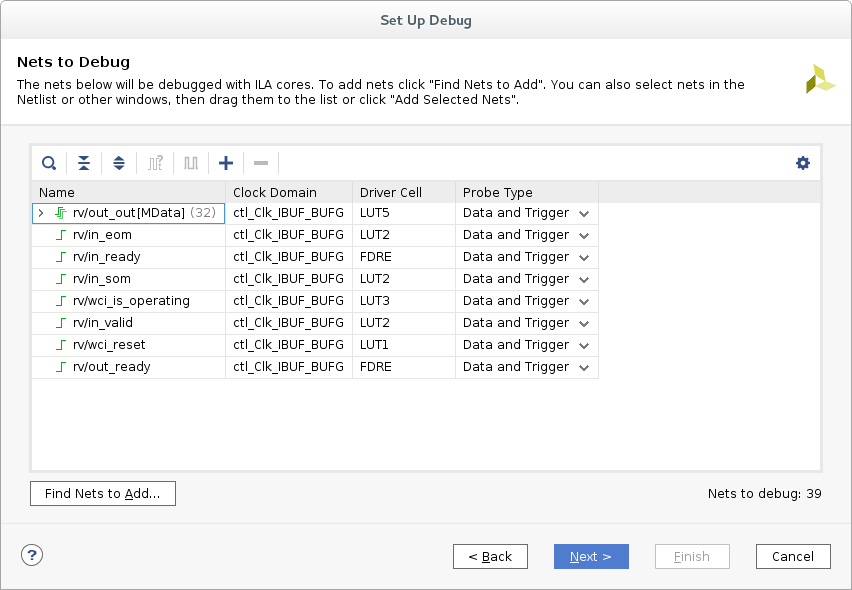
Figure 36: Xilinx Vivado 2017.1 Set Up Debug
Confirm that the debug cores are listed:
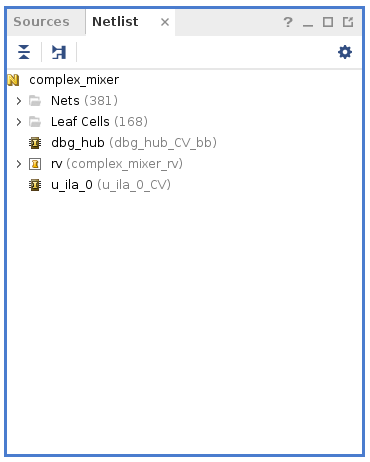
Figure 37: Xilinx Vivado 2017.1 Debug Cores Listed
Rerun synthesis. Note that you may once again want to set the flatten_hierarchy option to “none” via the Vivado GUI. Observe the debug cores in the worker’s netlist:
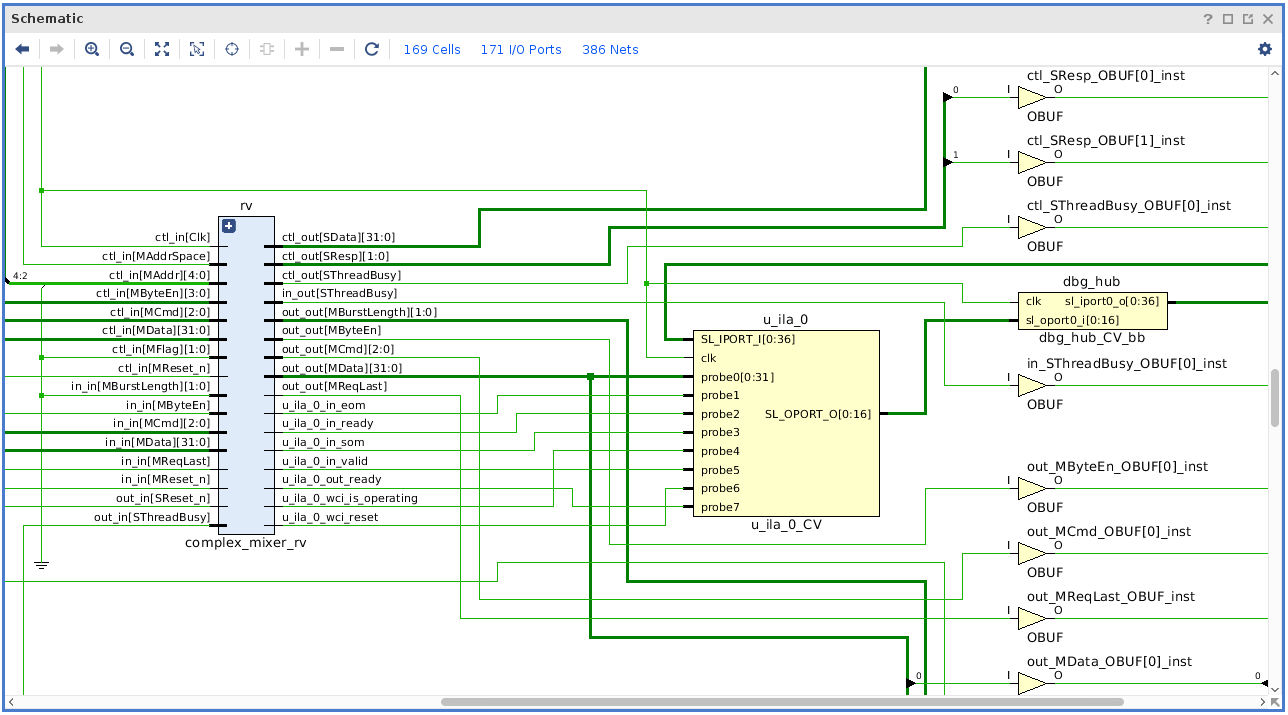
Figure 38: Xilinx Vivado 2017.1 Debug Cores Schematic
Enter the Tcl Console, and overwrite the netlist created by the ‘make’ system in the “target-zynq” directory:
write_edif -security_mode all -force complex_mixer.edfNote: “-force” tells the write_edif command to overwrite the file if it already exists.
Note: “-security_mode all” ensures that partially encrypted designs will still result in a single EDIF file.
In the Tcl Console, generate the *.ltx file containing the debug probe information:
write_debug_probes complex_mixer.ltxBuild an HDL assembly containing this worker
The generated bitstream contains the debug and ILA cores which will be recognized by Xilinx Vivado Integrated Logic Analyzer tool. Once the bitstream has been loaded onto the target FPGA, the Analyzer tool can connect and detect the presence of the debug core(s).
Reiterating an Important Note for Case 2: Rebuilding or cleaning the worker (or other AV asset) at any time (with “make”) will remove any debug functionality added to the Vivado project. The Vivado project files are an artifact of the “make” process, and will be overwritten each time “make” is run for that asset.
Xilinx ISE
Case 1: Integrate ChipScope into HDL Worker using cores from ISE’s CORE Generator
This case assumes that the developer has created a Xilinx CORE Generator project and configured the Debug and Verification cores as desired. Specifically, these instructions have been verified for the ICON, ILA and VIO cores. Of the many output files generated by CORE Generator for each core, only two (*.vhd, *.ngc) are necessary to be retained for building the HDL worker and subsequently, the HDL assembly.
Integrate the Debug and Verification cores into the worker’s VHDL:
Declare and instantiate the component for each core (ICON, ILA, VIO, etc)
As needed, add signal declarations and assignments (CONTROL(35 downto 0), TRIG(Y downto 0), DATA(Z downto 0), etc)
Edit the worker’s Makefile to include the path and file name of the instantiated cores (ICON, ILA, VIO, etc) *.vhd files. Use the framework’s Makefile variable “SourceFiles=” to include the path and name of the VHDL file of each core. Absolute or relative paths are acceptable. An example is provided:
SourceFiles=../../chipscope/icon1.vhd ../../chipscope/ila_trig32_data128_16384.vhd
Edit the HDL Assembly’s Makefile to include the path and file name of the instantiated cores (ICON, ILA, etc) *.ngc files. Use the framework’s Makefile variable “Cores=” to include the path and name of the NGC file of each core. Absolute or relative paths are acceptable. An example is provided:
Cores=../../../../components/dsp_comps/cic_dec.hdl/chipscope/icon1.ngc
../../../../components/dsp_comps/cic_dec.hdl/chipscope/ila_trig32_data128_16384.ngc
Build HDL worker for target.
Build HDL assembly for platform.
The generated bitstream contains the Debug and Verification cores which will be recognized by the Xilinx ChipScope Pro Analyzer tool. Once the bitstream has been loaded onto the target FPGA, the Analyzer tool can connect and detect the presence of the Debug and Verification core(s).
Case 2: Integrate ChipScope into HDL Assembly using the Inserter tool
If the HDL assembly has already been built, proceed to step 2. Otherwise start the HDL assembly build process. Once the build process has completed the ngdbuild step, the build process can be canceled.
Launch the Xilinx ChipScope Pro Inserter tool and create a new project.
Note: The versions of the Inserter and Analyzer tools must match.
Select the Input Design Netlist by browsing to the HDL assembly’s container’s target directory and selecting the -b.ngc file: An example is provided:
/data/ocpi_baseassets/ocpiassets/applications/FSK/assemblies/fsk_filerw/
container-fsk_filerw_matchstiq_base/target-zynq/fsk_filerw_matchstiq_base-b.ngc
The default name and location of the Output Design Netlist is acceptable.
The default name and location of the Output Directory is acceptable.
Save the project file. When selecting a location to save the project file, it is recommended not to save the project in an OpenCPI artifact directory, as they are deleted upon execution of a make clean process.
Continue with the Inserter tool process to:
Add signals that are to be monitored
Generate the cores and NGO file:
The output folders and files will be generate in Output Directory directory.
cs_icon_pro/
cs_ila_pro_0/
dump.xst/
fsk_filerw_matchstiq_base-b.ngo
icon_pro.ngc
ila_pro_0.ngc
Use the NGO file to regenerate the NGD
Replace the NGC with the NGO by copying *-b.ngo over *-b.ngc.
Rebuild the NGD file based upon ngdbuild.out.
Within the container’s target directory, open the ngdbuild.out file and locate the ngdbuild command including all of its options necessary for execution. Note that the command in ngdbuild.out provides a relative path for ngdbuild. Copy the ngdbuild command, modify the command to include the full path to ngdbuild, and execute it from the container’s target directory. An example is provided below. Note that this should not be executed from a shell where an Xilinx settings32.sh or settings64.sh script has been sourced.
/opt/Xilinx/14.7/ISE_DS/ISE/bin/lin64/ngdbuild -verbose -uc
/data/ocpi_baseassets/ocpiassets/applications/FSK/assemblies/../../../hdl/platforms/matchstiq/lib/matchstiq.ucf -p xc7z020-1-clg484 -sd
../../../../../../hdl/platforms/matchstiq/lib/hdl/zynq -sd
../../../../../../hdl/platforms/matchstiq/lib/hdl/zynq -sd
../../../../../../../../ocpi_baseproject/exports/lib/devices/hdl/zynq -sd ../../lib/hdl/zynq -sd
../../../../../../components/dsp_comps/complex_mixer.hdl/chipscope -sd
../../../../../../components/dsp_comps/complex_mixer.hdl/chipscope -sd
../../../../../../../../ocpi_baseproject/exports/lib/adapters/hdl/zynq -sd
../../../../../../components/util_comps/lib/hdl/zynq -sd
../../../../../../components/dsp_comps/lib/hdl/zynq -sd
../../../../../../components/dsp_comps/lib/hdl/zynq -sd
../../../../../../components/dsp_comps/lib/hdl/zynq -sd
../../../../../../components/dsp_comps/lib/hdl/zynq -sd
../../../../../../components/dsp_comps/lib/hdl/zynq -sd
../../../../../../components/dsp_comps/lib/hdl/zynq -sd
../../../../../../../../ocpi_baseproject/exports/lib/adapters/hdl/zynq -sd
../../../../../../../../ocpi_baseproject/exports/lib/devices/hdl/zynq -sd
../../../../../../../../ocpi_baseproject/exports/lib/components/hdl/zynq
fsk_filerw_matchstiq_base-b.ngc fsk_filerw_matchstiq_base.ngd
Continue the HDL Assembly build process.
Change from the container target directory back to the assembly directory and re-run make
The generated bitstream contains the Debug and Verification cores which will be recognized by the Xilinx ChipScope Pro Analyzer tool. Once the bitstream has been loaded onto the target FPGA, you can use the Analyzer tool to connect and detect the presence of the Debug and Verification core(s). The saved project file can be imported to automatically populate the names of the signals being monitored.
- 1
Note that this step is not necessary if using a DCP file instead of an EDIF netlist because a DCP file includes the EDIF netlist and the VHDL stub file.