Ethernet Transport Performance Tuning Guide
Introduction
The analog-to-digital converter (ADC) in a software-defined radio (SDR) receive path produces digital samples at a specific rate. If the downstream path from the ADC is unable to process samples fast enough, even for short, intermittent periods, then buffers fill up, back pressure is exerted, and the ADC is forced to drop samples. Likewise the digital-to-analog converter (DAC) expects to be provided with samples at a specific rate. If the upstream path providing samples to the DAC is unable to do so fast enough, the DAC will “underrun”. Both ADC sample drops and DAC underruns are undesirable, but an untuned system will be unable to achieve a high data rate without exhibiting both.
In an OpenCPI application comprising a single RCC container connected via Datagram Remote Direct Memory Access (DG-RDMA) to a single HDL container, the main bottleneck is on the PC. Such bottlenecks are exacerbated by the “doorbell” mechanism in the DG-RDMA protocol. Doorbells signal buffer availability and travel across the Ethernet link in the opposite direction to their associated data stream. They thus increase the total latency the system must be able to absorb.
This guide explains the theory behind performance limitations with respect to the DG-RDMA protocol, suggests tools for detecting performance bottlenecks and doorbell latencies, and details concrete strategies for increasing performance. We focus on the receive path (where data from an ADC is sent to the PC) but cover points specific to the transmit path.
We used these strategies on a system comprising a Linux PC and an Ettus Research Universal Software Radio Peripheral (USRP) X310 SDR.
On a single stream of data from an ADC to a PC, we achieved 200 MS/s (6.4 Gbit/s) with an average sample drop rate of 0.02% (and always below 0.25%). Before applying these methods, our system struggled with 6.25 MS/s (i.e., a factor of 32 decimation from the default 200 mega samples per second (MS/s)).
On a single data stream from a PC to a DAC, we achieved 100 MS/s (3.2 Gbit/s) with no underruns and 200 MS/s (6.4 Gbit/s) with an average underrun rate of 2.16%.
The structure of this document is as follows:
The section “Background” provides background information on the DG-RDMA protocol and why the achievable throughput is limited by the delay in responding to data packets with “doorbells”. It describes the sources of this delay and the controlled test setup.
The section “Detecting Latency” lists the tools we used to explore this space for those wanting to do likewise.
The section “Mitigations” comprises the bulk of the content. Mitigation Guidance provides recommendations on which mitigations to apply while the rest of the section describes the mitigations themselves: both why they are necessary and concrete steps for applying them.
References
The documents listed in the following table provide detailed information about Linux kernel-related subjects discussed in this guide. See the OpenCPI Application Development Guide and the OpenCPI developer guides for details about OpenCPI-related topics discussed in this guide.
Title |
Link |
Linux kernel documentation for /proc/sys/vm/* |
|
Linux manual page for sched(7) |
|
cset documentation |
|
cset-shield documentation |
http://manpages.ubuntu.com/manpages/bionic/man1/cset-shield.1.html |
Background
This section describes the representative test setup used to measure throughput, recaps the data transfer mechanism between FPGA and PC, and explores the primary limitation in throughput (namely, delays to DG-RDMA doorbells). The first four sections relate solely to the receive path. The last section makes some additional notes regarding the transmit path.
Test Setup
The following figure illustrates the OpenCPI test application.
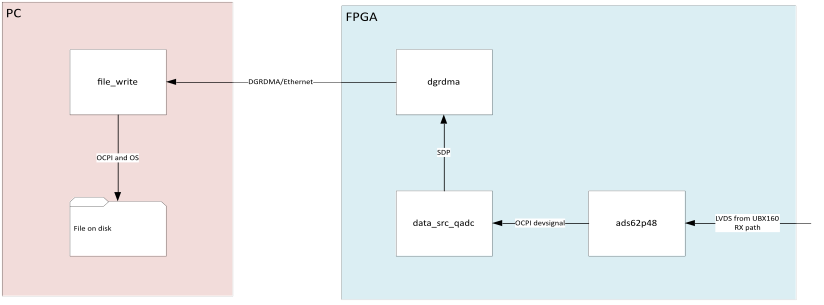
Figure 68: Test Application
In the figure, the arrows indicate the main flow of data. The UBX160 front end presents an LVDS signal to the ADC (ads62p48) which passes samples to the data_src_qadc_csts. Back pressure is first handled at the data_src_qadc_csts: it drops samples and sends a discontinuity_opcode opcode to the PC. The data is buffered in the data_src_qadc_csts “worker shell”, sent on the SDP bus, then across the Ethernet link using the DG-RDMA protocol. On the PC, samples are written to a file on disk.
Note that data in the form of doorbells flows in the opposite direction, from PC to FPGA
For testing purposes, we temporarily added simple sample decimation in the ads62p48 worker by strobing the valid line every N cycles, instead of the default, which is to constantly hold it high.
We used the datagram2-ether transfer driver. This driver can be enabled as a child element of the <transfer> element in system.xml, as follows:
<transfer>
   <datagram2-ether load="1"/>
</transfer>
Most testing used Ubuntu 22.04 Long Term Support (LTS) (with CentOS running in a Docker container) on a PC with the following specs:
AMD Ryzen 9 5950X CPU
64 GB RAM
SSD connection: NVMe
Standard Linux kernel version: 5.15.0
Low-latency Linux Kernel version: 5.15.0-52-lowlatency (provided by Canonical)
Testing using CentOS as the native operating system was conducted on a PC with the following specs:
Intel Core i7-8700
32 GB RAM
SSD connection: SATA
Standard Linux kernel version: 3.10.0-1160
Realtime Linux kernel version: 3.10.0-1160.42.2.rt56.1182
The SDR used was an Ettus Research USRP X310, for which there is an OpenCPI System support Project (OSP). Performance measurements are quoted in mega samples per second (MS/s). Each sample is 4 bytes (32 bits).
Data Transfer Mechanism
To understand the effect of doorbell delays on throughput, it is worth recapping how data is transferred from the FPGA to the PC.
Buffers on the FPGA are populated in order with data from the ADC. When a buffer is full, it is transferred via SDP/DG-RDMA/Ethernet to the next empty PC buffer. Note that the FPGA frees its buffer immediately: it does not need to wait for the corresponding doorbell. Note also that the PC may have many more buffers than the FPGA, effectively increasing the global buffer pool.
Nonetheless, if the PC does not process data in time, or is not timely in sending its doorbells, all buffers are considered full by the FPGA. At this point the FPGA will exert back pressure and in this case, drop samples being generated by the ADC. The figure below illustrates this process.
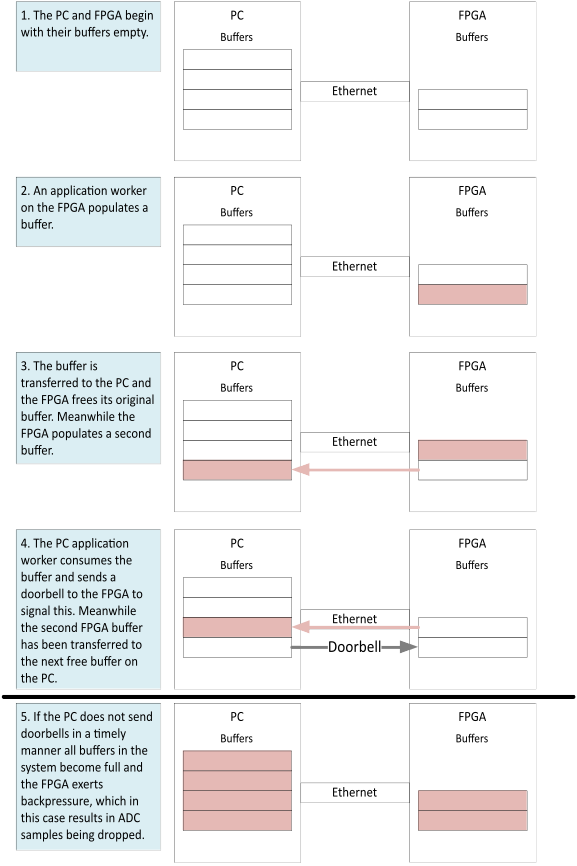
Figure 69: Data Transfer from FPGA to PC
Sources of Latency
In the Data Transfer Mechanism, we saw that if there is a long latency between a buffer of data arriving at the PC and any doorbells being returned to the FPGA, then samples may be dropped.
We found that the Linux operating system (OS) on which OpenCPI was running caused unacceptable doorbell latencies. In general, this occurs when the OpenCPI threads responsible for receiving Ethernet frames and generating and transmitting doorbells are pre-empted by the kernel to run other tasks. Such pre-emption implies there is contention for CPU cores.
The underlying causes are illustrated in the following figure and explained in the following paragraphs.
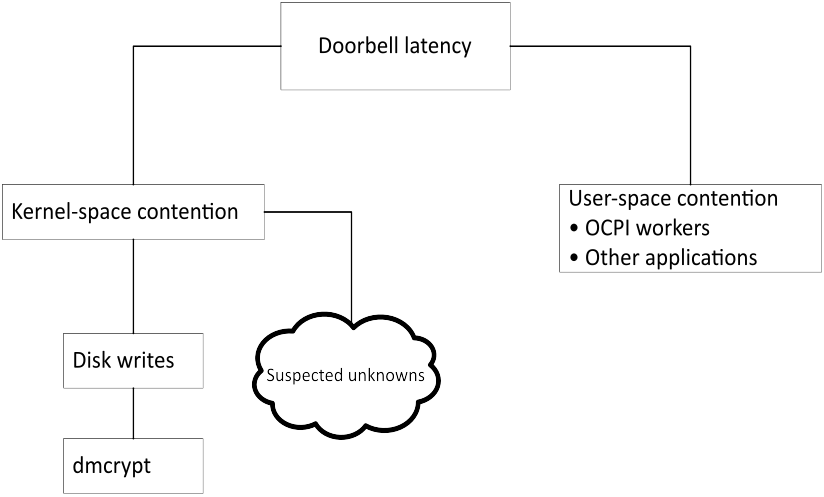
Figure 70: Causes of Doorbell Latency
A specific but common instance of this issue is disk writes. The kernel buffers disk writes to RAM before periodically flushing to disk to take advantage of the general-case performance benefits of writing fewer large blocks of data rather than many smaller blocks. In our case this is detrimental because the OS tends to use all CPU resources for the writing task. Although the write duration is small, it can be enough to trigger undesirable doorbell latency. Furthermore, high sample rates exacerbate the problem because more data is being written to disk.
A further refinement of the disk write issue can occur when disk encryption is enabled. Specifically, on our machines, which use the “dmcrypt” disk encryption kernel feature, the write duration is significantly increased due to the extra work needed to apply the encryption.
It is possible that other kernel features exist which could cause doorbell latency. These suspected unknowns are hard to predict and must be handled on a case-by-case basis.
Furthermore, a high user-space workload (as opposed to the kernel-space disk write workload) has a detrimental effect on throughput.
The effects of latency on performance can be categorized into two regimes:
Jitter-bound. Doorbell latency generally remains at an acceptable level apart from short, intermittent periods of high latency; that is, throughput is limited by jitter in the latency.
Throughput-bound. There is a constant bottleneck in the system which causes packets to fill any preceding buffers. Packets spend most of their time queueing and doorbell latency increases to a steady but high value.
These regimes are illustrated in the two figures below, both of which show on the y-axis the time between the last packet in a transaction being received at the PC and the associated return doorbell being sent for a 2 sec run on the x-axis.
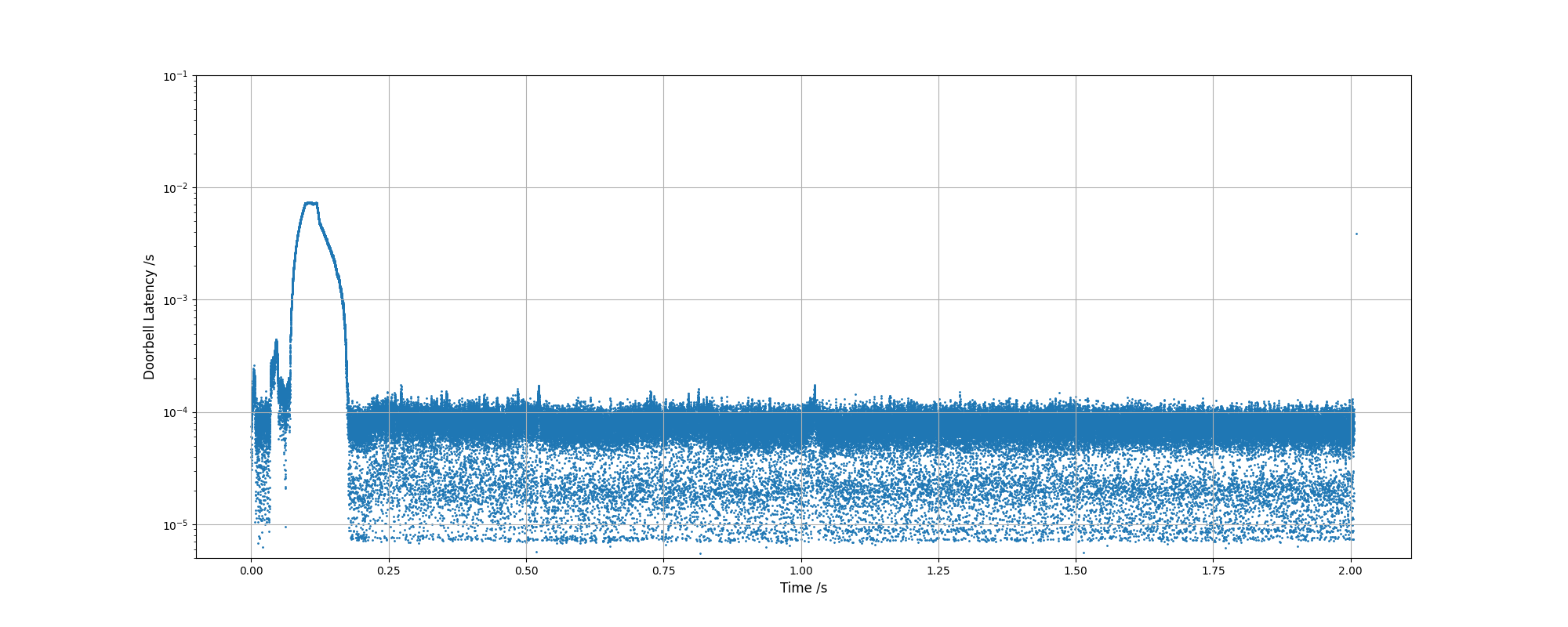
Figure 71: Jitter-bound Doorbell Latency
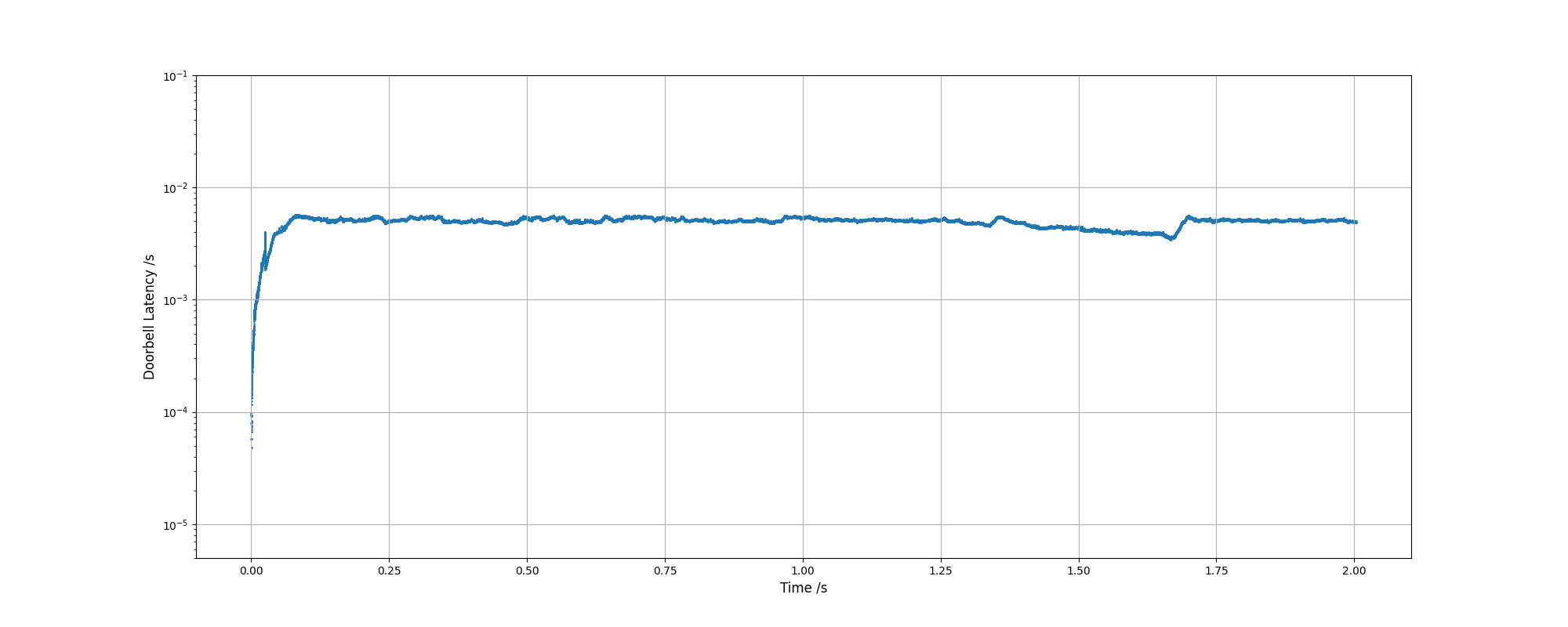
Figure 72: Throughput-bound Doorbell Latency
Vicious Cycle
Unfortunately, the presence of latency is not the end of the story. Using the default settings for data_src_qadc_csts, a vicious cycle is created at the first sample drop as illustrated in the following figure. Once the first sample is dropped, an entire 32kb buffer is used to send the discontinuity_opcode opcode. This action reduces the overall buffer space and hence the tolerable doorbell latency, meaning more data is likely to be dropped!
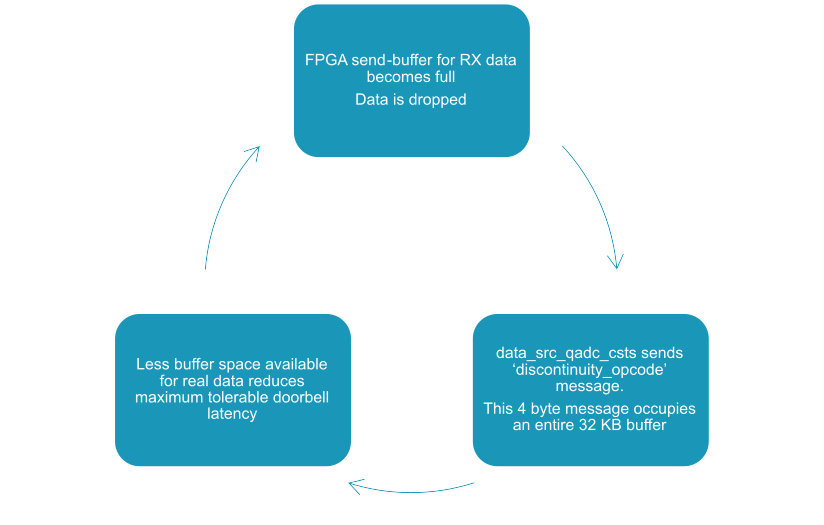
Figure 73: Vicious Cycle Triggered by First Sample Drop
Practically, with no mitigations in place, this effect caused a drop in throughput of over three orders of magnitude, from an expected rate of 25 MB/s to just under 3 KB/s, as shown in the next figure (note the logarithmic y-axis).
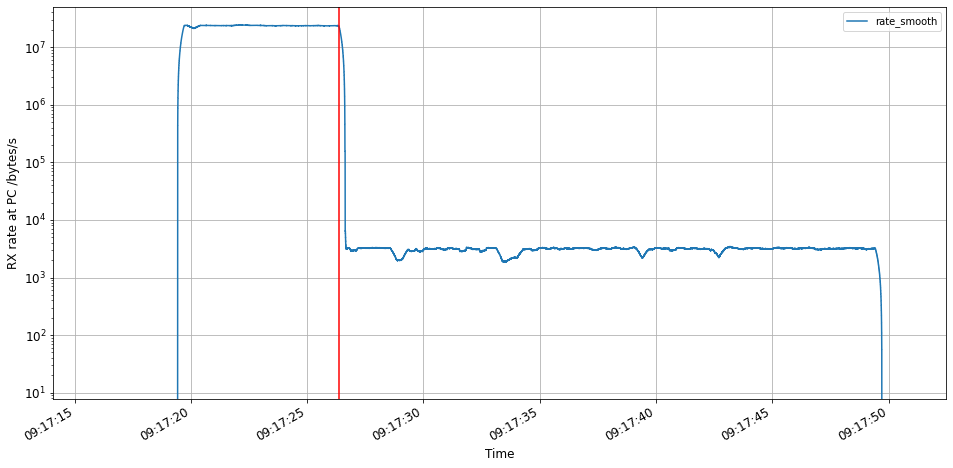
Figure 74: Drop in Throughput Due to Discontinuity Opcodes
Transmit Path Considerations
The application used to test the transmit path was symmetric to the receive path application shown in Test Application; that is, data was read from a file, sent across the Ethernet link via DG-RDMA, and routed to the DAC on the FPGA.
In the receive path, it is desirable to keep buffers as empty as possible so that samples generated during unexpected latency events can be absorbed. For the receive path, the opposite is true. It is desirable for the PC to keep buffers as full as possible so latency events that cause samples to stop being generated do not cause underruns.
One important mitigation on the receive path was to Increasing PC Buffer Count (and Ancillary OS Buffers). It is far harder to increase the buffer count on the FPGA at all (and impossible to increase it to the same extent), so a throughput commensurate to the receive path cannot be expected. See the section “Increasing FPGA Buffer Count” for details.
Detecting Latency
There were four key tools we used to diagnose doorbell latency issues:
Property num_dropped_samps of the data_src_qadc_csts worker. Counterintuitively, this is not the number of samples that were dropped. Rather, it is the number of periods where one or more consecutive samples were dropped. The value is still useful because a single dropped sample can trigger the vicious cycle behavior if the discontinuity_opcode opcode is not suppressed. It also gives an indication of the performance of the system.
We also instrumented the code in samp_drop_detector.vhd to report the real number of dropped samples. Much like num_dropped_samples, this count was only updated when ready was asserted again and so excluded samples dropped before the first ready assertion. This was to discount spurious drops.
Beware of the num_dropped_samps counter saturating.
Properties num_underruns and samp_count_before_first_underrun of the data_sink_qdac_csts worker. Unlike num_dropped_samples above, num_underruns is the real number of underruns. However, it often over-reports because it counts underruns during the short period in the teardown phase of an application run where the upstream source has deliberately stopped providing it with samples but the DAC has not yet been disabled.
Wireshark/tshark. A series of ad-hoc scripts in Jupyter notebooks allowed us to analyze captures and find the on-the-wire doorbell latency.
Packet dissectors for the DWORD Control Packet (DCP) and DG-RDMA protocols can be found in the OpenCPI repository at tools/wireshark-dissectors.
At high data rates (over 100 MS/s) increasing the buffer size using tshark’s
--buffer-sizeargument prevented packets from being dropped. Refer to the tshark documentation for more information.LTTng and Eclipse TraceCompass™. LTTng records kernel tracepoints and syscalls and TraceCompass displays the recorded data. They helped us in both diagnosing the disk write issue and testing possible mitigations. Of particular use were the “Disk I/O Activity” view (which displays a graph of disk activity over time) and the “Resource” and “Control Flow” views (which display, for each core, the currently running task, the status, and other information).
At high data rates (over 100 MS/s) increasing the “subbuffer” size allowed recording without dropping events. Refer to the LTTng documentation for more information.
Code instrumentation. Adding log messages to the datagram2-ether transfer driver was helpful. Examples include: reporting when transaction IDs were dropped, which usually indicated a dropped frame and that the socket or ring buffer size needed increasing; logging the times at which certain events happen, to track down bottlenecks (although care must be taken, as this does not account for time spent in kernel space).
At high data rates, the very use of these tools can change the performance characteristics, making identification of factors which limit performance difficult.
Use of tools specific to the mitigations below are given in the relevant subsections.
Mitigations
This section describes ways to either reduce doorbell latency or mask its effect.
Mitigation Guidance
In Sources of Latency, we saw that there are several causes of doorbell latency. Some mitigations described in the following subsections help under all circumstances, others are more specific. This subsection provides guidance on which mitigations to apply under which circumstances. In any case, it is important not to apply mitigations blindly. It is useful to have an understanding of the issue each is trying to solve and the current bottleneck of your system. The previous sections introduced the general problem, and the sections below go into detail on each mitigation.
The following figure illustrates which mitigations are appropriate under the scenarios that cause doorbell latency.
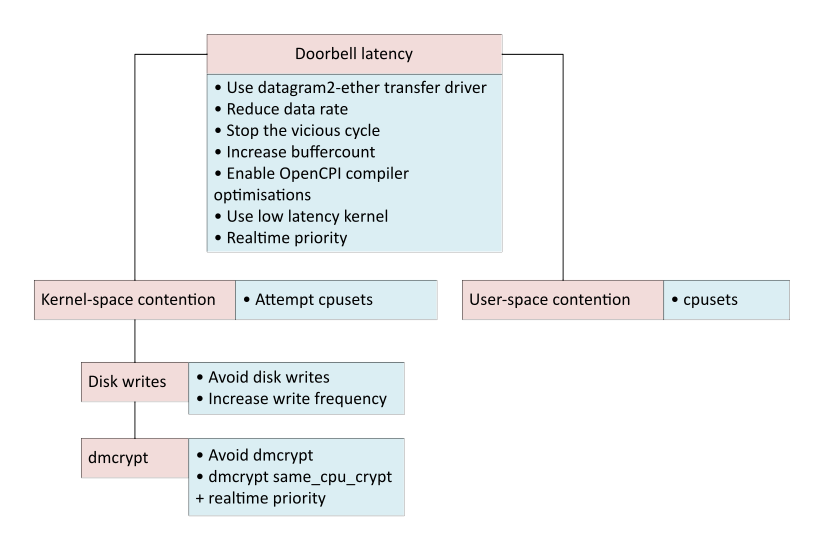
Figure 75: Mitigations to Apply
We conducted tests under various environments (varying the host operating system and the use of dmcrypt, and the testing both the receive (RX) and transmit (TX) paths). The table below summarizes the mitigations that produced the best performance in each scenario: “Y” indicates that the mitigation was applied, and “N” indicates it was not. The sections that follow then present the results. Refer to the Test Setup for a description of the hardware used.
Mitigation |
RX path Ubuntu host No dmcrypt |
RX path Ubuntu host With dmcrypt |
TX path Ubuntu host No dmcrypt |
RX path CentOS host No dmcrypt |
Y |
Y |
Y |
Y |
|
Y |
Y |
NA on TX path |
Y |
|
Y |
Y |
NA on TX path |
Y |
|
NA on RX path |
NA on RX path |
Y |
NA on RX path |
|
Y |
Y |
Y |
N |
|
Y Cores 24-31 of a 32 core PC |
N |
Y Cores 24-31 of a 32 core PC |
Y Cores 8-11 of a 12 core PC |
|
Y |
N |
Y |
N |
|
Y |
N |
Y |
N |
|
NA on RX path |
NA on RX path |
Y |
NA on RX path |
|
N |
Y |
N |
N |
|
NA when not using dmcrypt |
Y |
NA when not using dmcrypt |
NA when not using dmcrypt |
RX Path - Ubuntu Host - Without dmcrypt
On a machine without dmcrypt disk encryption, we achieved 200 MS/s on the RX path with a low sample drop rate. Specifically, we performed four runs each of lengths 120, 180, 240, 270, 300 sec and recorded the deficit in output file size as a fraction of the expected file size. The results are shown in the figure below. All runs achieved less than 0.25% drop rate; most runs achieved less than 0.05% drop rate.
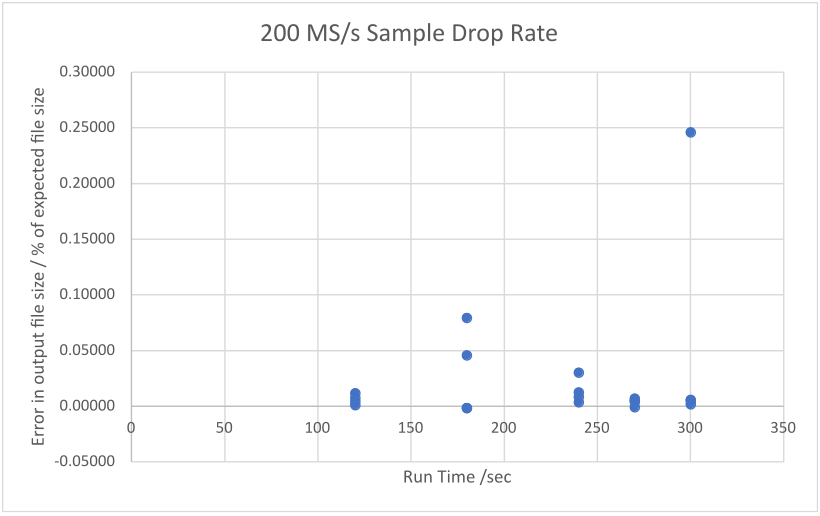
Figure 76: Low Sample Drop Rate can be Achieved at 200 MS/s
RX Path - Ubuntu Host - With dmcrypt
On a machine using dmcrypt disk encryption, we achieved 100 MS/s reliably on the RX path.
Using realtime priority and the same_cpu_crypt flag in conjunction often helps, but each of these mitigations on their own do not necessarily help, especially at high bandwidths.
RX Path - CentOS Host - Without dmcrypt
On a machine running CentOS without dmcrypt, we achieved 66.7 MS/s reliably on the RX path.
The following mitigations had mild to severe detrimental effects on performance:
The low bandwidth is likely due to use of less performant hardware on the test machine. We also tested using an Ubuntu host on this hardware and achieved a similarly low reliable bandwidth.
On this hardware, performance is throughput-bound at high bandwidths (above c. 100 MS/s). However, most of the mitigations listed above which resulted in a performance decrease were designed to handle jitter-bound performance characteristics. As such, it is unsurprising that they did not improve performance.
TX Path
On a machine without dmcrypt, on the TX path, we achieved 100 MS/s reliably and 200 MS/s with a mediocre sample drop rate. Specifically, at 200 MS/s we performed four runs each of lengths 2, 10, 60, 300 sec and recorded the number of underruns as a percentage of the number of samples the DAC processed. The results are shown in the following figure. Underrun rate ranged from 0.94% to 3.19%.
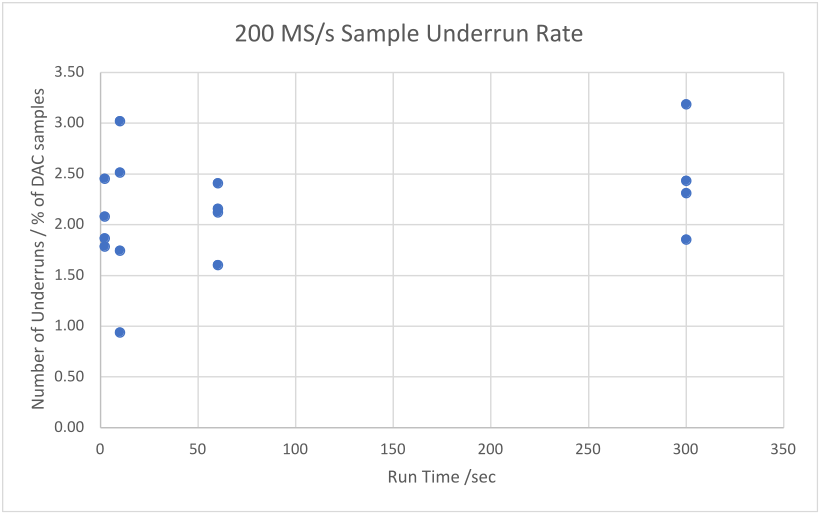
Figure 77: Sample Underrun Rate Achieved at 200 MS/s
At 200 MS/s, the performance is throughput-bound; that is, the PC is consistently unable to supply data fast enough to the FPGA and buffer availability on the FPGA remains high. Compare with 100 MS/s, where the PC consistently keeps almost all buffers on the FPGA full.
First Pass Solutions
There are several first-pass solutions that are worth considering but that might not be possible for all applications.
In particular, we strongly recommend not using dmcrypt: it causes severe performance degradation for which mitigations are only partially effective.
Avoid writing to a disk which is encrypted with dmcrypt.
Avoid writing to disk at all.
Reduce the rate of data being sent over DG-RDMA (e.g. by using sample decimation).
In general, large transactions provide better performance. Multiple small transactions are liable to be packed into a single DG-RDMA frame which are presented to the PC at the same time and require many doorbells to be generated in a short time. If a cic_decimator_xs component is used, too high a decimation factor will result in many such small messages.
Stopping the Vicious Cycle
The Vicious Cycle section described a feedback loop where a single dropped sample can cause a cascade of further drops and a precipitous cliff edge drop in throughput.
Other mitigations in this section will reduce the number of dropped samples. However, achieving 0 dropped samples is harder than achieving a low percentage of dropped samples. One way of breaking the vicious cycle is to disable the discontinuity_opcode messages which are sent when a sample is dropped. Naturally the application must be able to tolerate their absence.
To do this, set the report_data_loss property for the drc in the application XML (OpenCPI Application Specification, or OAS). This step will suppress all the discontinuity opcodes from both daughterboards. For example:
<Instance Component="ocpi.platform.drc" worker="drc_x310" Name="drc">
   <Property name="report_data_loss" value="false" />
</Instance>
Increasing PC Buffer Count (and Ancillary OS Buffers)
This section describes mitigation via increased PC buffer count.
Concepts
The figure in the test setup showed an example setup in example setup in which the FPGA contained two buffers and the PC contained four. Practically, the PC can have many more buffers than the FPGA because PC RAM is far larger than the available Block RAMs in an FPGA.
Increasing the number of total buffers allows a larger tolerable latency.
Steps
Increasing the number of PC buffers is done in the application XML, as shown in the following snippet. Note that the number of buffers is per-port, but the size of each buffer is per-connection.
The default buffer size is 16Kb. But with the default FPGA buffer count, this size does not use the 64kb default available space to its fullest extent. This snippet thus also sets the buffer size to 32Kb.
<Connection buffersize='32768'>
   <Port Instance="adc_0" Name="out"/>
   <Port Instance="file_write_0" Name="in" buffercount='255'/>
</Connection>
OpenCPI itself has a hard-coded maximum PC buffer count of 255. However, other settings will be needed to achieve this maximum without errors. All of the following four measures should be applied before the increased buffer count can be expected to operate correctly.
Increase the smbsize (“shared memory buffer”) attribute in system.xml. For example:
<transfer smbsize="16384k">
   <datagram2-ether load="1"/>
</transfer>
Here smbsize has been set to 16384k. This value is sufficient for a single connection from FPGA to PC with 255 x 32Kb buffers on the PC. It may need to be increased further if more connections are used (e.g., for a dual UBX160 setup). Sometimes OpenCPI will make the following suggestion as an error message:
Failed to allocate port buffer: you may need to increase smbsize in system.xml
Two points that are contrary to expectation: increasing smbsize is not always the correct solution to this message (see point 2 below); and sometimes increasing smbsize is the correct solution, but this error message is not shown.
On our system, attempting to increase the PC buffer count beyond 85 produced the error message shown above but the solution was different.
In opencpi/runtime/xfer/base/src/XferEndPoint.cc the function flagRegionSize() reads, by default:
size_t XferPool::
flagRegionSize(size_t /*size*/) {
   return 16*1024;
}
The value returned must be increased. We found that 16*1024*4 suffices for 255 x 32kb PC buffers. Note that this value must be a multiple of the page size in bytes.
Once the code has been changed, run make from the OpenCPI installation folder to re-build the software framework. This step will reset any raw socket capability given to OpenCPI executables (e.g. ocpirun). Any such capabilities will need to be re-added.
A more insidious problem is when packets are dropped by the OS. If a data packet from the FPGA is dropped, the associated DG-RDMA transaction will never complete (re-transmission from the FPGA is not implemented), the associated doorbell will never be sent, and the system will lock up.
The default receive buffer size allocated to sockets can be set using the runtime kernel parameter net.core.rmem_default. To see the current value, run:
sudo sysctl -a | grep net.core.rmemOn our system, this produces:
net.core.rmem_default = 212992
net.core.rmem_max = 50000000
To set a new value, in /etc/sysctl.conf add the following line:
net.core.rmem_default = 50000000
And to update the settings, run:
sudo sysctl -pNote that values in /etc/sysctl.conf persist across reboots. It is worth running
sudo sysctl -a | grep net.core.rmemagain to check the new value is active.
The value is simply the value of net.core.rmem_max (which itself may be increased). We found 50,000,000 works for this setup.
We also recommend setting net.core.wmem_default = 50000000 (note ”wmem” as opposed to “rmem”) to increase the default transmit socket size, especially if tuning for the transmit path.
Similarly, the size of the network interface card (NIC) RX ring buffers may need increasing. To see the current settings and maximum possible values, run:
ethtool -g <ifc>Which produces, for instance:
Ring parameters for enp10s0f0:
Pre-set maximums:
RX: 4096
RX Mini: 0
RX Jumbo: 0
TX: 4096
Current hardware settings:
RX: 512
RX Mini: 0
RX Jumbo: 0
TX: 512
To increase the RX ring buffer size on an interface run (here we’re setting the actual size to the maximum size reported in the previous step):
sudo ethtool -G enp10s0f0 rx 4096Note: with Ethernet bonding, these steps must be performed on both of the underlying interfaces rather than on the bonded interface.
We also recommend similarly increasing the TX ring buffer size, especially if tuning for the transmit path.
Please note these settings are reverted when the system reboots.
Increasing FPGA Buffer Count
We have seen that we can Increasing PC Buffer Count (and Ancillary OS Buffers) to absorb latency on the RX path. The symmetric mitigation on the TX path would be to increase the buffer count on the FPGA. This mitigation is complicated for two reasons:
OpenCPI imposes a limit of 64 KB buffer space per external assembly port of workers in an HDL assembly. This space can be divided into 2 to 8 buffers (using the buffercount attribute) but the limit on performance is the available buffer space, which remains at 64 KB. A workaround for this is explained below.
Even with the workaround below, the total available FPGA Block RAM becomes a limiting factor. There is far less Block RAM than PC RAM so far less buffering can be achieved.
The buffer count on the FPGA can be increased at the application layer as illustrated in the figure below. A “demux” component on the PC takes a single data port as input and round-robins this between multiple output ports. A “mux” component on the FPGA does the opposite: it takes data from each input port in turn and feeds it into its single output.
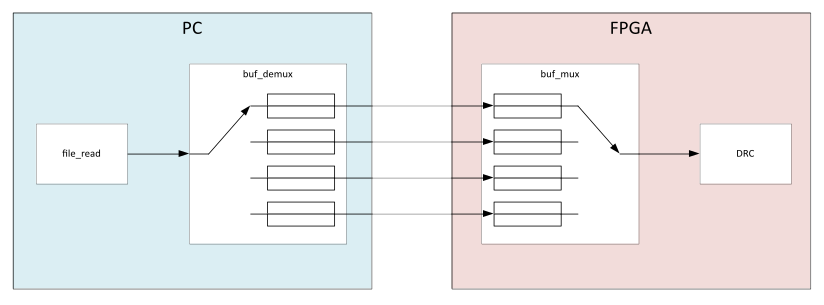
Figure 78: Increasing FPGA Buffer Count at the Application Level
This workaround is not ideal. The implementations of the (de)mux components are inherently repetitive and verbose because OpenCPI does not support a generic number of ports. Furthermore, each port is assigned a different type which prevents the use of generate statements in VHDL.
When building for an Ettus X310 (Kintex 7 410T with 28,620 KB Block RAM) each extra port in the HDL assembly uses 2% Block RAM resources. So, under a configuration which divides each 64 KB space into 2 x 32 KB buffers, each extra buffer uses 1% Block RAM. We have tested where the mux component has 8 input ports multiplexed into a single output port, and so 16 buffers. Tests indicate fewer ports would likely be viable. Note that we also recommend increasing net.core.rmem_default, net.core.wmem_default, and RX/TX NIC ring buffer sizes as described in Increasing PC Buffer Count (and Ancillary OS Buffers).
Increasing Write Frequency
This section describes mitigation by increasing write frequency.
Concepts
A common operating system optimization involves buffering in RAM data that programs have requested to be written to disk.
The rules that govern when the data is actually written to disk are stored as runtime kernel parameters, specifically the family vm.dirty_*. For instance, one important value is vm.dirty_background_ratio which specifies “as a percentage of total available memory that contains free pages and reclaimable pages, the number of pages at which the background kernel flusher threads will start writing out dirty data”.
The default values favor less frequent larger writes. To illustrate this concept, the following command can be run while simultaneously writing a large amount of data:
watch -n 0.5 "cat /proc/vmstat | grep 'dirty\|writeback'"
This step will display, updating every 0.5s:
nr_dirty: the number of “dirty” pages (buffered pages that are waiting to be written)
nr_writeback: the number of pages recently written to disk.
This step should show nr_dirty growing to a large value. After a while, it will almost instantly decrease to near zero and nr_writeback will show a brief value as this happens.
This behavior is problematic because writing many blocks of data to disk causes high CPU use and is liable to delay the scheduling of OpenCPI threads enough to cause doorbell latency issues.
Steps
A solution is to force the kernel to perform smaller, more frequent writebacks by setting vm.dirty_background_bytes which specifies “the amount of dirty memory at which the background kernel flusher threads will start writeback” (see the Linux documentation for proc/sys/vm). Note that this value and vm.dirty_background_ratio (mentioned above) are counterparts: the most recent one to be updated takes effect while the other is assigned a dummy value of zero. In the example below, for instance, vm.dirty_background_ratio is zero while vm.dirty_background_bytes is nonzero, meaning that the latter is the one that is active.
To see the current values, run:
sudo sysctl -a | grep dirty_background
On our system, this produces:
vm.dirty_background_bytes = 192000
vm.dirty_background_ratio = 0
To set a new value, in /etc/sysctl.conf add the following line:
vm.dirty_background_bytes = 192000
And to update the settings, run:
sudo sysctl -p
Note that values in /etc/sysctl.conf persist across reboots.
It is worth running
sudo sysctl -a | grep dirty_background
again to check the new value is active.
On our system, a value of 192,000 worked well for high data rates. This value was obtained by taking an initial estimate of 6,000 and then empirically trying values by multiplying by powers of 2.
Using cpusets
This section describes mitigation with Linux cpusets.
Concepts
The Linux feature “cpusets” allows physical CPU cores to be reserved for the exclusive use of specified processes; that is, the specified processes will run only on those cores and other processes will not. In our case, the OpenCPI threads should run on these “shielded” cores.
cpusets allow an arbitrarily complex hierarchy of cores. However, in a simple setup there are only three sets: a “root”, which acts as the parent and contains all cores; a “user” set intended as the shielded set; and the “system” set for everything else.
For instance, the following output from the sudo cset set --list command (use of cset is mentioned below) shows a root set with cores 0-31, a user set with cores 28-31, and a system set with cores 0-27. Here, no tasks have yet been moved from the root set so they will execute on any core.
cset:

   Name        CPUs-X     MEMs-X  Tasks Subs Path
   ----------- ---------- ------- ----- ---- ----------
   root        0-31  y    0 y     1930  3    /
   user        28-31 n    0 n     0     0    /user
   system      0-27  n    0 n     0     0    /system
Steps
The easiest way to manipulate cpusets is with the cset utility. cset is a convenience wrapper around several Linux file system alterations that affect CPU operation, so these changes can be made without cset installed.
cset is a Python program. It is compatible with Python 2 and 3. However, due to the obsolescence of Python 2, it may be difficult to install the required dependencies, so Python 3 is recommended. You may be able to install cset from your distribution’s package repository (e.g. sudo apt install cpuset). If not, it can be manually installed from https://github.com/lpechacek/cpuset. For example, on CentOS7:
# Install pip for Python 3
sudo yum install python3-pip
# Extract the cset package
unzip cpuset-master.zip
# Install the package
cd cpuset-master/
python3 -m pip install .
cset only works with control groups (cgroups) version 1. To check if the system is capable of version 2 (and hence may need version 1 explicitly enabled), run:
grep cgroup /proc/filesystems
A system that supports cgroups version 2 will display:
nodev cgroup
nodev cgroup2
If the system supports cgroups version 2, version 1 will need to be enabled. To do this, set the following kernel boot parameter: systemd.unified_cgroup_hierarchy=0. Refer to your distribution documentation for how to do this. Alternatively, use another method to interact with the cpuset feature (e.g. systemd).
cset shield provides the functionality needed to create the hierarchy shown above as well as move processes to the system set and run specified processes in the user set. More complex functionality can be accessed using cset set and cset proc.
The specific commands needed to use shielding depend on your setup. We recommend consulting the documentation for cset and cset-shield. For example, when cset is installed in a virtual environment and used on a CentOS host, the commands need to be run with a root shell rather than via sudo. The commands will look something like this:
To set up a root, user and system set and attempt to move all processes into the system set:
sudo cset shield --cpu 28-31 --kthread=on
To run a command in the user set:
sudo cset shield --exec <cmd>
If Docker has previously been used on the system, then a docker cpuset may appear when running sudo cset set –list. This will need to be removed before cset shield can be used, or the lower-level cset set and cset proc commands should be used to replicate the functionality of cset shield.
Results
On a machine without dmcrypt, cpusets provides a significant performance benefit.
On a machine using dmcrypt, we hoped that cpusets would solve the issue of disk writes causing doorbell latency. Unfortunately, it did not. The threads responsible for this latency are bound to their respective cores and cannot be moved from the root set into the system set.
The following message is produced:
$ sudo cset shield --cpu 28-31 --kthread=on
cset: --> activating shielding:
cset: moving 1158 tasks from root into system cpuset...
[==================================================]%
cset: kthread shield activated, moving 145 tasks into system cpuset...
[==================================================]%
cset: \*\*> 64 tasks are not movable, impossible to move
cset: "system" cpuset of CPUSPEC(0-27) with 1241 tasks running
cset: "user" cpuset of CPUSPEC(28-31) with 0 tasks running
sudo cset set –list gives the following output, which shows tasks remaining the root set:
cset:

   Name        CPUs-X     MEMs-X  Tasks Subs Path
   ----------- ---------- ------- ----- ---- ----------
   root        0-31  y    0 y     329   2    /
   user        28-31 n    0 n     0     0    /user
   system      0-27  n    0 n     1239  0    /system
Using an older feature, isolcpus, had much the same result.
Using Compiler Optimizations
This section describes mitigation with compiler optimizations.
Concepts
In “Sources of Latency”, the distinction was made between jitter-bound and throughput-bound performance characteristics. At high data rates, the OpenCPI framework code becomes a bottleneck which renders performance throughput-bound.
On a high performance machine running an Ubuntu host, enabling compiler optimizations for OpenCPI removed this limitation for all but the highest data rates (190-200 MS/s); for these data rates, other mitigations used in conjunction allow a low sample drop rate to be achieved. However, the effect is system-dependent; running with a CentOS host on less performant hardware showed a detrimental effect to packet loss.
A useful tool for analysis of time spent in each function is perf and is especially useful when coupled with the FlameGraph tool.
Steps
To build OpenCPI with compiler optimizations enabled, run:
ocpiadmin install platform --optimize centos7 --minimal
To configure your environment to use the optimized build, run the following commands before using any OpenCPI tools. Assuming OpenCPI is installed at /opencpi:
cd /opencpi
. cdk/opencpi-setup.sh --reset --optimize
The –optimize flag can be omitted to switch back to the default version.
When the optimized build is enabled, you will see references to centos-o, where the -o refers to the optimized build.
Using a Low-Latency Kernel
General-purpose kernels in common desktop Linux distributions optimize for a trade-off between throughput and latency. In our case, (doorbell) latency is the limiting factor, provided that throughput is sufficient to handle the rate of incoming data.
A low-latency kernel optimizes for latency; that is, scheduling a runnable process as soon as possible.
Ubuntu
Canonical provides a kernel variant dubbed “lowlatency”. It makes two main changes to kernel compile-time options with respect to the default “General Availability” kernel:
It sets CONFIG_PREEMPT=y (as opposed to the default CONFIG_PREEMPT_VOLUNTARY=y). This setting increases the level of pre-emption available.
It sets CONFIG_HZ_1000 (as opposed to the default CONFIG_HZ_250). This setting increases the frequency of timer interrupts.
To install it, run:
sudo apt install linux-image-lowlatency
The above command may also instruct you to run something similar to this:
sudo apt install linux-headers-5.15.0-50-lowlatency
To run with a low-latency kernel, reboot the machine, enter GRUB (GRand Unified Bootloader), and select the low-latency kernel.
To check you’re running with the low latency kernel run:
uname -a
This will reference “lowlatency” in its output if the low-latency kernel is loaded.
CentOS
To install a realtime kernel on CentOS, start by adding the realtime repository. As root, create a file at /etc/yum.repos.d/CentOS-rt.repo and add the following content:
[rt]
name=CentOS-7 - rt
baseurl=\ http:/mirror.centos.org/centos/\$releasever/rt/\$basearch/
gpgcheck=1
gpgkey=file:///etc/pki/rpm-gpg/RPM-GPG-KEY-CentOS-7
Next, install the kernel:
sudo yum update
sudo yum install kernel-rt rt-tests tuned-profiles-realtime
Reboot the computer, and select the realtime kernel from the boot menu. Alternatively, you can set the default kernel by running the command:
sudo grubby --set-default <full path to kernel>
Available kernels can be found in /boot/ and the currently-set default kernel can be viewed by passing the –default-kernel option to grubby.
When using a CentOS host, simply installing and using the realtime kernel was slightly detrimental to performance. It may be that fine-tuning the kernel for the application leads to an improvement.
An alternative would be to compile a kernel variant to match the compile-time parameters of the Ubuntu low-latency kernel variant.
Reducing the Coalesce Wait Parameter
This section describes mitigation by reducing the coalesce_wait parameter.
Concepts
The DG-RDMA primitive library implements packet coalescing. A partially-filled DG-RMA frame is held in the FPGA for a set period (the coalesce_wait parameter) in case a message arrives which can use the remaining space. This can increase performance in some cases by maximizing the ratio between useful data and header data in transmitted DG-RDMA frames.
However, it can have a detrimental effect on the TX path. If coalesce_wait is too high, then doorbells from all buffers can be coalesced into a single frame. If this happens, there is a short period of time when all FPGA buffers are empty (before the doorbells return to the PC and the PC can start filling the buffers again) and the DAC underruns.
Steps
The solution is to reduce the coalesce_wait parameter. This can be done in system.xml:
<opencpi>
   <container>
      <hdl load="1" discovery="static">
         <device name="Ether:bond0/00:50:c2:85:3f:ff" ...>
            <instance worker='dgrdma_config_dev'>
               <property name="coalesce_wait_d" value="0" />
            </instance>
         </device>
      </hdl>
   </container>
</opencpi>
Increasing Realtime Priority for OpenCPI
This section describes mitigation by adjusting realtime priority for OpenCPI.
Concepts
We will start with a brief overview of Linux scheduling and priorities with reference to the following figure. For detailed information, see the sched(7) man page.
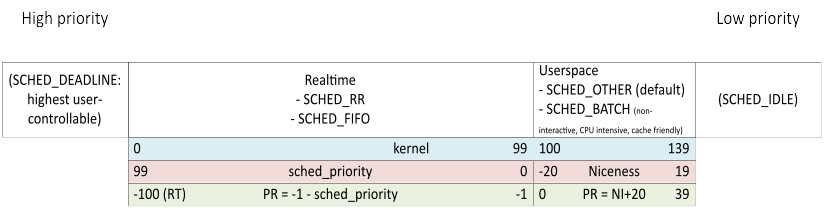
Figure 79: Linux Process Scheduling and Priorities
Under the hood, the kernel tracks the priority of each thread on a scale of 0 (highest) to 139 (lowest) - the blue bar shown in the figure above. This value is not exposed to the user. Rather, the user sets the priority using sched_priority or Niceness (the red bar in the figure above) and views it in tools such as top or htop as the PR/PRI value (the green bar in the figure above).
For each of the 140 values, a queue of runnable processes is maintained. The kernel allocates CPU time from highest to lowest priority, and within each priority from the head to the tail of the associated queue.
There are five main scheduling policies that dictate where a process of a certain priority is placed in its queue and how it moves within the queue. Specifically:
SCHED_RR and SCHED_FIFO are the “realtime” policies. As illustrated in the figure above, they can be assigned sched_priority values of 99 to 0 (on most systems), they are not assigned a nice value, and their PR value ranges from -100 (also displayed as ‘RT’) to -1.
SCHED_OTHER and SCHED_BATCH are designed for scheduling in user-space. As illustrated in the figure above, they can be assigned a nice value but not sched_priority and their PR value ranges from 0 to 39.
SCHED_IDLE has even less priority than any other policy.
When a thread becomes runnable, it can pre-empt a currently-running thread with a lower priority.
There is also a SCHED_DEADLINE policy which is designed for work that takes a predictable amount of time with a predictable period. Threads with this policy are the “highest priority (user controllable) threads in the system” (see the sched(7) man page for details).
Aims, Results and Unknowns
The aim of this mitigation is to ensure that OpenCPI takes priority over all other tasks.
It is not clear that realtime priority always increases performance. There are still periods where contention causes unexpected scheduling issues. More work is needed to fully characterize and understand: 1) the interaction between the scheduling of user-controlled threads and low-level kernel tasks; and 2) whether realtime priority should be applied to all OpenCPI threads (as in the instructions below) or a subset.
Furthermore, when using a CentOS host with a realtime kernel, realtime priority was marginally detrimental to the performance when used with shielded cores and severely detrimental when used without them. Setting the realtime priority concentrated the activity to one processor core rather than running across available cores. Further investigation is needed to understand this effect and work out whether there is scope for improving performance.
When a performance increase is observed, it seems that using SCHED_FIFO or SCHED_RR with sched_priority of 99 produces the greatest improvement. Between the two, SCHED_FIFO seems to produce better results, although this is not always consistent.
Several other system variables were explored, none of which showed any further significant positive impact. These were:
Using SCHED_DEADLINE.
Changing the runtime kernel parameters kernel.sched_rr_timeslice_ms, sched_rt_period_us and sched_rt_runtime_us.
Steps
To apply realtime scheduling with the highest sched_priority (99) and the SCHED_FIFO policy, run the OpenCPI application from a root shell with the following command:
chrt --fifo 99 <ocpi-cmd>
For example:
chrt --fifo 99 ocpirun -d -t 60 -l 7 test_single_ubx_160.xml
OpenCPI reads certain environment variables, so make sure to set these up as usual when creating the root shell.
It may be necessary to specify the full path of the ocpirun command.
Our current understanding is that multiple threads created by the ocpirun process should be realtime as set in the command above; most notably, the RX and TX threads in XferDataGramEtherDriver2.cc and potentially the thread of the worker which consumes the buffers. Many worker threads, all with realtime priority, may conflict with other OpenCPI threads and cause doorbell latency. In this case, the priorities of individual threads should be set in code and would require changes to the OpenCPI framework itself.
Setting the dmcrypt same_cpu_crypt Flag
When writing to a disk with the built-in kernel encryption facility, dmcrypt, the length of time the OS spends is significantly increased compared with a disk without encryption. This exacerbates the doorbell latency issue. The best performance increase comes from not using dmcrypt at all; however, this section describes a partial mitigation.
To see if dmcrypt is active, run the command:
sudo dmsetup status | grep crypt
If the output from this command looks similar to:
dm_crypt-0: 0 1855809536 crypt
Then dmcrypt is active on part of your system.
It is possible to constrain dmcrypt to use only a single CPU by setting the same_cpu_crypt flag:
Identify the device name for which to set the same_cpu_crypt flag. To do this, run the command:
sudo dmsetup ls --target cryptThis command must be run as root; otherwise, an unhelpful error message is produced. The output on our machine was:
dm_crypt-0 (253, 0)Here, the name of the only device with dmcrypt enabled is dm_crypt-0.
To enable the flag, run the command:
sudo cryptsetup refresh --perf-same_cpu_crypt <other-flags> <devname>where:
<other-flags> are any other flags that have already been set for this device and which must persist. These flags must be explicitly listed here or they will be disabled. Currently-enabled flags can be found by running the command in step 3.
<devname> is the name found in the previous step.
To check if the flag is enabled, run the command:
sudo cryptsetup status <devname>
which produces output similar to:

/dev/mapper/dm_crypt-0 is active and is in use.
type: LUKS2
cipher: aes-xts-plain64
keysize: 512 bits
key location: keyring
device: /dev/nvme0n1p3
sector size: 512
offset: 32768 sectors
size: 1855809536 sectors
mode: read/write
flags: same_cpu_crypt

same_cpu_crypt is listed in the flags section at the bottom. If no flags are enabled, the flags line will not display.
To disable the same_cpu_crypt flag, run the refresh command again but without this flag, for example:
sudo cryptsetup refresh <other-flags> <devname>