Installing Third-party/Vendor Tools
OpenCPI uses a collection of third-party tools to enable it to target embedded software and FPGA/HDL platforms. Each platform supported by OpenCPI depends on one or more of these third-party tools. The Table of Supported Platforms in this guide lists the platforms and their tool dependencies. This section describes how to install the tools that are required for the particular platform(s) you plan to use. Installing these tools enables the platform to be built, as shown in the figure that depicts the installation sequence for each platform in an embedded system.
As of the current release, all the tools described in this section require manual installation steps using browsers and vendor-provided installation GUIs. This means that the development system must support typical GUI tools using X-Windows, and it is assumed that the FireFox browser is used for any of the web-based steps.
Also, some of these tools have prerequisite software packages that are automatically installed when OpenCPI is installed per the Install, Build and Test OpenCPI topic. Thus these instructions for third-party tools assume that the basic OpenCPI installation for the development host is already done.
Installing Xilinx Tools
In 2022 Advanced Micro Devices, Inc (AMD) acquired Xilinx and therefore have re-branded their tools to use the name AMD. There will be references to AMD but the underlying installation directory and OpenCPI still uses the name Xilinx.
Before proceeding with the installation, ensure that you have sufficient disk space. The initial download of the web-based “small-installer” is relatively small, but once executed, it will download the “big-installer.” This process temporarily doubles the amount of disk space used on your system because the “big-installer” cannot be removed until its contents are copied or extracted to the appropriate locations.
Here is the recommended procedure for installing Xilinx tools. Most of these steps require internet access and a Xilinx web site account:
Create a directory to act as a common top-level directory for all the Xilinx tools to be installed.
Install the AMD Vitis™ Unified Software Platform which includes AMD Vivado. This installation is explicitly for the most recent version of the tool supported by OpenCPI. After you perform this step, you will have:
The AMD FPGA simulator
xsim, which allows you to follow the OpenCPI tutorials and learn about using OpenCPI for heterogeneous development on FPGAs without needing any FPGA hardware.The AMD Unified Installer “downloader”, which you can use to download installers for licensed versions of all Xilinx parts if needed (see step 4).
The current AMD Vitis, which you can use if your target AMD-related software platform(s) require it. See step 3).
For each AMD-related software platform you plan to use, install the AMD tools required for that platform. These are:
AMD Vitis for cross-compilation on embedded platforms
AMD Linux binary release and Xilinx Linux kernel and U-boot source code for preparing bootable SD cards for Zynq-7000/UltraScale platforms
These tools are specific to both the SDK version and the ARM CPU architecture used by the platform. Install the versions that correspond to your target software platform(s), as listed in the “Dependencies required…” column of the Table of Supported Platforms.
If AMD Vivado Design Suite doesn’t support your FPGA part, install the part using “Help → Add design tools or devices” option in Vivado.
After you have finished this procedure:
All the AMD tools required for your particular platform(s) are installed and are located in one place: the directory you created in step 1.
You can run the ocpiadmin tool to install a AMD-based platform without needing network access. Be sure the account that runs the tool has write permission for any directories created under the top-level AMD installation directory.
The remainder of this section provides instructions for performing each step.
Xilinx Tools Installation Directory
Before you begin to install the Xilinx tools, decide where you want to install them. It is recommended that you install all the Xilinx tools in the same top-level directory to keep them all in one place. The Xilinx tool sets require a very large amount of disk space for installation (for example, the installation requires about 36GB) and the AMD Unified Installer needs write access to the directory you choose. You do one of three alternatives, with the first being recommended:
Use the default directory offered by the AMD Unified Installer. The default directory is
/tools/Xilinxfor Vivado 2024.1 or later and/opt/Xilinxfor versions older than 2019.2. Create this directory outside of the installer so that the installer doesn’t need to run withrootorsudopermission. For example:
sudo mkdir -p /tools/Xilinx
sudo chmod 777 /tools/Xilinx
Use a different directory from the default – for example,
~/MyXilinxTools– and then create a symbolic link from the default directory to that directory. E.g.:
sudo ln -s ~/MyXilinxTools /tools/Xilinx
Use a different directory from the default and then set the
OCPI_XILINX_DIRenvironment variable to that directory by editing/uncommenting theOCPI_XILINX_DIRline in theuser-env.shfile. Theuser-env.shfile can be found in the top level of the OpenCPI directory. E.g. if you will install the tools under~/MyXilinxTools, the line inuser-env.shshould be:
export OCPI_XILINX_DIR=~/MyXilinxTools
Once you’ve set up your top-level Xilinx tools installation directory, you can proceed to install the tools.
AMD Vitis for Simulation and for Small, Recent FPGA Parts
The AMD Vivado Standard Edition is bundled with the recommended Vitis installation. The Vivado Standard contains a free license for smaller FPGA parts formally known as “WebPACK edition”. Unfortunately, it is still a large and slow installation.
In addition to simulation, the installation supports compilation for a limited set of Xilinx hardware FPGA parts; however, the Xilinx parts it does support are those found in most small systems, including the Avnet (Digilent) ZedBoard and the Ettus E310. Consult this link for vendor information on supported parts for Standard Edition. If you need to use OpenCPI platforms with Xilinx parts that Standard Edition does not support, you must buy licenses and perform a licensed installation of at least the Vivado Enterprise Edition.
The rest of this section describes how to install Vitis with vendor defaults on a Rocky9 development host. This is the basic installation required to get the xsim simulator up and running to support FPGA development without FPGA hardware. It is correct for the Vivado 2024.1 release.
Download the AMD Unified Installer Binary
In a browser on your development host, go to https://www.xilinx.com/support/download/index.html/
On the top navigation, click on Vitis (SW Developer) tab.
In Version on the left, click on 2024.1.
Scroll down to the downloads menu region Vitis Core Development Kit and then select AMD Unified Installer for FPGAs & Adaptive SoCs 2024.1 : Linux Self-Extracting Web Installer.
In the login dialog, enter your email address and password or click Create Account to create one.
Fill out the required information in the Xilinx Download Center Name and Address Verification page and then click Download.
In the dialog that pops up, click Save File.
The file is saved to the ~/Downloads directory on your Rocky9 development host.
Run the Unified Installer to Download the Vitis Core Development Kit
In a terminal window on your Rocky9 development host, navigate to the ~/Downloads directory. Run the unified installer binary with the bash command. For example:
bash FPGAs_AdaptiveSoCs_Unified_2024.1_0522_2023_Lin64.bin
The installer starts and displays a dialog informing you that there is a newer version of the software available. Click Continue to close the dialog, then click Next.
In the Select Install Type dialog:
Supply E-Mail address and Password to your AMD account
Select Download Image (install separately).
Replace the default directory provided in the dialog with a temporary directory of your choice that has sufficient disk space to accommodate the installation files and sufficient permissions to permit the binary installer to write to this location. We will refer to this directory as the downloads directory. It is temporary and can be removed at the end of the installation. It is not the final installation location.
Do not choose to create a ZIP archive.
Selected Product Only
Click Next.
In the Select Product to Install dialog, Vitis is pre-selected. This product provides everything we need, including the Standard edition of Vivado and the current SDK (we do not want the Vivado package). Leave this selection as Vitis and then click Next.
The next dialog defaults to Vitis Unified Software Platform click Next.
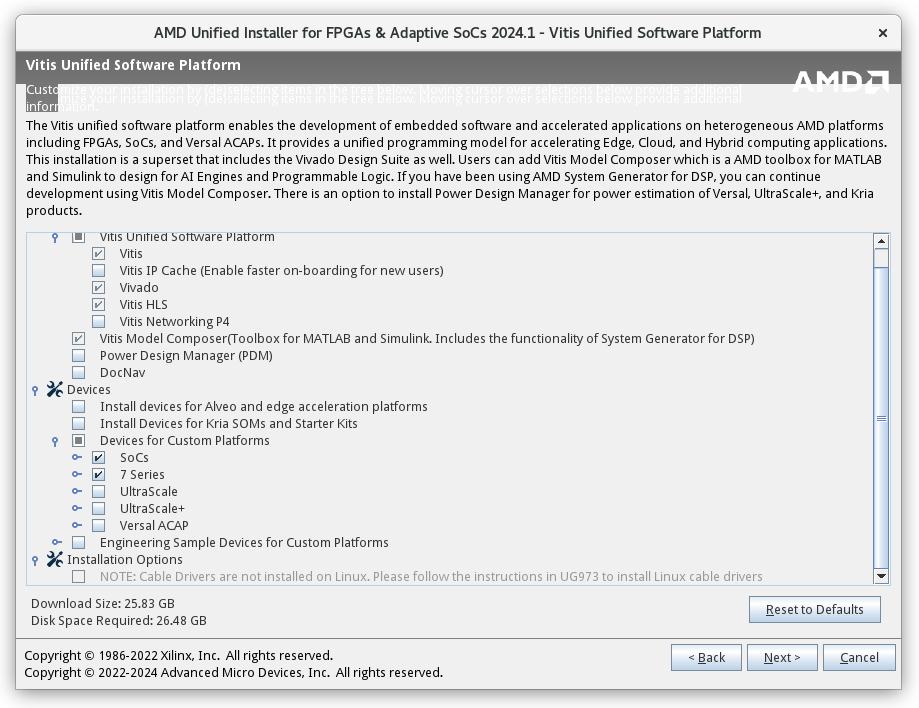
The unified installer binary displays a Download Summary that allows you to verify the directory where you’re downloading, the size and disk space required. The default download size is (95.36GB) and the platform (Linux). To reduce required download disk space required select the following options, click Next. Then click Download.
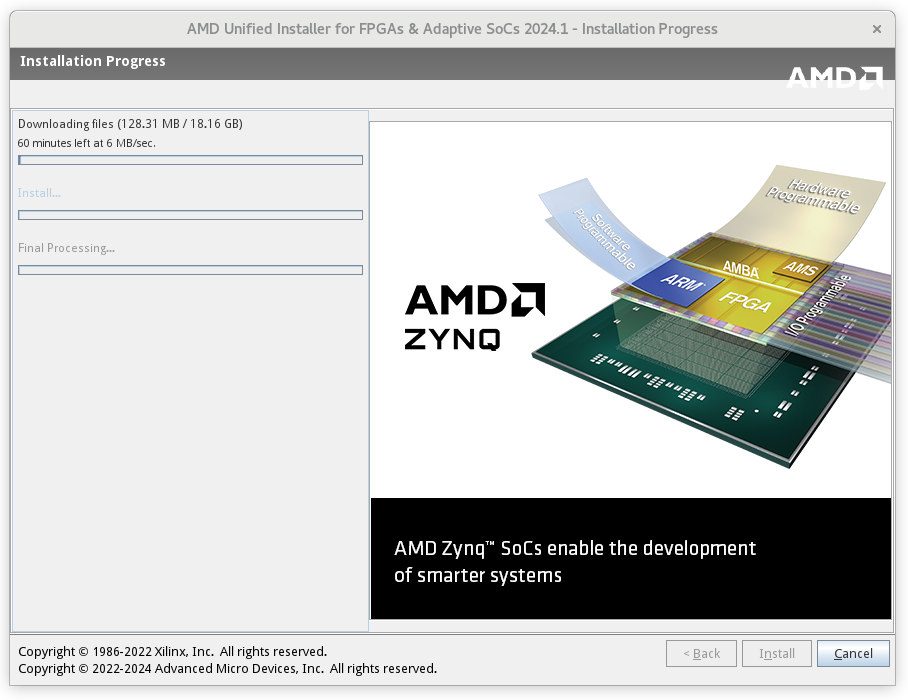
The Download Center displays an Installation Progress dialog.
When the download completes, click OK in the pop-up dialog to exit. (A notification that the unified installer binary has completed also pops up.)
Now you have downloaded the main Vitis installer (called Vitis Unified Software platform in some windows) into the downloads directory. This installer can also be used later to install other Xilinx tools, including licensed versions for all Xilinx parts. Don’t delete it until all such installations are done.
Note that the initial “unified installer” that you downloaded was really just used as a “downloading tool”, to download the (big) Vitis/Vivado installer, which, when it runs, also displays the title “unified installer”. So at this point you have downloaded a small “unified installer” download tool, and run it to download the big Vitis/Vivado “unified installer”.
Run the Vitis Unified Software Installer
In a terminal/shell window, navigate to the directory where you downloaded the installation files (the downloads directory) and then run the following command:
./xsetup
The installer starts a new window comes up with the title “AMD Unified Installer for FPGAs & Adaptive SoCs” and displays a dialog informing you that there is a newer version of the software available. Click Continue to close the dialog, then click Next.
The next window will show your custom installation selected in the previous step. These options match what was previously downloaded. Click Next.
Accept End User License Agreements, you will need to scroll down to accept all agreements before preceding. Click Next.
In the Select Destination Directory dialog:
Specify the Xilinx tools directory you created before you started the Xilinx tools installation process. Ensure you have read/write permissions and that the destination has sufficient disk space for the installed software. If you have chosen to use the default directory, make sure that your choice is the same as what’s specified in this dialog.
Uncheck Create program group entries.
Uncheck Create desktop shortcuts.
Click Next.
The Installation Summary dialog appears. Click Install to start the installation.
When the download completes, click OK in the pop-up dialog and close the “AMD Unified Installer for FPGAs & Adaptive SoCs” window to exit. You have now installed the Vitis/Vivado Standard Edition tools and the Xilinx xsim simulator. This installation procedure has also automatically installed the current SDK for cross compiling various Xilinx SoC platforms.
There are many advanced installation scenarios for Xilinx Vivado. This one is sufficient for running xsim, and also for targeting OpenCPI platforms with small Xilinx FPGA parts.
Prepare and Build the Simulator as an OpenCPI Platform
To complete the installation of xsim for OpenCPI so that you have a base for learning about OpenCPI development on FPGAs without requiring FPGA hardware, you must run the following ocpiadmin command:
ocpiadmin install platform xsim
This command builds the OpenCPI built-in projects for using xsim. It may take 10-15 minutes to complete.
Xilinx Current SDK Tools for Cross-compilation for Newer Xilinx-based Software Platforms
The current SDK for cross compiling various Xilinx SoC platforms is part of the Vitis Unified Software Platform and is automatically installed when performing the AMD Vitis installation. No additional installation steps are necessary.
Xilinx Binary Releases for Zynq-7000 and Zynq-UltraScale Systems
To prepare bootable SD cards for Xilinx Zynq-7000 and Zynq-UltraScale software platforms, the binary Linux release packages are required. Recent Xilinx releases require these downloads to be done using a browser to confirm the user’s account, physical location and license acceptance. These releases are called (by Xilinx) “Linux Prebuilt Images”, and contain a set of built, binary assets for booting Linux.
If a platform mentions that it requires a “Xilinx Binary Release” in the “Dependencies required..” column in the Table of Supported Platforms, then the following download procedure should be performed. We will use the xilinx24_1_aarch32 platform as an example.
The “Dependencies required” column for the xilinx24_1_aarch32 platform mentions that it requires “Binary Zynq Release 2024.1”. So the Xilinx release identifier is 2024.1. Here are the steps to make this binary release available to OpenCPI:
If there is not already one existing, create a directory under the top-level Xilinx tools installation directory you created before starting the Xilinx tools installation process (usually
/tools/Xilinxor/opt/Xilinx), calledZynqReleases/<xilinx-release>. E.g. in this example:mkdir -p /tools/Xilinx/ZynqReleases/2024.1Go to the platform of interest Getting Started guide. Download the Linux Prebuilt Image.
Download all these files into the directory you have created above.
Once these steps are taken, the binary release is available to OpenCPI tools; in particular, it will be used when the ocpiadmin install platform command is run for the software platform after the Xilinx tools installation procedure is complete. Note that the ZynqReleases/<xilinx-release>/ directory must have write permission for the account that runs this ocpiadmin command.
Xilinx Linux Kernel Headers
To prepare bootable SD cards for Xilinx Zynq-7000 and Zynq-UltraScale software platforms, the Xilinx kernel headers for the Linux kernel are required. The kernel headers allow the OpenCPI loadable kernel module to be built against the correct Linux kernel — the one that is in the binary release mentioned in the previous section.
The “Dependencies required” column for the xilinx24_1_aarch32 platform mentions that it requires “Zynq Headers 2024.1”. So the Xilinx release identifier is 2024.1. Here are the steps to make this binary release available to OpenCPI:
If there is not already one existing, create a directory under the top-level Xilinx tools installation directory you created before starting the Xilinx tools installation process (usually
/tools/Xilinxor/opt/Xilinx), calledZynqHeaders/<xilinx-release>. E.g. in this example:
mkdir -p /tools/Xilinx/ZynqHeaders/2024.1
Go to the platform of interest Getting Started guide. Download the Linux Kernel Headers Package.
Download all these files into the directory you have created above.
Once these steps are taken, the kernel headers for aarch32 architecture are available to OpenCPI tools; in particular, it will be used when the ocpiadmin install platform command is run for the software platform after the Xilinx tools installation procedure is complete.
Installing Modelsim
Modelsim is a third-party simulator offered by Mentor, a Siemens business. Although Intel/Altera has previously provided a stripped down version of Modelsim, that version was not usable with OpenCPI since it did not support mixing VHDL and Verilog languages, which OpenCPI requires. Newer versions of Intel/Altera version of Modelsim may have lifted this restriction, but there is no support yet in OpenCPI for it in any case. The normal, purchased version of Modelsim is fully supported by OpenCPI.
To use Modelsim with OpenCPI, you need the version that runs on the Linux OS running on your development host, and also that supports both VHDL and Verilog mixed in the same design. Rocky9 is a supported development host for Modelsim.
Setting OpenCPI Environment Variables for Modelsim
To use Modelsim, you must set the following environment variables in the user‑env.sh file.
Set
OCPI_MODELSIM_DIRto the Modelsim installation directory. This directory is expected to contain the linuxpe subdirectory and themodelsim.inifile.Set
OCPI_MODELSIM_LICENSE_FILEto the pathname of the license file or the network address of the license server in the form:<port>@<server.ip.addr>
Compiling Xilinx Vivado Simulation Libraries for Modelsim
To compile Xilinx Vivado simulation libraries for Modelsim, execute the following commands:
vivado -mode tcl <<EOF
compile_simlib -simulator modelsim -32bit -directory XX -simulator_exec_path $OCPI_MODELSIM_DIR/linuxpe
EOF